Help & Guides / Step-by-step guide
See the whole job
How a project and its missions carry one job from plan to paid, and where each part sits on the project page.
- Menu
- Your name › Getting Started
- Direct link
- skysuite.pro/help/getting-started
- Level
- Basic
- Length
- 6 steps, about 3 minutes. Stop 1 of 6 on the Basic Start here path
-
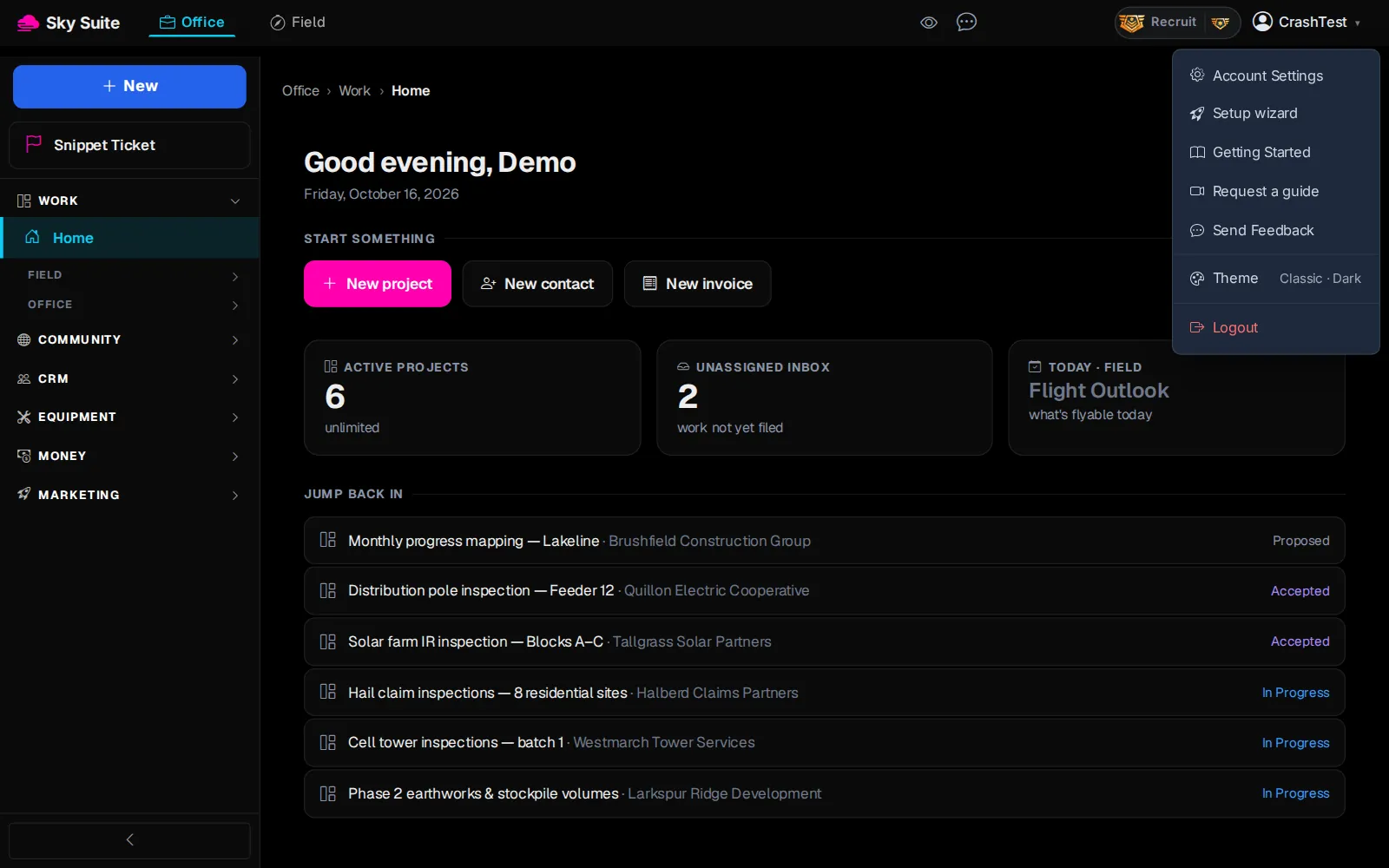
Step 1: At the top right, click your name (“CrashTest” in these pictures).
OpensThe menu under your name.
-
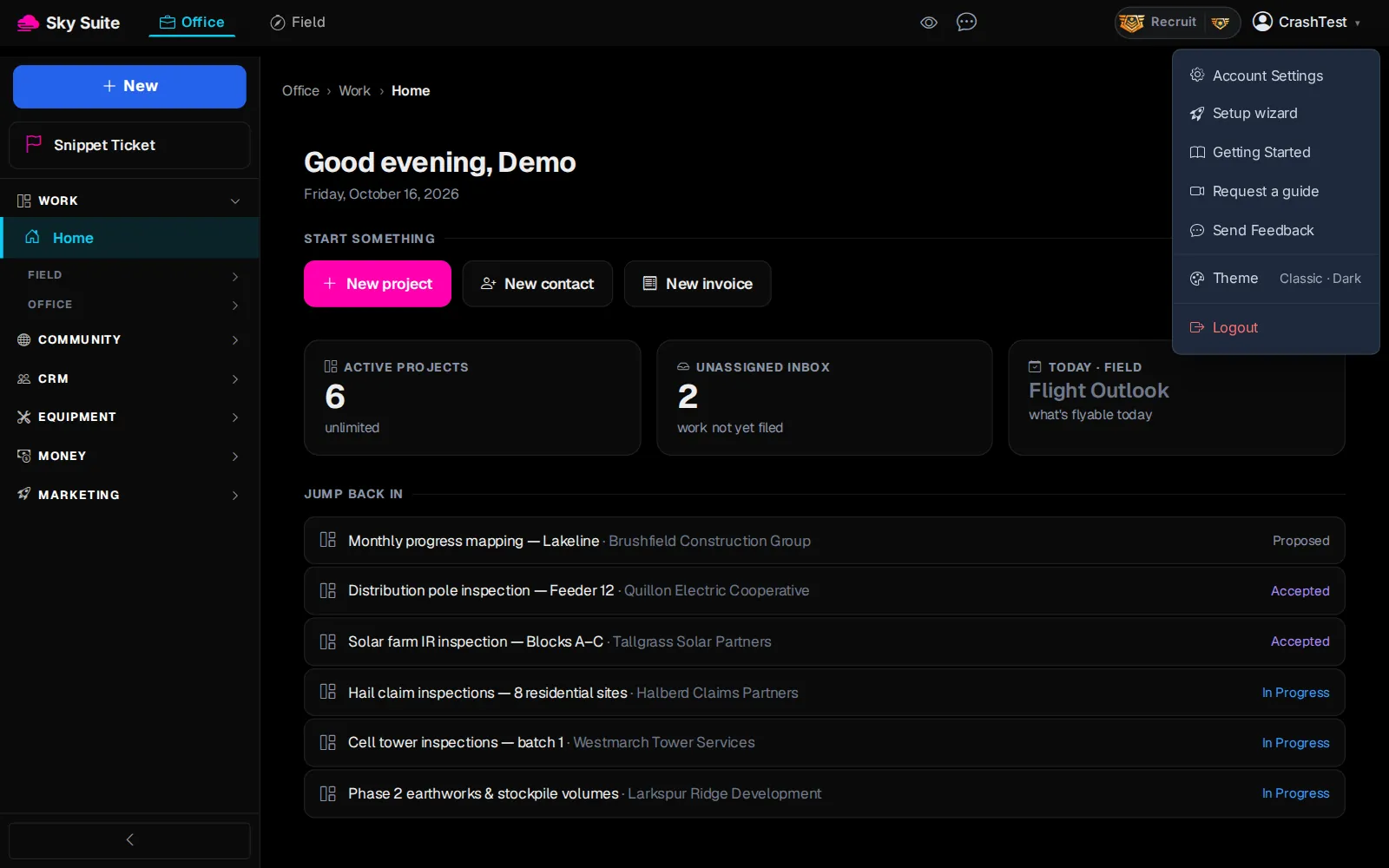
Step 2: Click “Getting Started”.
OpensThe “Your First Job, End to End” guide: Plan, Fly, Process, Deliver, Invoice.
-
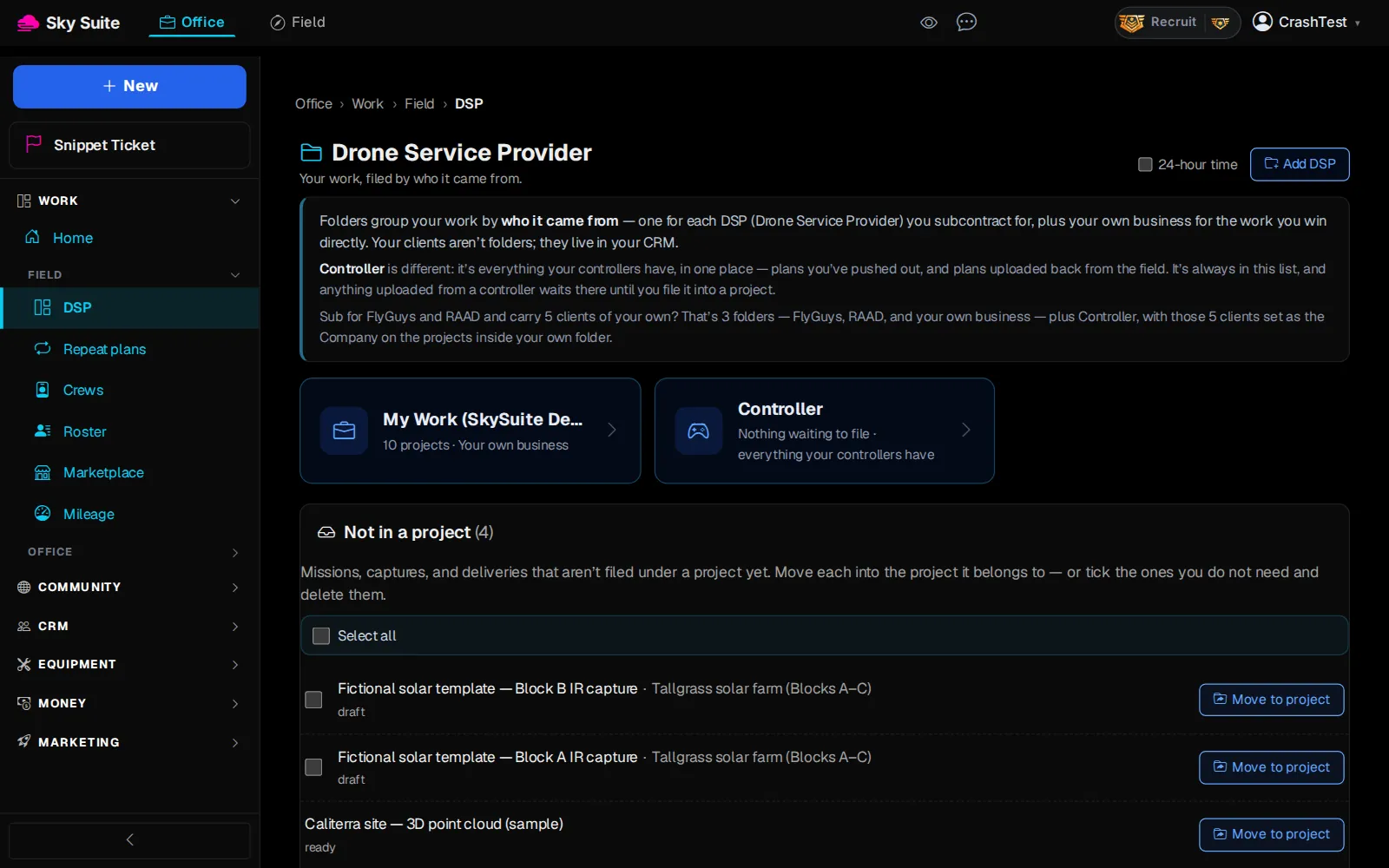
Step 3: Now see it on a real job. In the left menu, under “Work” › “Field”, click “DSP”.
OpensThe “Drone Service Provider” page, with your folders of work.
-
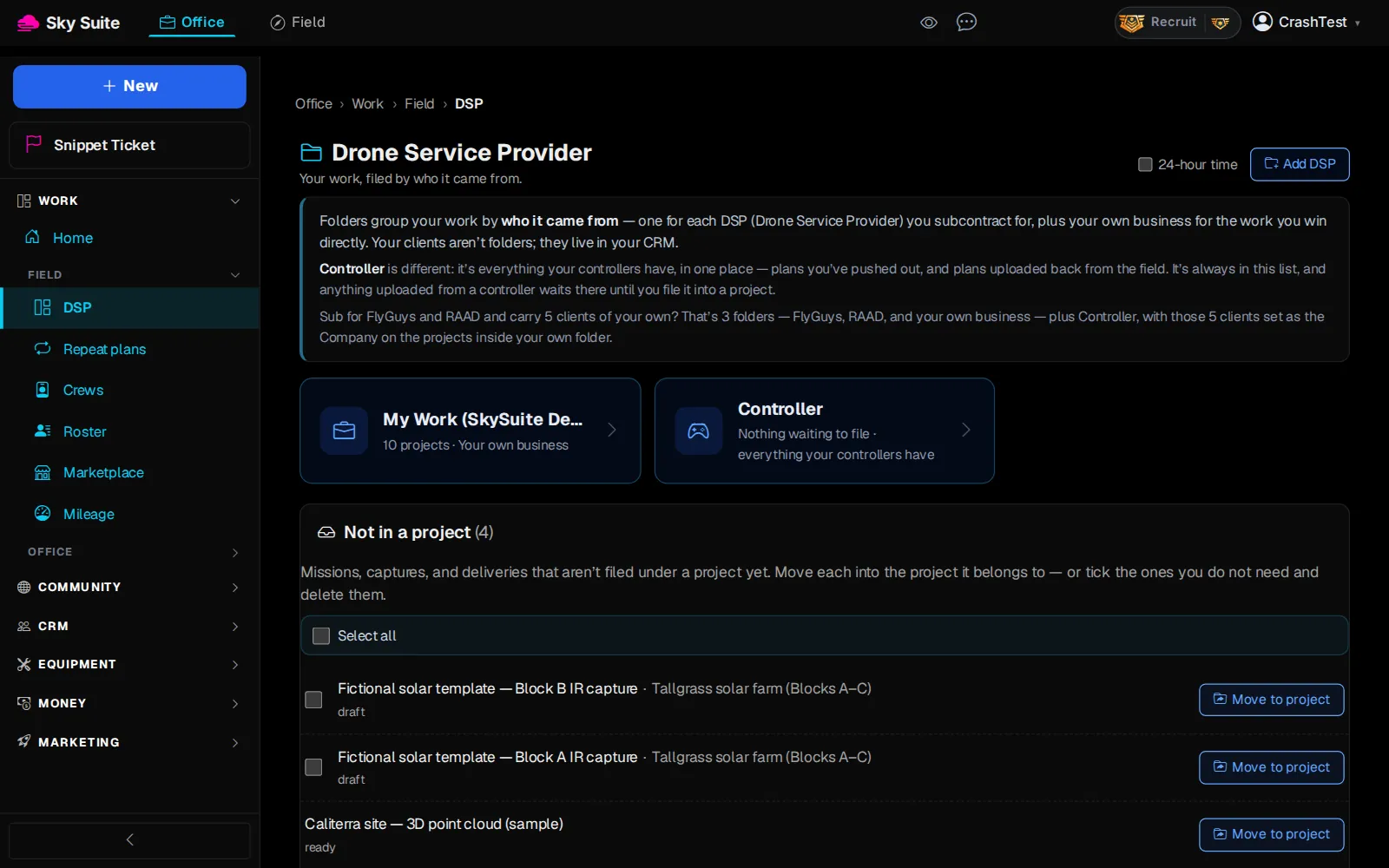
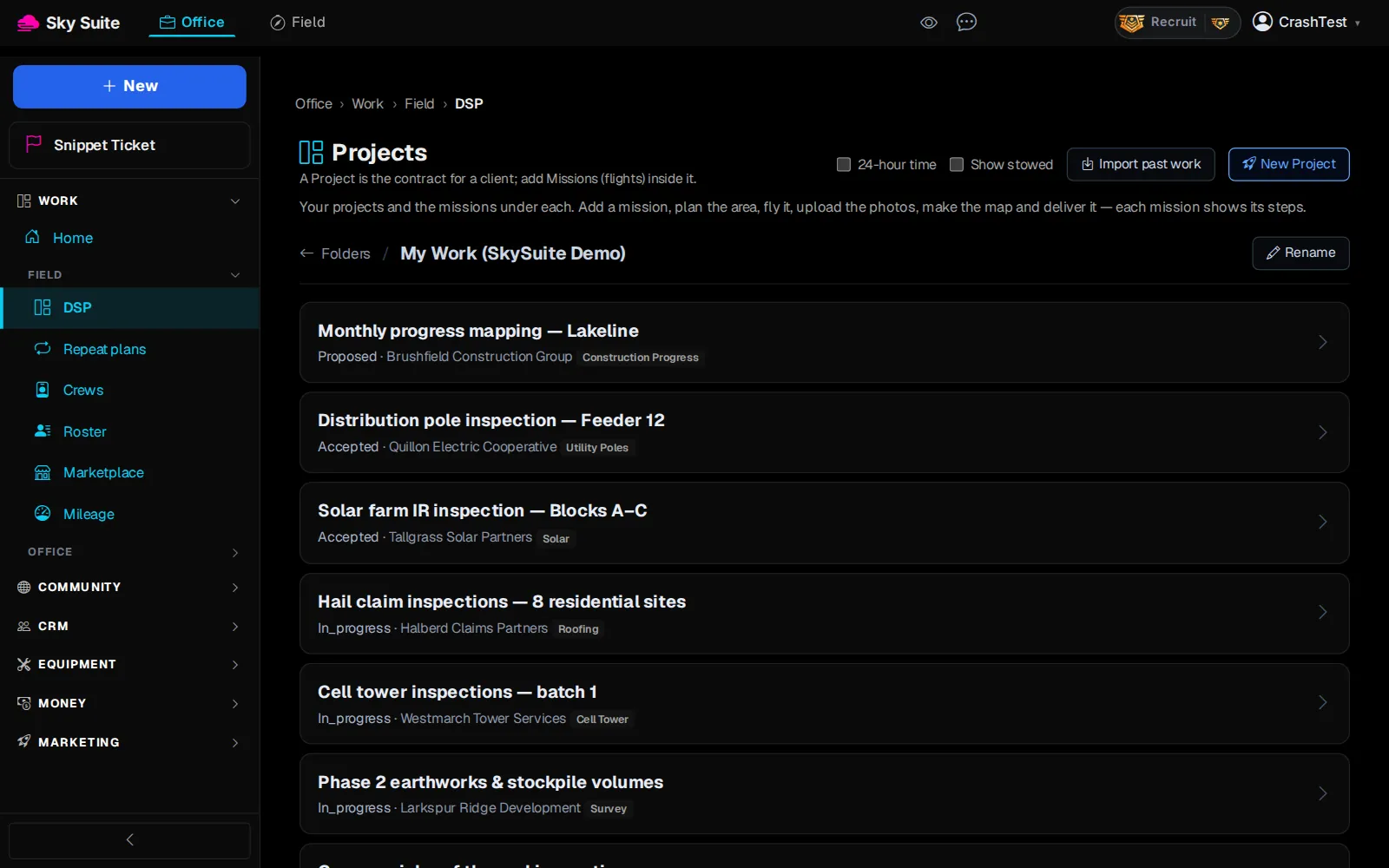
Step 4: Click your own business folder, for example “My Work (SkySuite Demo)”.
OpensThe “Projects” list in that folder: one project per client job.
-
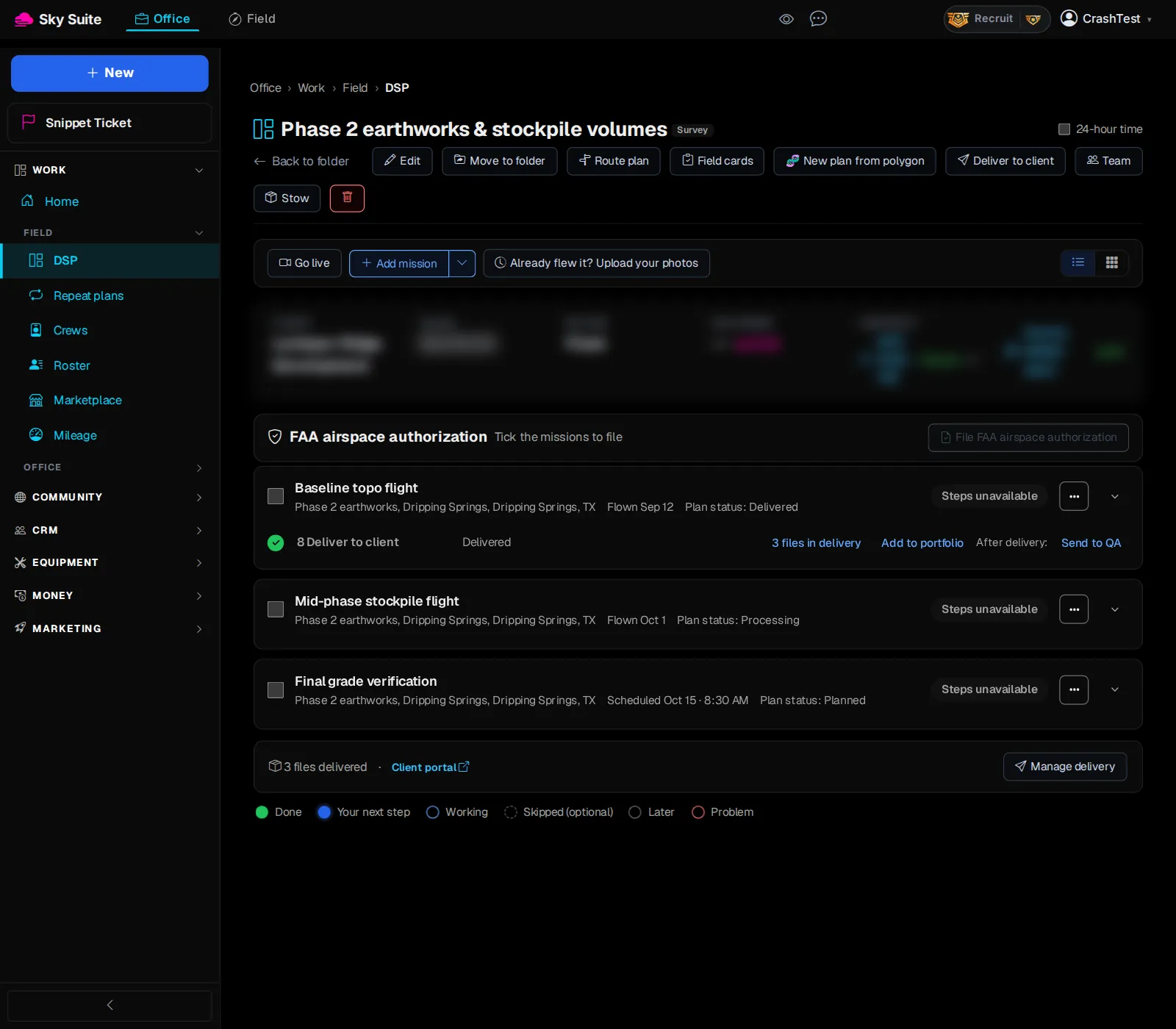
Step 5: Click a project, for example “Phase 2 earthworks & stockpile volumes”.
OpensThe project page.
-
Step 6: Read the project page: each row (marker 1) is a mission, one flight with its own steps from plan to delivery; the bar above them (marker 2) holds the client, the value, the delivery, the contract and the invoice; “Manage delivery” (marker 3) sends the files. To start the next flight, click “Add mission” (marker 4).
OpensThe “Add a Mission” page: “Plan”, “Fly” and “Deliver”, in six steps.
Next on Start here: Create a project
Read on in order: Create a project, then Plan a mission. The full article is Your First Job, End to End.