Help & Guides / Step-by-step guide
Create a project
Start the record for one client job, pick its type of work and file it in your own business folder.
- Menu
- Office › Work › Field › DSP
- Direct link
- skysuite.pro/projects/new
- Level
- Basic
- Length
- 8 steps, about 2 minutes. Stop 2 of 6 on the Basic Start here path
-
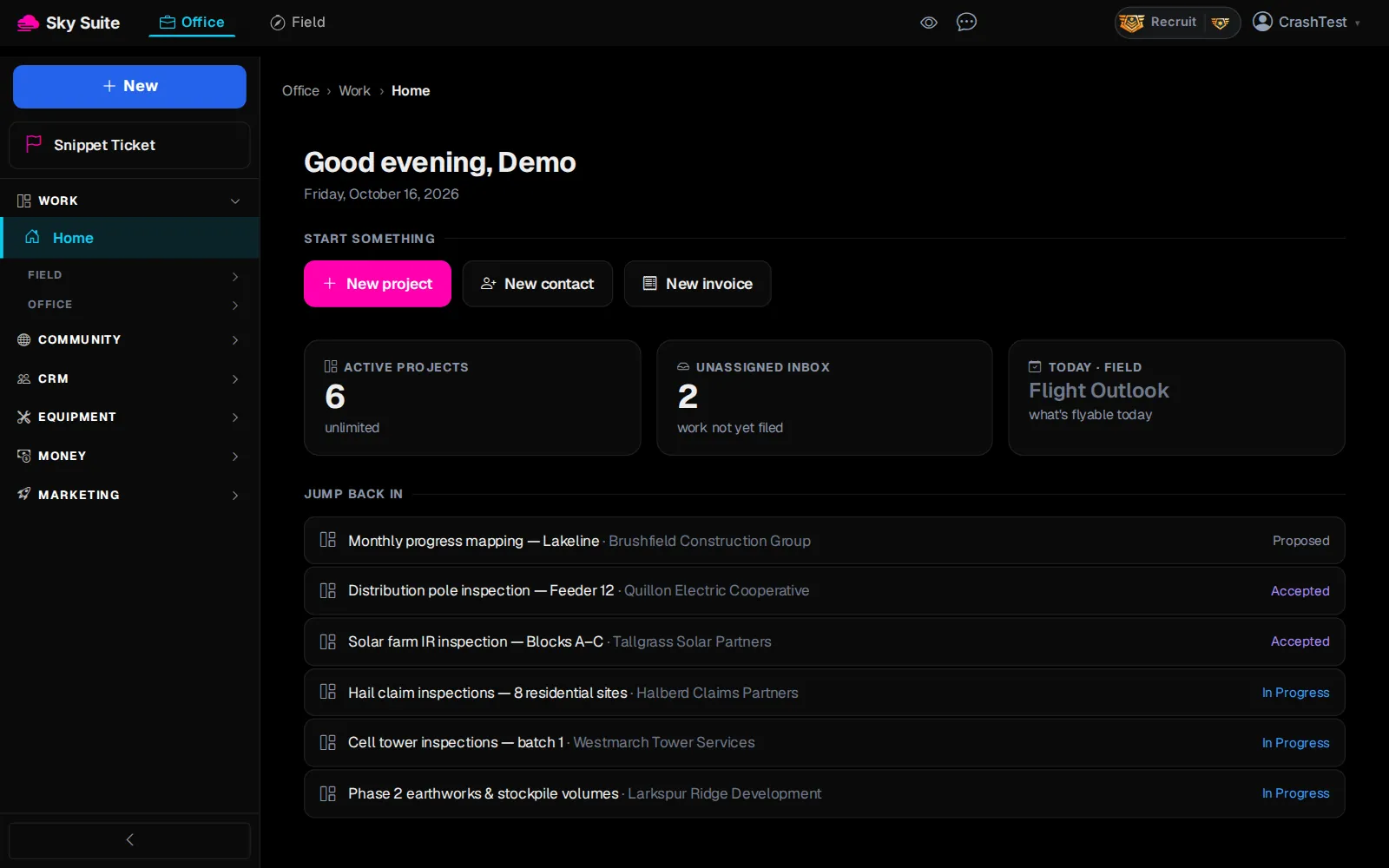
Step 1: In the left menu, under “Work”, click “Field”. Skip this step if “Field” is already open.
OpensThe Field list: “DSP”, “Repeat plans”, “Crews” and more.
-
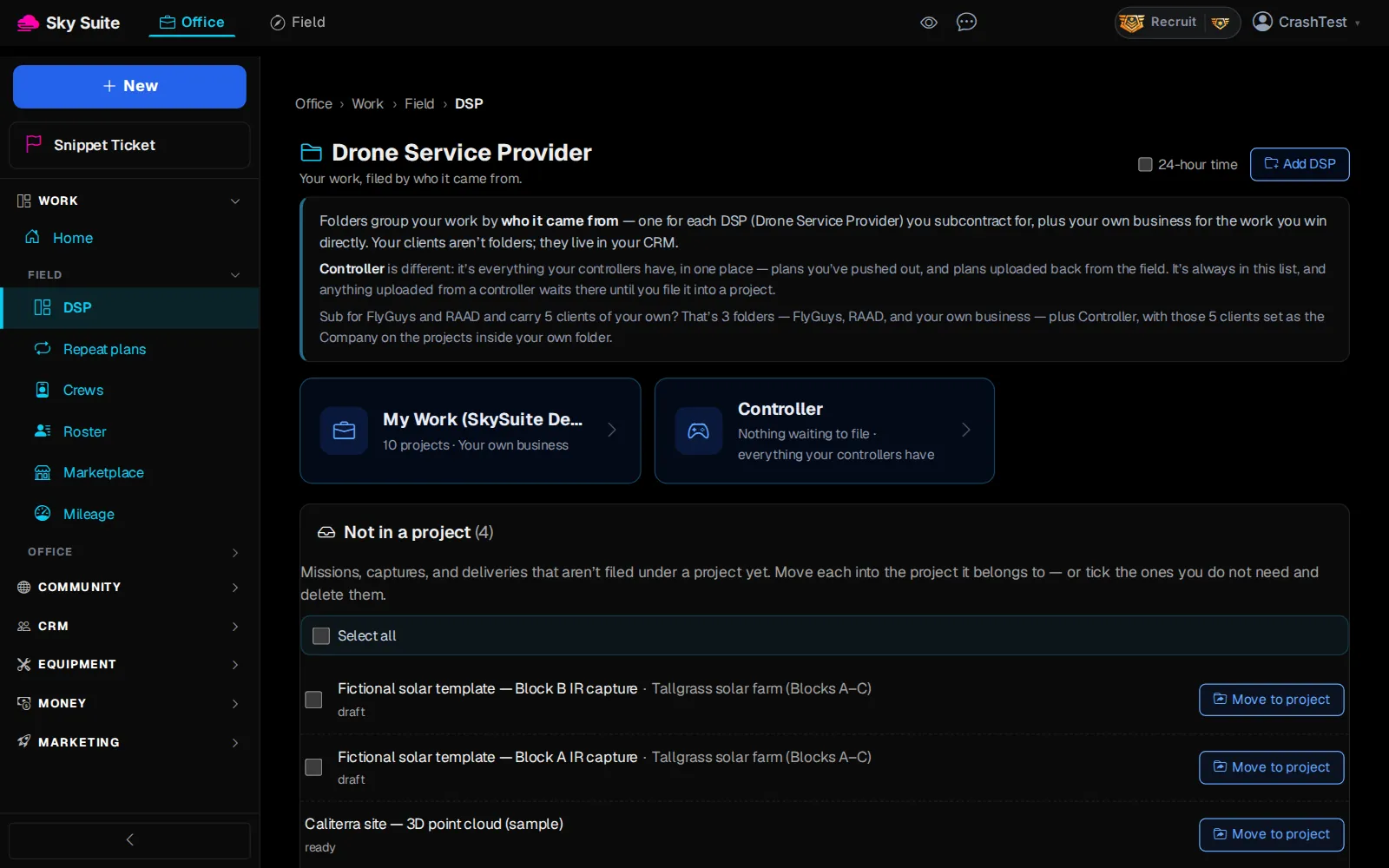
Step 2: Click “DSP”.
OpensThe “Drone Service Provider” page, with your folders of work.
-
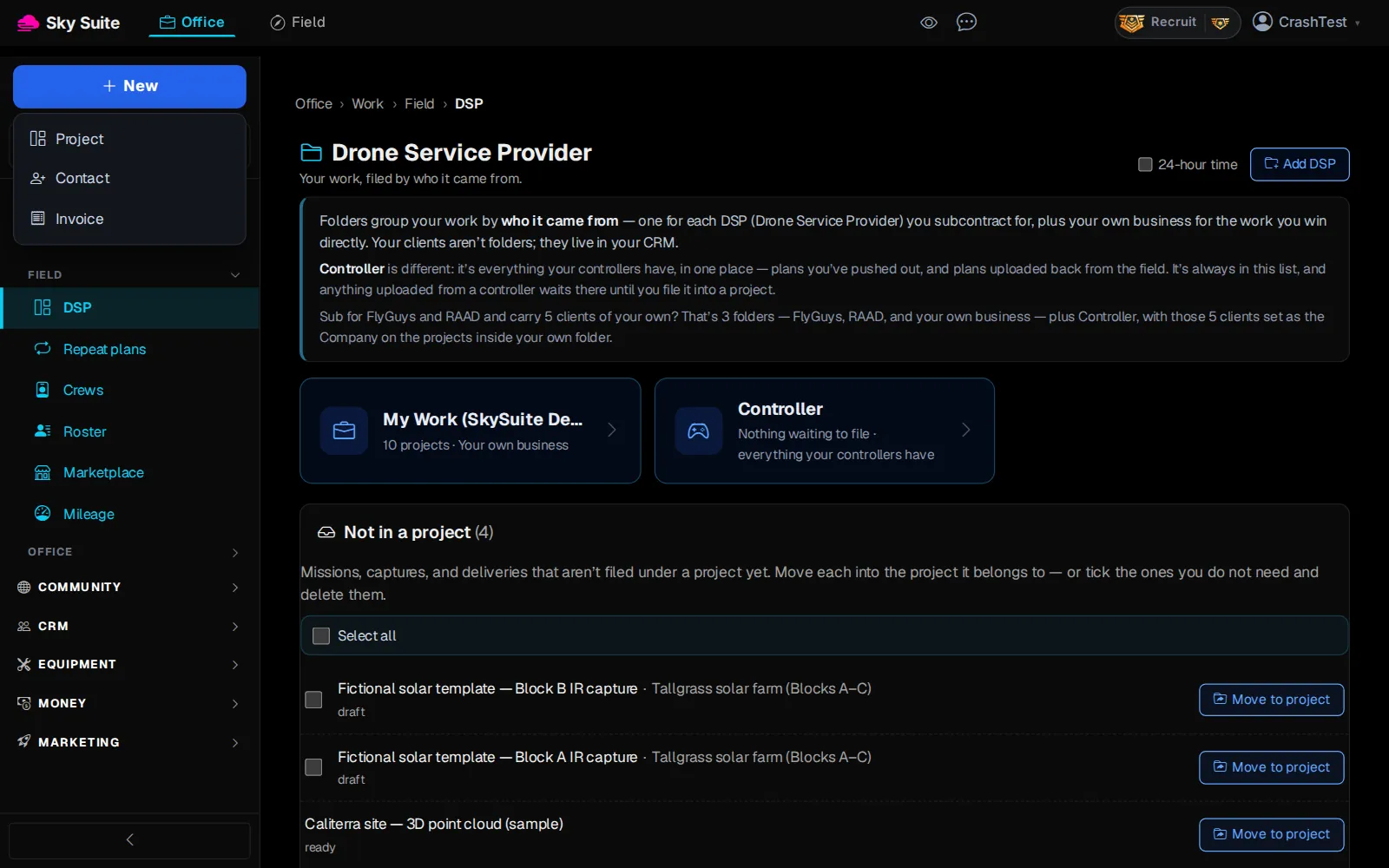
Step 3: At the top of the left menu, click the blue “New” button.
OpensA short menu: “Project”, “Contact” and “Invoice”.
-
Step 4: Click “Project”.
OpensThe “New project” form.
-
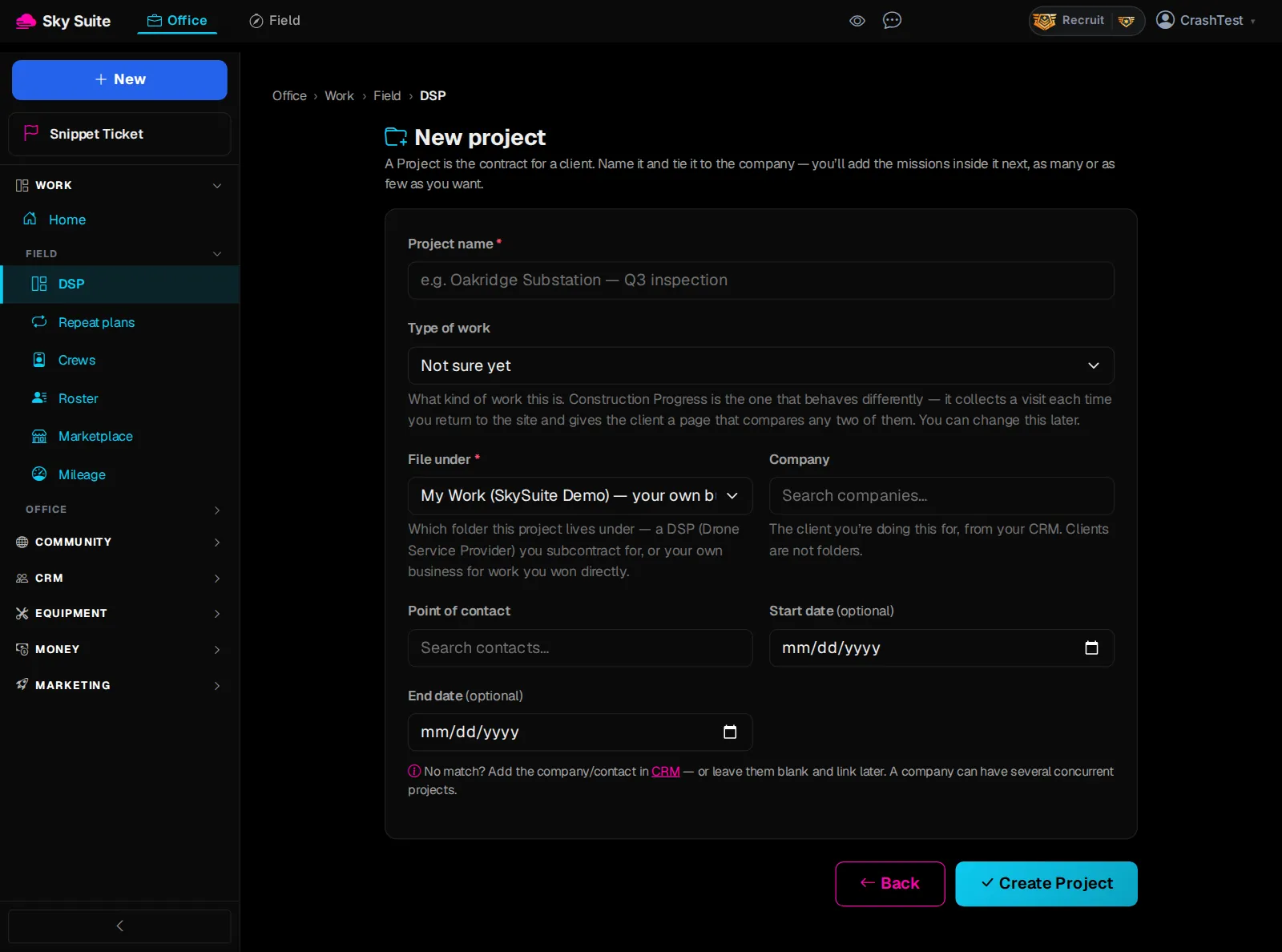
Step 5: In “Project name”, type the job's name, for example the site and the work: ‘Henderson Solar Site — Q3 inspection’.
-
Step 6: Pick the “Type of work” (marker 2), for example “Roofing” or “Mapping”. Not sure yet? Leave “Not sure yet”.
-
Step 7: Check “File under” (marker 3). Work you win yourself goes in your own business; work you fly for another company goes in its DSP folder.
-
Step 8: Click “Create Project” (marker 4).
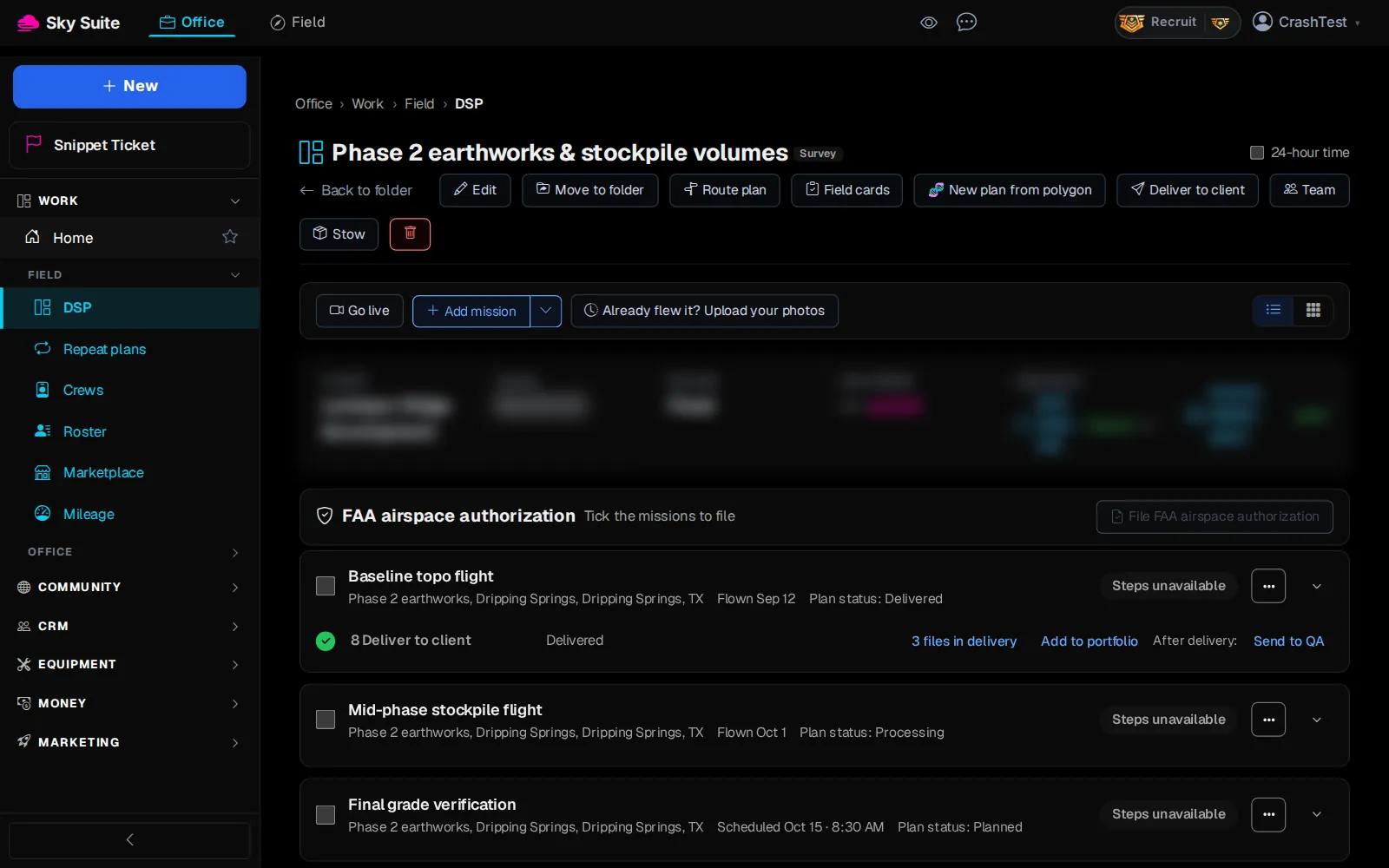
OpensYour new project page, with “Add mission”, “Deliver to client” and “Generate invoice”.
Next on Start here: Plan a mission
Already inside a folder on the DSP page? Its own “New Project” button opens the same form, already filed in that folder.
Next, add the flight: on the project page click “Add mission”, or read Plan the flight.