Help & Guides / Step-by-step guide
Plan a mission
Add a mission to a project, find the site, draw the area, pick your drone and height, and send the plan to DJI.
- Menu
- Office › Work › Field › DSP
- Direct link
- skysuite.pro/office/work/field/dsp
- Level
- Basic
- Length
- 12 steps, about 5 minutes. Stop 3 of 6 on the Basic Start here path
-
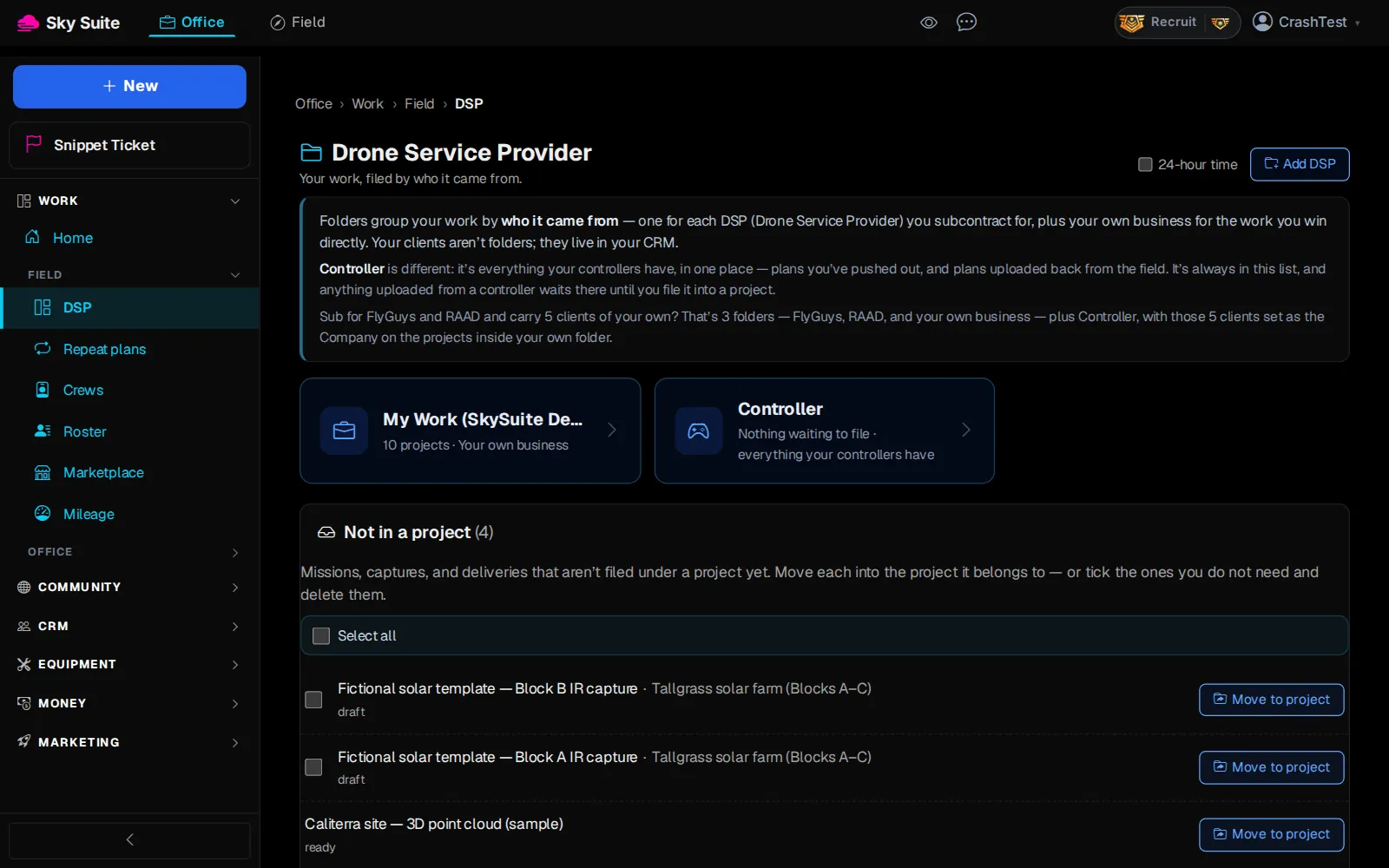
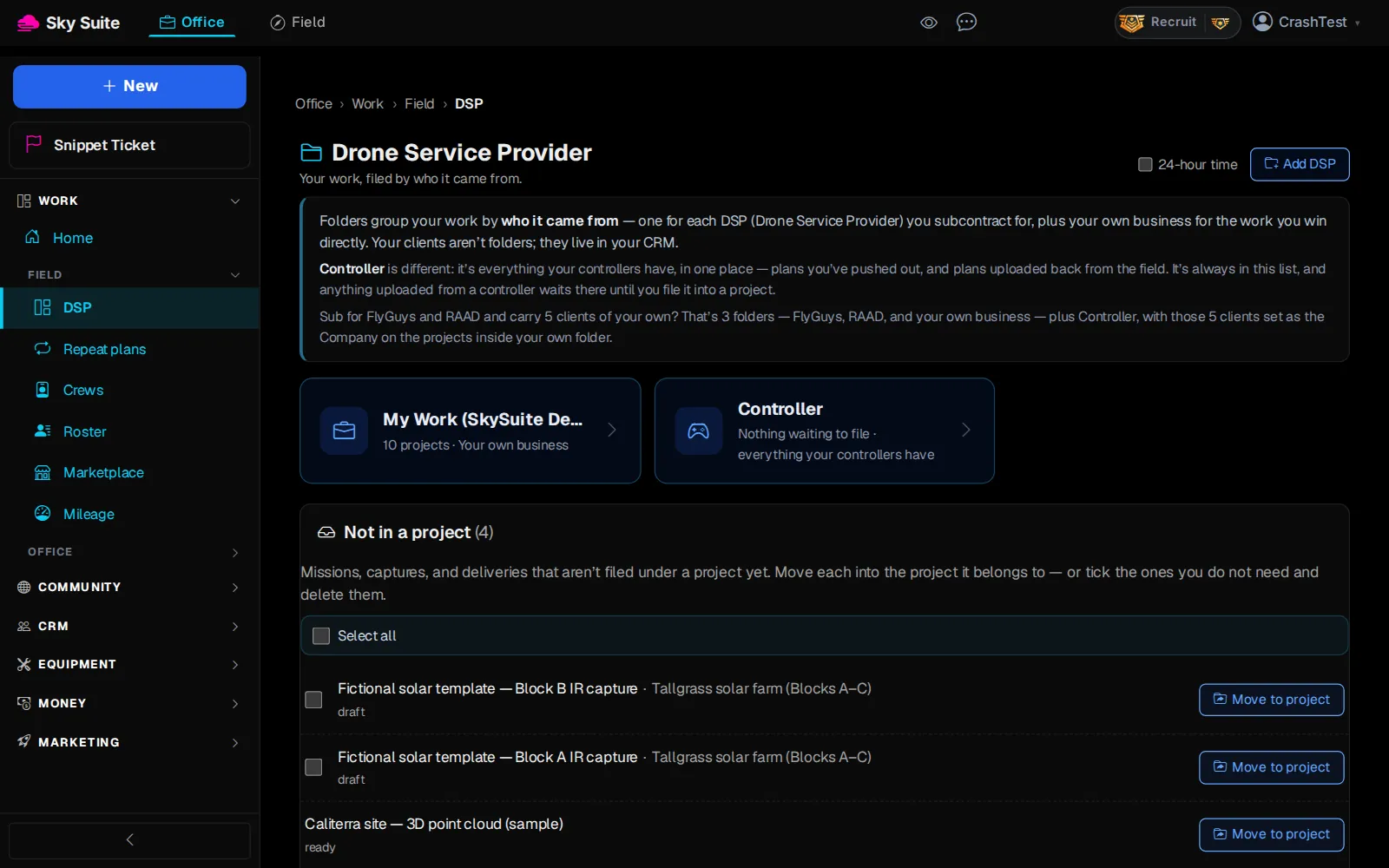
Step 1: In the left menu, under “Work” › “Field”, click “DSP”.
OpensThe “Drone Service Provider” page, with your folders.
-
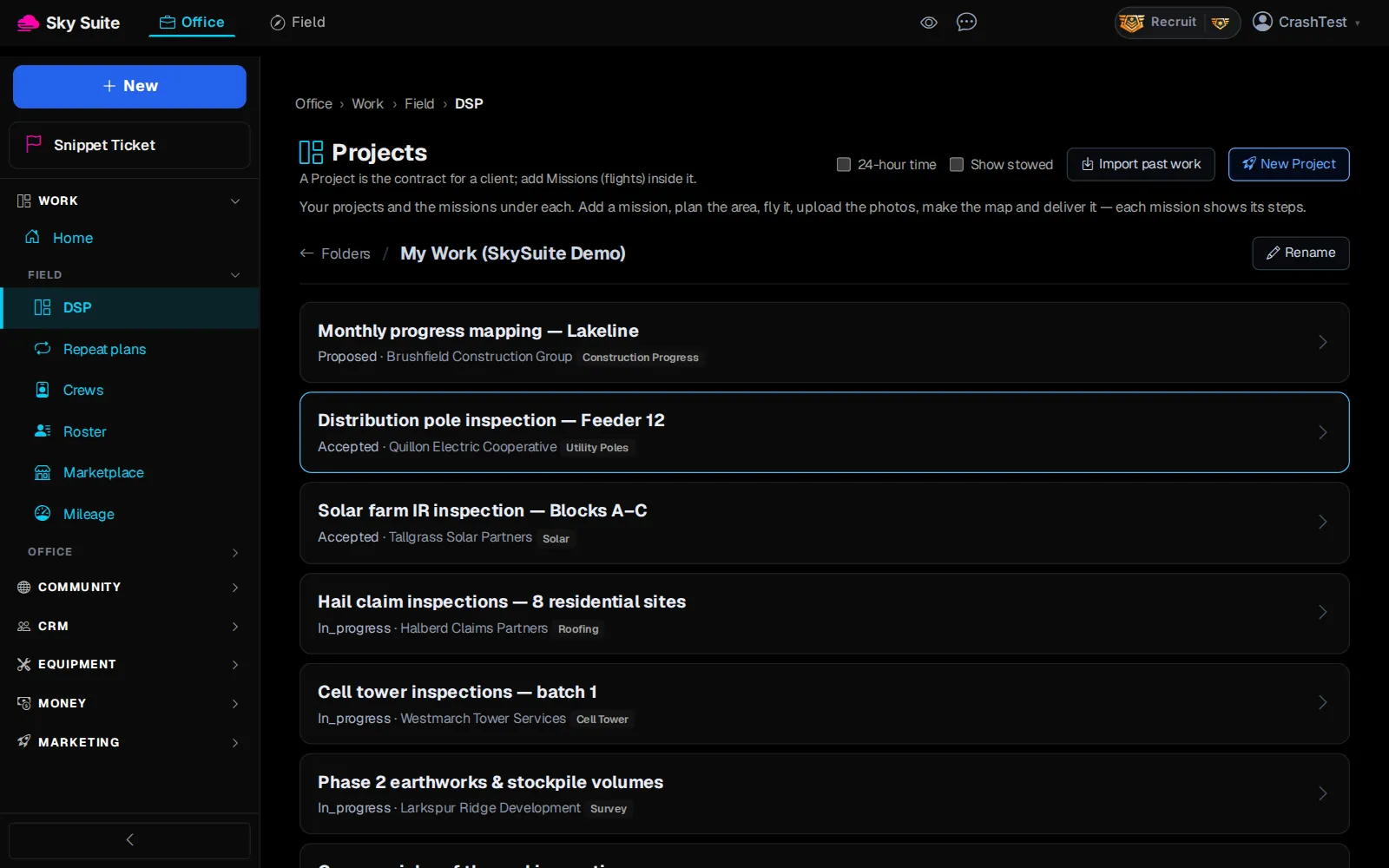
Step 2: Click your folder, for example “My Work (SkySuite Demo)”.
OpensThe “Projects” list in that folder.
-
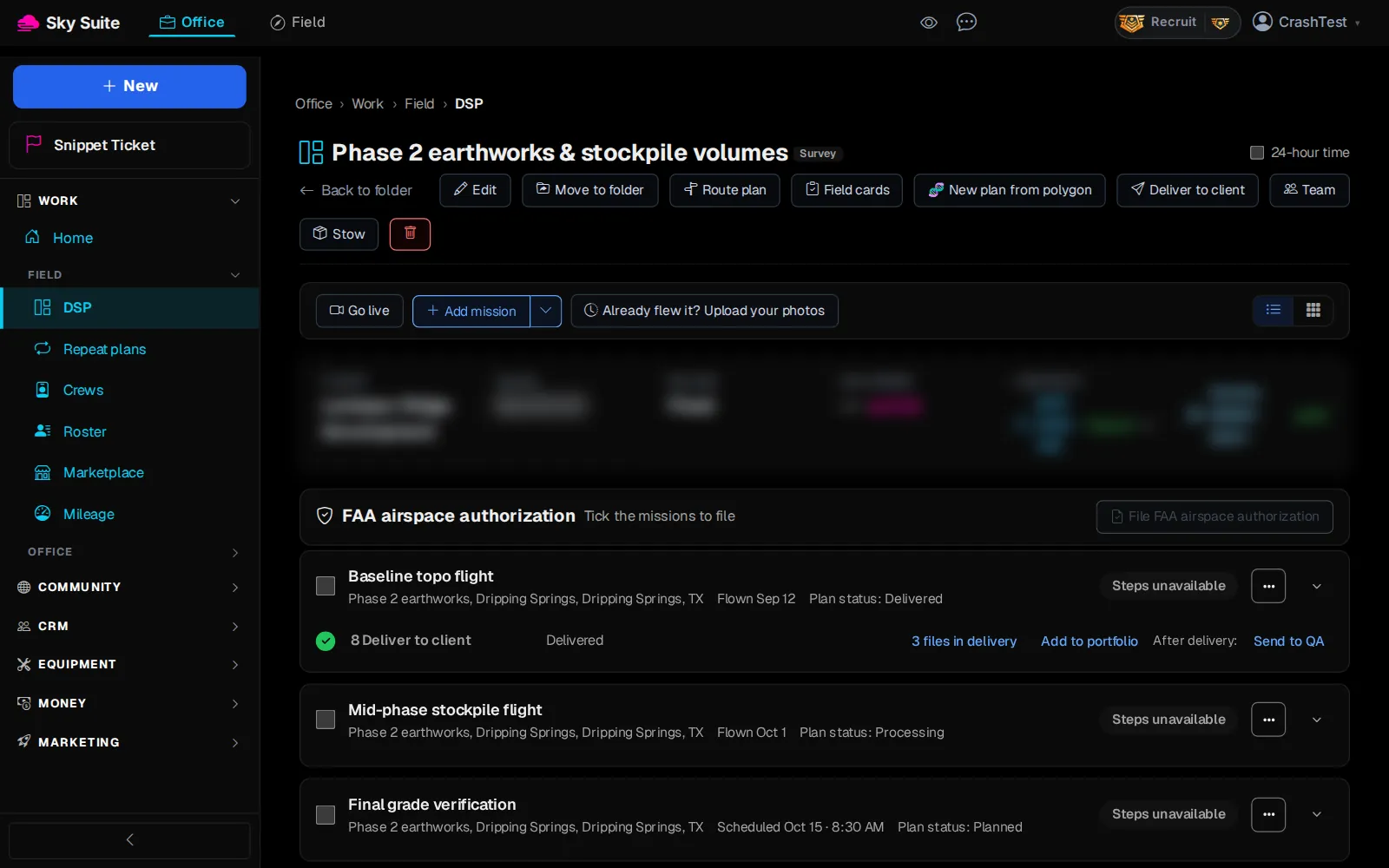
Step 3: Click the project, for example “Phase 2 earthworks & stockpile volumes”.
OpensThe project page.
-
Step 4: Click “Add mission”.
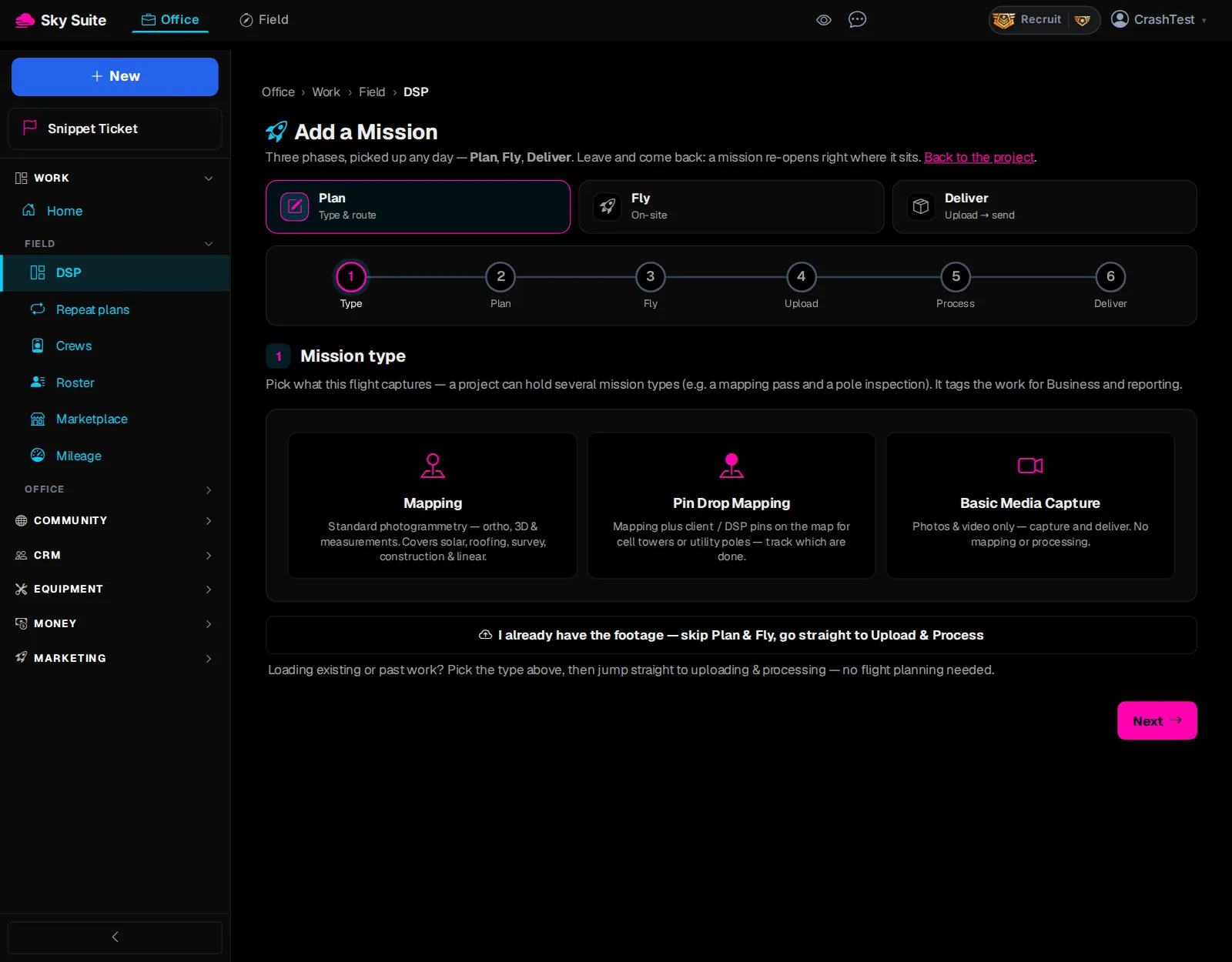
OpensThe “Add a Mission” page: “Plan”, “Fly” and “Deliver”, in six steps from “Type” to “Deliver”.
-
Step 5: Under “Mission type”, click what this flight captures: “Mapping” (maps, 3D and measurements), “Pin Drop Mapping” or “Basic Media Capture” (photos and video only).
-
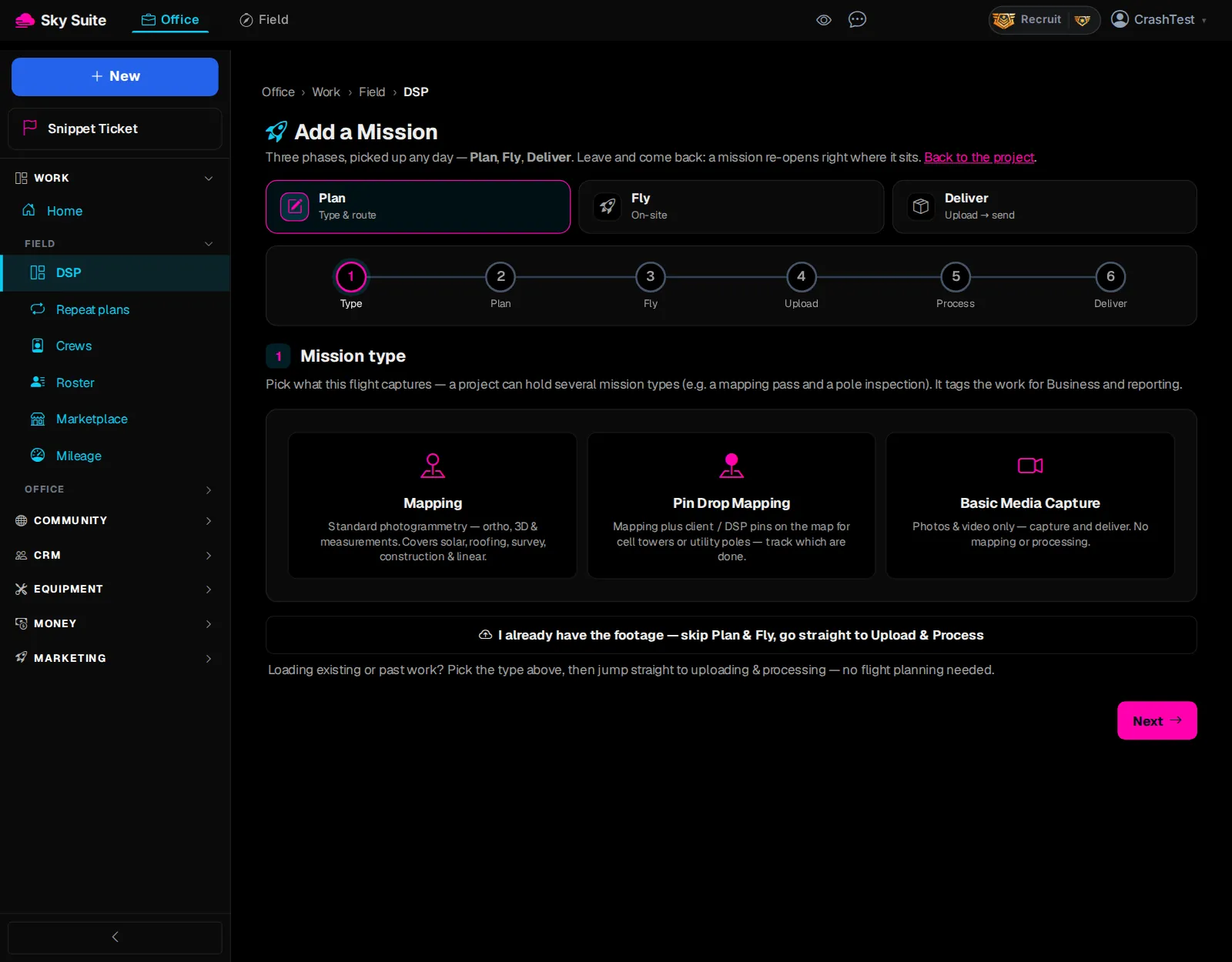
Step 6: Click “Next”.
Opens“Plan the flight”: a map with the planning tools.
-
Step 7: In “Search an address or place…”, type the site's address and pick it from the list.
OpensThe map flies to the site.
-
Step 8: Click “Draw area”, then click each corner of the area on the map and click the first point again to close it.
OpensThe flight lines drawn over the area.
-
Step 9: On the right, pick your “Drone” and its “Camera / sensor”, then set “Target GSD (cm/px)” or “Altitude (m AGL)”; they follow each other.
-
Step 10: Click “Save site boundary”.
OpensThe mission is saved on the project, with “Add another mission” and “Back to the project”.
-
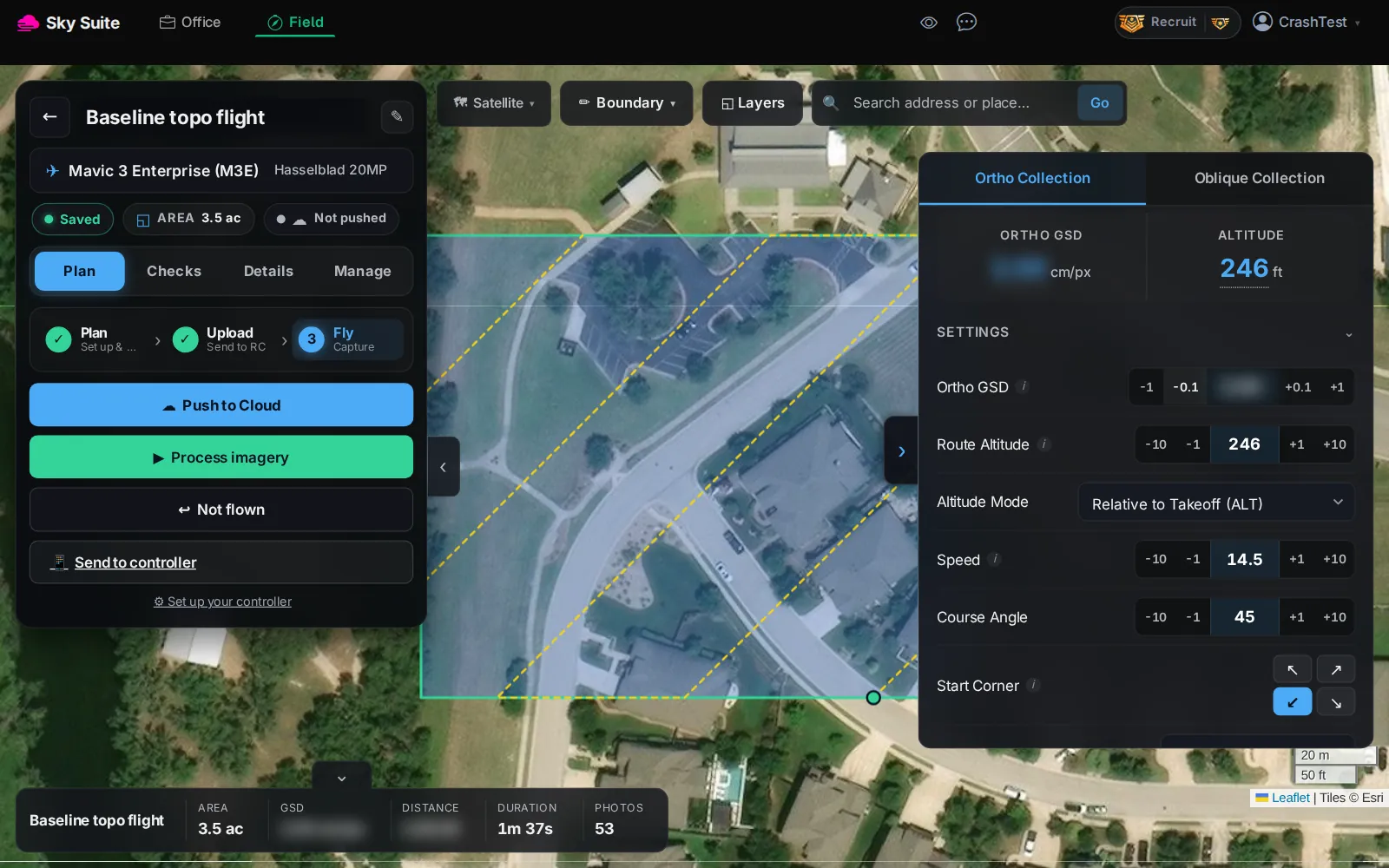
Step 11: Open the mission's plan (on the project, the mission's “⋯”, then “Open in the planner”). Check the drone at the top (marker 1); the bar at the bottom shows the area, GSD, distance, duration and photo count (marker 2).
OpensThe full planner: “Plan”, “Checks”, “Details” and “Manage”, with the flight settings on the right.
-
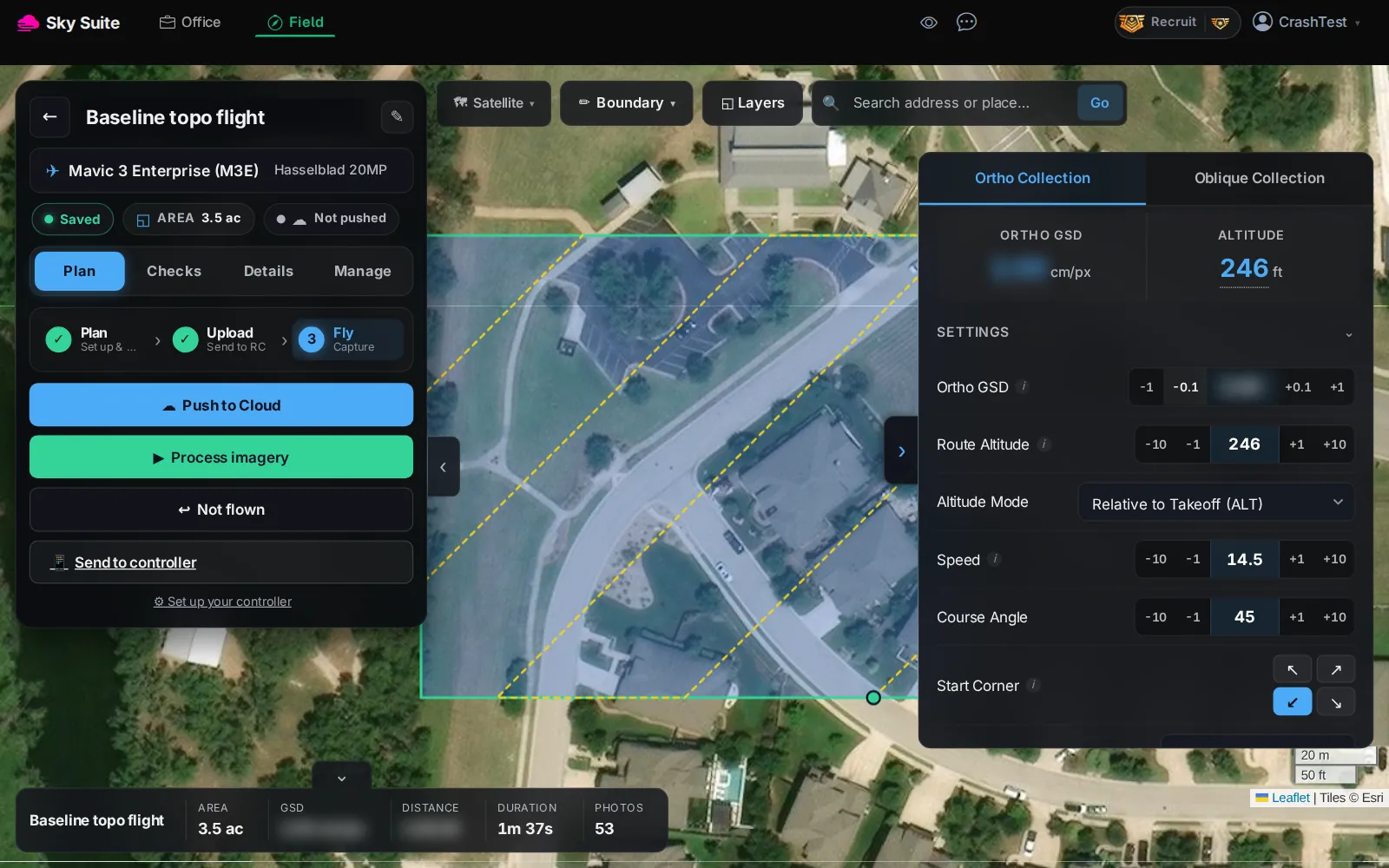
Step 12: Click “Push to Cloud” (marker 1).
OpensThe plan goes to SkySuite's DJI cloud; on the controller it is in the Cloud tab of DJI Pilot 2. “Send to controller” (marker 2) gives a link to open on the controller instead.
Next on Start here: Open your map and 3D model
Already flew the job? On the project, open the arrow beside “Add mission” and choose “Already flew it? Upload your photos”, then say what you flew: you skip planning and go straight to step 5, Upload photos. A mission you already added has the same choice in its steps. Overlap, speed and camera angle are under “Settings” and “Advanced Settings” in the planner. More: Mission Planner Guide. Next: Open your map and 3D model.