Client portal

A portal your clients actually use

Your client signs in with a link from their email and lands on your page, with their maps, files, quotes and invoices and the next step on each.

Their home page

Your logo first, then their projects

The first screen a client sees is yours, with your logo and name and a welcome. Below that is a card for each project, showing a picture, its maps and files, and buttons to view the map, open the project or download everything. Quotes to approve and invoices to pay sit at the top.

  • Logo and colors from Settings › Account › Client Branding, as your plan allows
  • A card per project with View map and Download
  • Quotes and invoices that need them, first
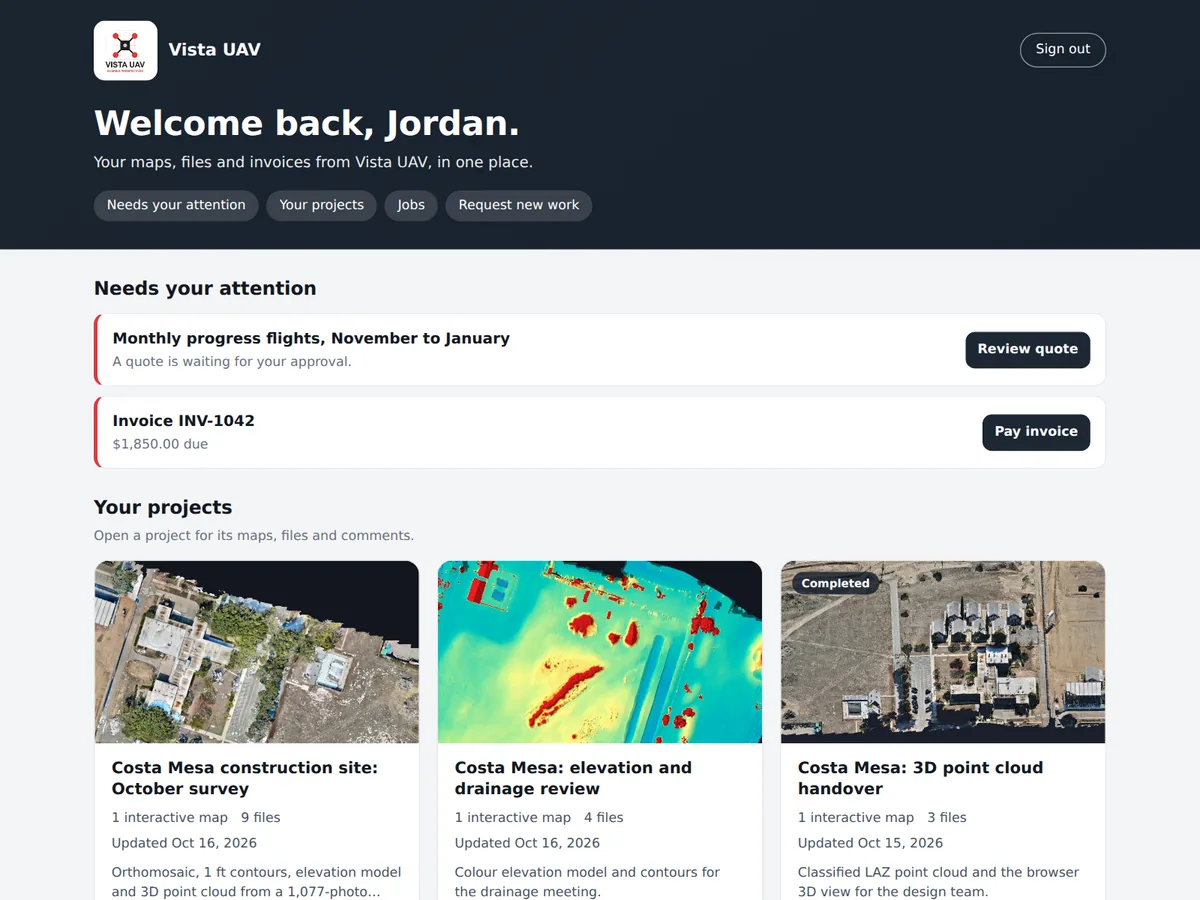
A client's portal home page, branded with the pilot's logo: a welcome, a quote and an invoice that need the client, and a card per project with its map picture and View map and Open project buttons.

Access

A link, not a password

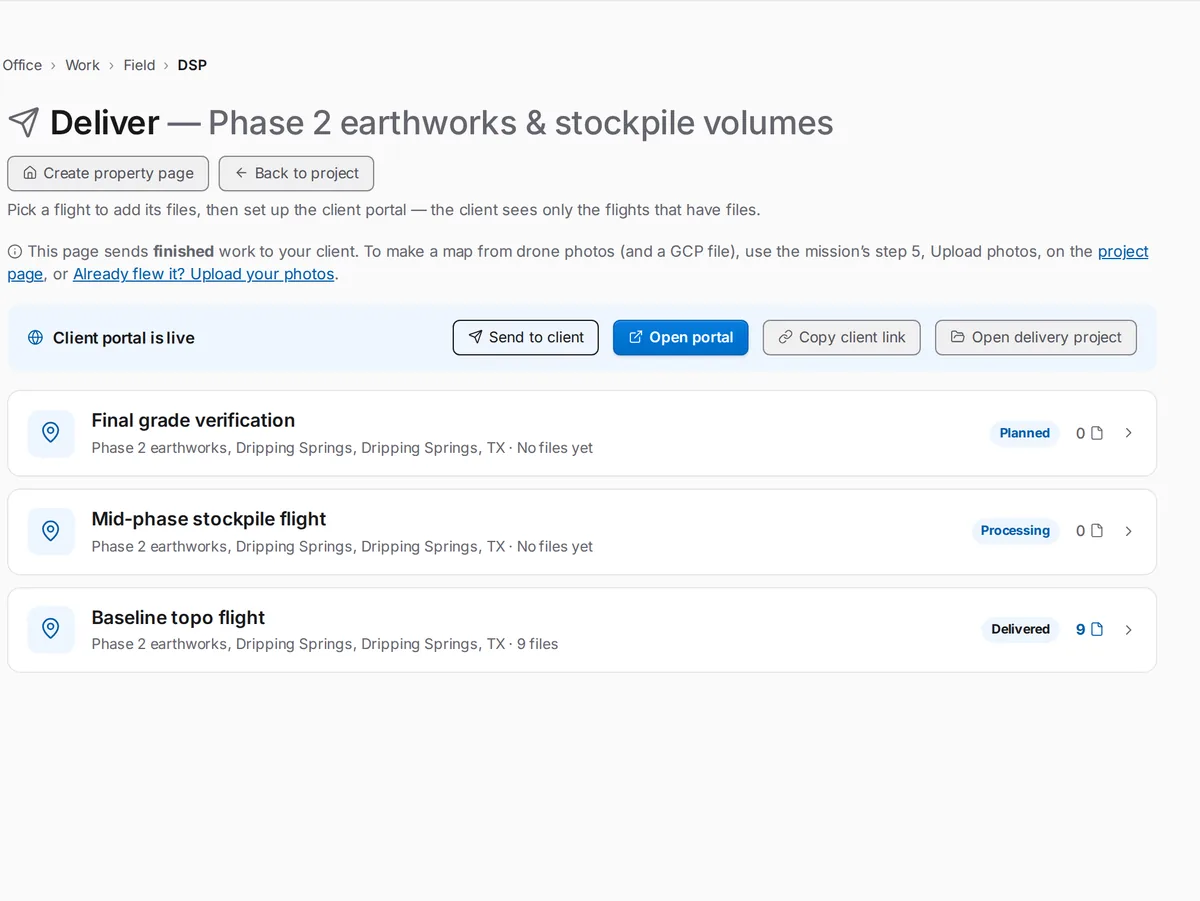
Turn the portal on under Settings › Account › Client Portal. Clients sign in with a link sent to their email, so there is no account to create and no password to forget. Each delivery also has its own share link with the permissions and expiry you set.

  • Sign-in links by email
  • Share links with permissions and expiry
SkySuite Deliver page for a project: the client portal is live, with Send to client and Open portal, and each flight listed with its status (planned, processing, delivered).

Maps

Maps in the browser, not in GIS software

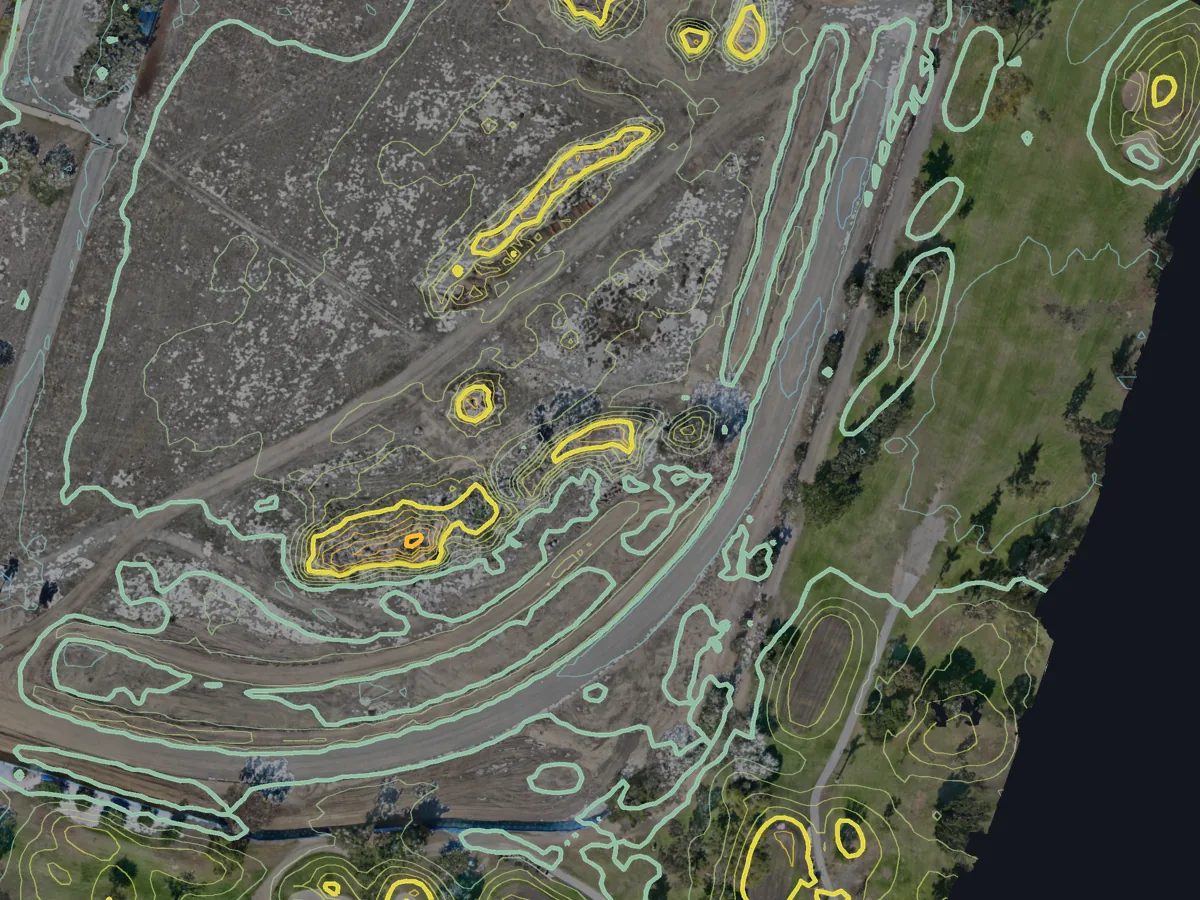
Clients pan the orthomosaic, turn on contours at the interval they need, and open the 3D point cloud in their browser. You choose which maps and files each client sees.

  • Orthomosaic, contours and 3D view
  • You decide what each client sees
Part of a Costa Mesa, California construction site: 1 ft contours over the orthomosaic, tightly ringed around two stockpiles, from a SkySuite survey map.

Approve and pay

Approve the quote, pay the invoice

A client approves a quote by typing their name, or asks for changes or declines it. They pay an invoice online once you connect a payment provider under Settings › Finance › Payments. You create the invoice from the job when you are ready.

  • Typed-name quote approval
  • Online invoice payment to your own account
  • Job-linked invoices

Branded

Portal branding for your plan

Use the portal branding settings available on your plan. Custom domains are coming soon for Business.

  • Portal logo and colors
  • Business custom domains — coming soon

How a delivery reaches your client

  1. Upload and choose

    Open the project's delivery, upload the files and maps, and mark what the client may see.

    Office › Work › Field › DSP

  2. Invite the client

    On the client's contact, press Invite to portal. They get a sign-in link by email and need no account or password.

    Office › CRM › Contacts

  3. They land on your page

    The client sees your logo, a welcome, their projects as cards and anything waiting on them.

Make your clients happy to pay you.

Free never runs out. No card required. Try Pro free for 14 days, or 30 days with a card. Create your account and run the whole business from one login.