Dispatch

Multi-pilot scheduling without the spreadsheet

Put every job on one calendar, build the crew from your roster, and give each pilot the day's missions on their phone.

Calendar

Every job, flight and booking on one calendar

Office › Work › Office › Calendar shows client bookings, flight operations and your own events by month, week, day or list. Connect Google, Outlook or any CalDAV calendar under Settings › Integrations › Calendar Sync and events go both ways.

  • Month, week, day and list views
  • Two-way sync with Google, Outlook and CalDAV
  • Share a calendar as a private iCal link
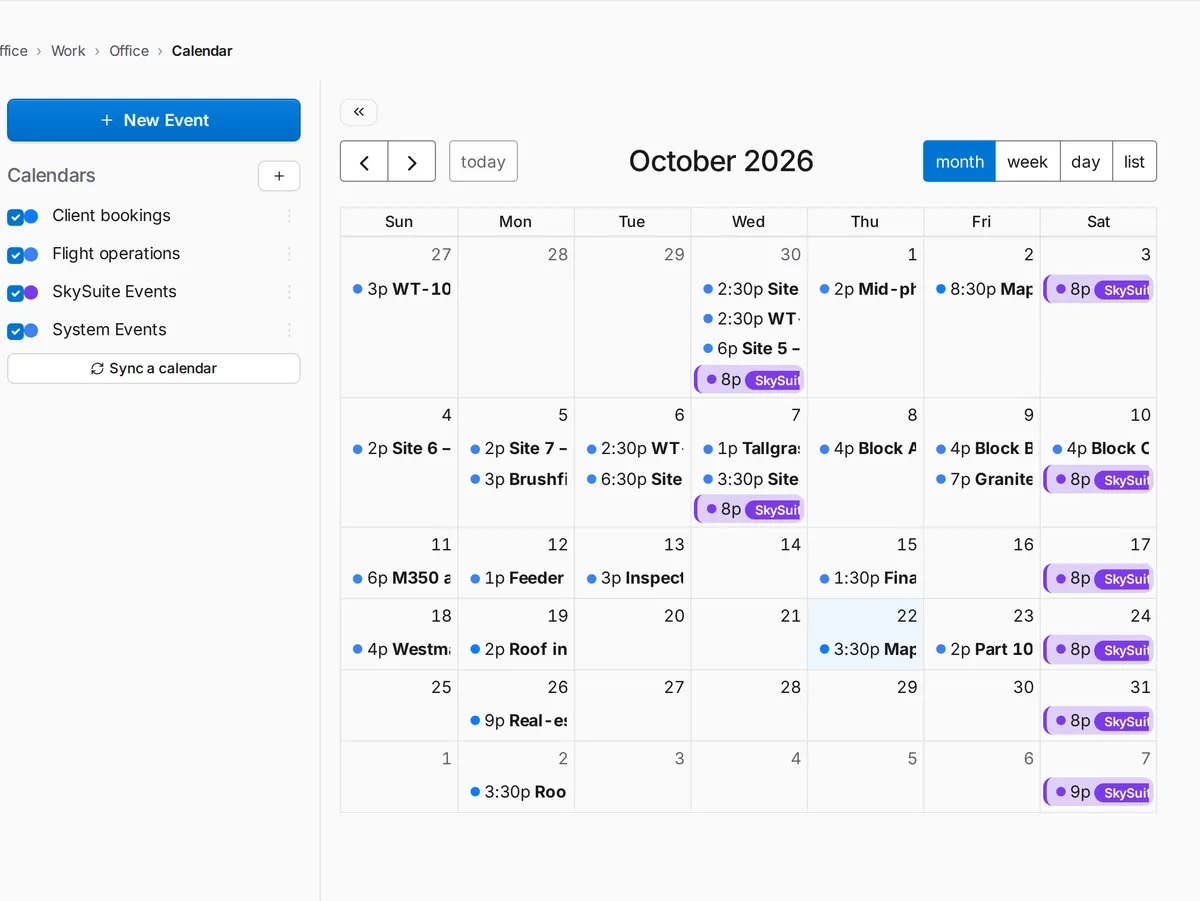
SkySuite Calendar in month view: client bookings, flight operations and site visits through October, with the calendar list and Sync a calendar on the left.

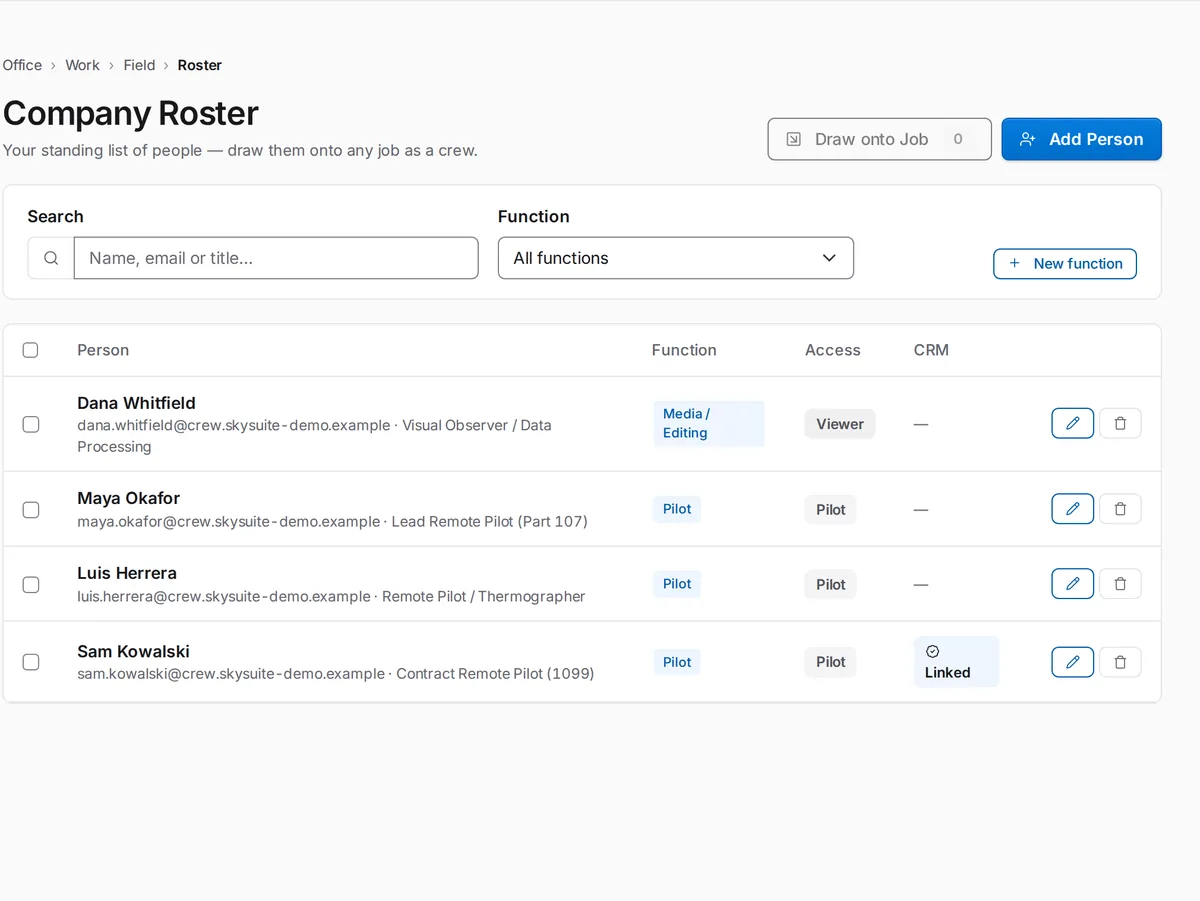
Crews

Build the crew from your roster

Office › Work › Field › Crews lists your pilots and editors with their role, project access and 1099 status. Draw a crew onto an active project and the crew card shows who is on it.

  • Roles and project access per person
  • 1099 contractor flag
  • Crews drawn onto active projects
SkySuite crew roster: pilots and a media editor with their function and project access and a 1099 contractor flag, above the crews drawn onto active projects.

Missions

Each pilot opens the day's flights

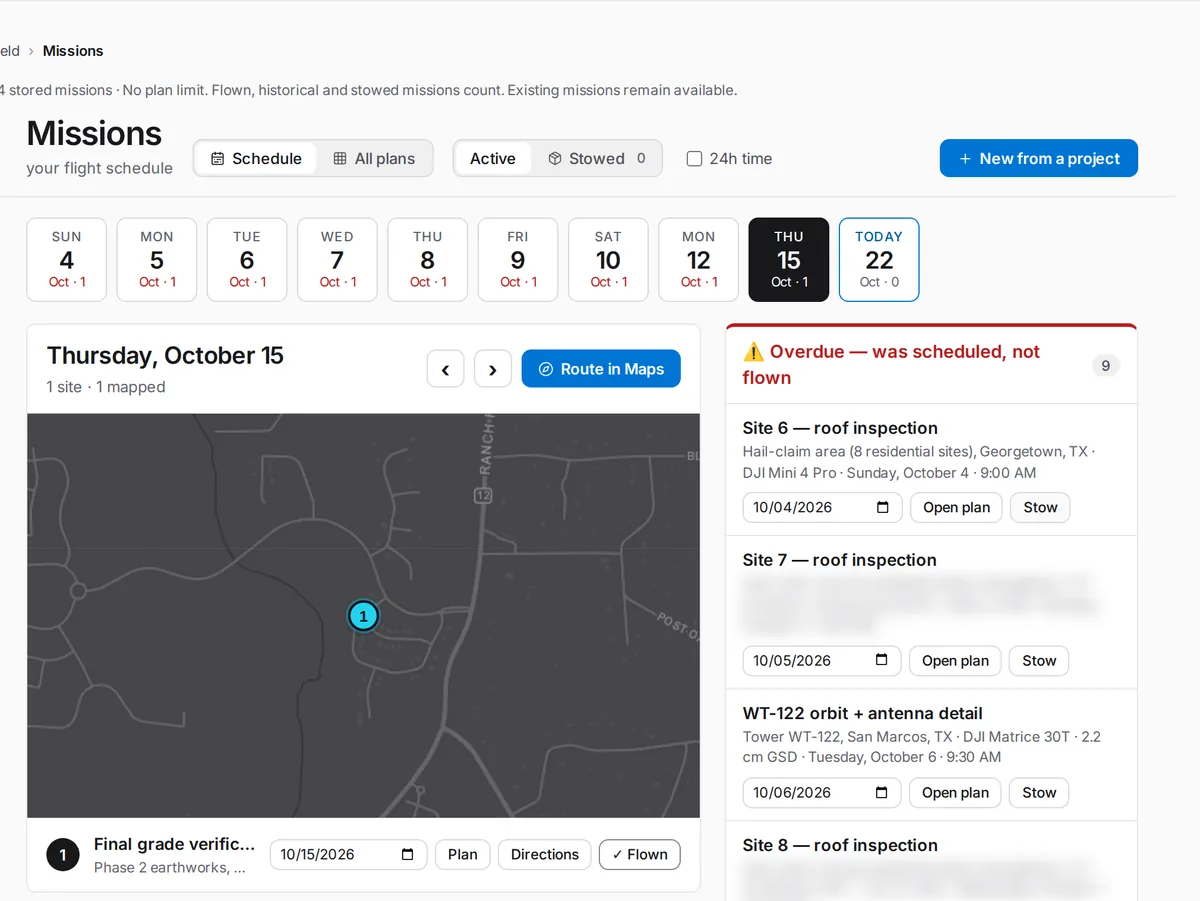
Field › Missions shows the days ahead as a strip, the chosen day's sites on a map, and missions that were scheduled but not flown. A pilot routes to the sites in Maps and marks each mission flown. Field › Missions › Assigned to me lists only their own.

  • Date strip and the day's sites on a map
  • Route in Maps
  • Overdue missions called out
SkySuite Missions schedule: a date strip, the selected day's sites on a map, and missions still to be flown or scheduled.

How a job gets dispatched

  1. Put it on the calendar

    A client books a slot on your booking page, or you add the job yourself. Either way it lands on the calendar.

    Office › Work › Office › Booking and Calendar

  2. Pick the crew

    Choose the pilot and anyone flying with them from your roster, by role and project access.

    Office › Work › Field › Crews

  3. Fly it

    The pilot opens the day's missions on their phone, routes to the site and marks the mission flown.

    Field › Missions › Assigned to me

Get the right pilot to the right job.

Free never runs out. No card required. Try Pro free for 14 days, or 30 days with a card. Create your account and run the whole business from one login.