Help & Guides / Step-by-step guide
Add an event to your calendar
Put a shoot or a meeting on your calendar, with a reminder, and block the time from online booking.
- Menu
- Office › Work › Office › Calendar
- Direct link
- skysuite.pro/office/work/office/calendar
- Level
- Basic
- Length
- 6 steps, about 2 minutes
-
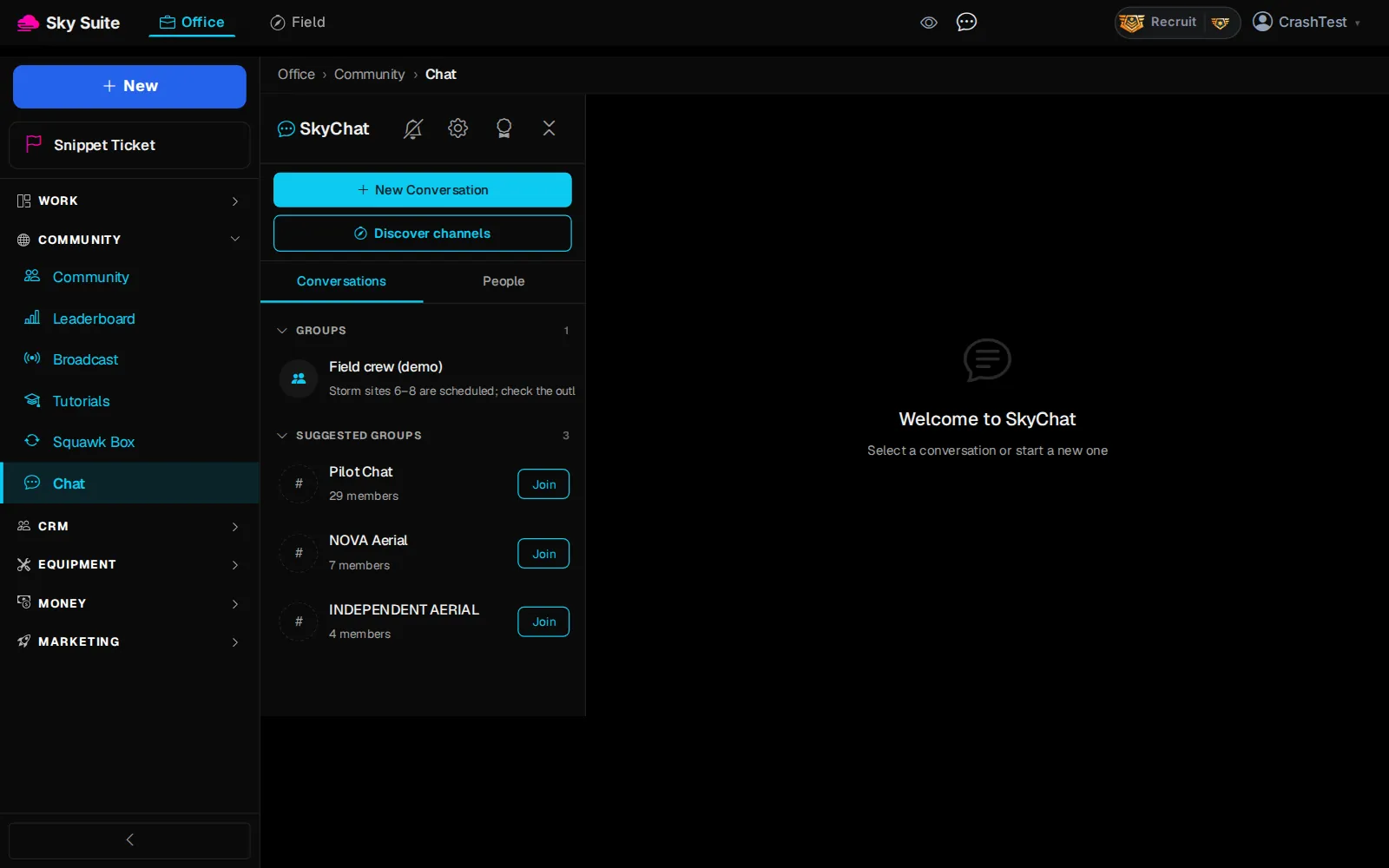
Step 1: In the left menu, click “Work” to open the group.
Opens“Home”, then “Field” and “Office”.
-
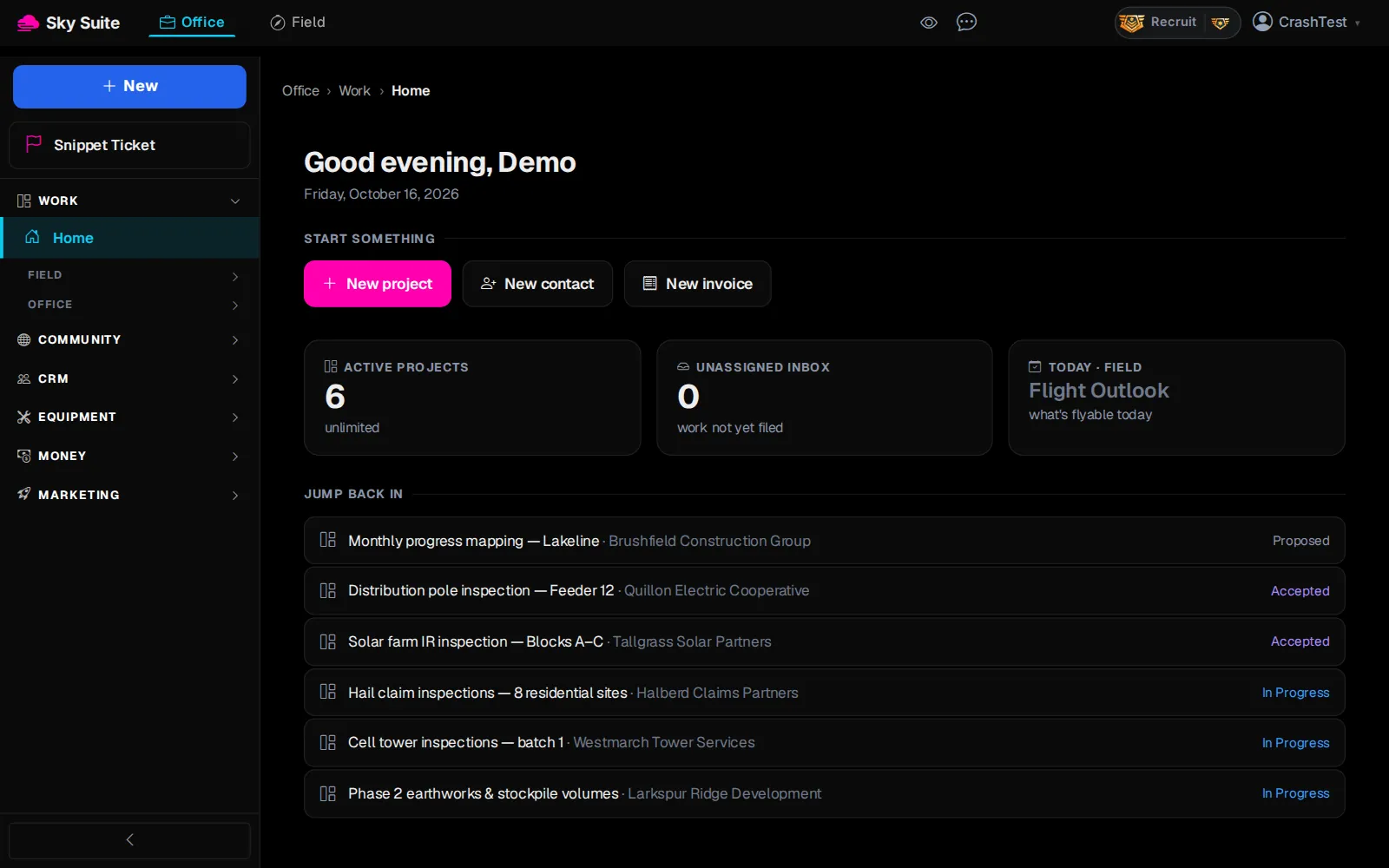
Step 2: Under “Work”, click “Office” to open it.
Opens“Documents”, “AI Receptionist”, “Tasks”, “Blogs”, “Calendar”, “Booking” and more.
-
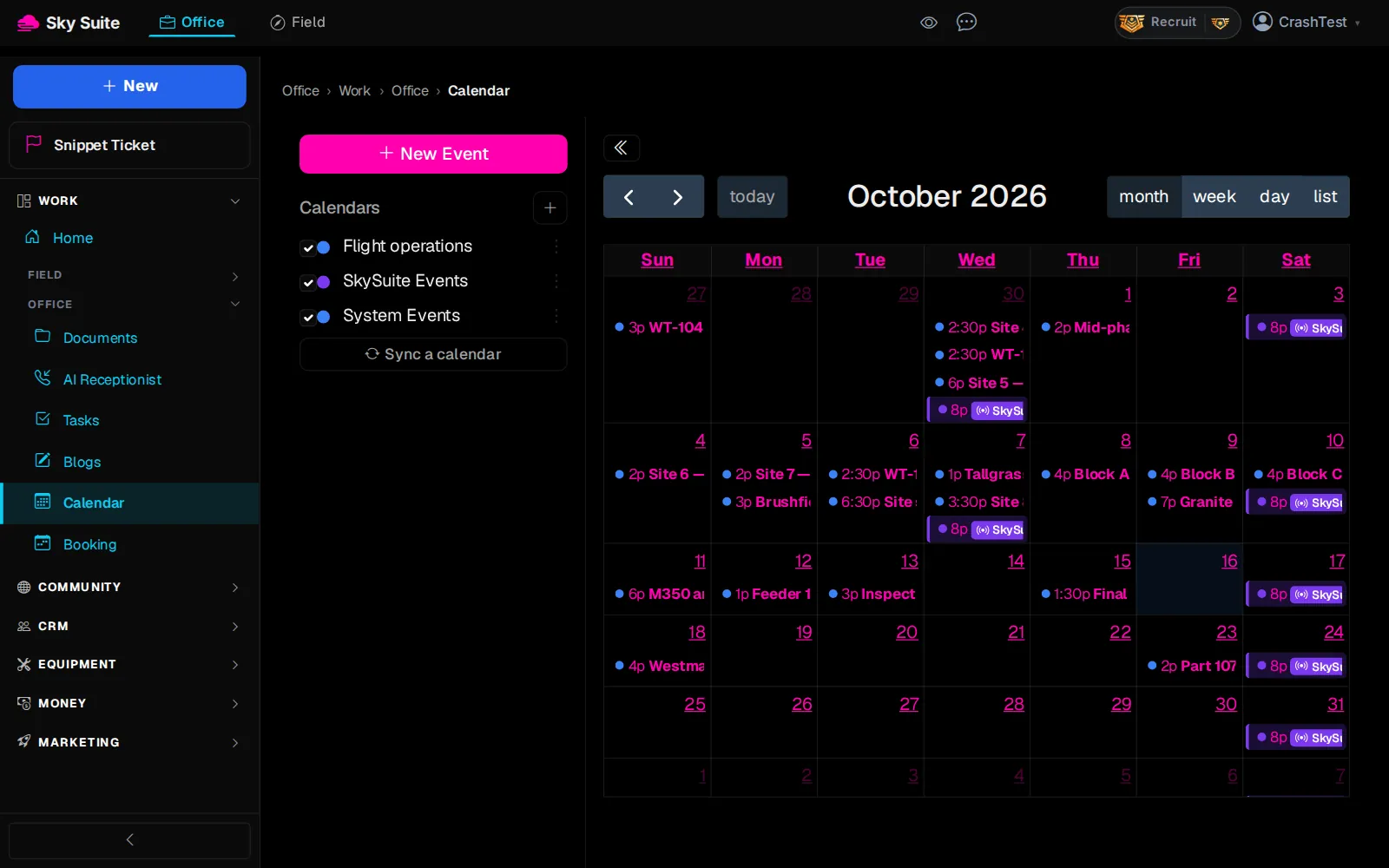
Step 3: Click “Calendar”.
OpensYour calendar for the month, with your calendars listed on the left.
-
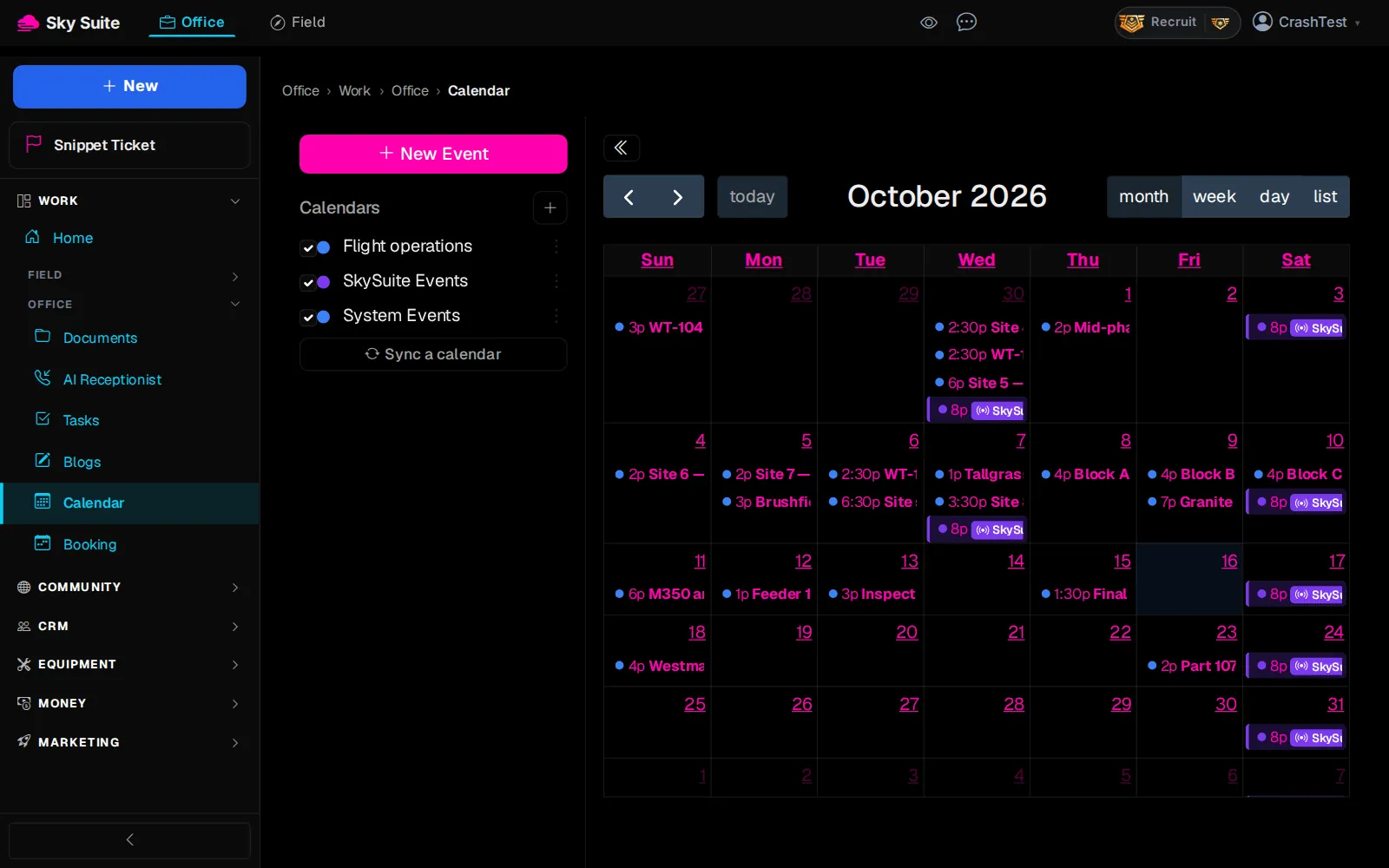
Step 4: At the top left of the calendar, click “New Event”.
OpensThe new event box.
-
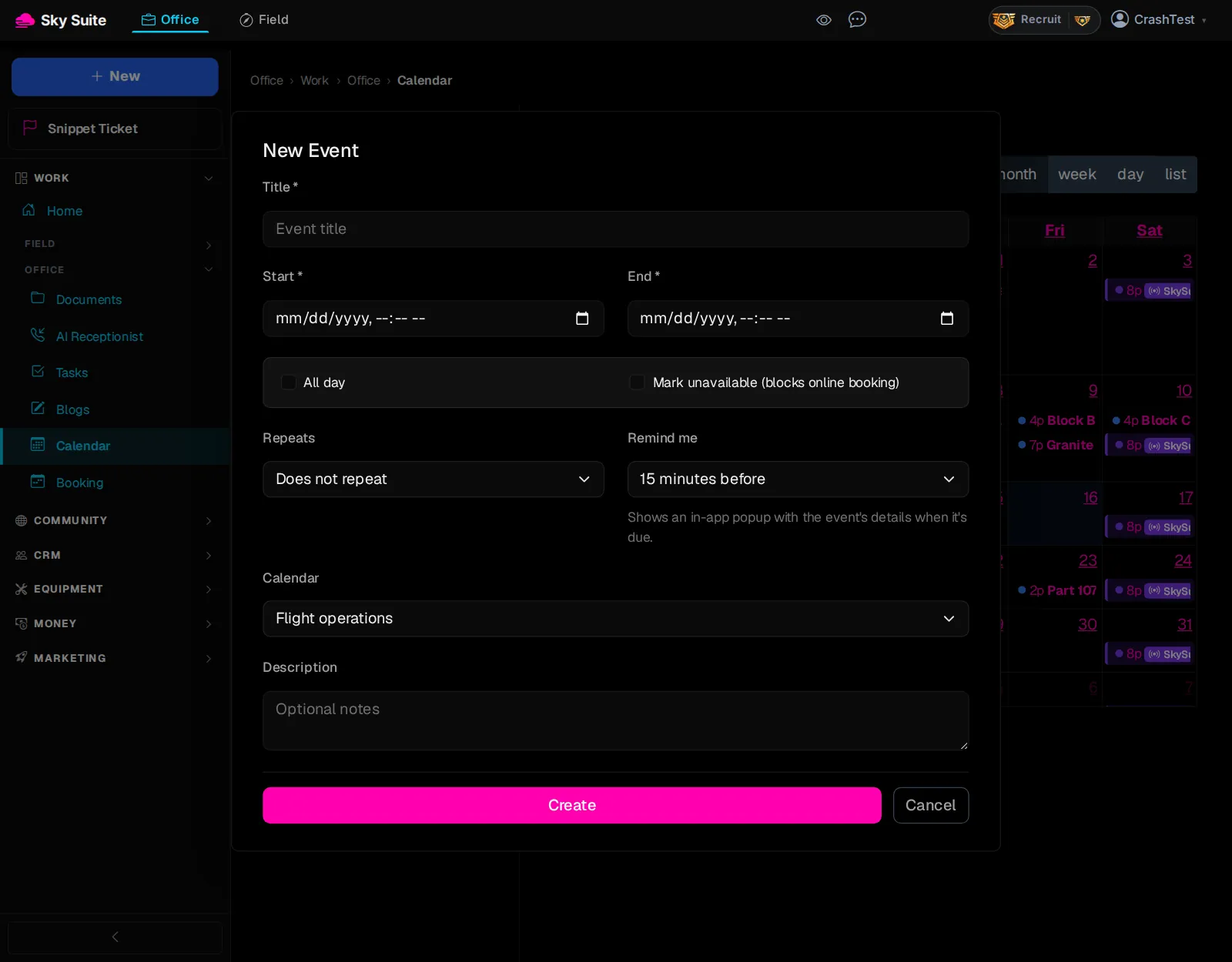
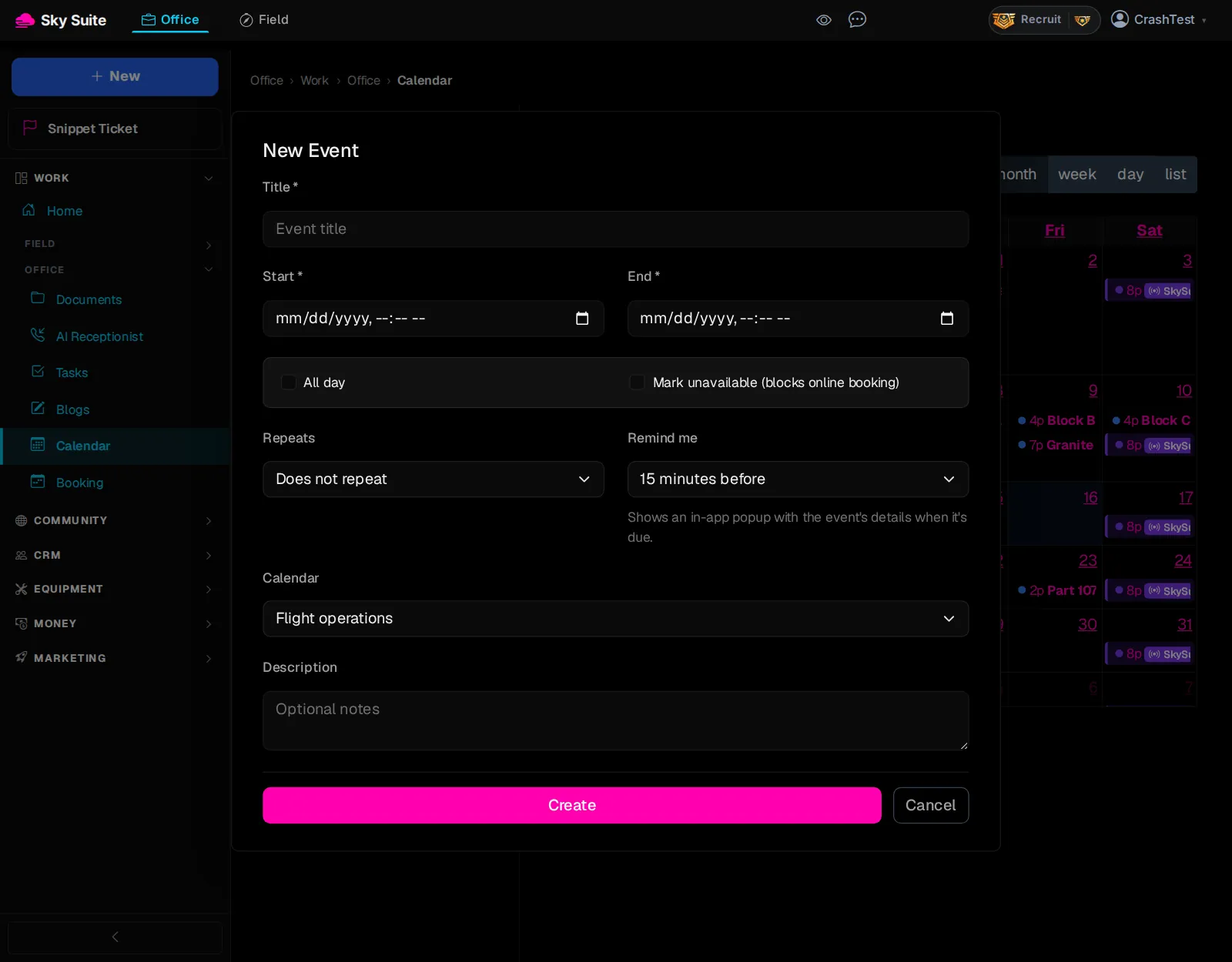
Step 5: Type the “Title *” (marker 1), set “Start *” and “End *” (marker 2), or tick “All day”. Pick “Repeats” and “Remind me” if you need them, and the “Calendar” it goes on (marker 3). Tick “Mark unavailable (blocks online booking)” so clients cannot book you then.
-
Step 6: Click “Create”.
OpensThe calendar again, with your event on it.
The new event box has no guest list. Booking pages that clients use to book you: Set up online booking. More: Calendar.