Help & Guides / Step-by-step guide
Set up online booking
Set your working hours, create something clients can book, and publish a booking page with its own link.
- Menu
- Office › Work › Office › Booking
- Direct link
- skysuite.pro/office/work/office/booking
- Level
- Advanced
- Length
- 12 steps, about 5 minutes. Stop 1 of 1 on the Advanced Start here path
-
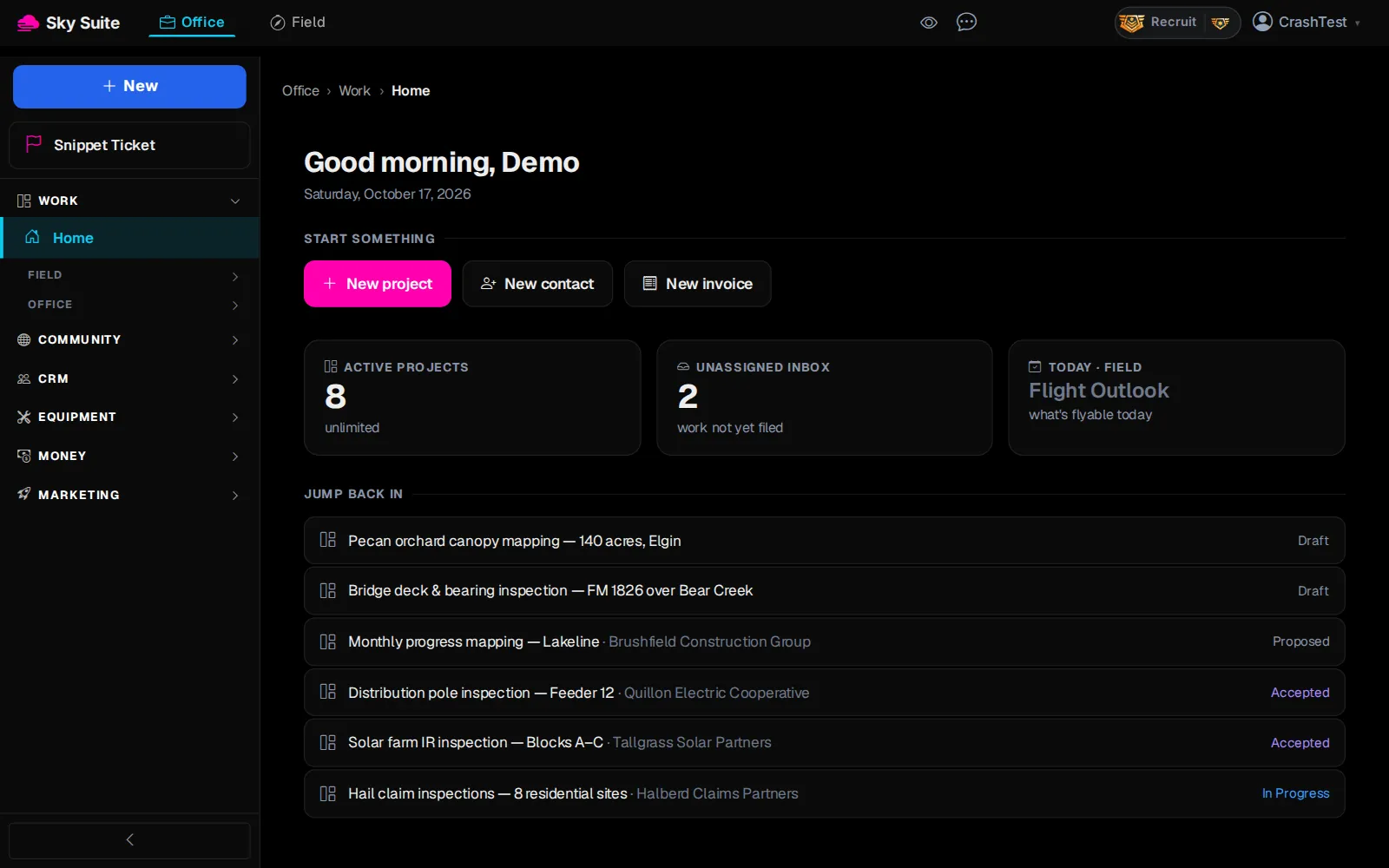
Step 1: In the left menu, under “Work”, click “Office”. Skip this step if “Office” is already open.
OpensThe Office list: “Documents”, “Tasks”, “Calendar”, “Booking” and more.
-
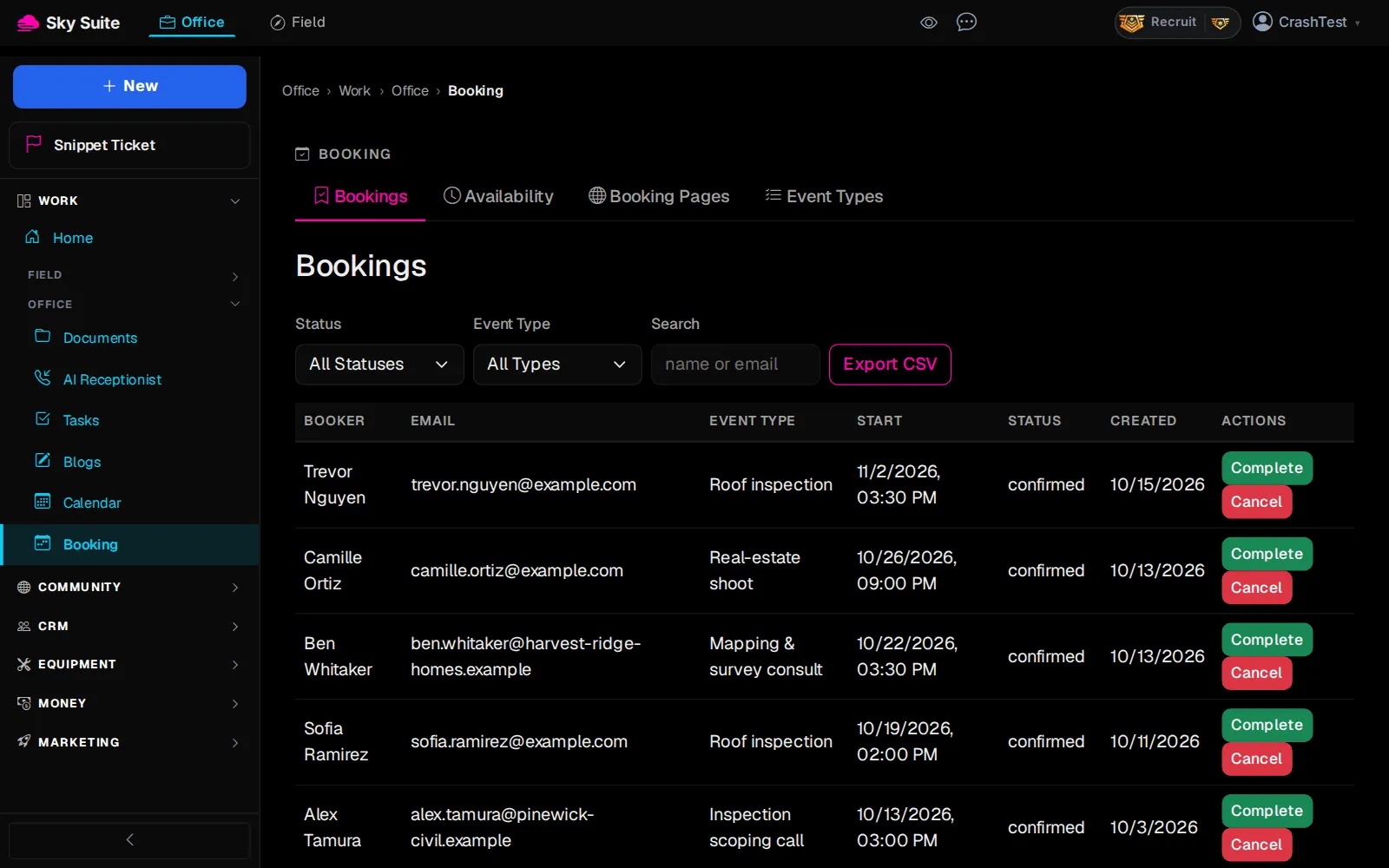
Step 2: Click “Booking”.
OpensThe “Bookings” page, with the tabs “Bookings”, “Availability”, “Booking Pages” and “Event Types”.
-
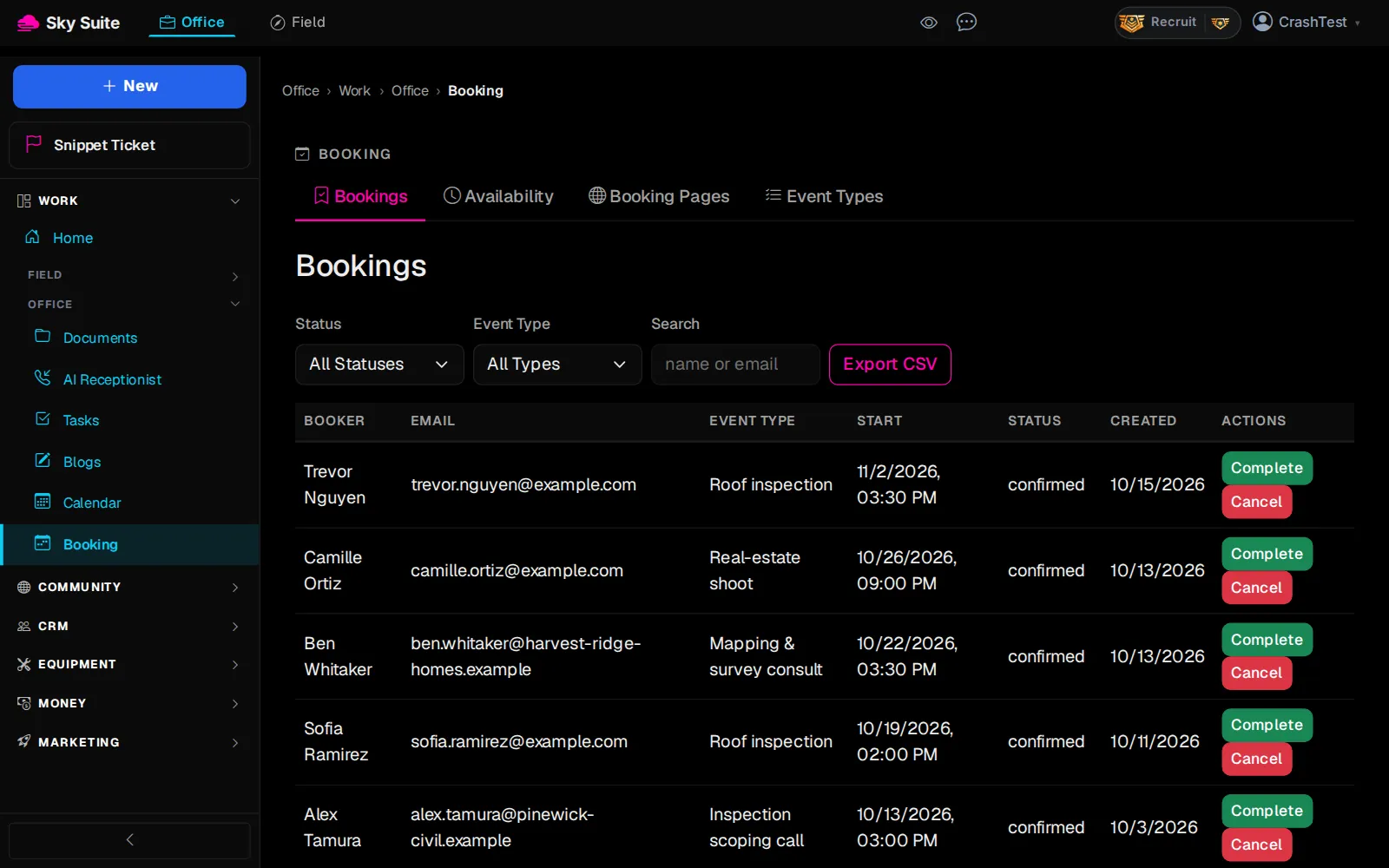
Step 3: Click the “Availability” tab.
Opens“Availability Settings”, with your “Weekly Schedule”.
-
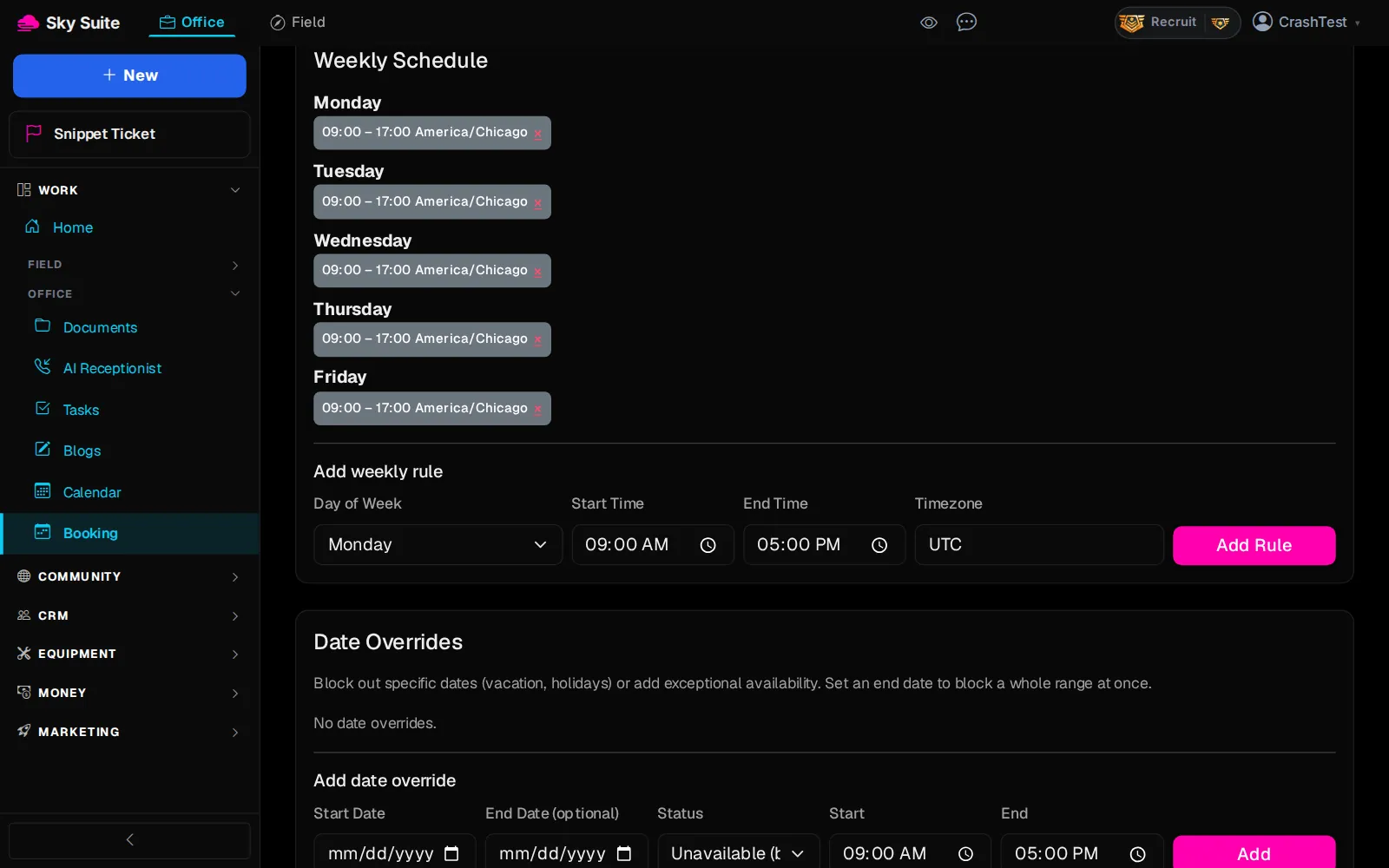
Step 4: In the “Weekly Schedule” box, under “Add weekly rule”, pick the “Day of Week” (1), “Start Time” (2), “End Time” (3) and your “Timezone” (4), then click “Add Rule” (5). Do this once for each working day.
OpensNothing new: the day appears in the list above with its hours.
-
Step 5: Click the “Event Types” tab.
OpensThe “Event Types” list.
-
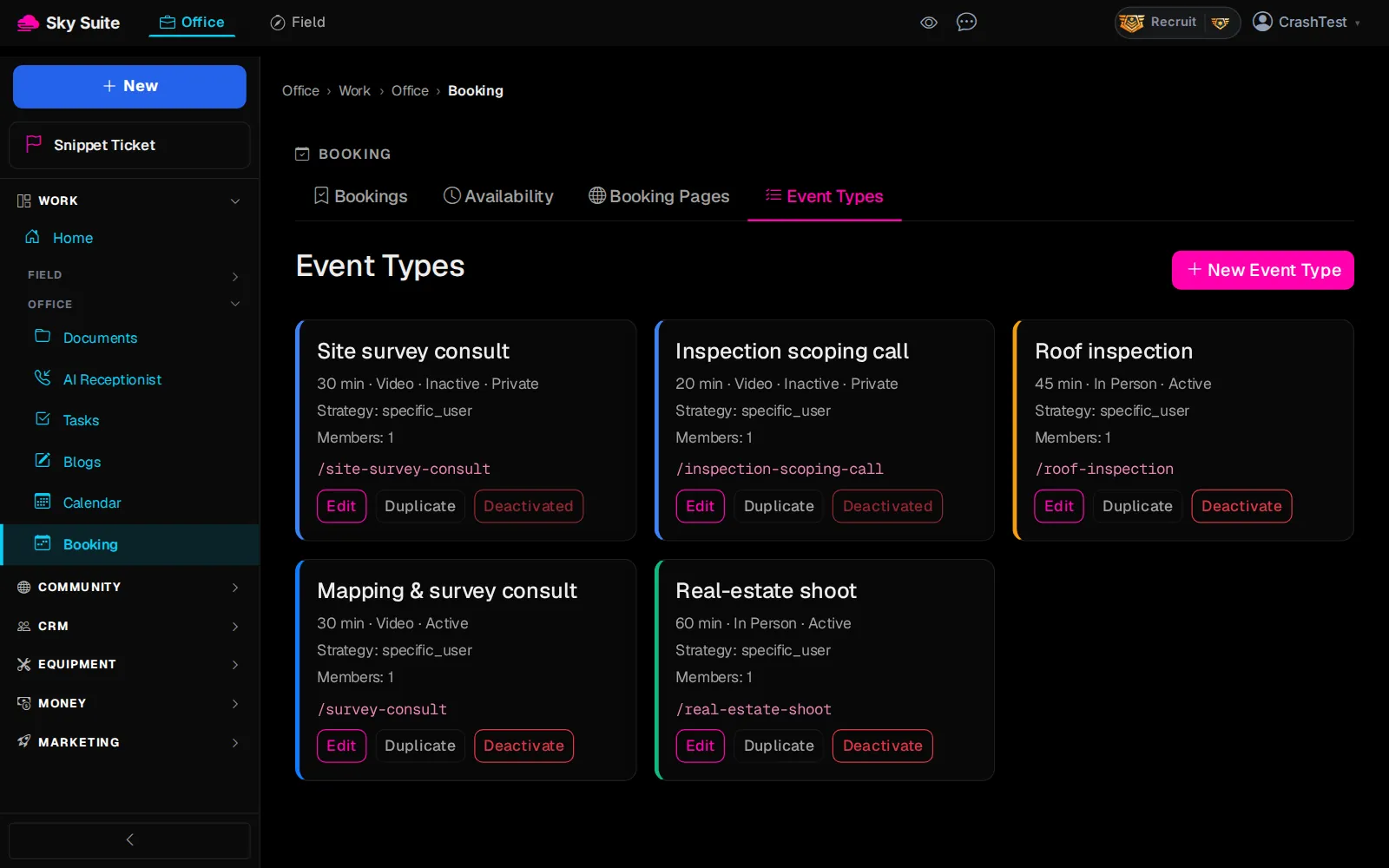
Step 6: Click “New Event Type”.
OpensThe “New Event Type” form.
-
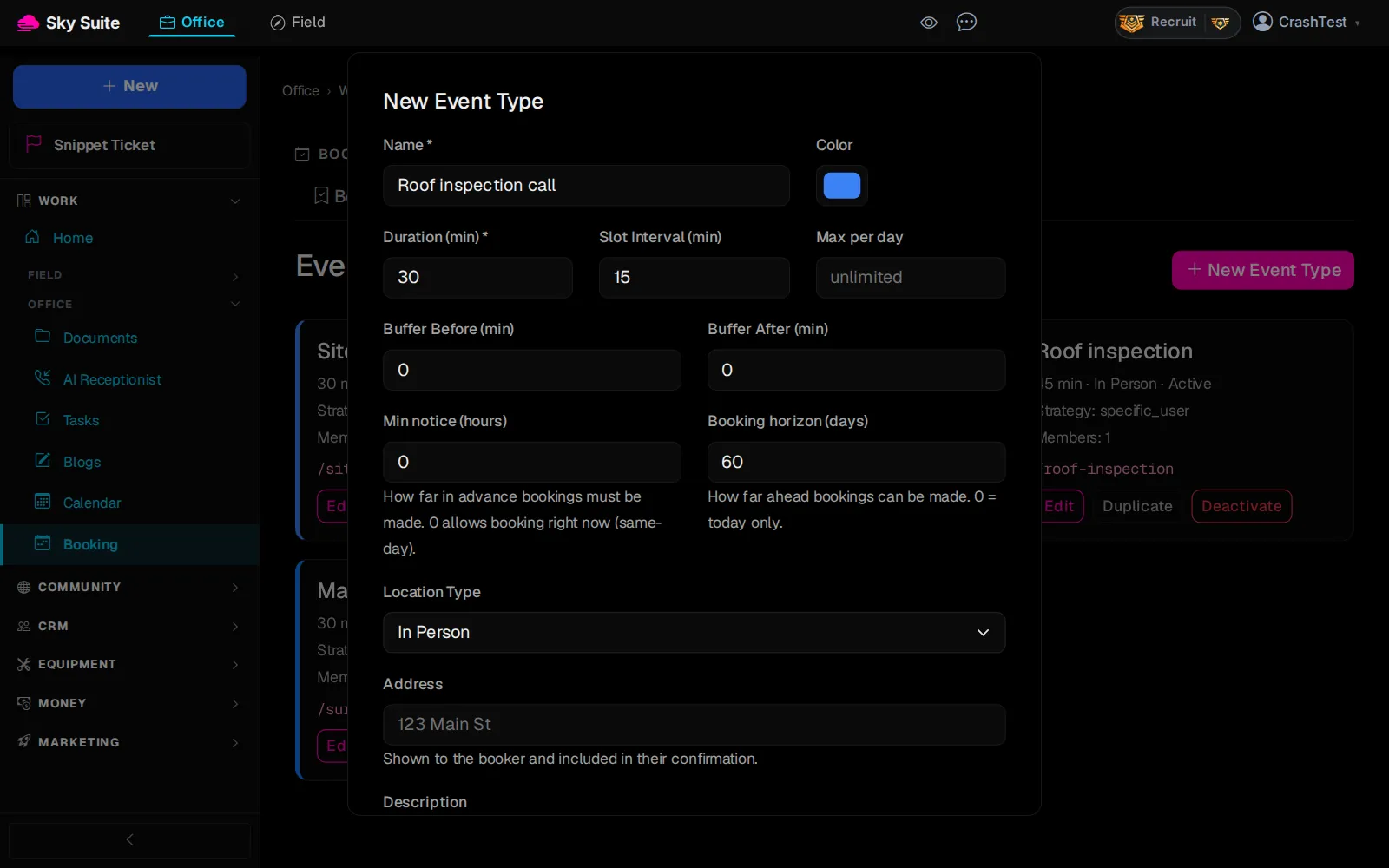
Step 7: In “Name” (1), type what clients book, for example ‘Roof inspection call’. Set “Duration (min)” (2).
-
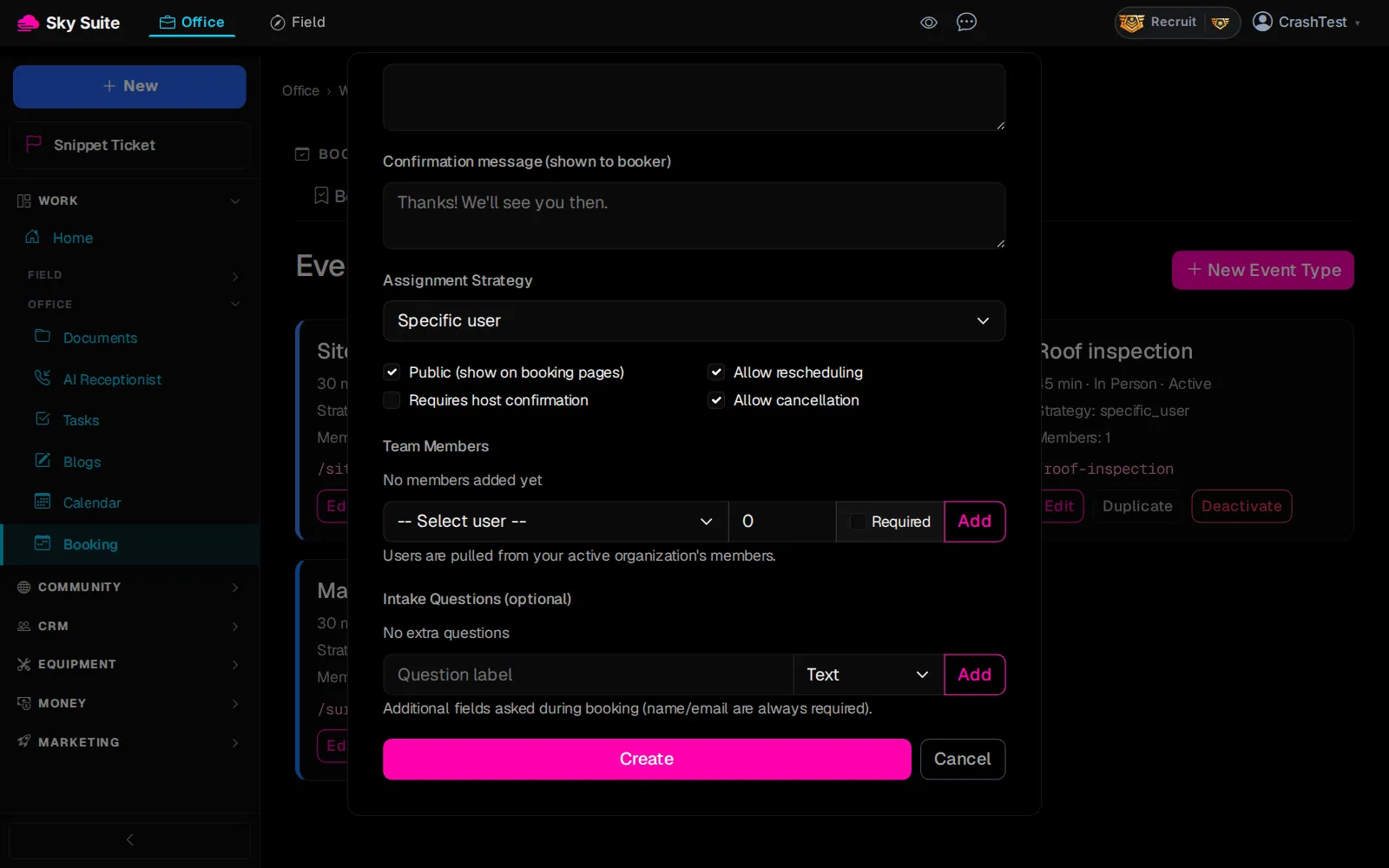
Step 8: Further down, make sure “Public (show on booking pages)” is ticked (1), then click “Create” (2).
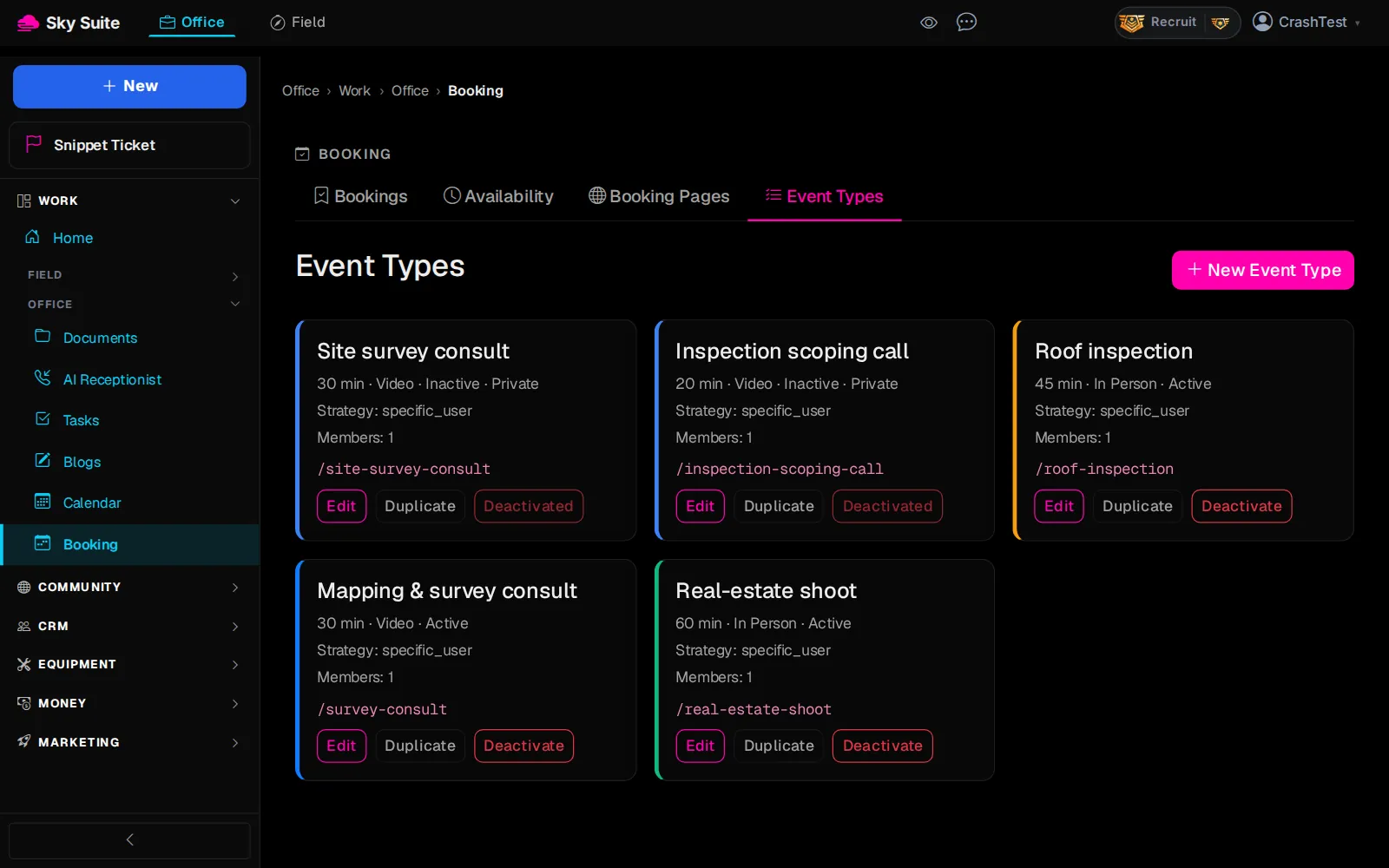
OpensThe “Event Types” list, with your new event type.
-
Step 9: Click the “Booking Pages” tab.
OpensThe “Booking Pages” list.
-
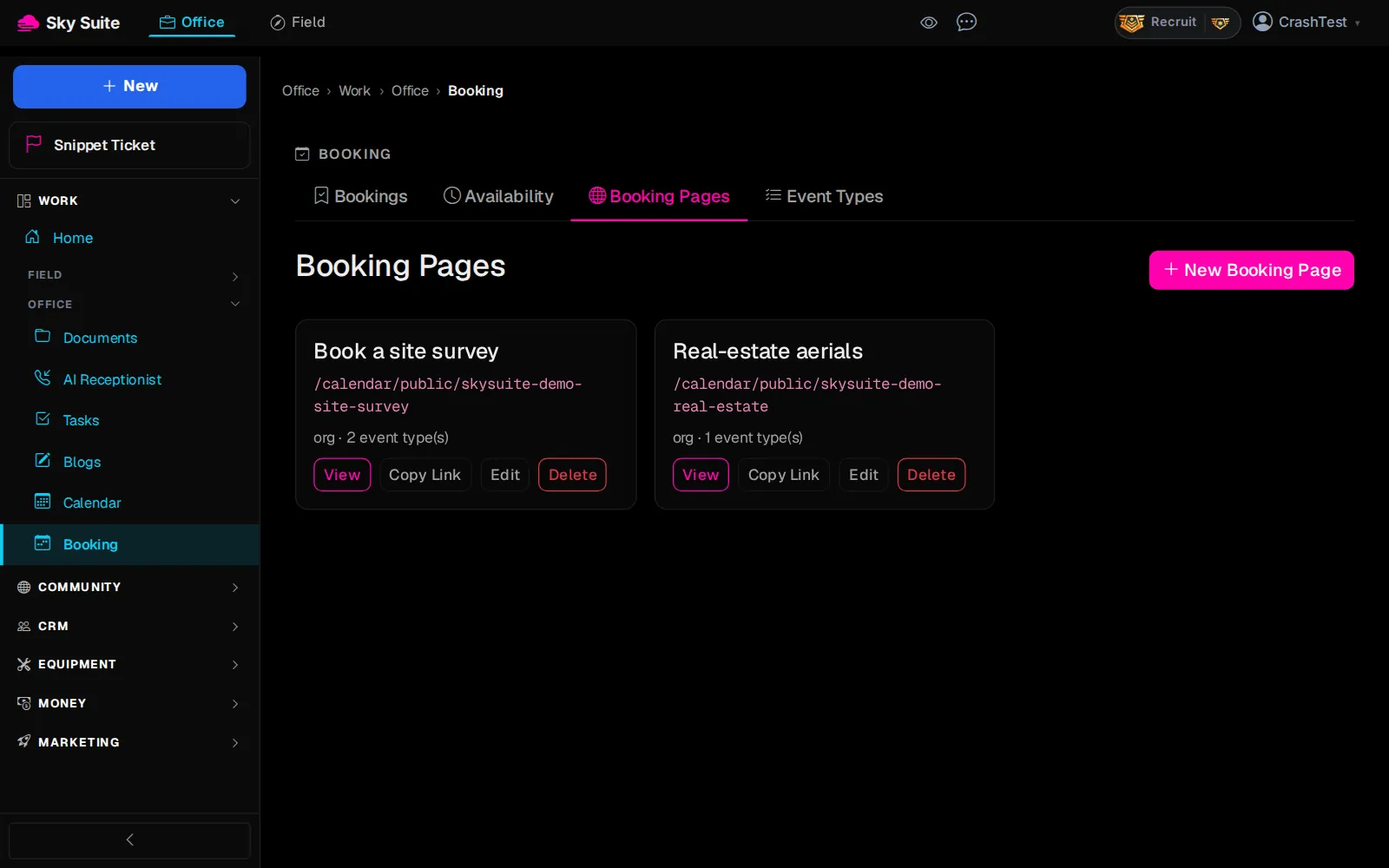
Step 10: Click “New Booking Page”.
OpensThe “New Booking Page” form.
-
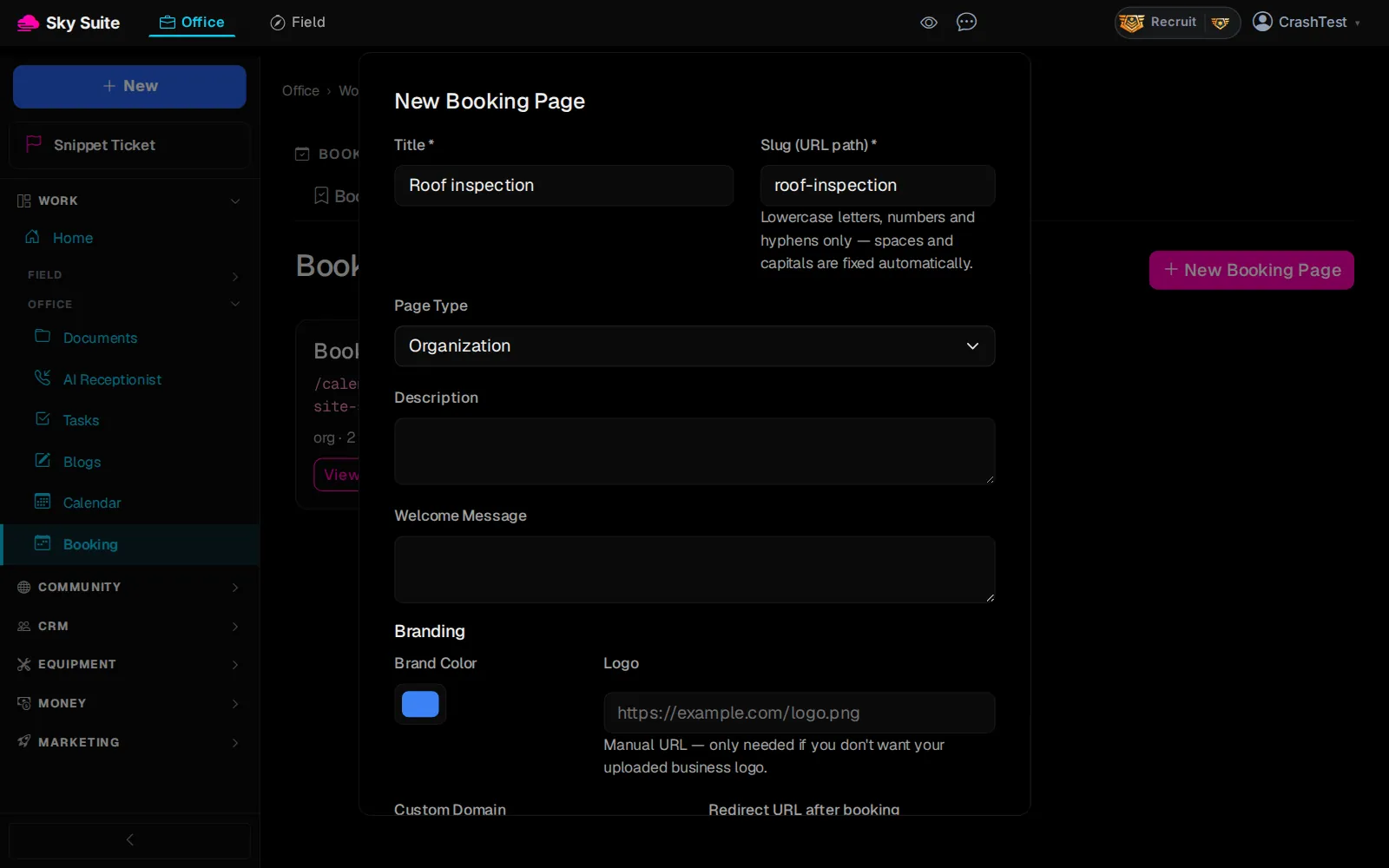
Step 11: Type a “Title” (1) and a “Slug (URL path)” (2). The slug is the end of your booking link, so keep it short, for example ‘roof-inspection’.
-
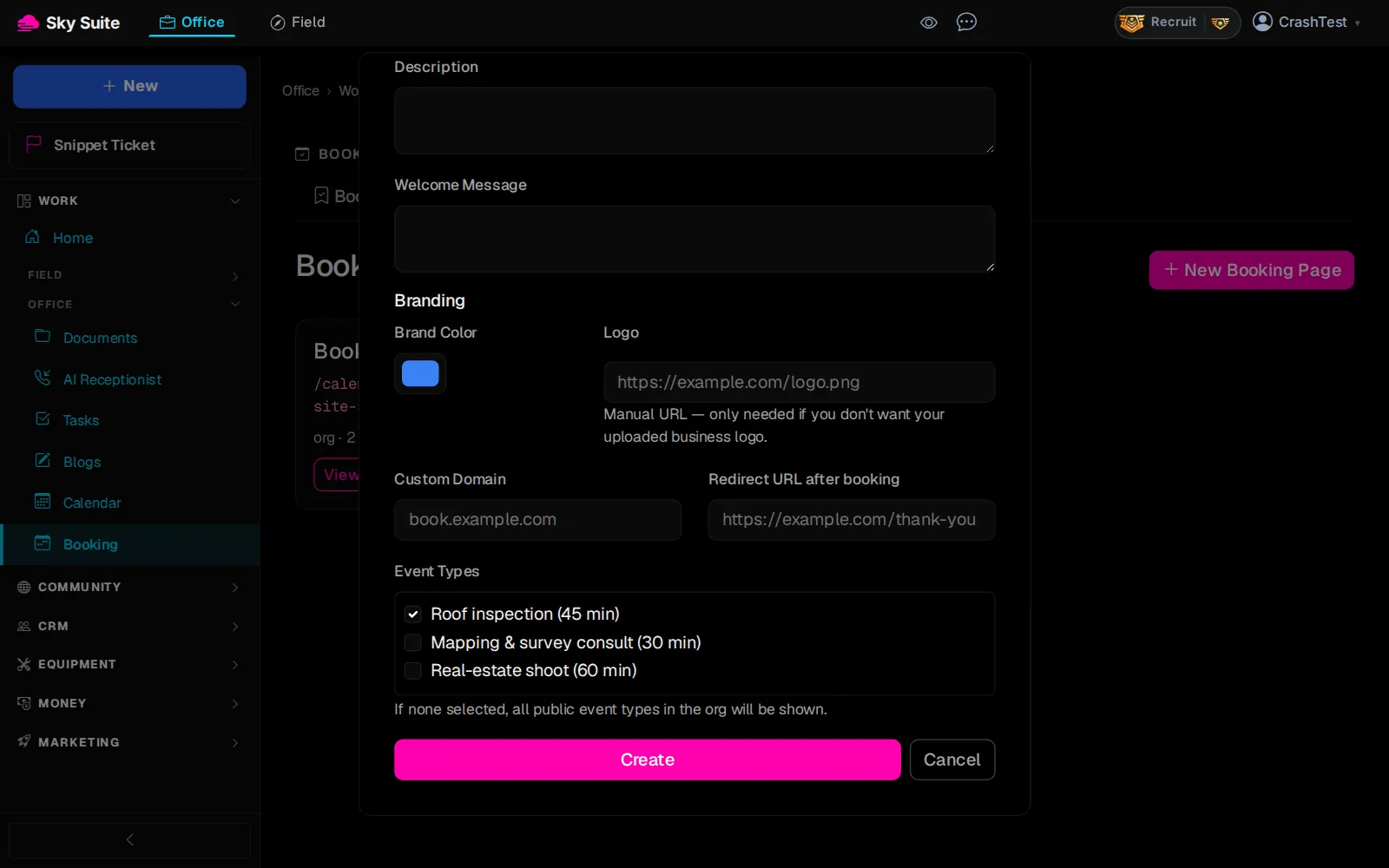
Step 12: Under “Event Types”, tick the event type you made (1), then click “Create” (2).
OpensThe “Booking Pages” list, with your page and its link to share.
New bookings show on the “Bookings” tab and in your calendar. To sync with Google Calendar, see Calendar: Events, Google Sync, and Bookings.