Help & Guides / Step-by-step guide
Open your map and 3D model
Find a finished map from its project, switch between the flat map and the 3D model, and measure.
- Menu
- Office › Work › Field › DSP
- Direct link
- skysuite.pro/office/work/field/dsp
- Level
- Basic
- Length
- 9 steps, about 3 minutes. Stop 4 of 6 on the Basic Start here path
-
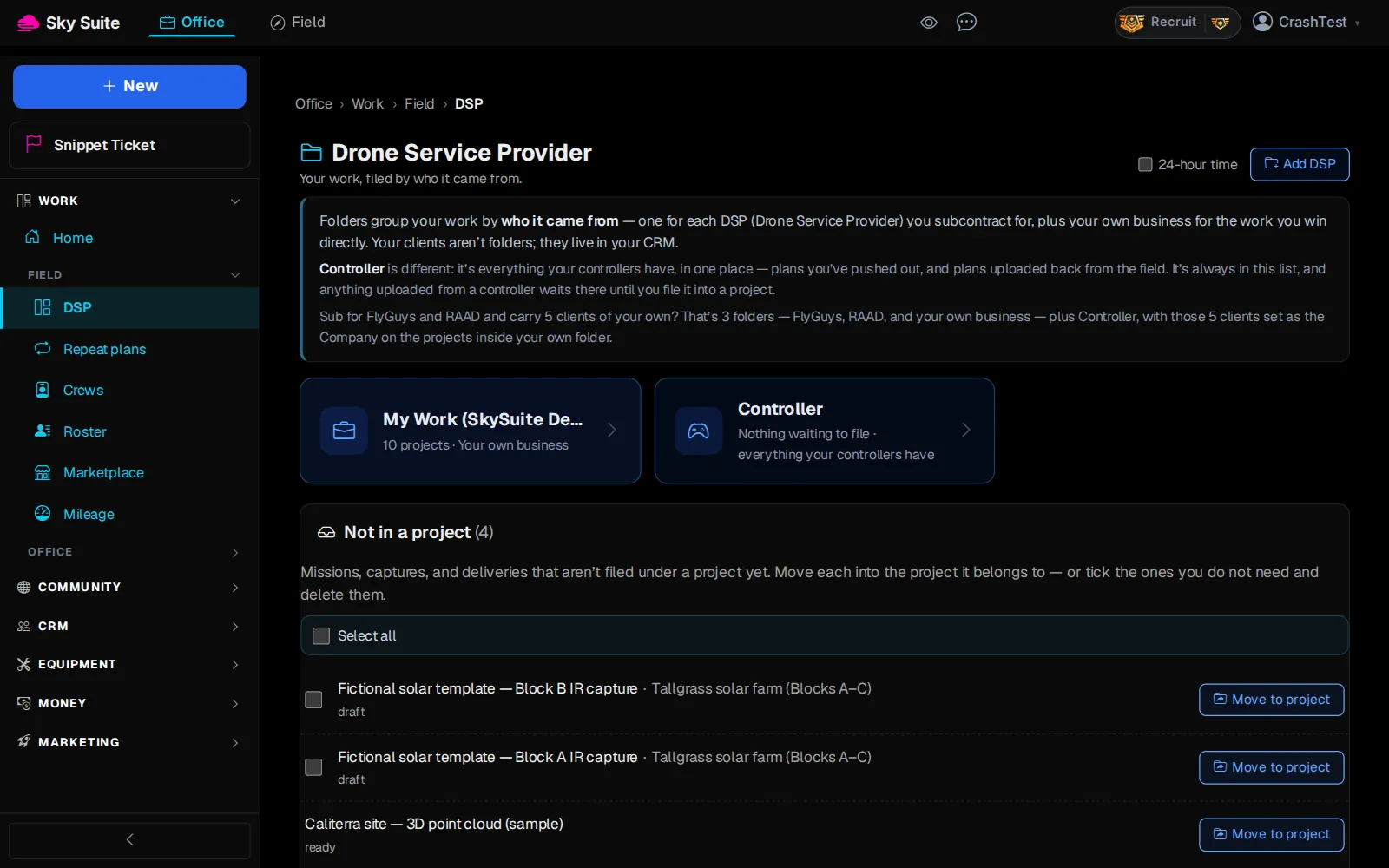
Step 1: In the left menu, under “Work” › “Field”, click “DSP”.
OpensThe “Drone Service Provider” page, with your folders.
-
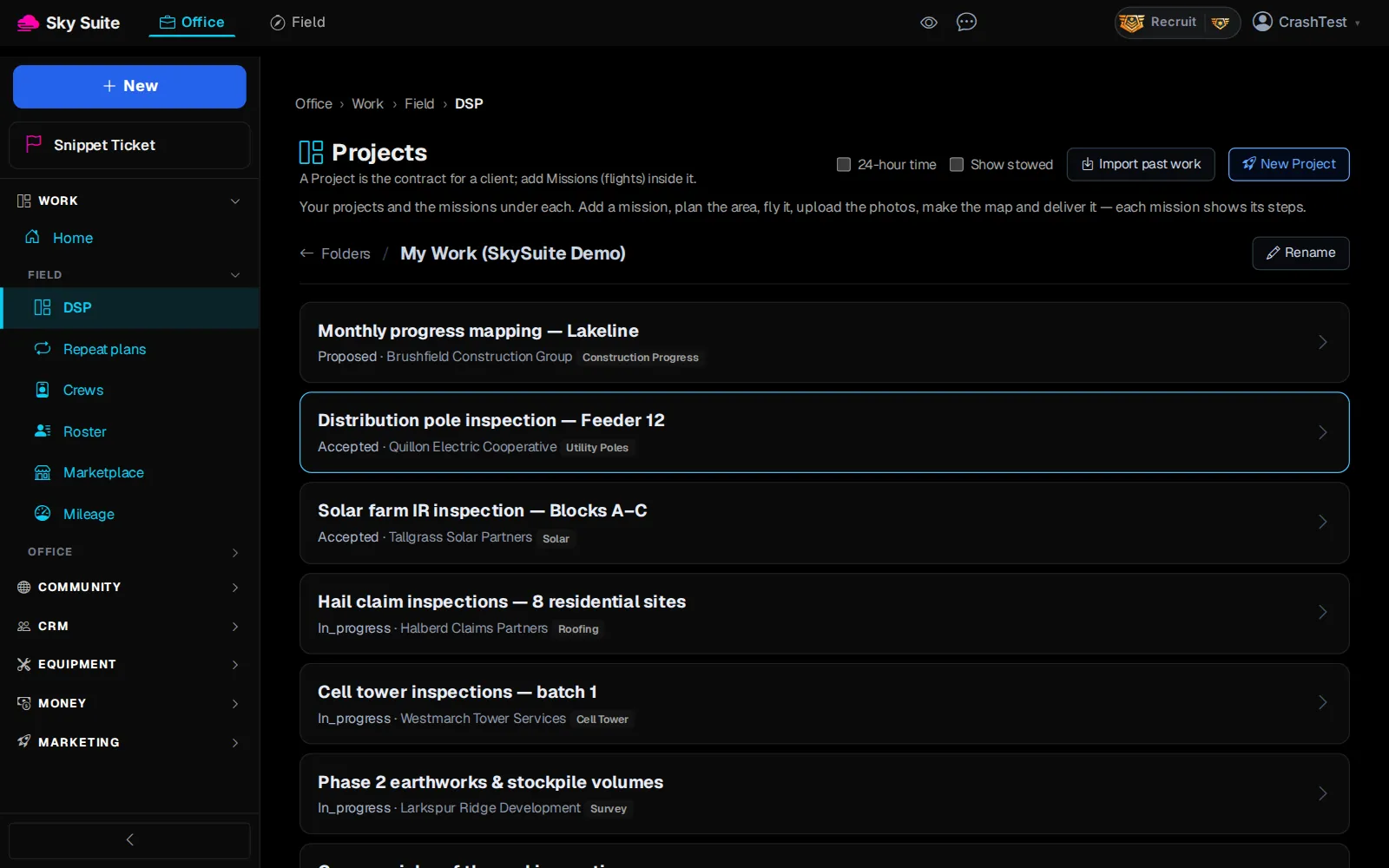
Step 2: Click your own business folder, for example “My Work (SkySuite Demo)” (or the DSP folder the job is filed in).
OpensThe “Projects” list in that folder.
-
Step 3: Click the project's name, for example “Phase 2 earthworks & stockpile volumes”.
OpensThe project page, with one row per mission.
-
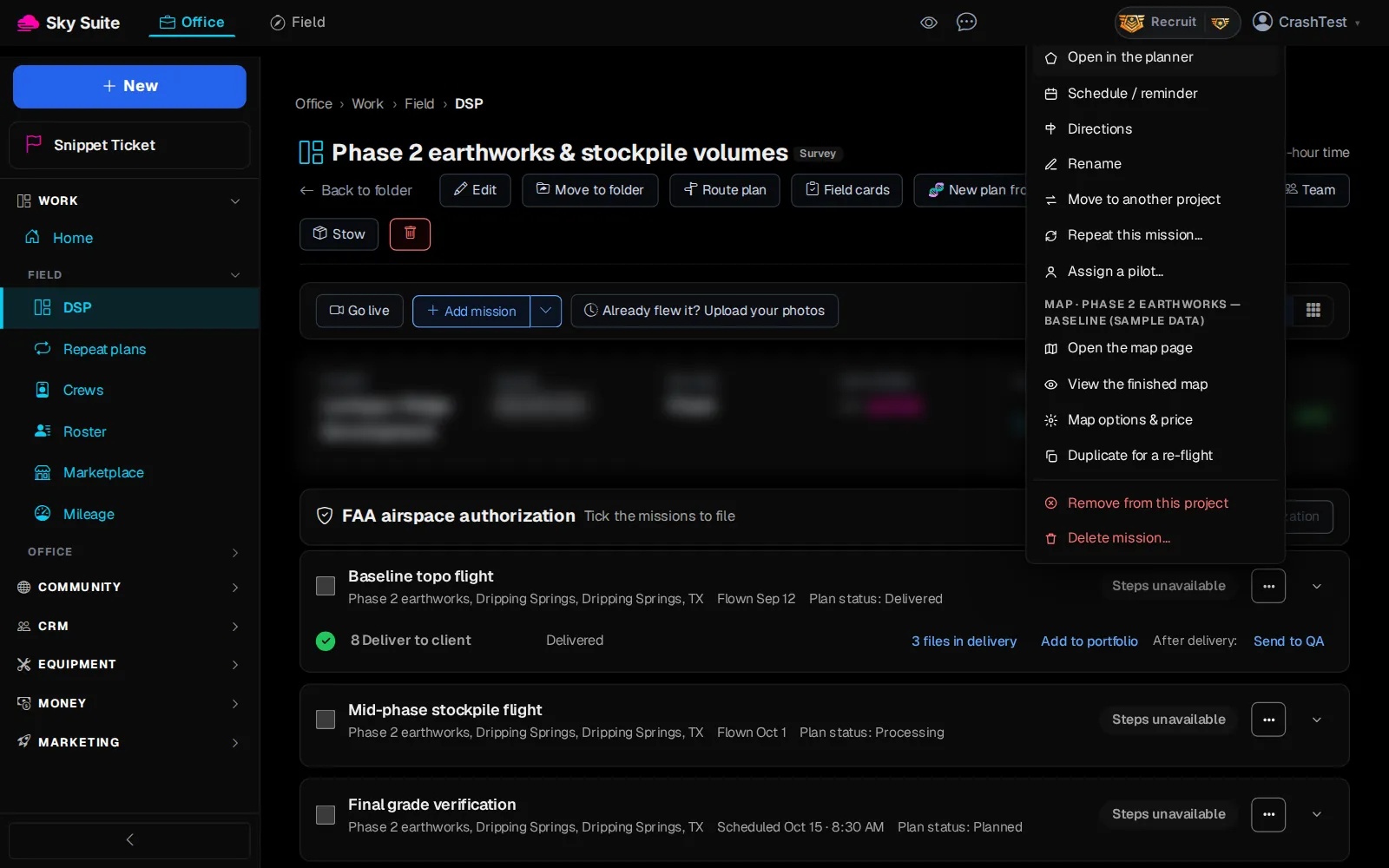
Step 4: On the mission's row, click the “⋯” button (“More actions”).
OpensThe mission menu.
-
Step 5: Under “Map”, click “View the finished map”.
OpensThe map page, on the “Ortho” tab.
-
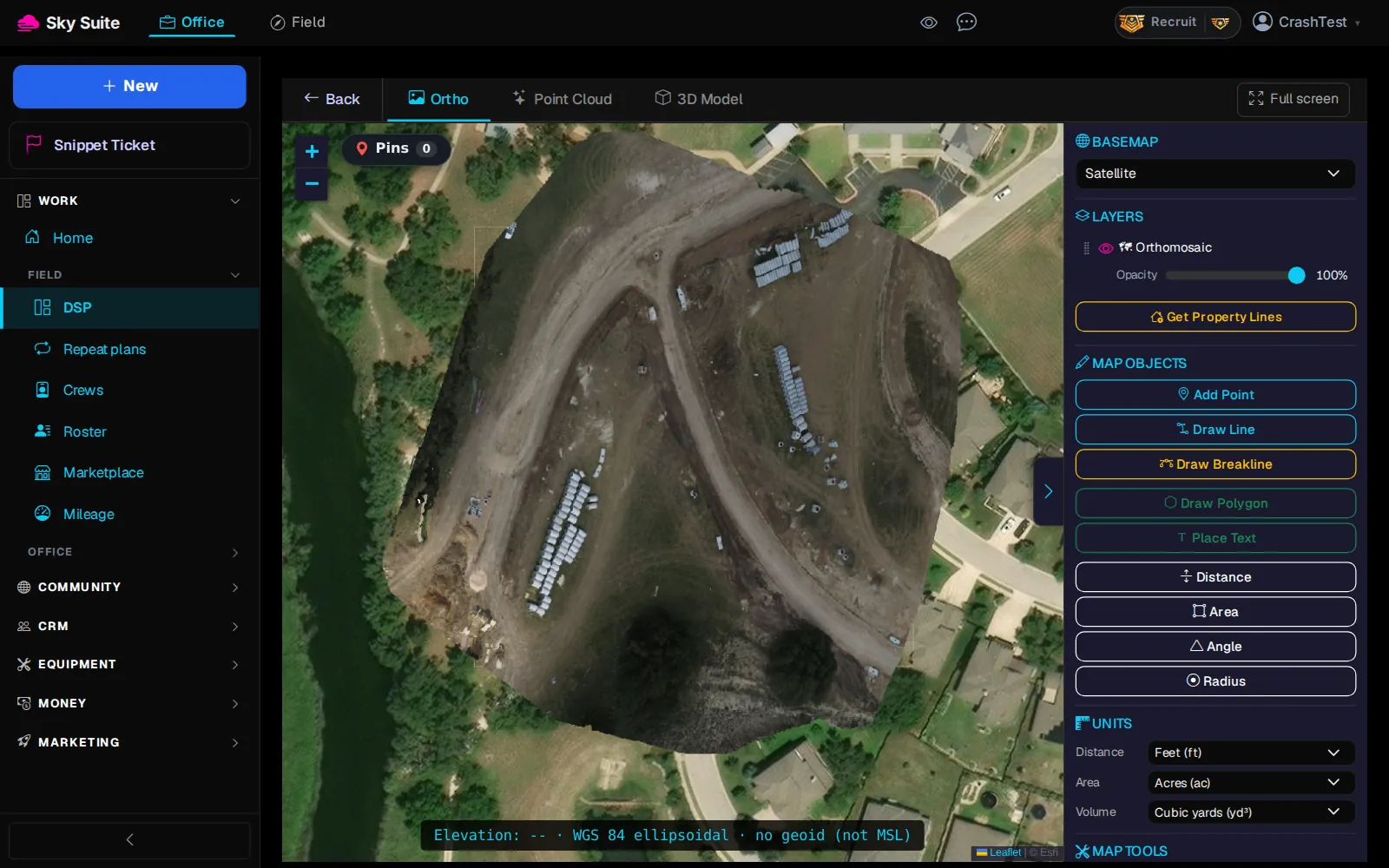
Step 6: The “Ortho” tab (marker 1) is the flat map: drag to move, scroll to zoom. In the right-hand panel, “Distance” (marker 2) and “Area” measure on the map.
-
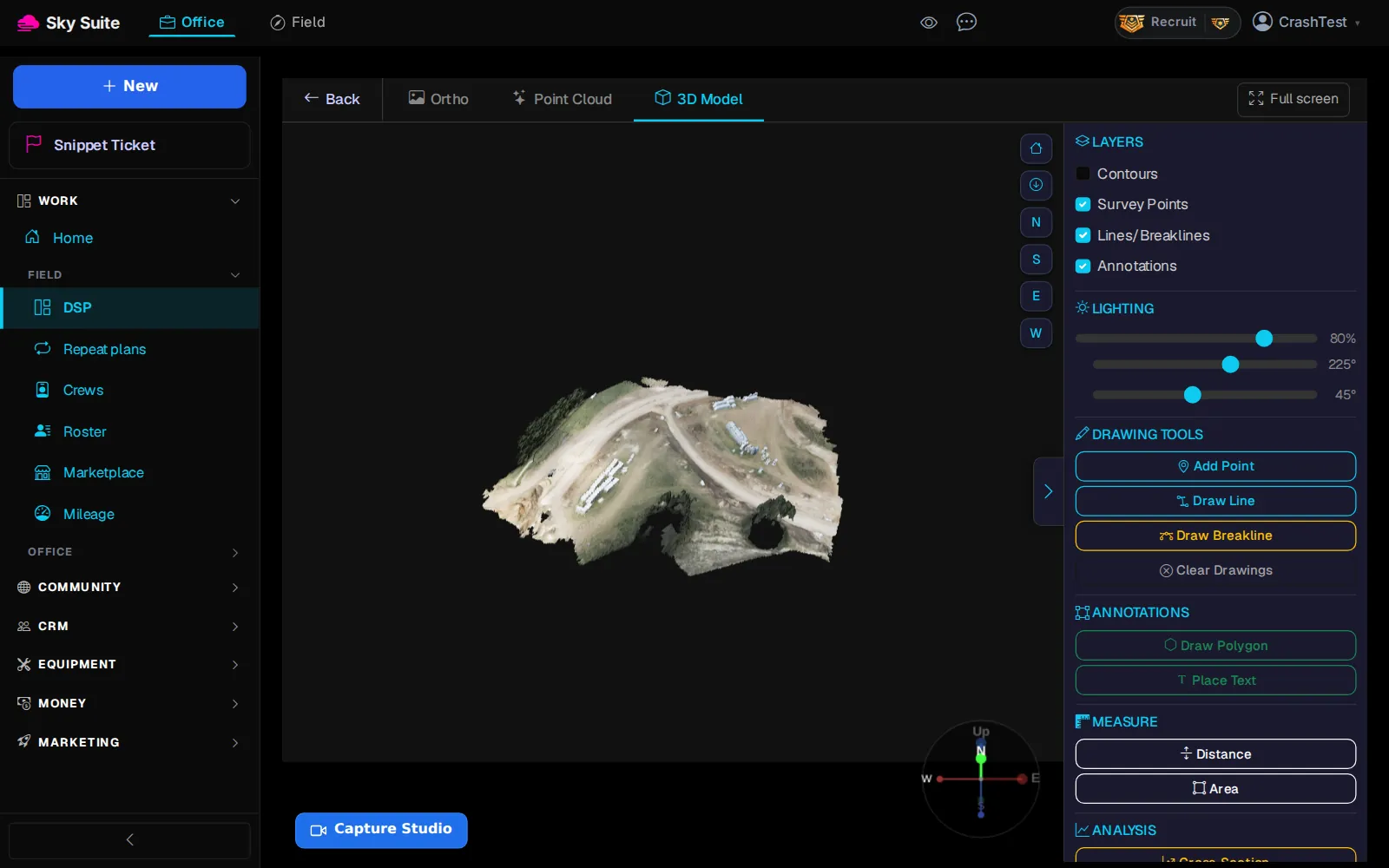
Step 7: Click “3D Model”.
OpensThe 3D model. Drag to turn it, scroll to zoom, and click “N”, “S”, “E” or “W” to look from that side.
-
Step 8: Click “Point Cloud” for the 3D points, or “Photorealistic 3D” when that was made for this map. A tab marked “being prepared” is still processing.
-
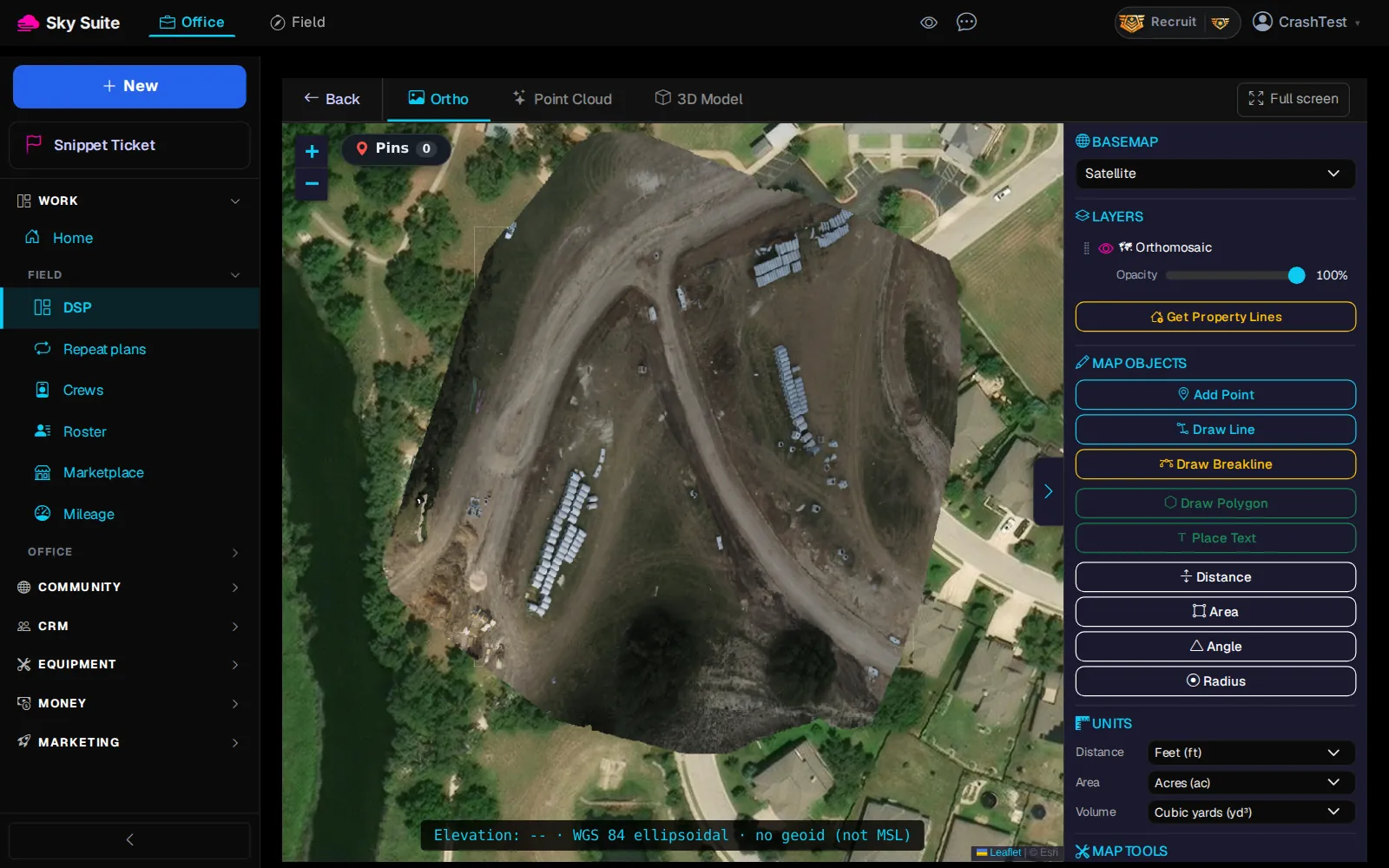
Step 9: Click “Full screen” at the top right.
OpensThe map fills the screen. Press Esc to come back.
Next on Start here: Send files to your client
Your client sees the same viewer from their private link once the map is in their delivery: see Send files to your client.