Help & Guides / Step-by-step guide
Run a pre-flight checklist
Pick a ready-made checklist from the library, then tick it off on site before take-off.
- Menu
- Office › Equipment › Checklists
- Direct link
- skysuite.pro/office/equipment/checklists
- Level
- Basic
- Length
- 7 steps, about 3 minutes
-
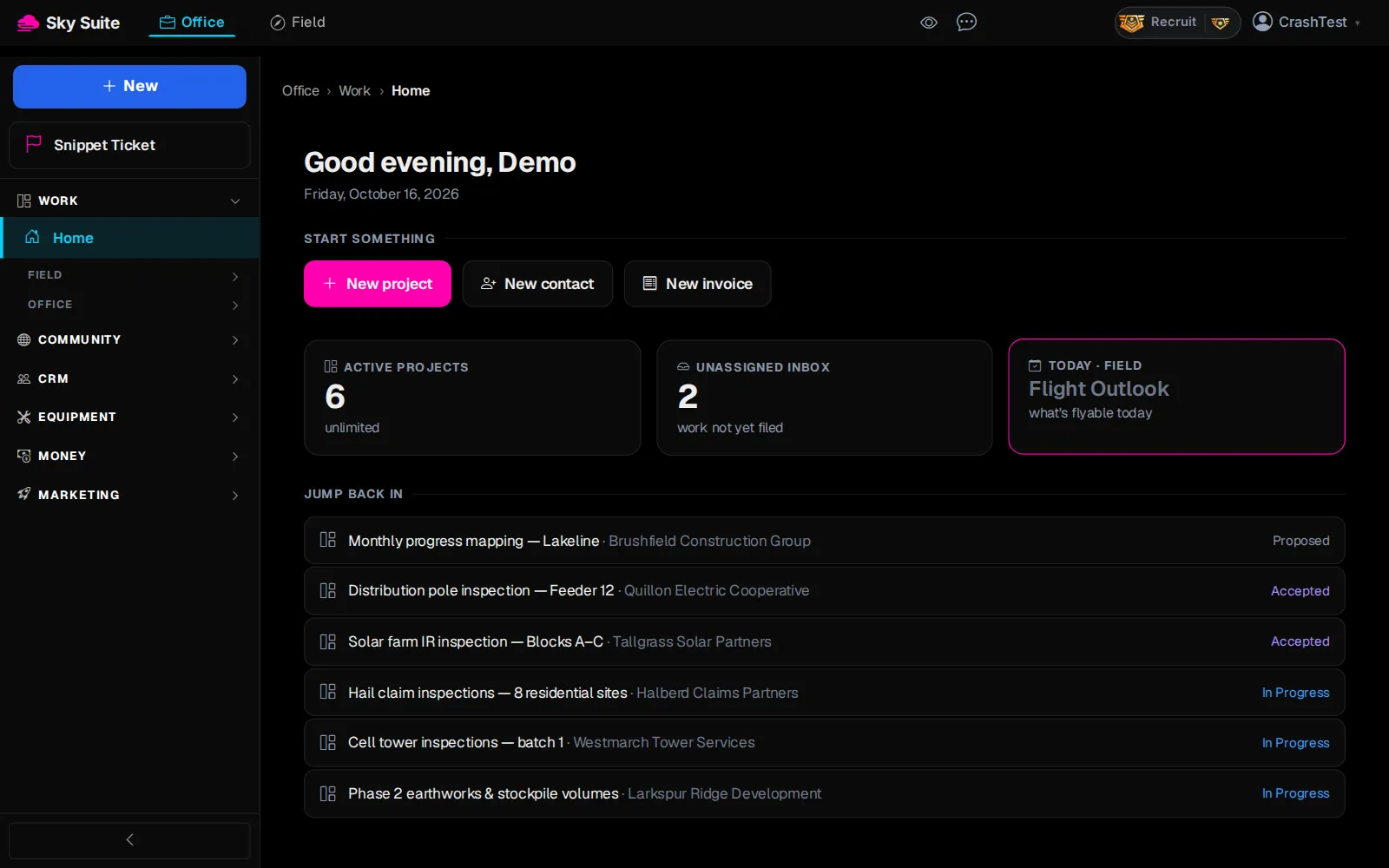
Step 1: In the left menu, click “Equipment” to open the group.
Opens“Equipment”, “Inventory”, “Checklists”, “Flight Log” and “Rentals”.
-
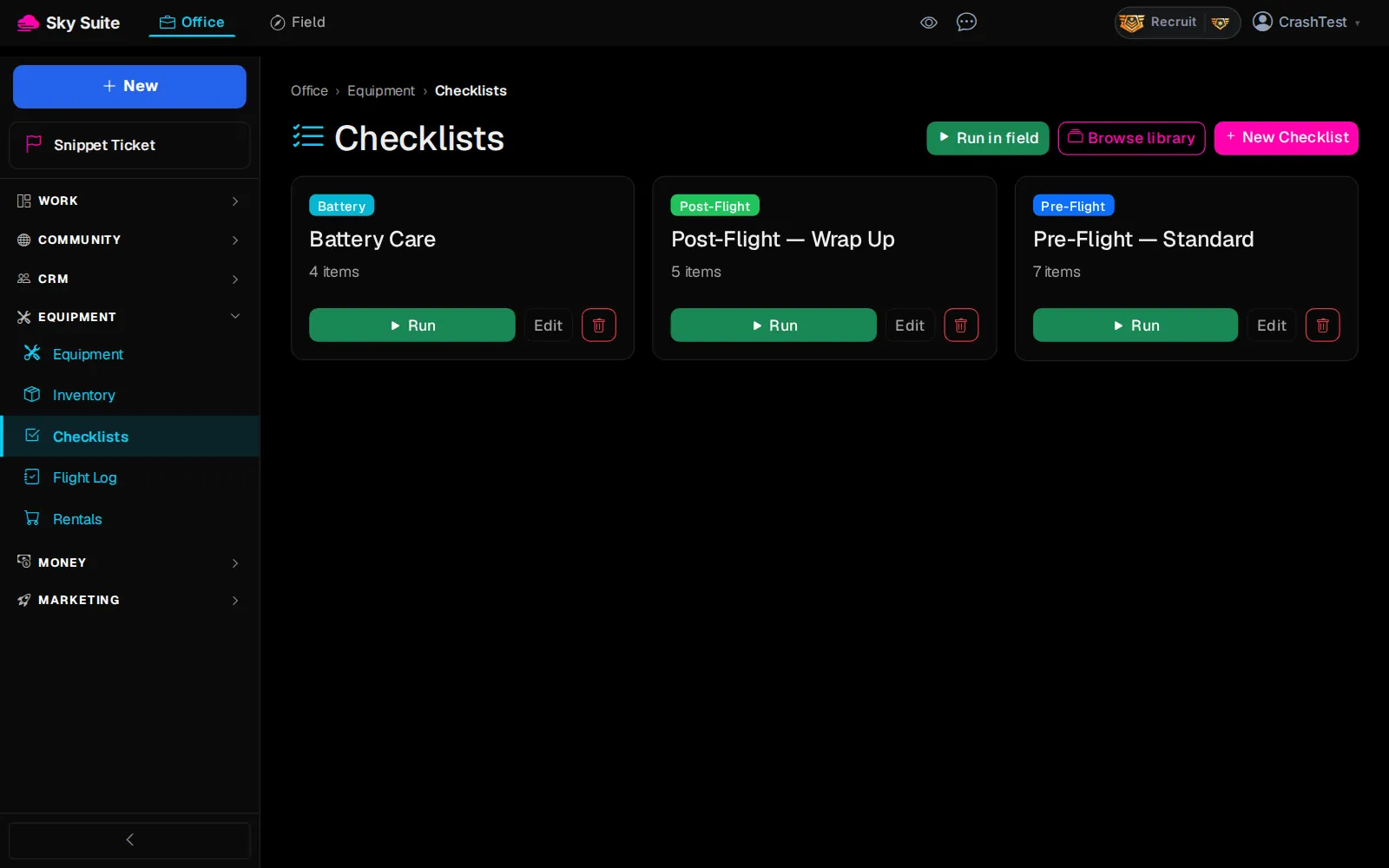
Step 2: Click “Checklists”.
OpensThe “Checklists” page, with your checklists as cards.
-
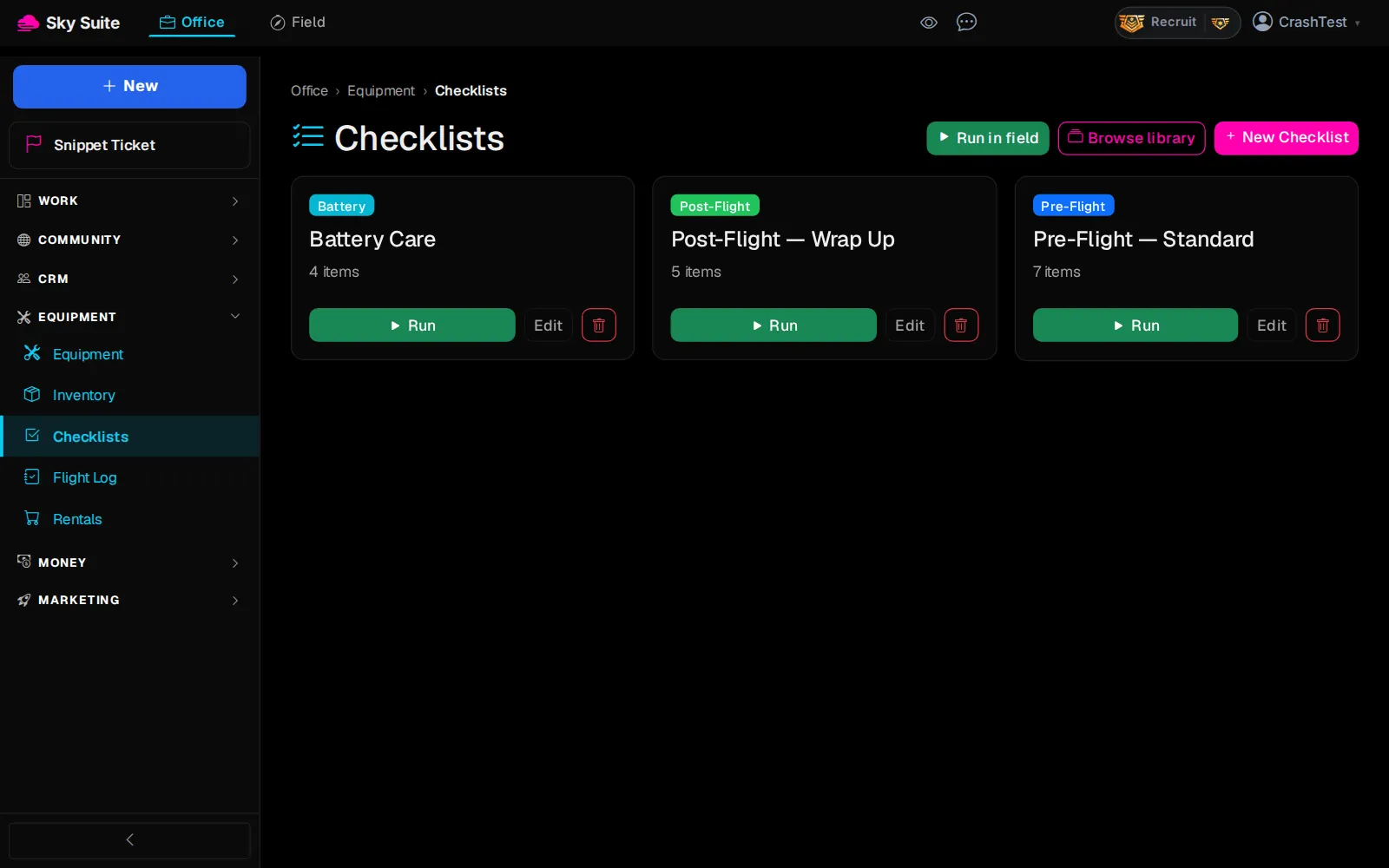
Step 3: Click “Browse library”.
OpensThe checklist library: ready-made pre-flight, post-flight, battery and other checklists.
-
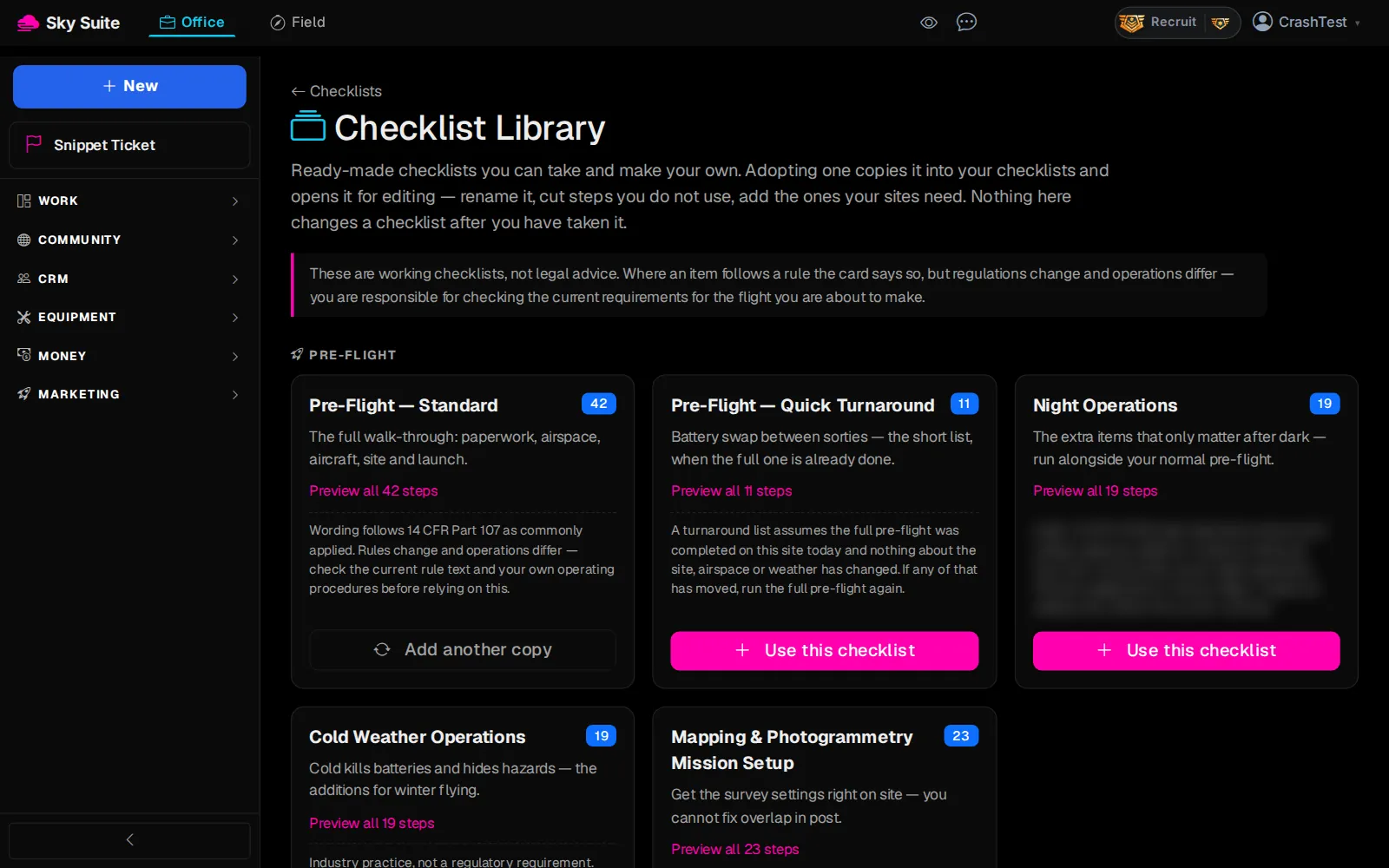
Step 4: On the one you want, click “Preview all … steps” to read it, then “Use this checklist”.
OpensYour own copy of the checklist, open to edit. Change or add items, and save.
-
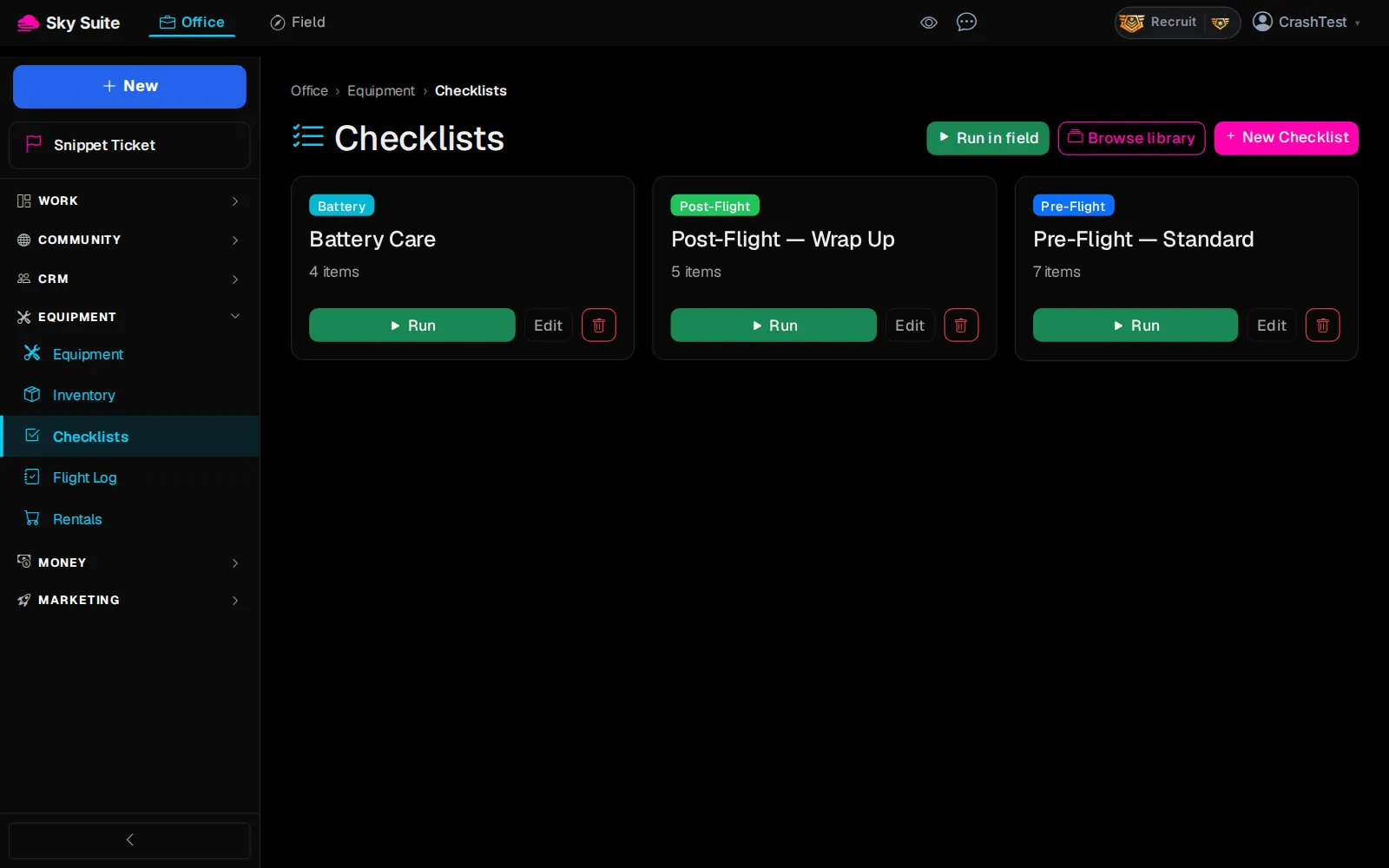
Step 5: On site, back on Office › Equipment › Checklists, click “Run in field”.
OpensA list of your checklists, with the aircraft menu at the top.
-
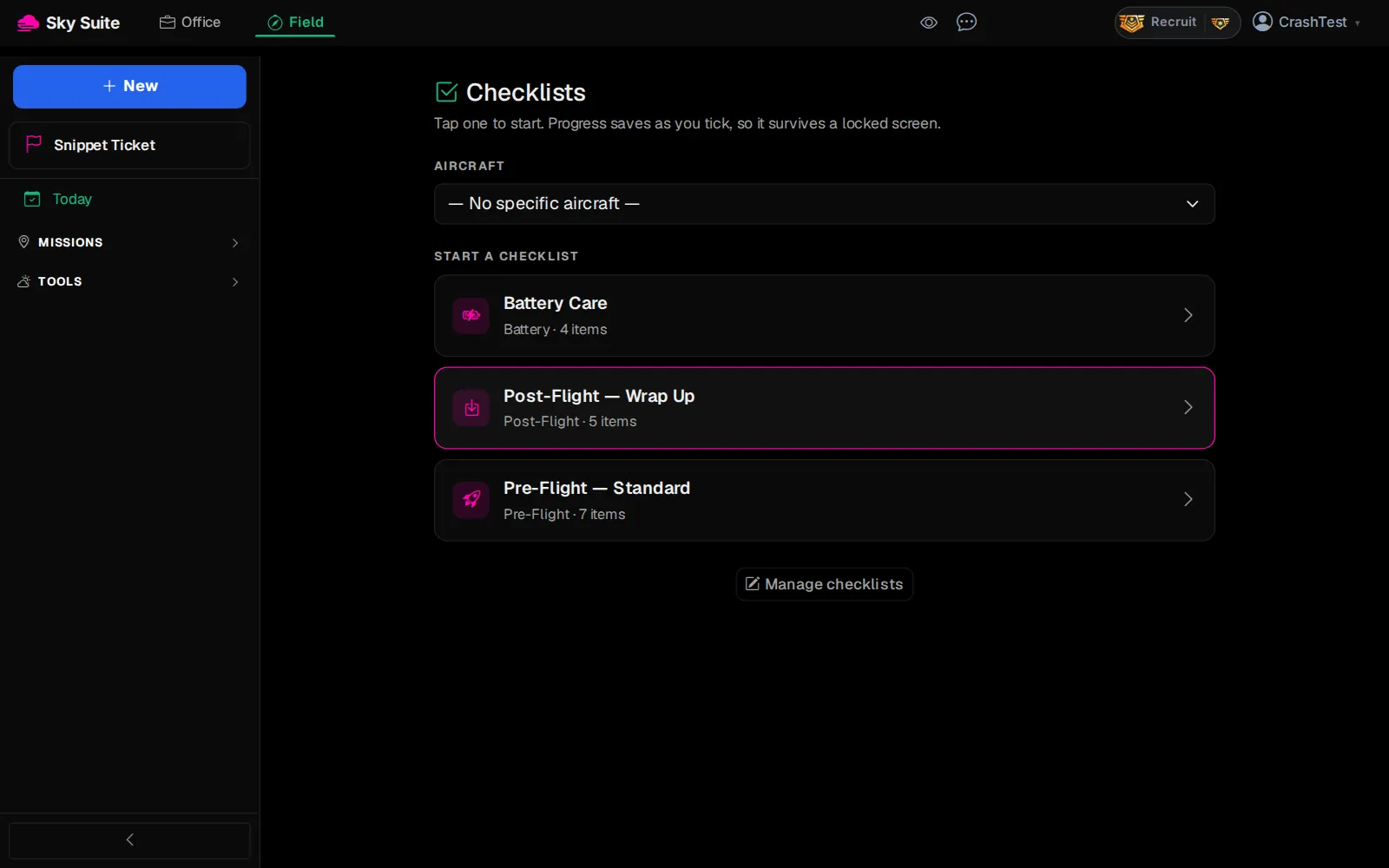
Step 6: Pick your aircraft in the menu at the top (marker 1), then click the checklist, for example “Pre-Flight — Standard” (marker 2).
OpensThe checklist, item by item, with a count of what is left.
-
Step 7: Tap each item as you check it; each tap saves at once. When “All required items done” shows, click “Mark complete”.
OpensThe run is saved as done. “Reopen this checklist” opens it again if you need to.
Poor signal on site? An item that did not save says “Not saved — check your signal and tap again”. More: Equipment.