Help & Guides / Step-by-step guide
Report a problem
Send a report with a screenshot of the page you're on, then follow it on My Tickets.
- Menu
- Snippet Ticket
- Direct link
- skysuite.pro/office/community/squawk-box?tab=my-tickets
- Level
- Basic
- Length
- 6 steps, about 2 minutes
-
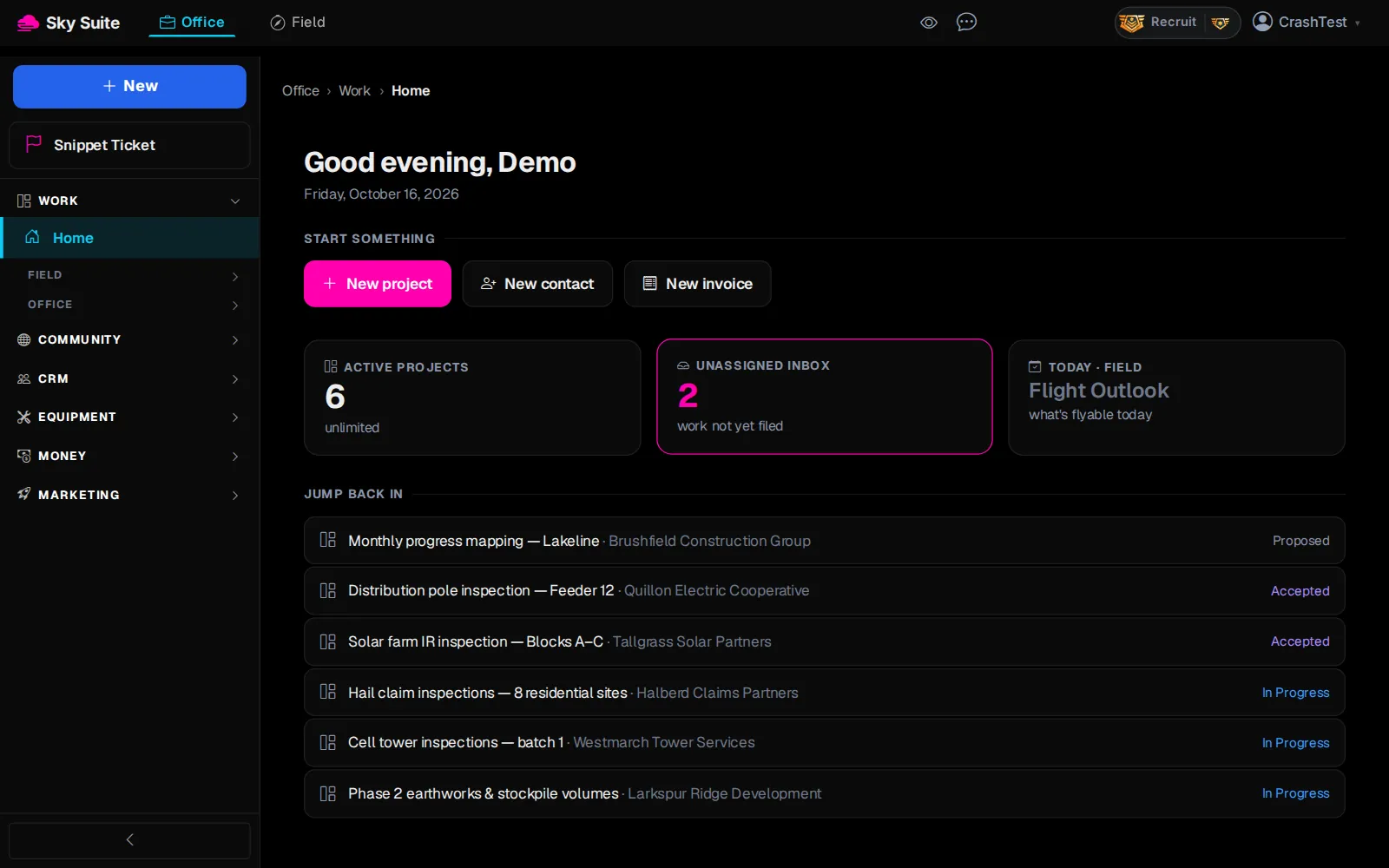
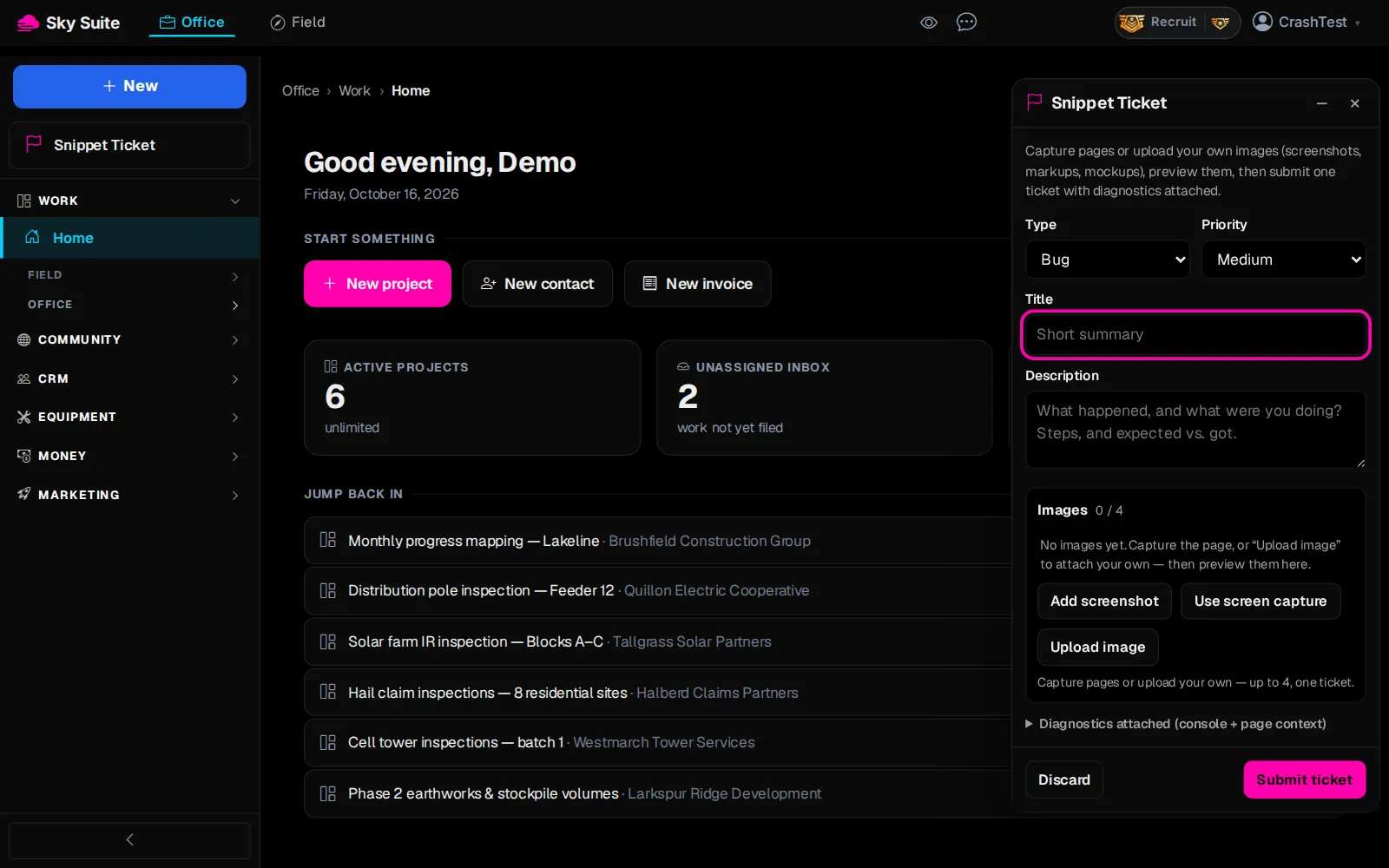
Step 1: On the page where the problem is, click “Snippet Ticket” at the top of the left menu, just under “New”. On a phone, open the menu first.
OpensThe “Snippet Ticket” panel. You can drag it aside, and it stays open as you move between pages.
-
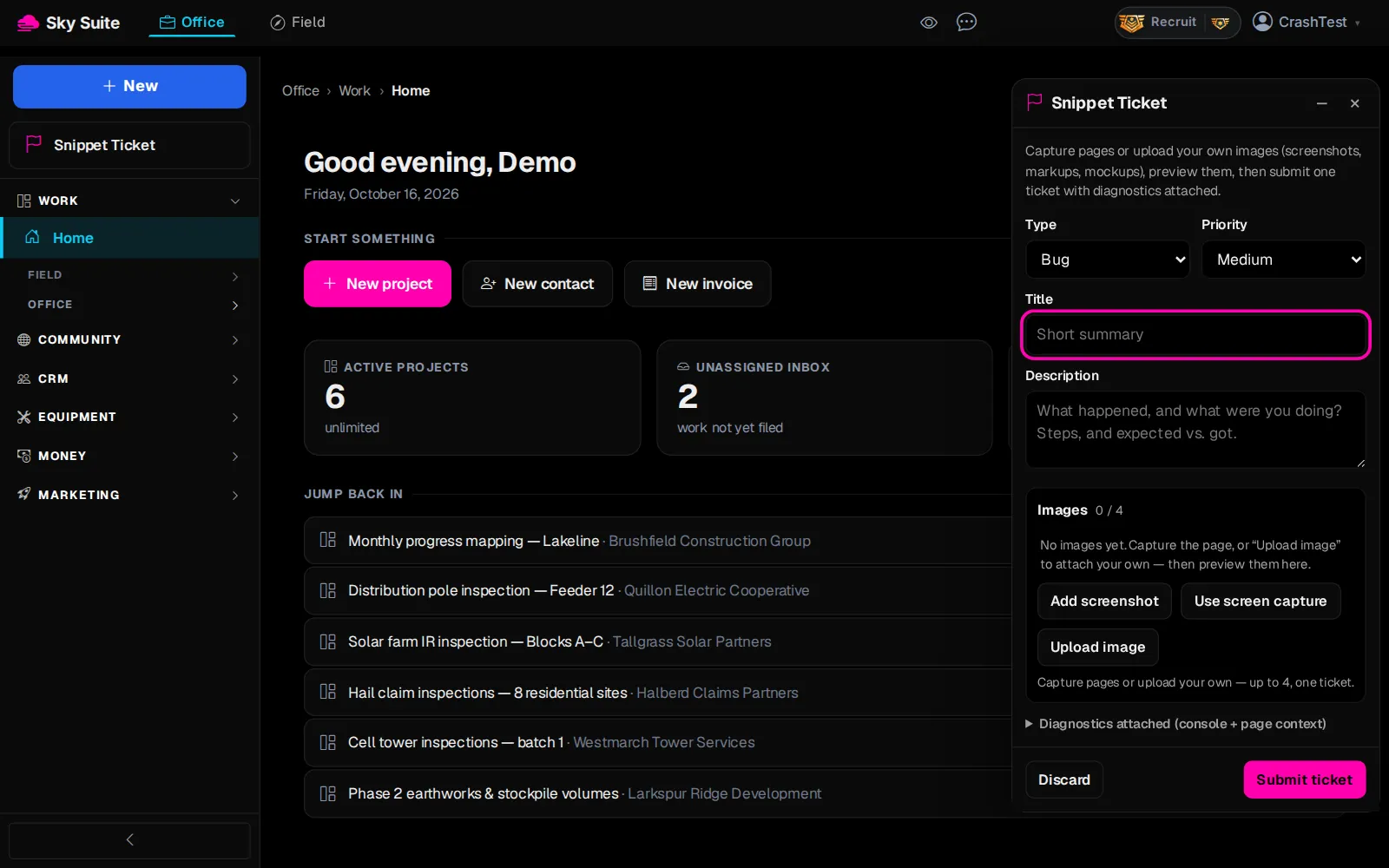
Step 2: Pick the “Type” (marker 1): “Bug”, “Feature” or “Change”, and the “Priority” (marker 2).
-
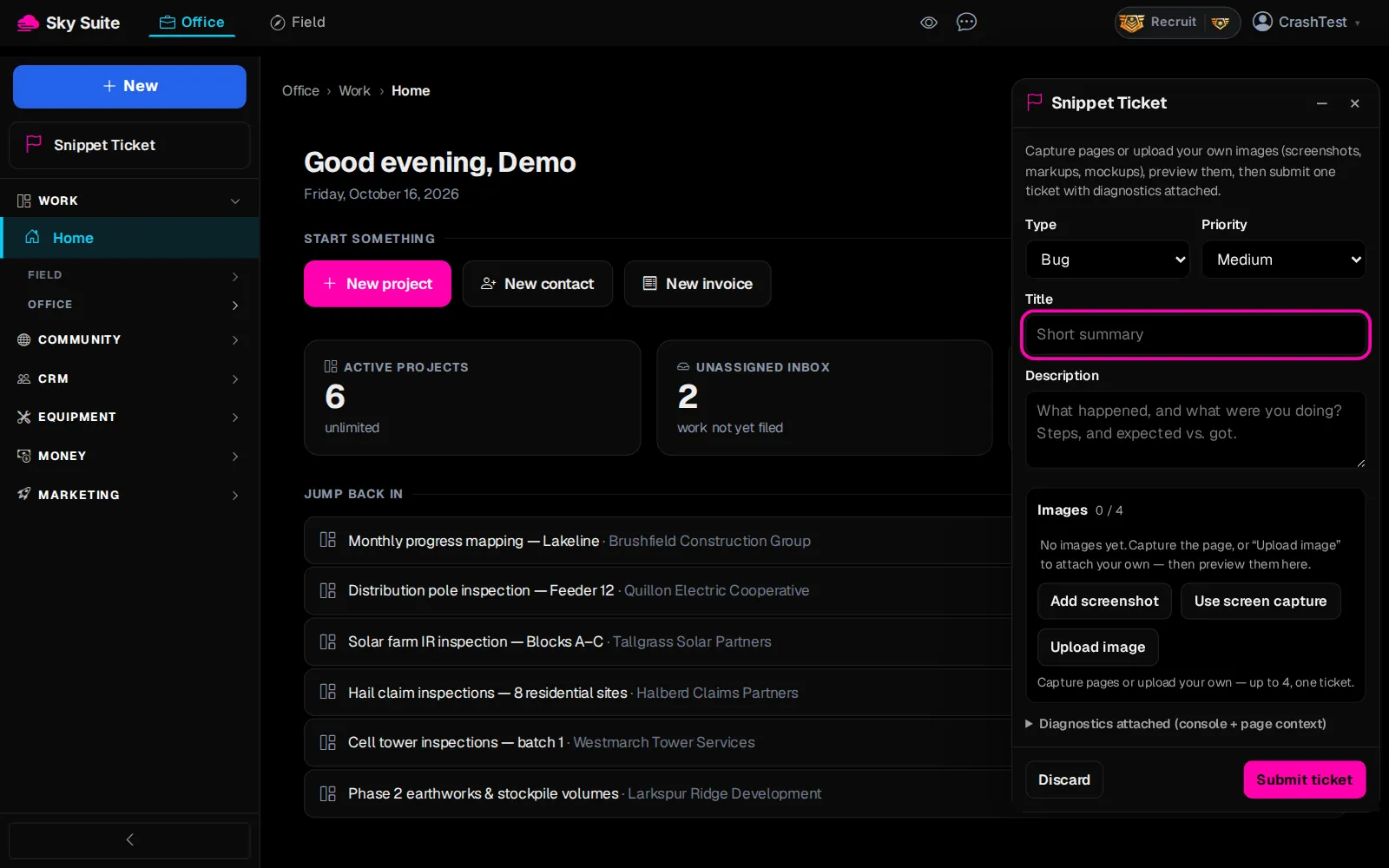
Step 3: Write a one-line “Title” (marker 1), then in “Description” (marker 2) say what you did, what you expected and what happened.
-
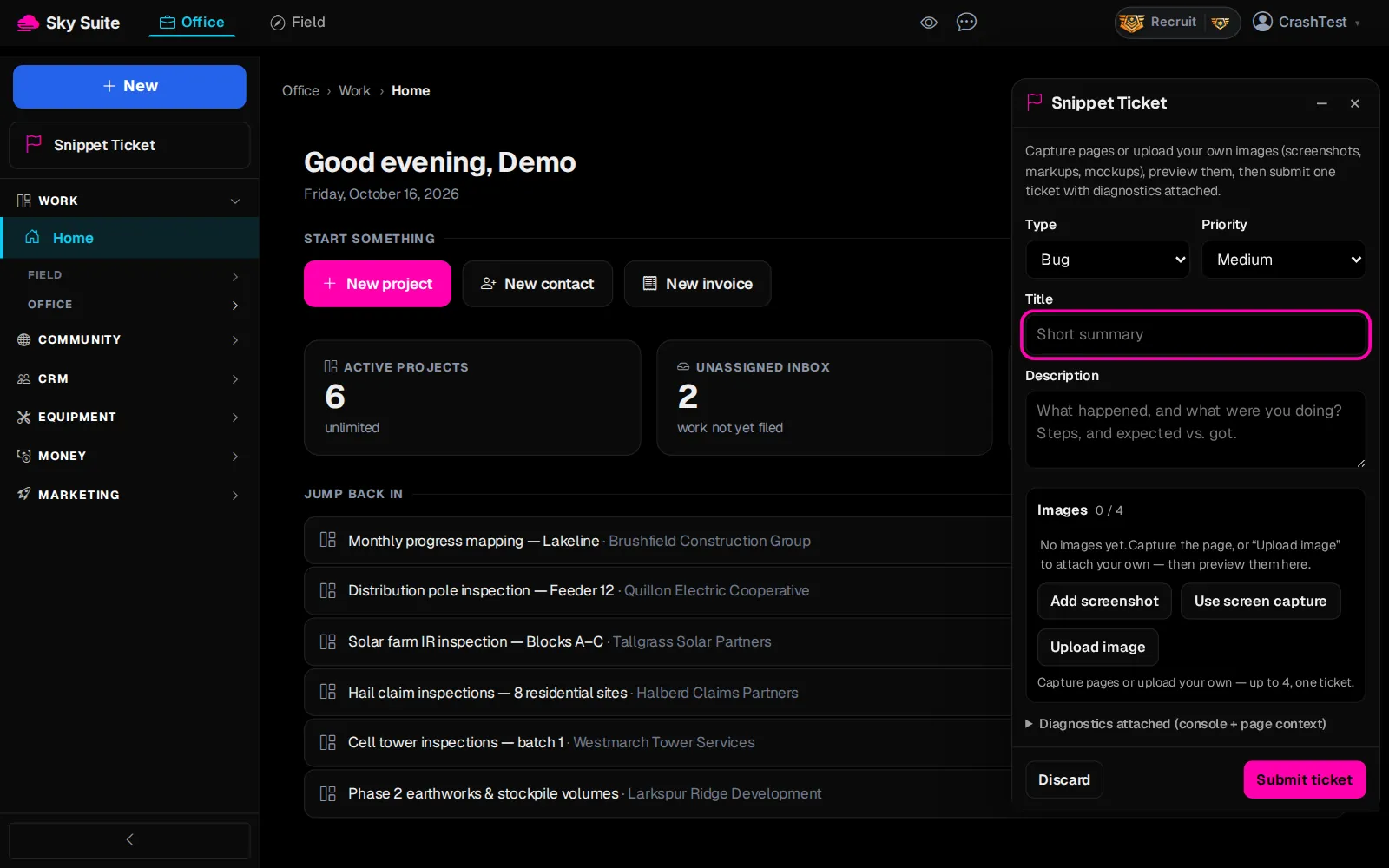
Step 4: Click “Add screenshot” (marker 1) to capture the page. For a map, 3D view or the planner, use “Use screen capture” (marker 2); “Upload image” adds a picture you already have. Up to four.
OpensThe picture under “Images”. The page's errors are attached for you (“Diagnostics attached”).
-
Step 5: Click “Submit ticket”.
Opens“Ticket filed — thank you.” with your ticket number, “View ticket” and “Done”.
-
Step 6: To follow it later, open Office › Community › Squawk Box and click the “My Tickets” tab.
OpensYour tickets and where each one stands. An accepted ticket earns you Flight Path points.
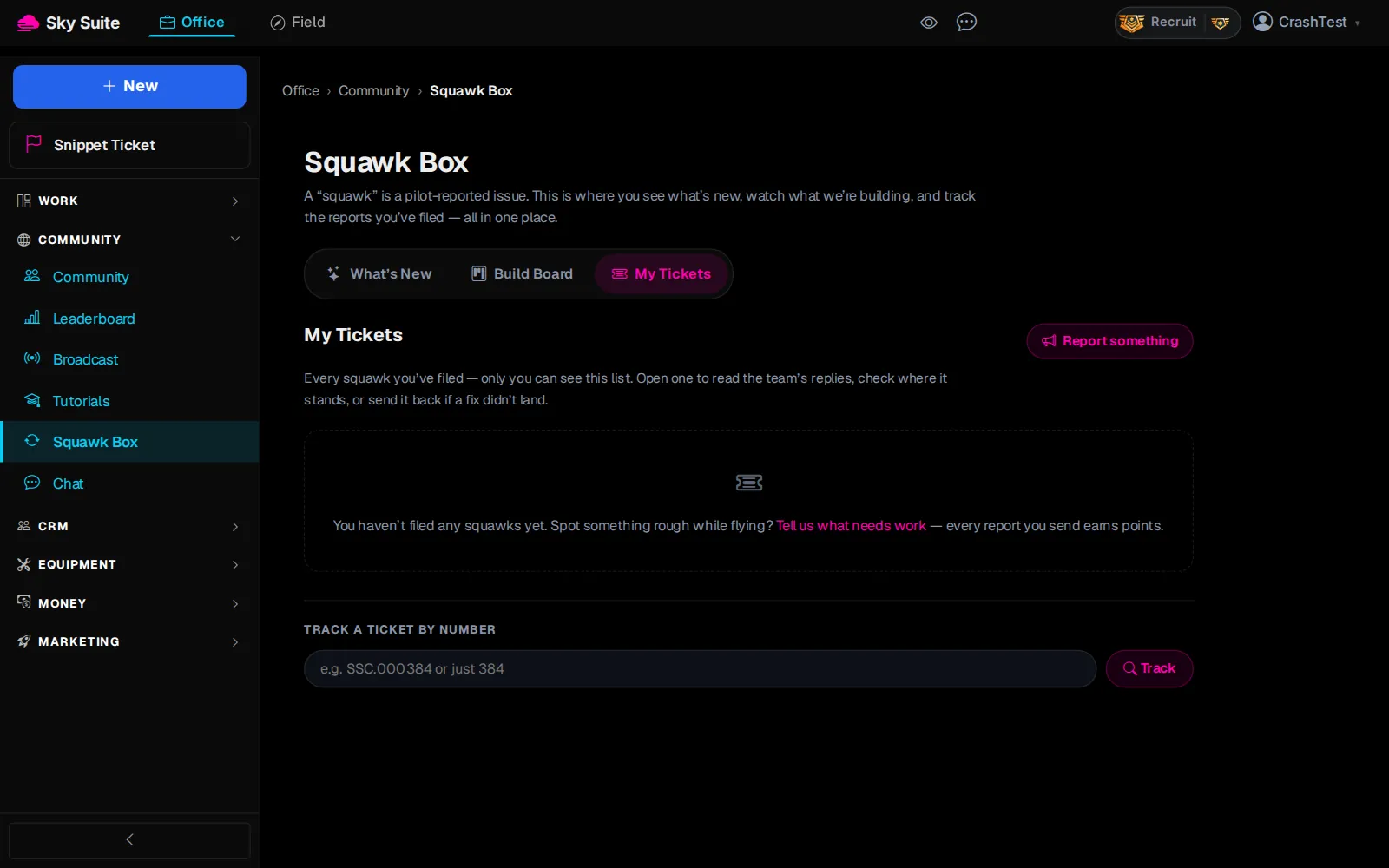
“Send Feedback” in the menu under your name opens My Tickets too. More: Snippet Ticket.