Help & Guides / Step-by-step guide
Read today's flight brief
See today's go or no-go for your site, the weather that decides it, and the missions still waiting for a fly date.
- Menu
- Field › Today › Flight Brief
- Direct link
- skysuite.pro/field/today/flight-brief
- Level
- Basic
- Length
- 5 steps, about 2 minutes
-
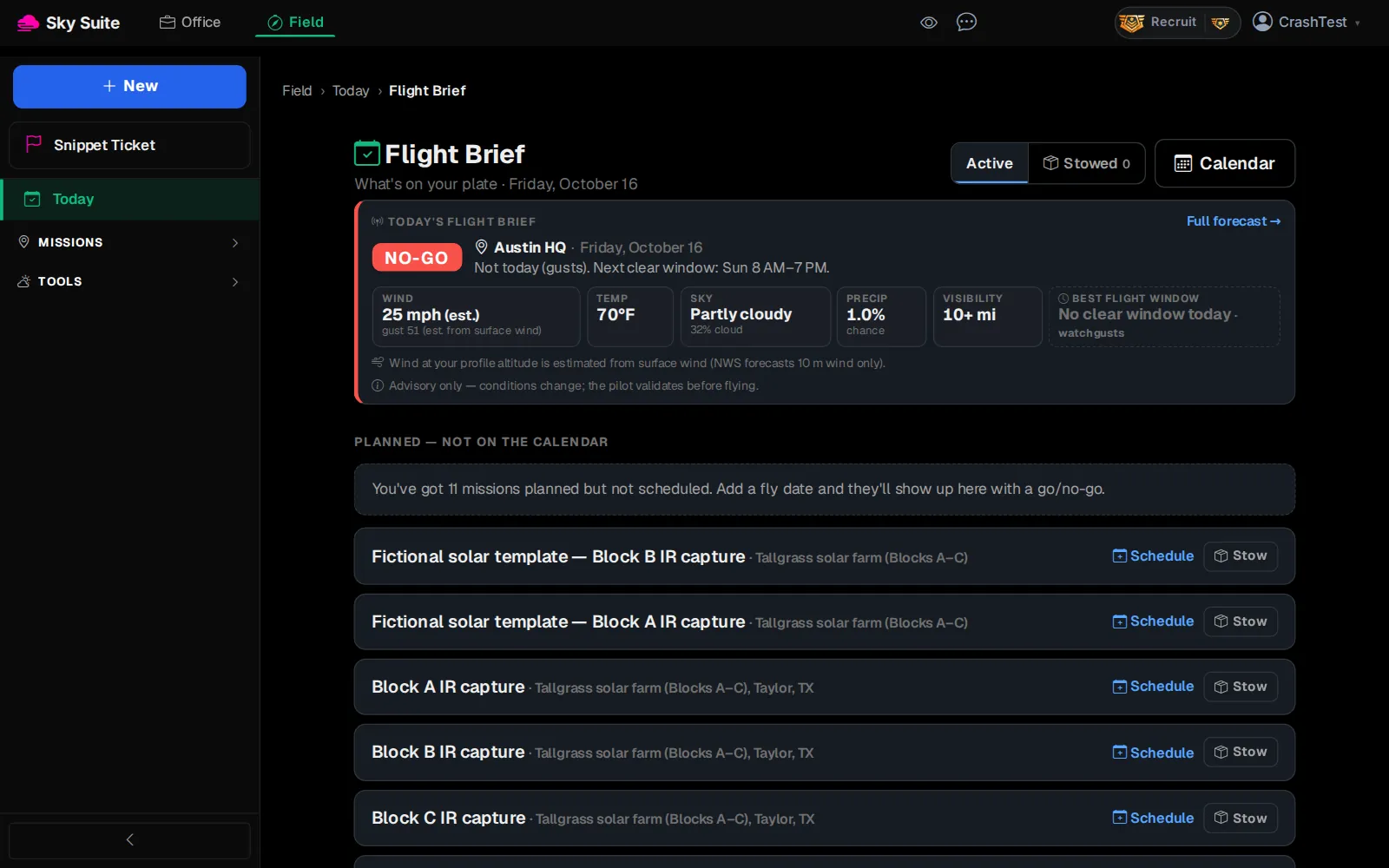
Step 1: At the top of the page, click “Field”.
OpensThe Field menu on the left: “Today”, “Missions” and “Tools”.
-
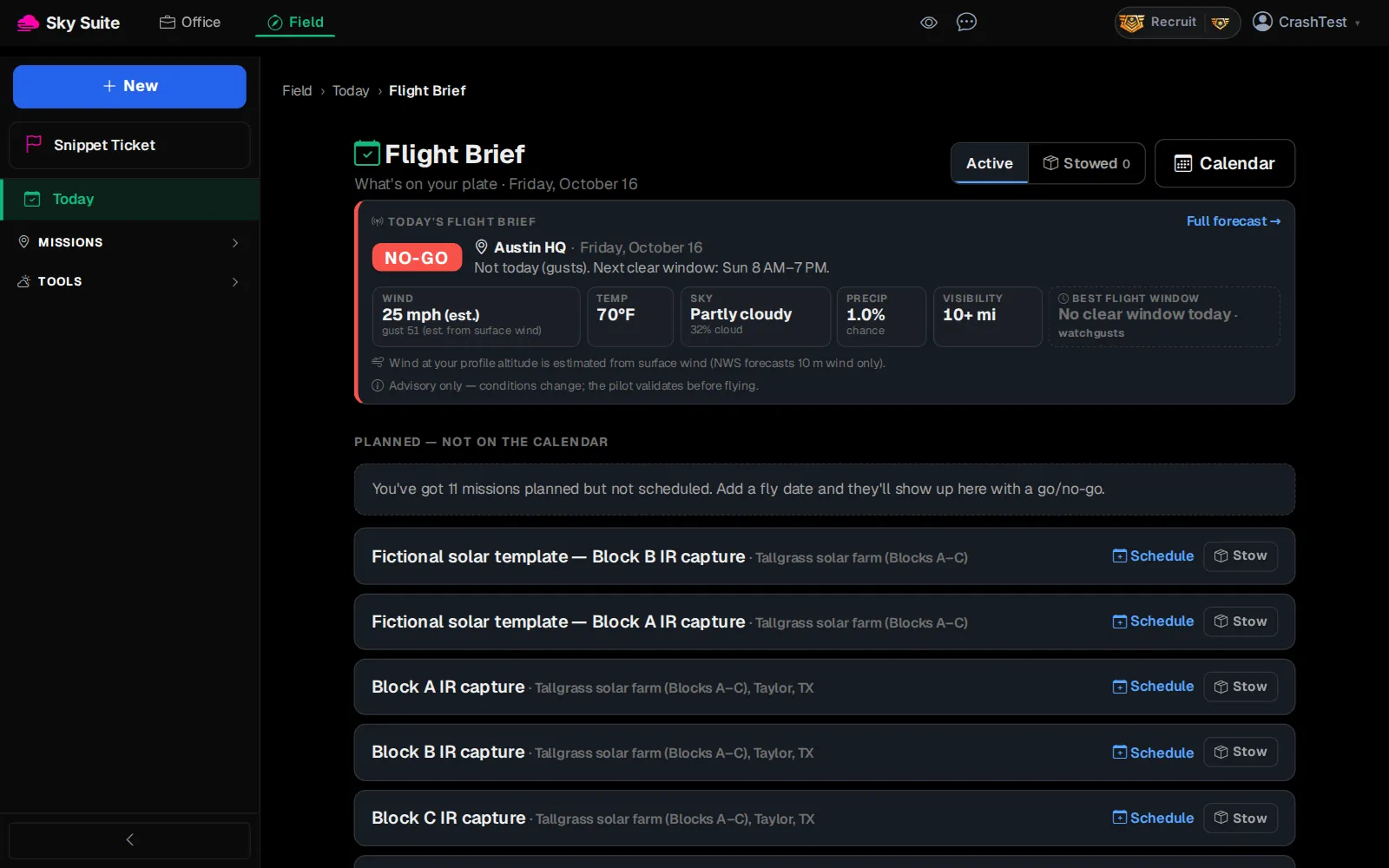
Step 2: In the left menu, click “Today”. It is the Flight Brief, the only page under Today.
OpensThe “Flight Brief” page: “What's on your plate” for today.
-
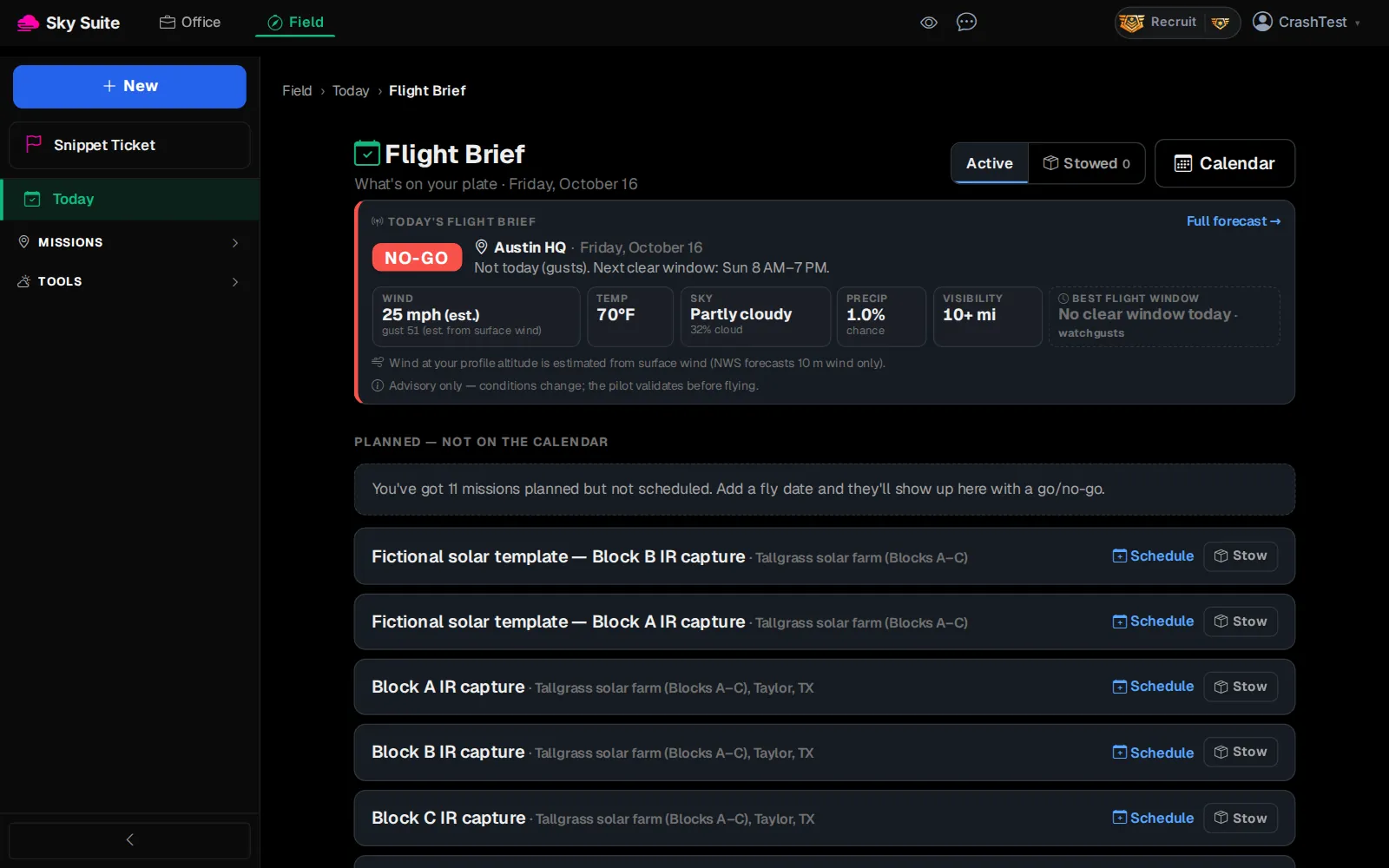
Step 3: Read the “TODAY'S FLIGHT BRIEF” box (marker 1): the verdict (“GO”, “CAUTION” or “NO-GO”) for your site, the reason and the next clear window, then “WIND”, “TEMP”, “SKY”, “PRECIP” and “VISIBILITY”. For the hour-by-hour view, click “Full forecast →” (marker 2).
Opens“Full forecast →” opens Field › Tools › Forecast for the same site.
-
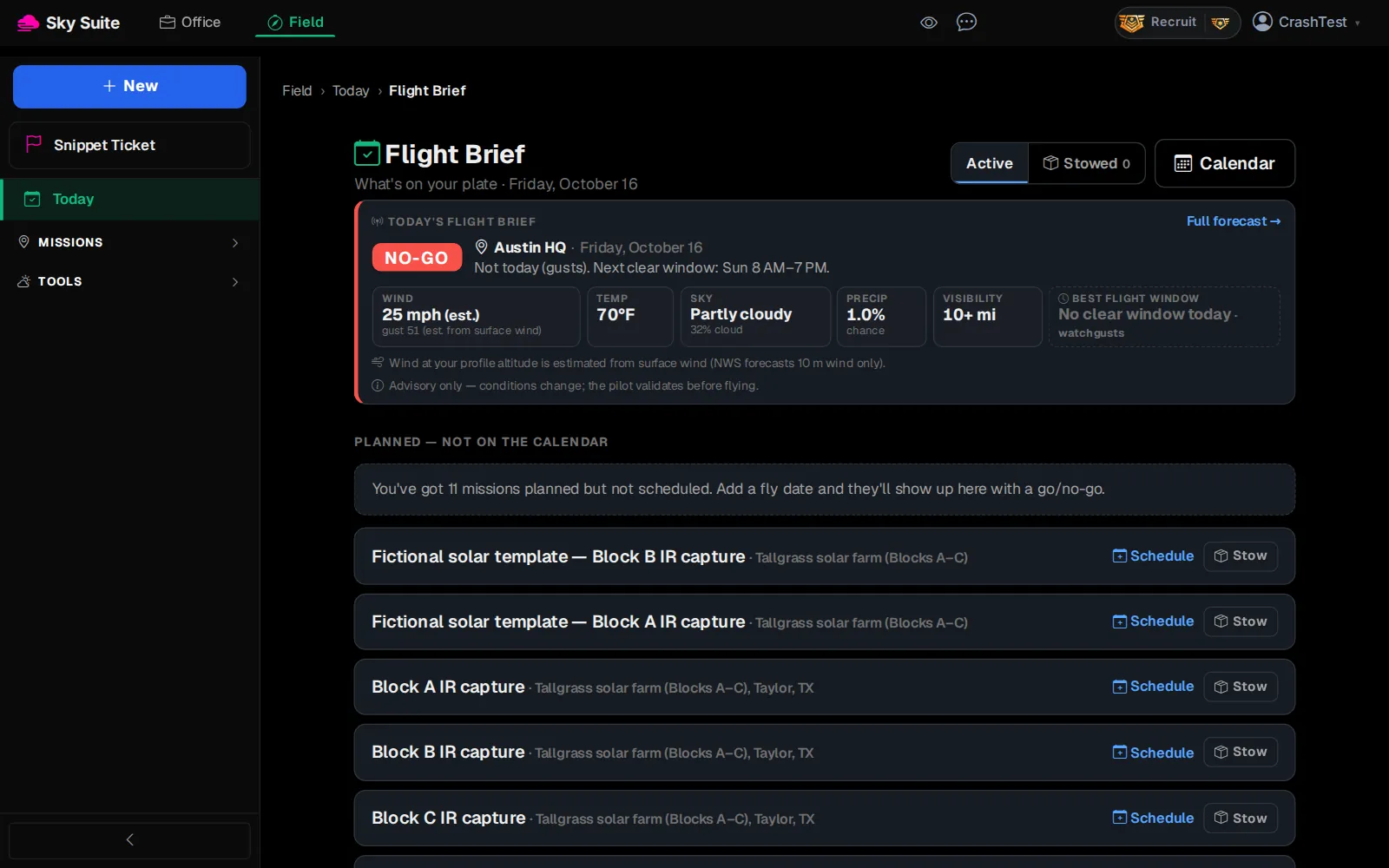
Step 4: Under “PLANNED — NOT ON THE CALENDAR”, find a mission you want to fly and click its “Schedule”.
OpensThe mission's plan, where you set the fly date. Once it has a date, it shows on the brief with its own go or no-go.
-
Step 5: At the top right, click “Calendar”.
OpensOffice › Work › Office › Calendar, with your scheduled shoots on it.
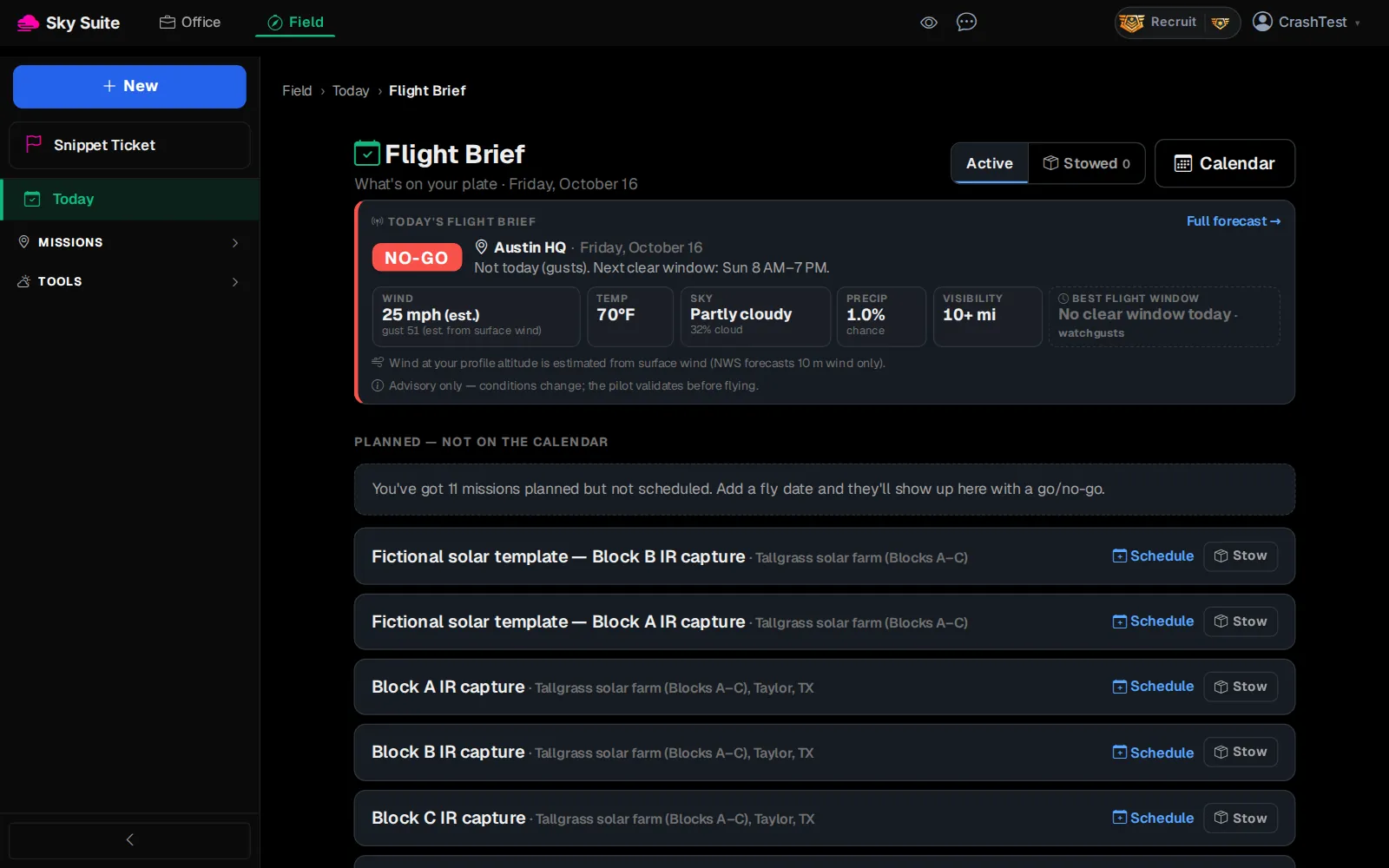
The brief scores your default site: the location you last set on Field › Tools › Forecast. Change it there and the brief follows. A mission you will not fly goes away with “Stow” (it comes back from “Stowed”).