Help & Guides / Step-by-step guide
Check the forecast before you fly
Read GO, CAUTION or NO-FLY for your site against your own limits and pick the best hour to fly.
- Menu
- Field › Tools › Forecast
- Direct link
- skysuite.pro/field/tools/forecast
- Level
- Basic
- Length
- 6 steps, about 2 minutes
-
Step 1: At the top of the page, click “Field”.
OpensThe Field menu on the left: “Today”, “Missions” and “Tools”.
-
Step 2: In the left menu, click “Tools” to open the group.
Opens“Forecast”, “Airspace” and “Radar”.
-
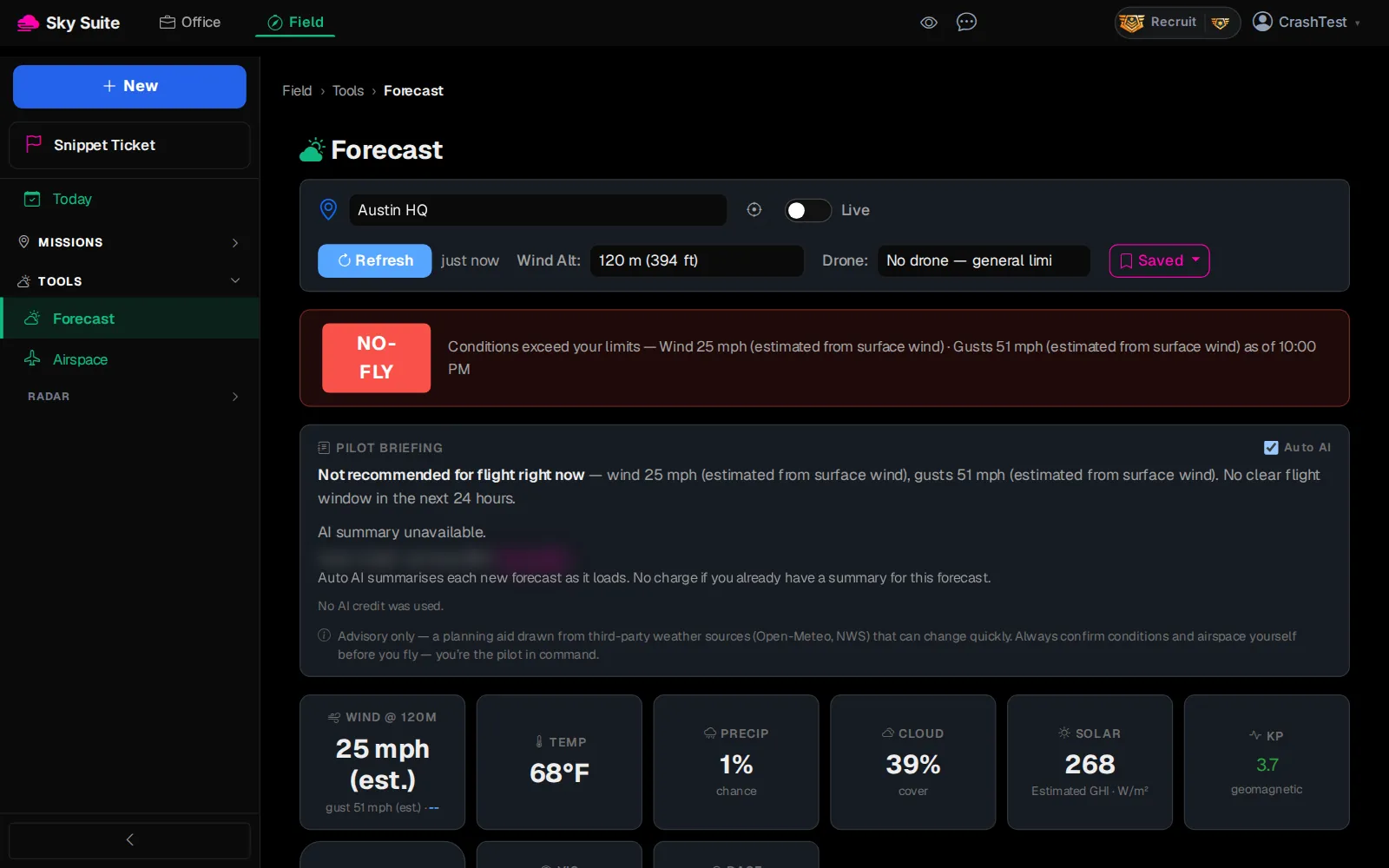
Step 3: Click “Forecast”.
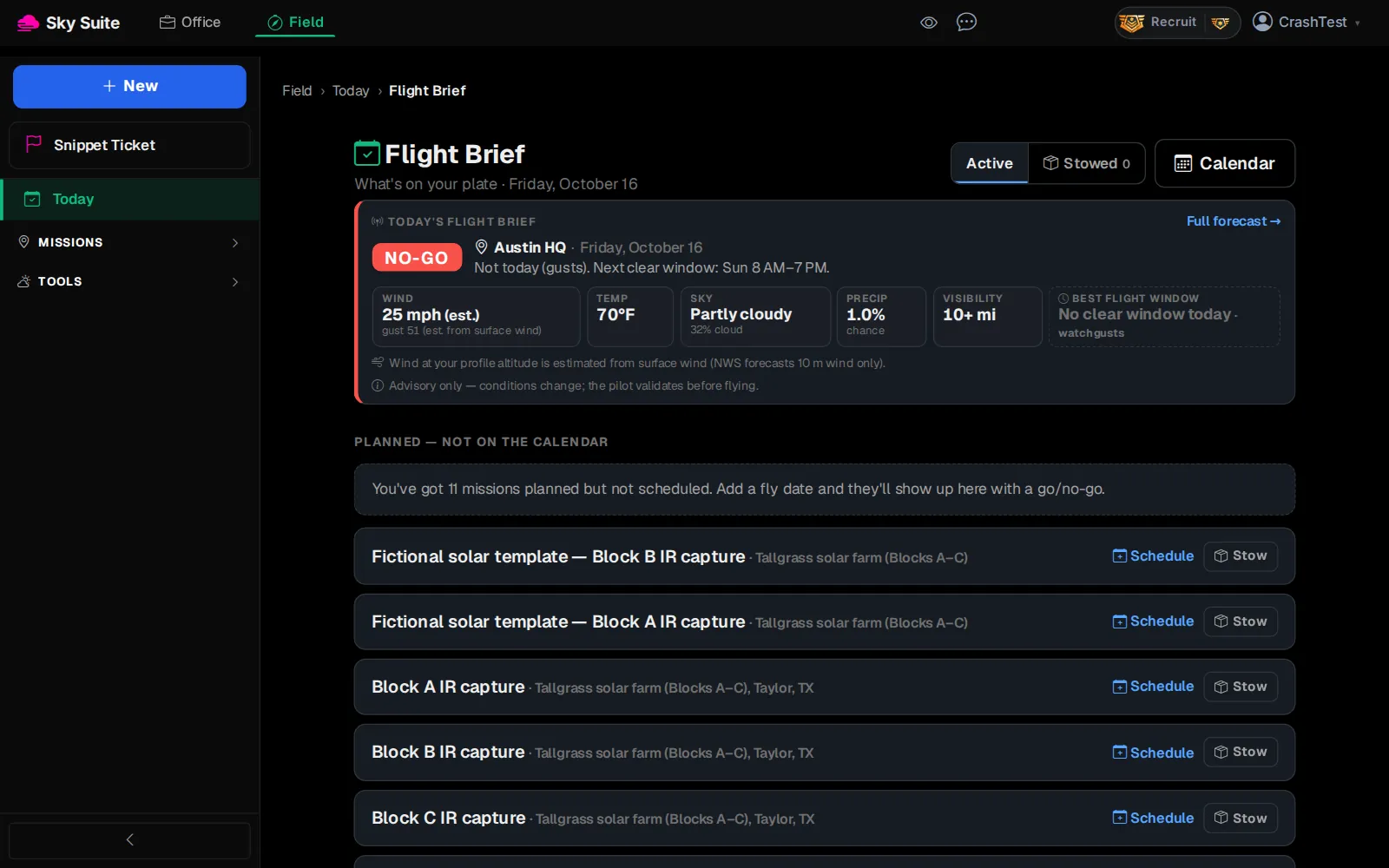
OpensThe “Forecast” page for your default site.
-
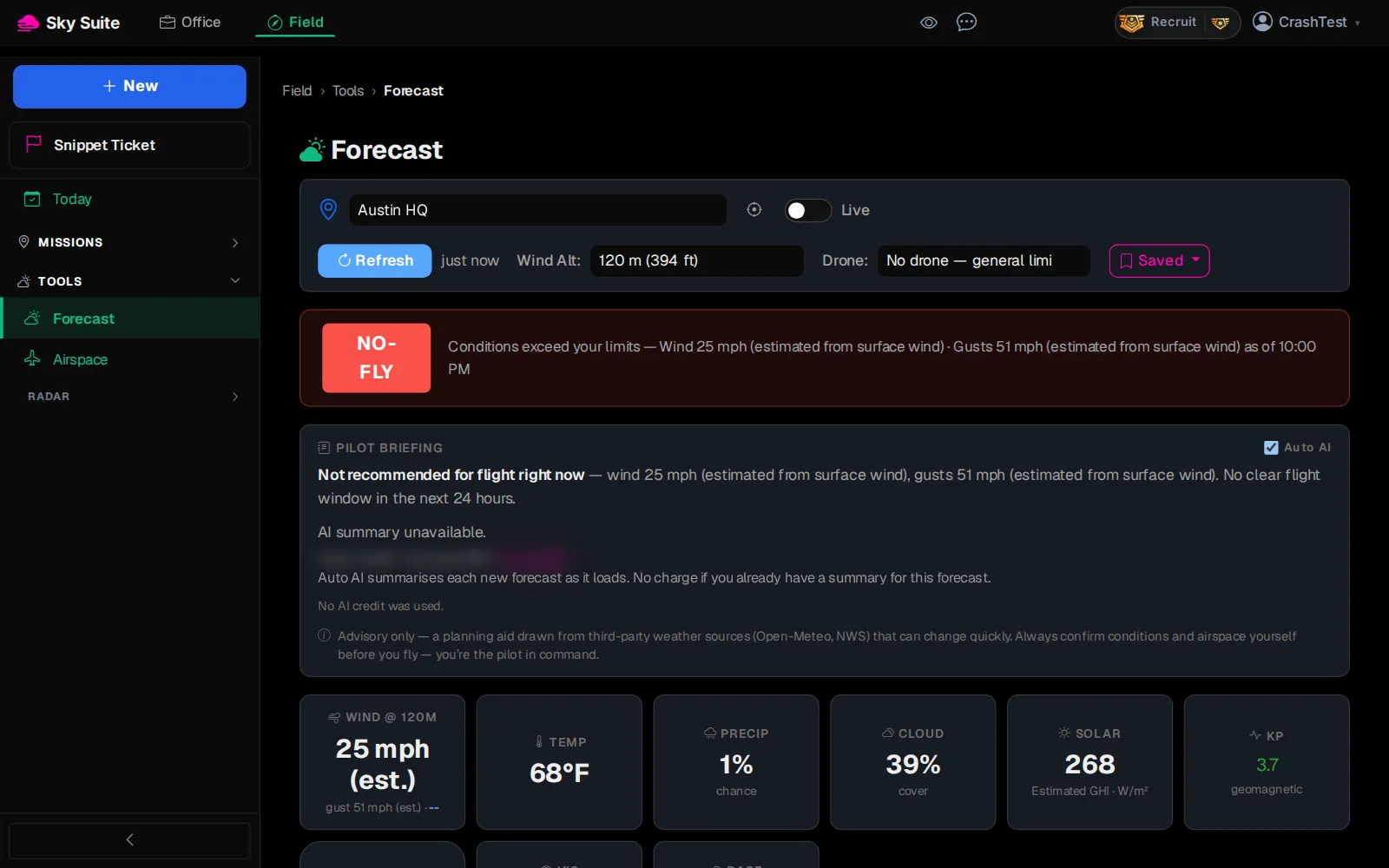
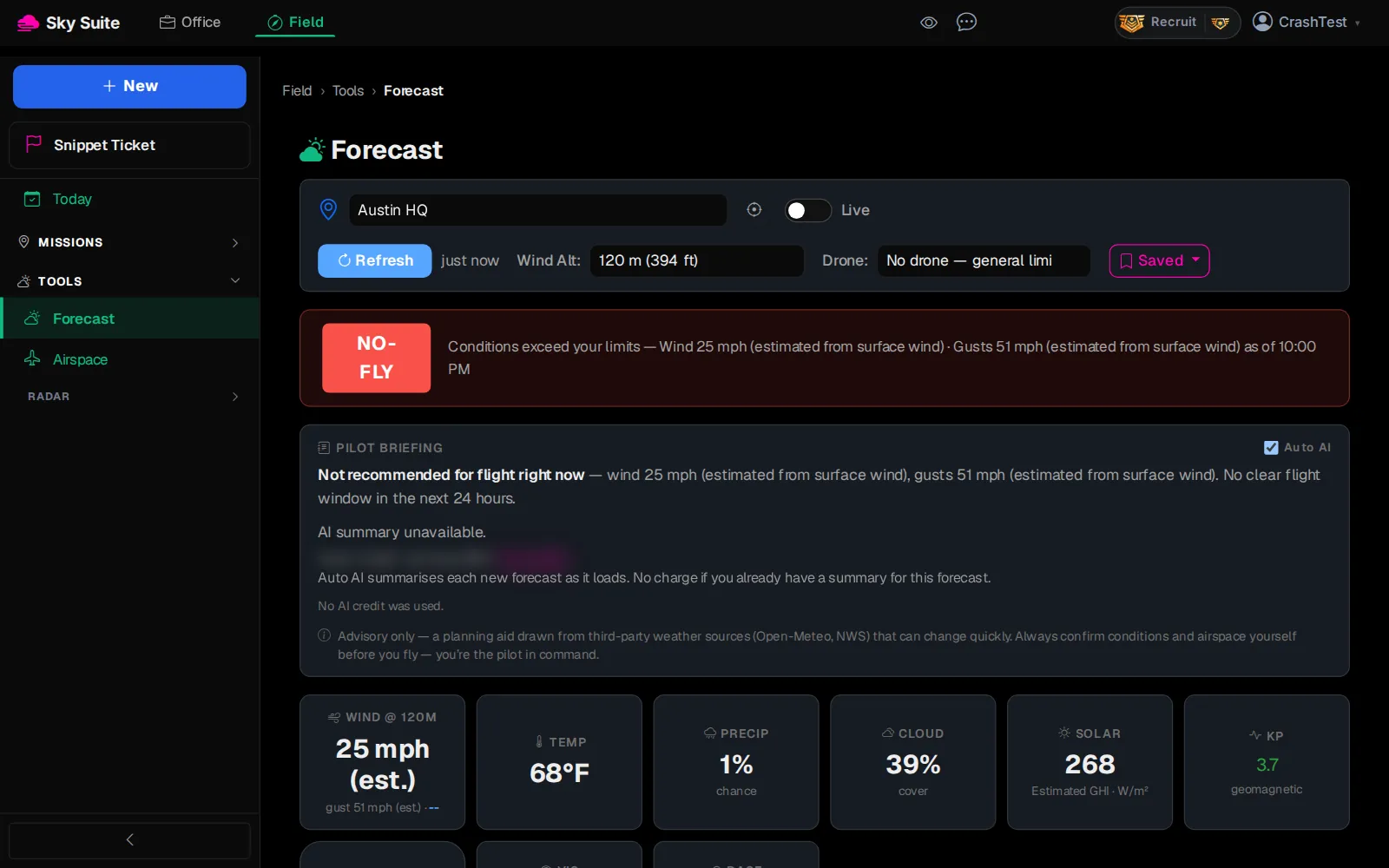
Step 4: In the location box (marker 1), type your site's address and pick it from the list, or click “Use my GPS location” (marker 2, the crosshair) to use where you are.
OpensThe forecast for that site. It becomes your default, so Field › Today › Flight Brief reads the same site.
-
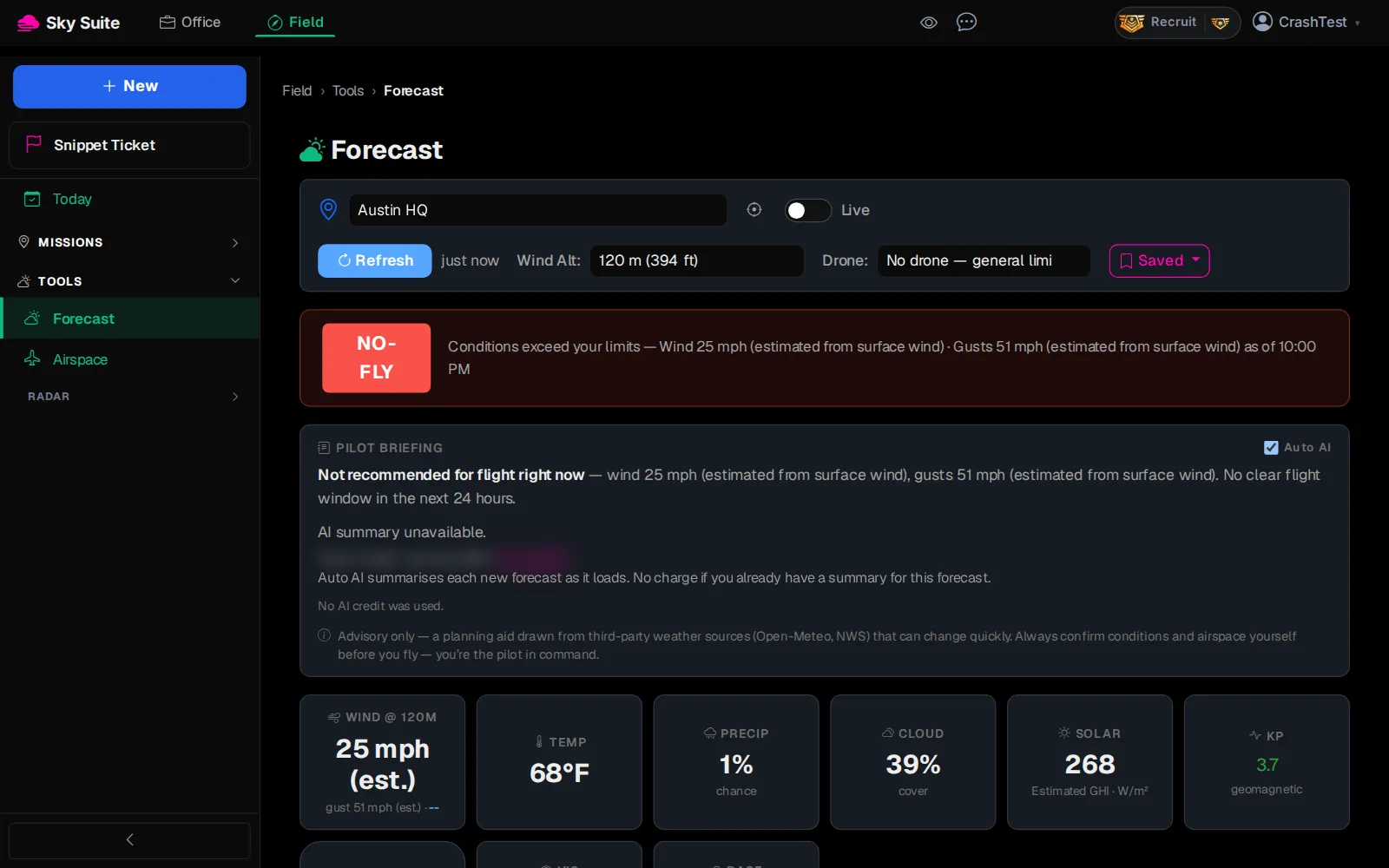
Step 5: In “Drone:” (marker 1) pick the aircraft you are flying, so the verdict uses its wind limit, and in “Wind Alt:” (marker 2) pick the height you will fly at.
-
Step 6: Click “Refresh” (marker 1), then read the hour-by-hour table: the “FLY?” column (marker 2) says GO, CAUTION, NO-FLY or NIGHT for each hour.
OpensNothing new: the verdict and the table update with the latest weather. Pick the calmest GO hours to fly.
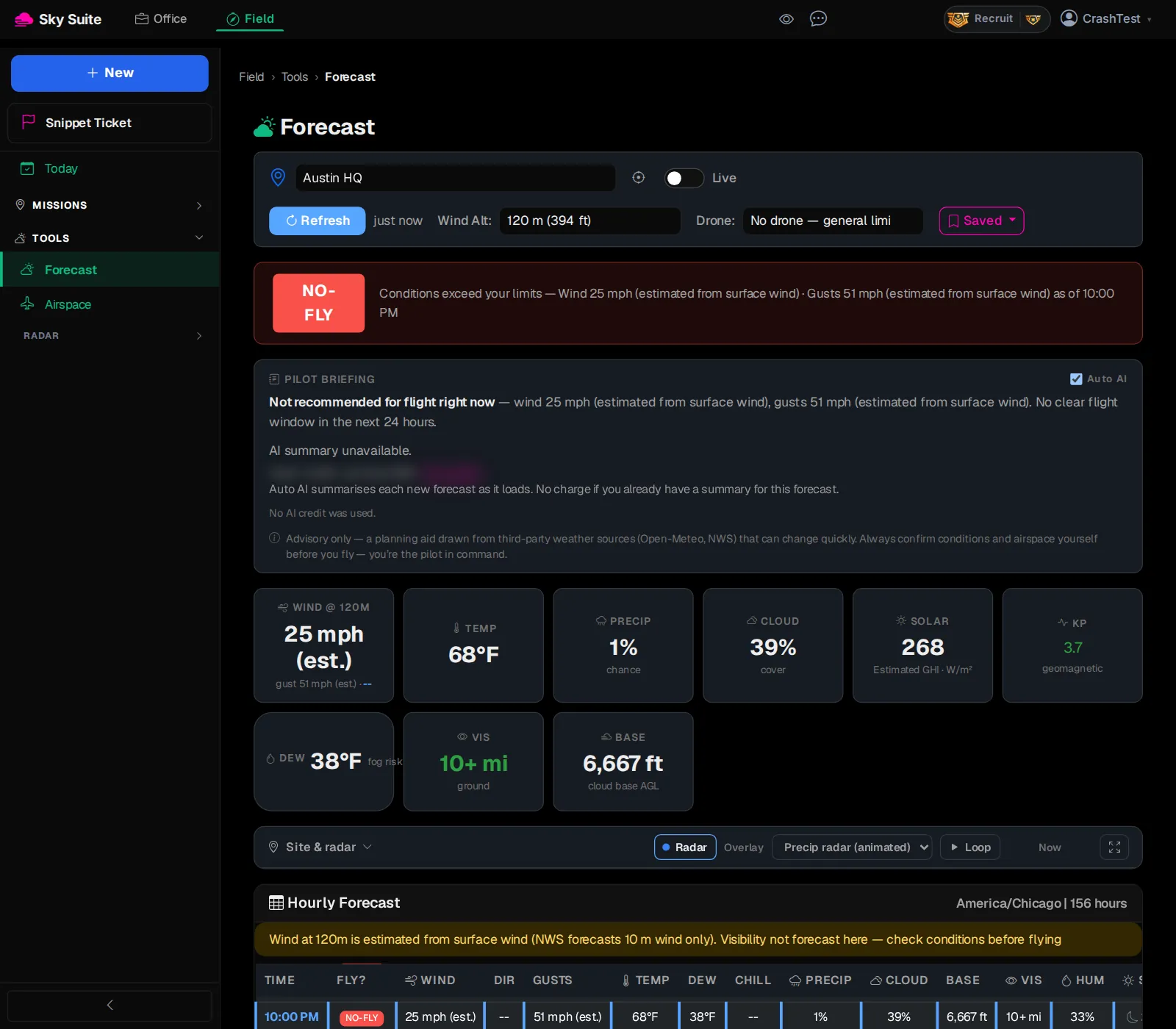
What the verdicts mean. GO: within your limits. CAUTION: flyable, but something is close to a limit; read the reason first. NO-FLY: a limit is broken (too much wind, rain and so on). NIGHT: outside daylight.
The written AI summary on this page costs a credit each time it runs; turn “Auto AI” off if you only want the numbers. Your limits (wind, rain chance, daylight) are set under “Adjust limits” on the Flight Brief. More detail: Forecast.