Help & Guides / Step-by-step guide
Find your way around
Switch between Office and Field, open a menu group, and use the "New" and "Snippet Ticket" buttons at the top of the left menu.
- Menu
- Office › Work › Home
- Direct link
- skysuite.pro/office/home
- Level
- Basic
- Length
- 6 steps, about 2 minutes
-
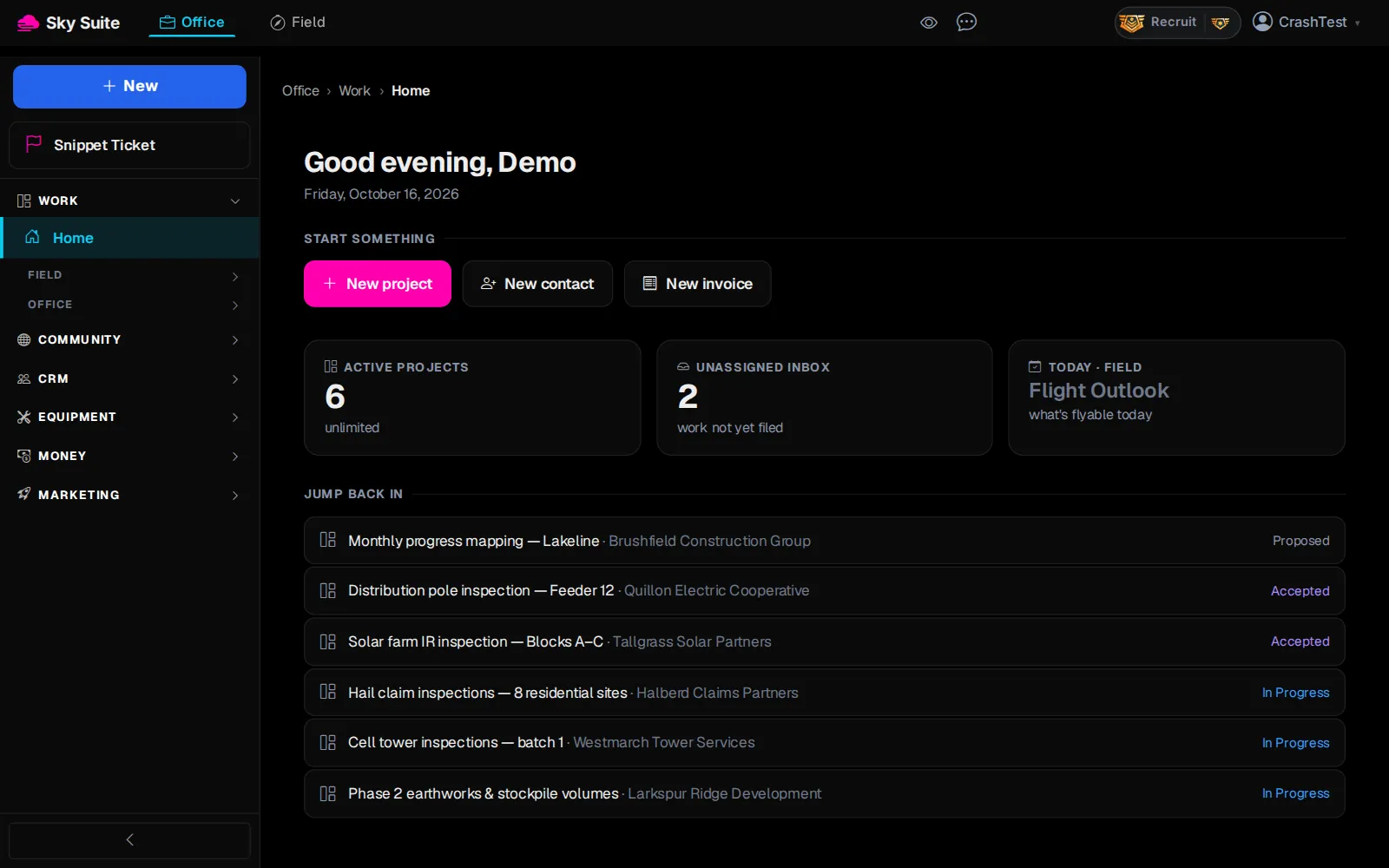
Step 1: At the top of the page, click “Office”.
OpensThe Office menu on the left: “Work”, “Community”, “CRM”, “Equipment”, “Money” and “Marketing”.
-
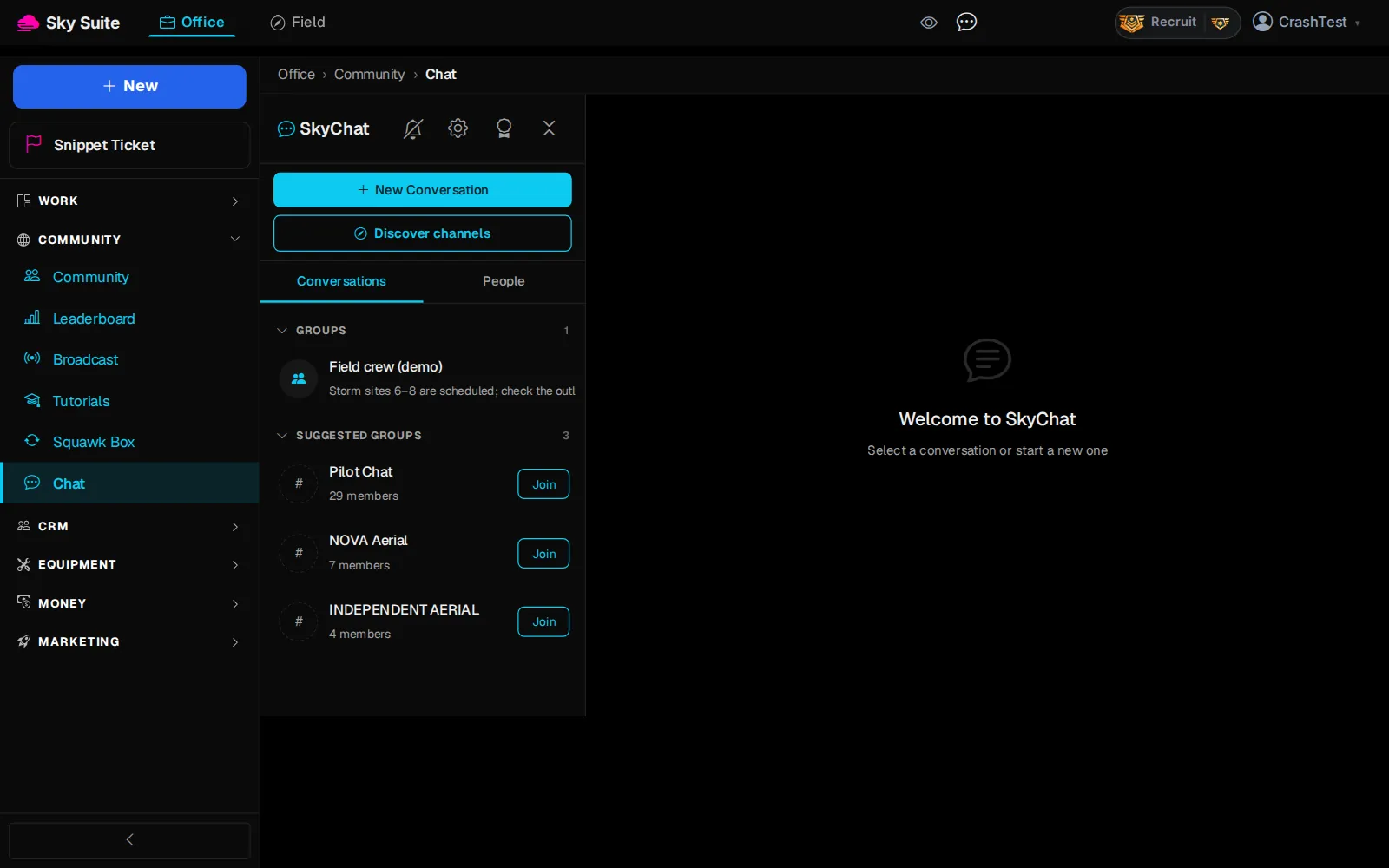
Step 2: In the left menu, click “Work” to open the group. Click it again to close it; every group in capitals works the same way.
OpensThe Work group: “Home”, then “Field” (your projects and crews) and “Office” (calendar, booking, tasks).
-
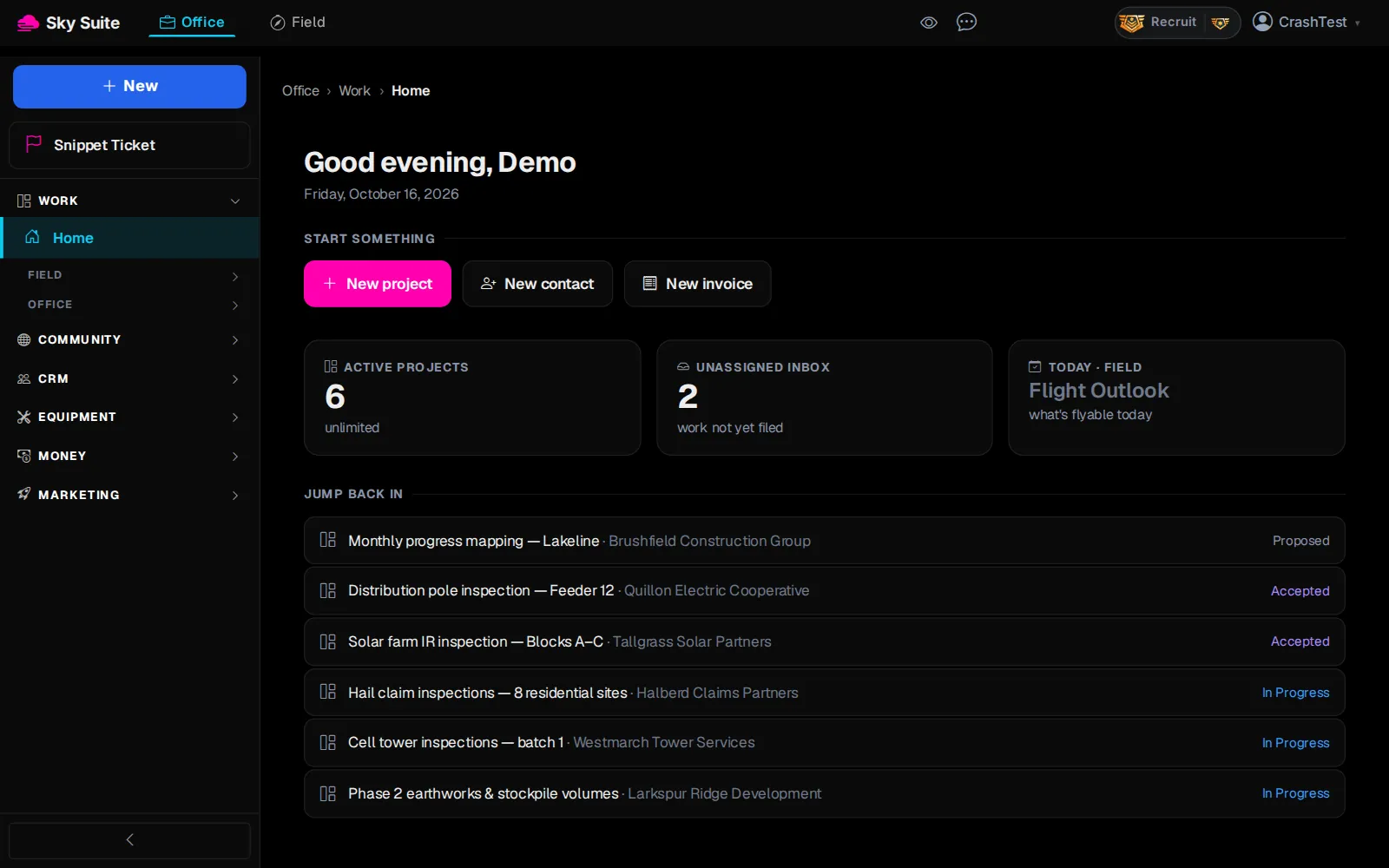
Step 3: Under “Work”, click “Home”.
OpensYour Home page: “Start something”, your active projects and “Jump back in”.
-
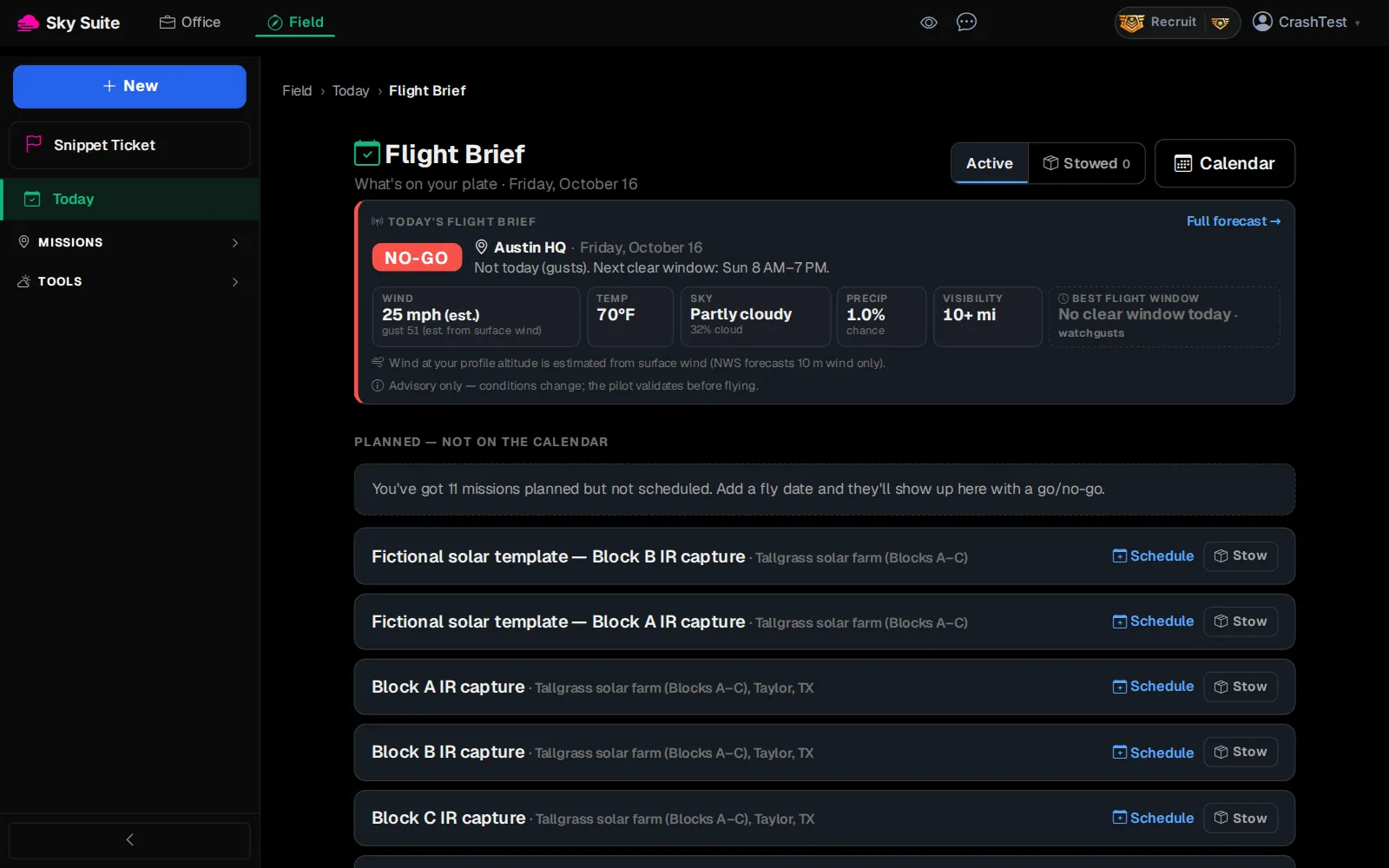
Step 4: At the top of the page, click “Field”.
OpensThe Field menu on the left, for flight day: “Today”, “Missions” and “Tools”. Click “Office” to switch back.
-
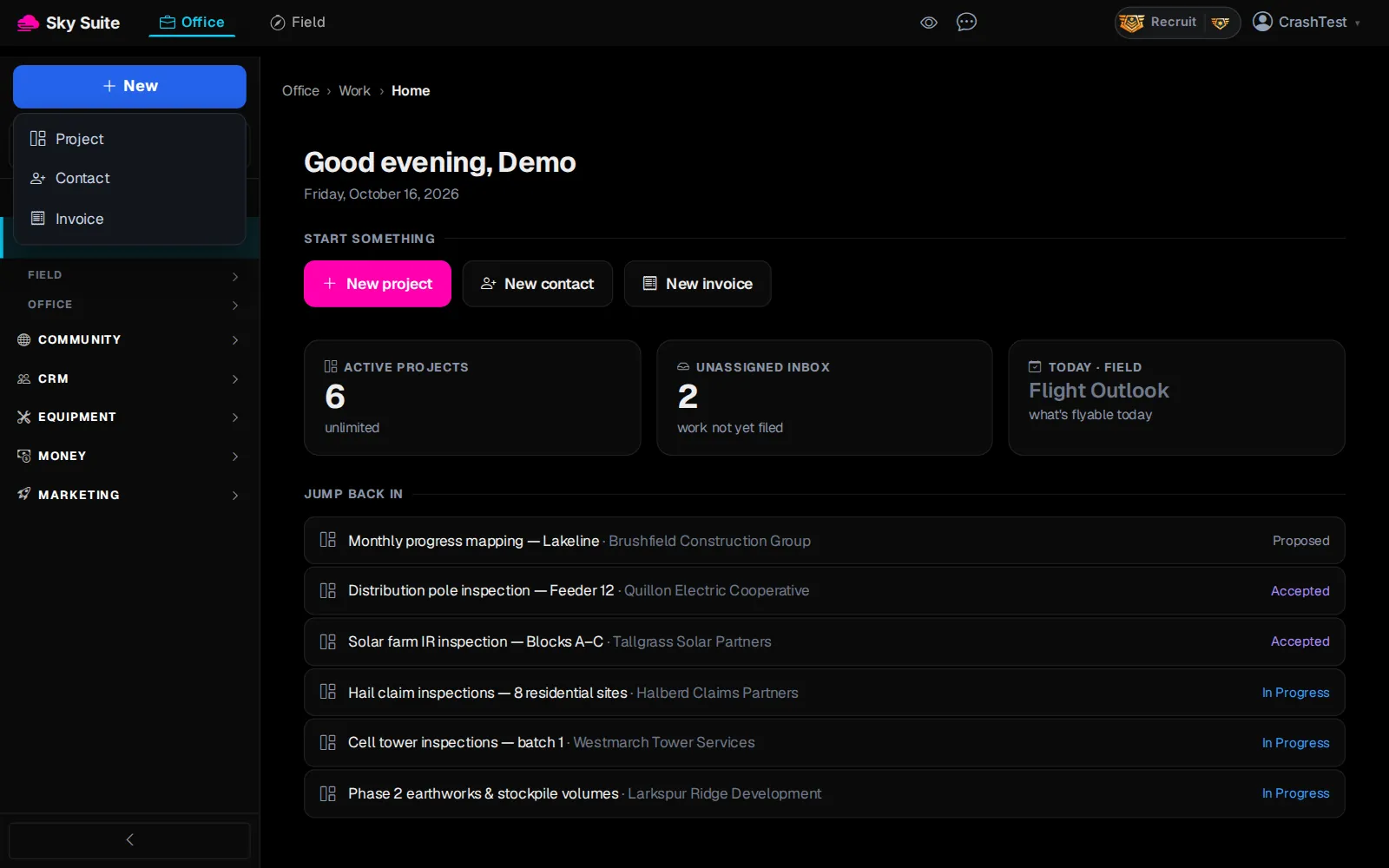
Step 5: At the top of the left menu, click the blue “New” button.
OpensA short menu: “Project”, “Contact” and “Invoice”. Each one opens its form.
-
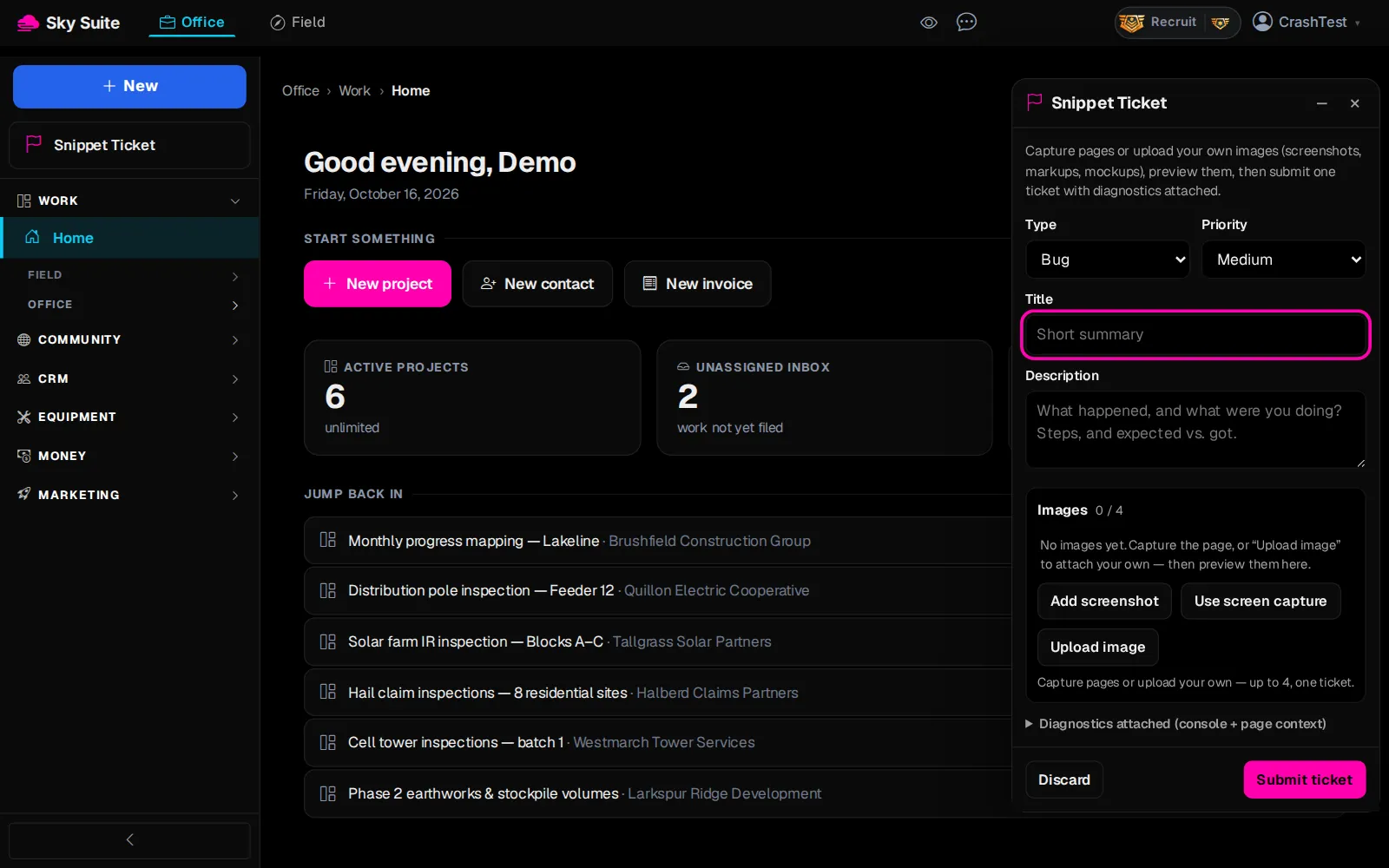
Step 6: Just under “New”, click “Snippet Ticket” whenever something looks wrong.
OpensThe “Snippet Ticket” panel, which reports a problem with a screenshot of the page you are on. Click “×” to close it.
The menu under your name at the top right has “Account Settings”, the “Setup wizard” and “Getting Started”. Next: See the whole job.