Help & Guides / Step-by-step guide
Upload photos and make your map
Upload the drone's photos to the mission, check the quality and the cost first, and start SkyPLX-9 processing.
- Menu
- Office › Work › Field › DSP
- Direct link
- skysuite.pro/office/work/field/dsp
- Level
- Basic
- Length
- 9 steps, about 4 minutes
-
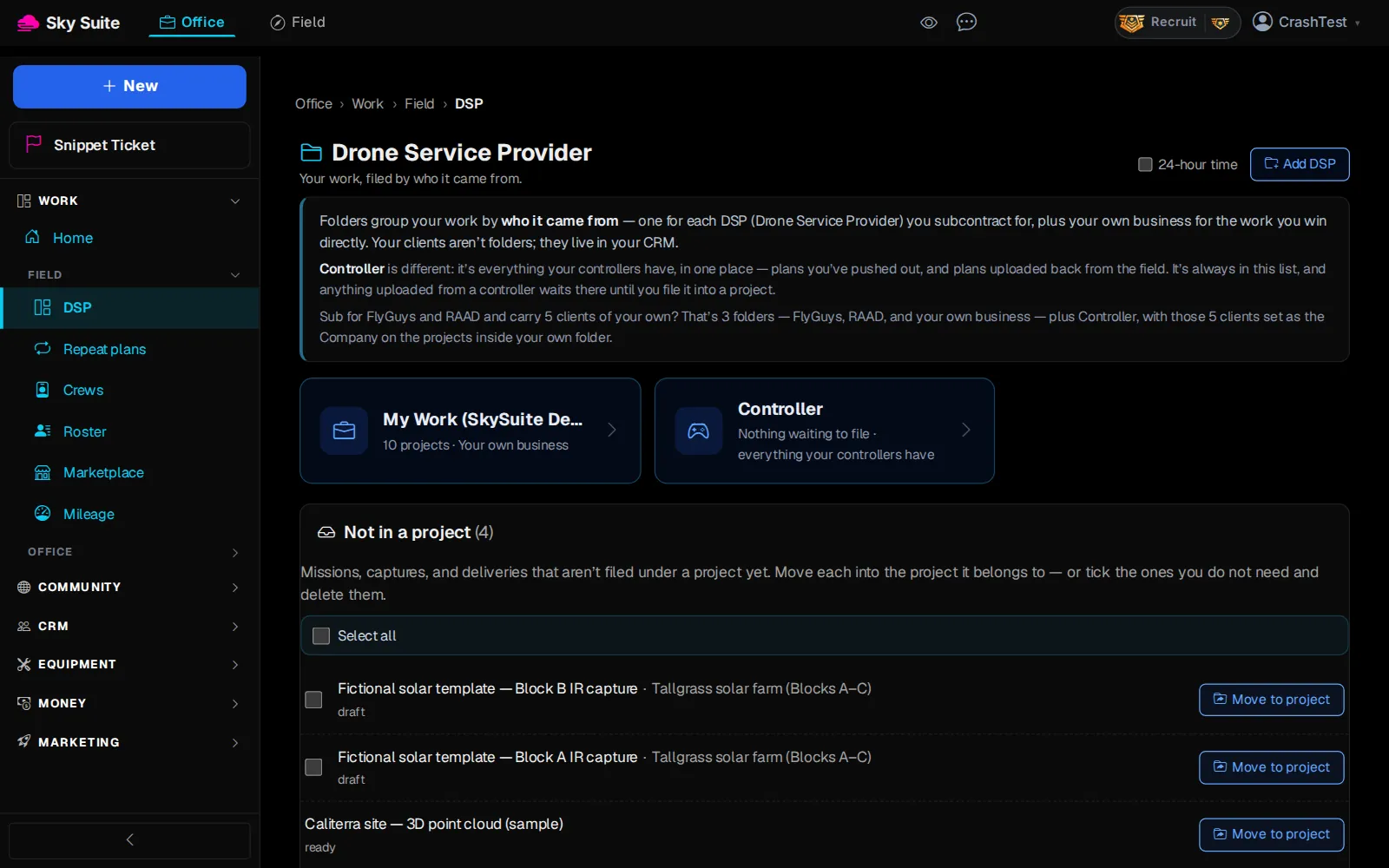
Step 1: In the left menu, under “Work” › “Field”, click “DSP”.
OpensThe “Drone Service Provider” page, with your folders.
-
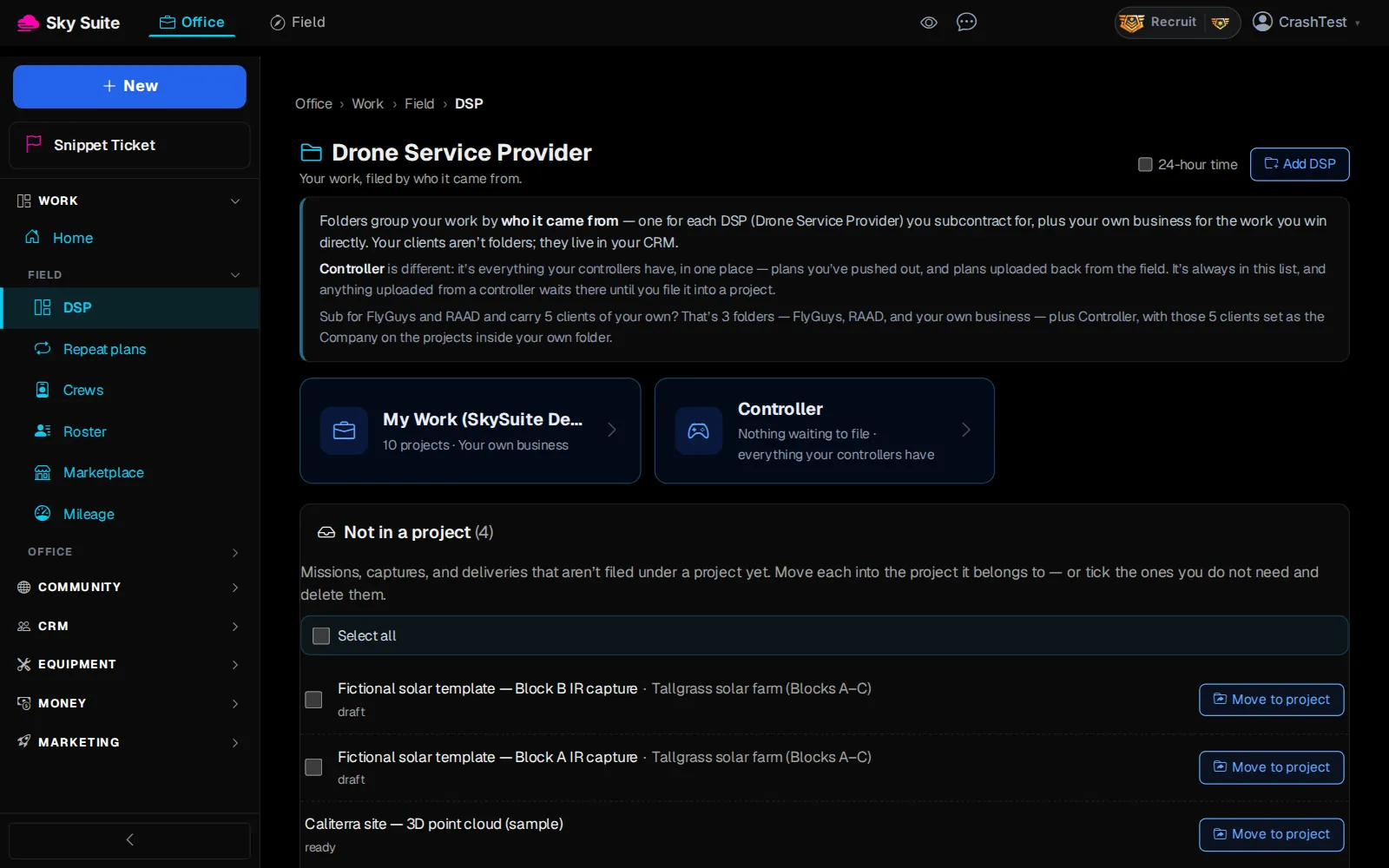
Step 2: Click your folder, for example “My Work (SkySuite Demo)”.
OpensThe “Projects” list in that folder.
-
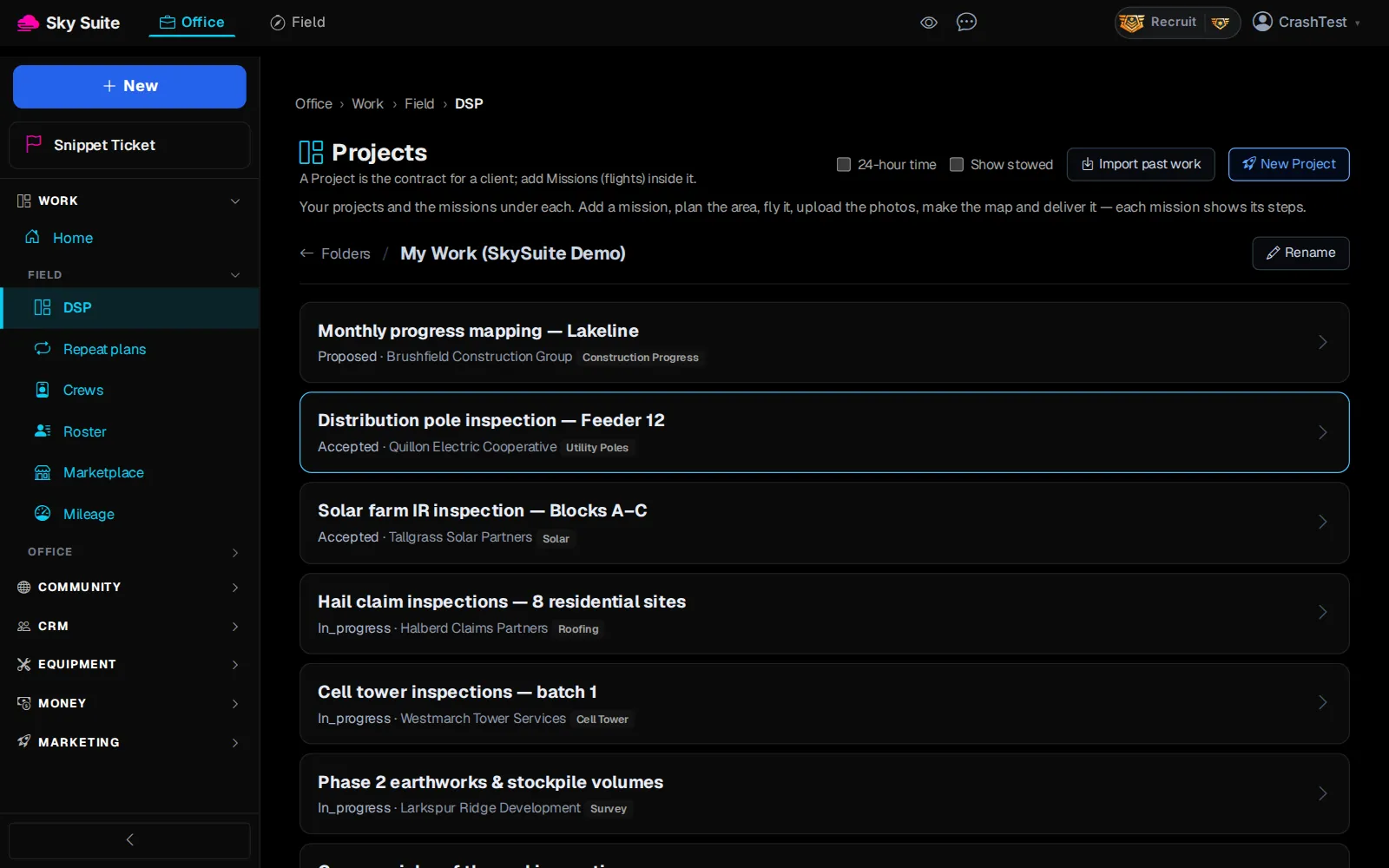
Step 3: Click the project, for example “Phase 2 earthworks & stockpile volumes”.
OpensThe project page, one row per mission.
-
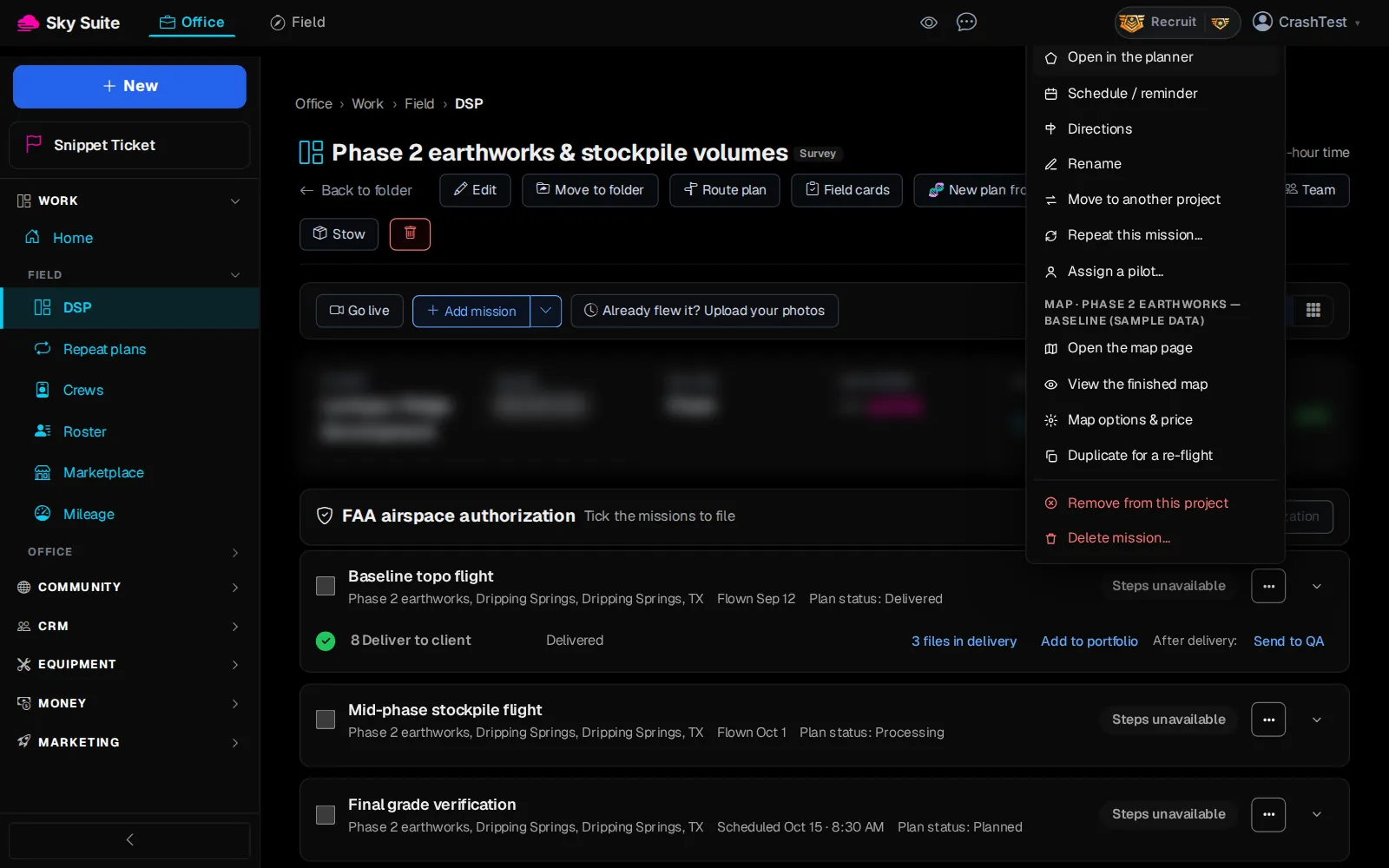
Step 4: On the mission's row, click “Upload photos”; it shows there once the mission is flown. No button? Click the row's “⋯” (marker 1), then “Open the map page” (marker 2).
OpensThe map page at step “5 Upload photos, flight/GNSS files and ground control file”.
-
Step 5: Drag everything from the drone's card onto “Drag & drop your DJI drone files here”, or click it to browse (“Upload a folder” takes a whole folder). Photos, GNSS files (MRK, OBS, NAV) and a ground control file can all go in together.
Opens“Review Before Uploading”, with the count of “PHOTOS” and “GNSS FILES” and the “TOTAL SIZE”.
-
Step 6: Under “Processing Quality”, pick “Fast”, “Standard” (most client work), “High” or “Ultra”.
-
Step 7: Read the “Processing Cost” card: what the run will use. If it is short, “Add Credit” tops you up; nothing starts until it is covered.
-
Step 8: Click “Upload & Process”. You can close the page once the upload finishes; SkyPLX-9 keeps processing on our servers.
OpensThe map page with the run in progress (“View progress”).
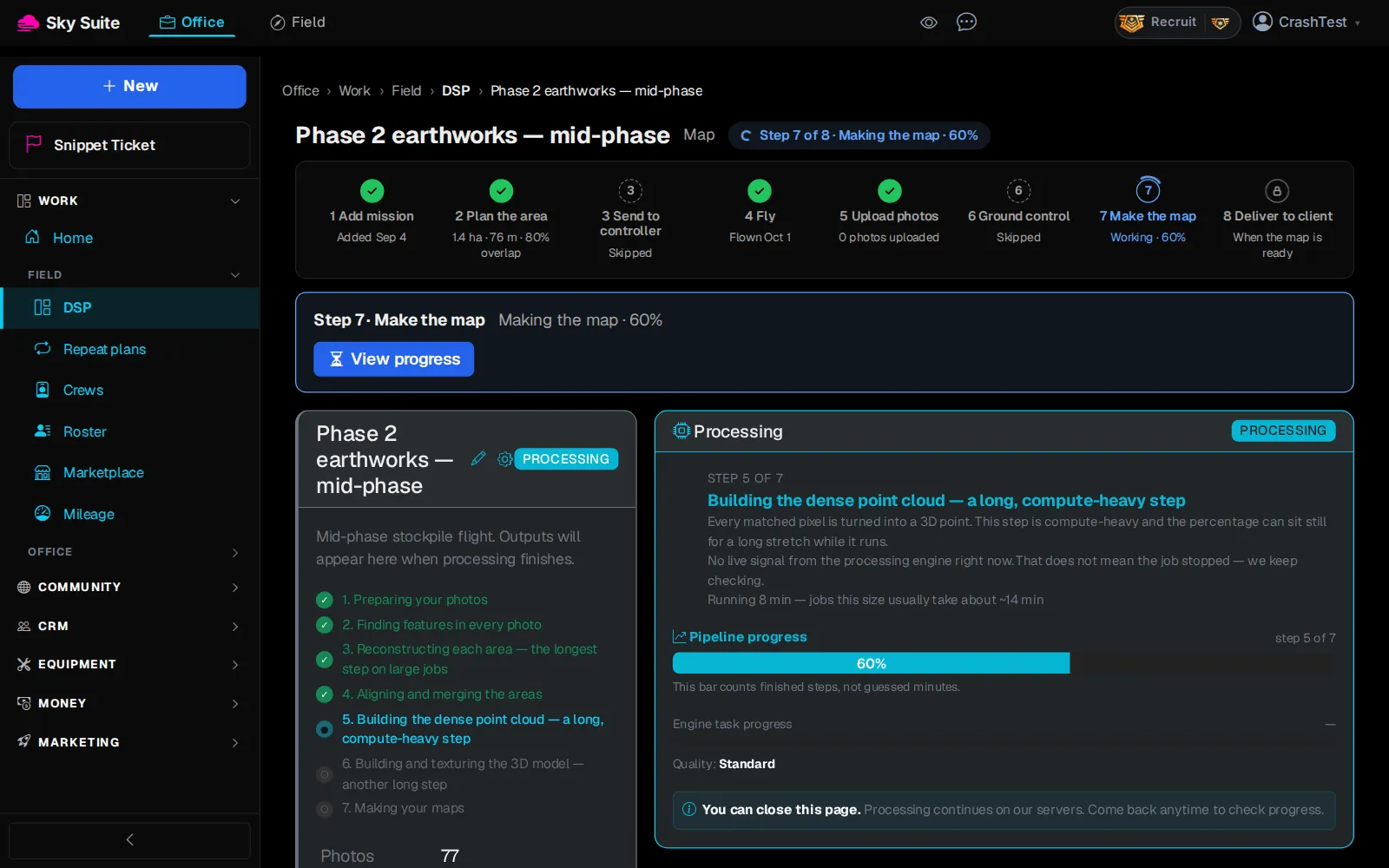
-
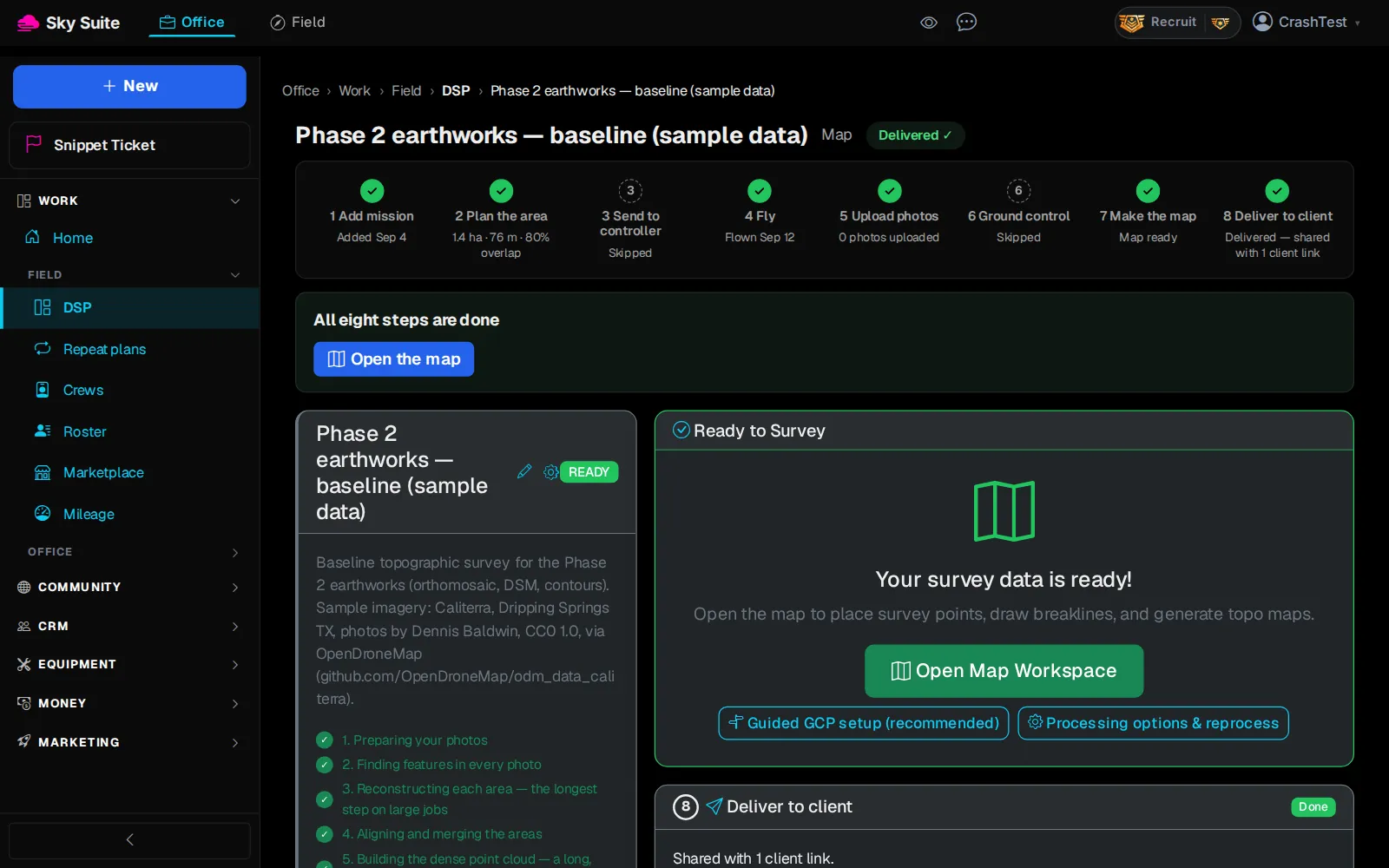
Step 9: When step “7 Make the map” (marker 1) says “Map ready”, click “Open the map” (marker 2).
OpensYour finished map, with the flat map and the 3D model (see “Open your map and 3D model”).
Flying with ground control? Click “Upload only — then ground control (step 6) and processing (step 7)” instead of “Upload & Process”. More: Running a Survey and GCP & PPK Accuracy.