Help & Guides / Step-by-step guide
Set up your profile and company name
Add your name, photo, business name and logo so clients see who you are.
- Menu
- Settings › Account › Profile
- Direct link
- skysuite.pro/settings/account/profile
- Level
- Basic
- Length
- 6 steps, about 3 minutes
-
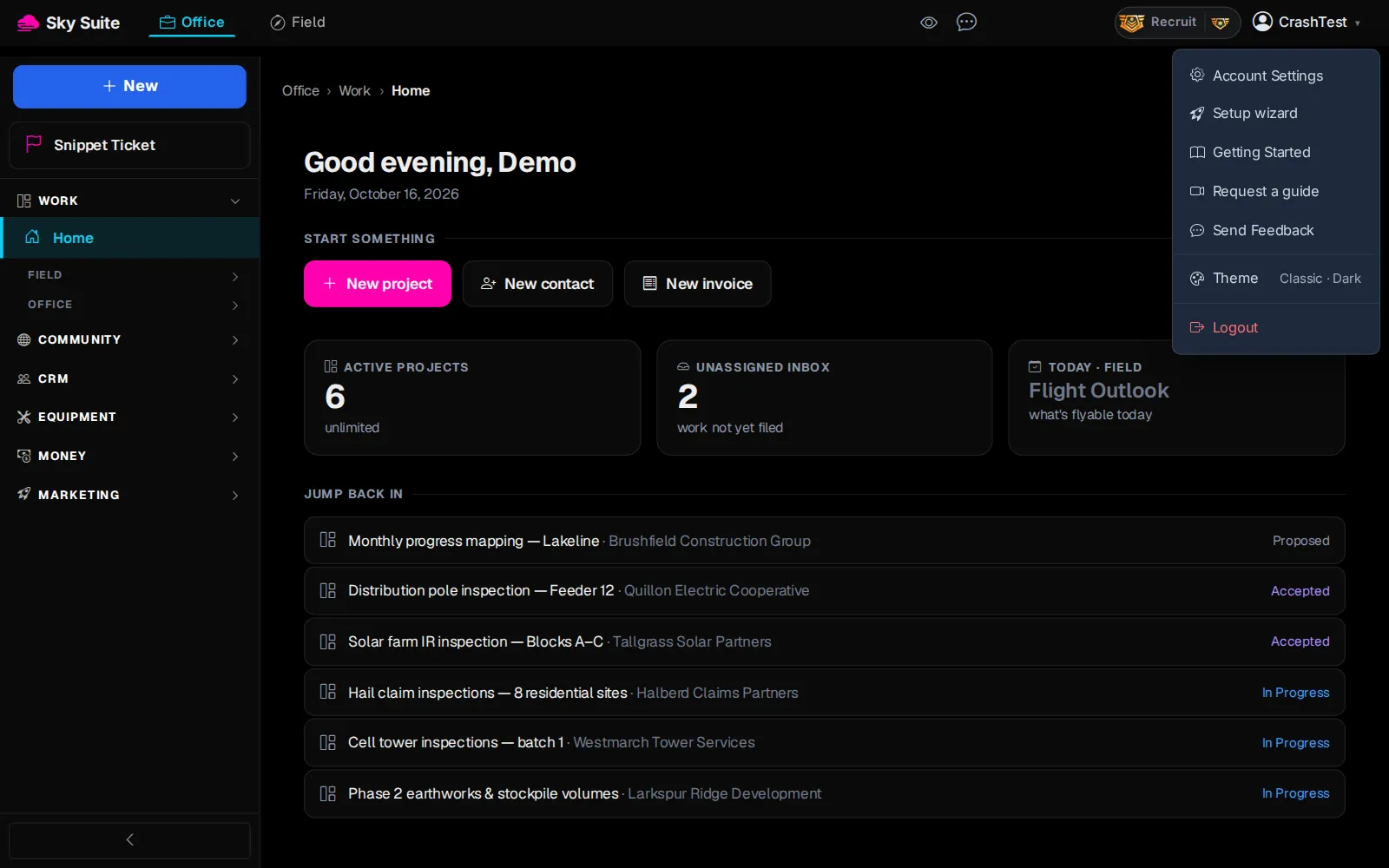
Step 1: At the top right, click your name (“CrashTest” in these pictures).
OpensThe menu under your name: “Add credits”, “Account Settings”, “Setup wizard”, “Getting Started” and more.
-
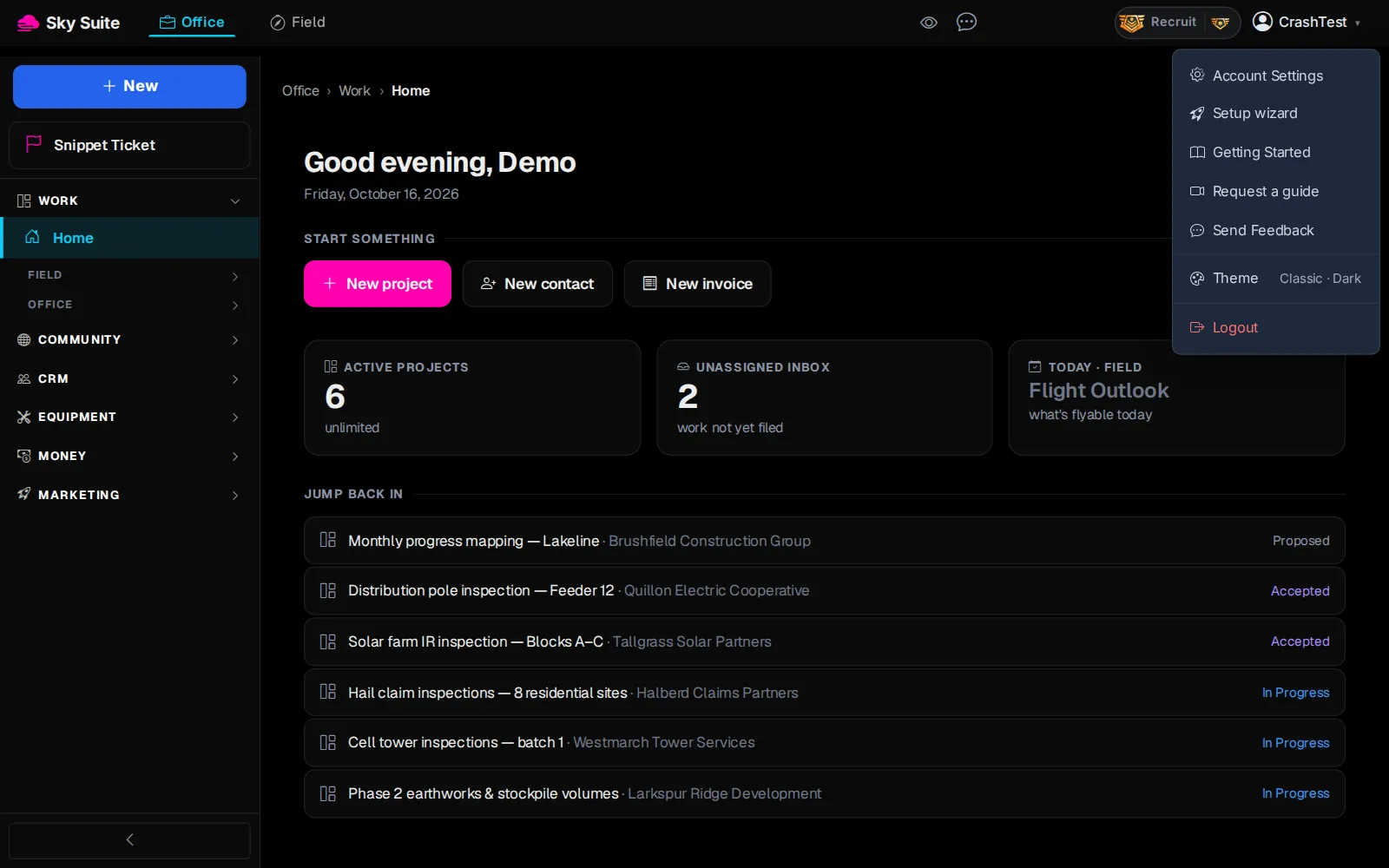
Step 2: Click “Account Settings”.
OpensSettings › Account › Profile, on the “Account” tab.
-
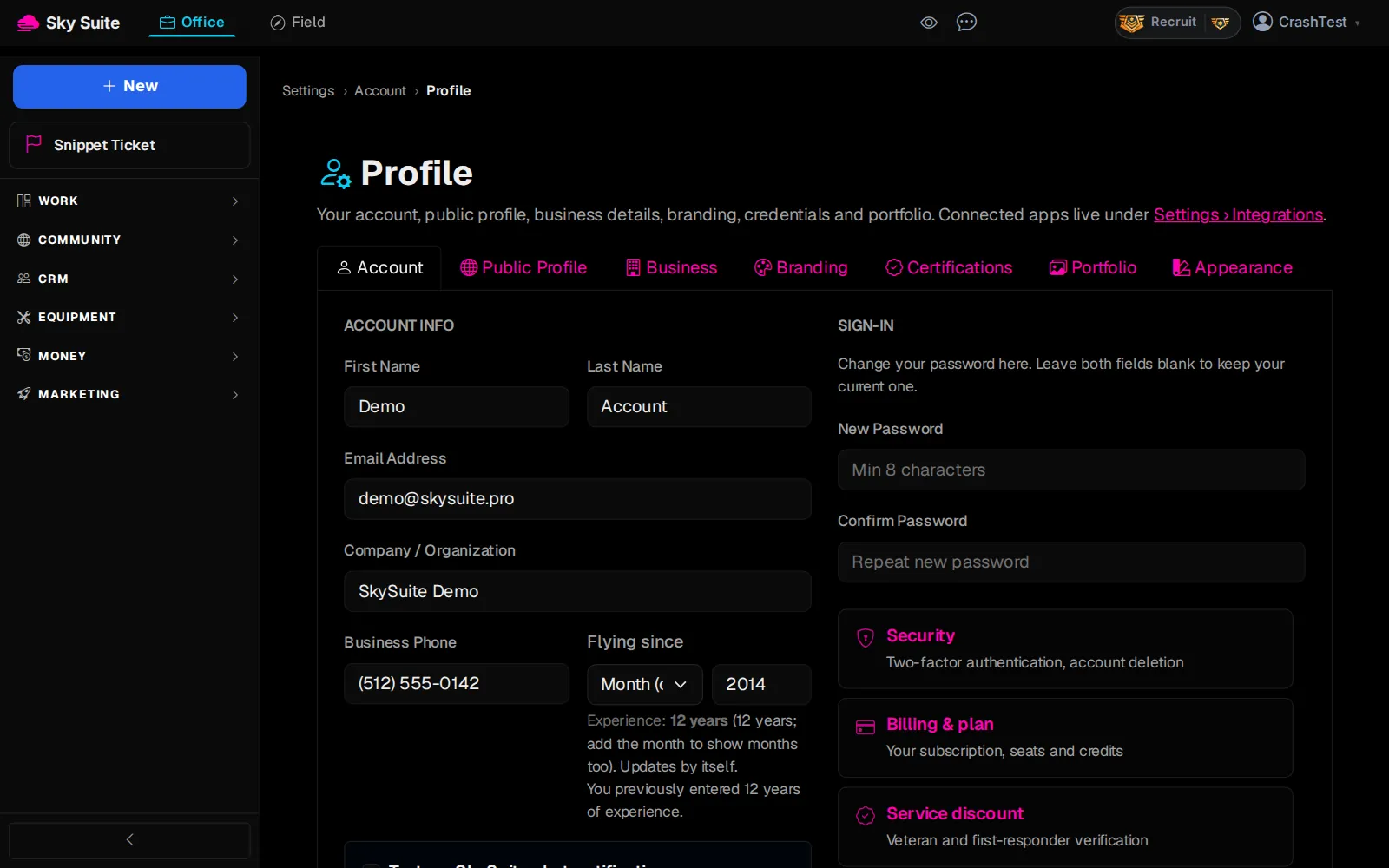
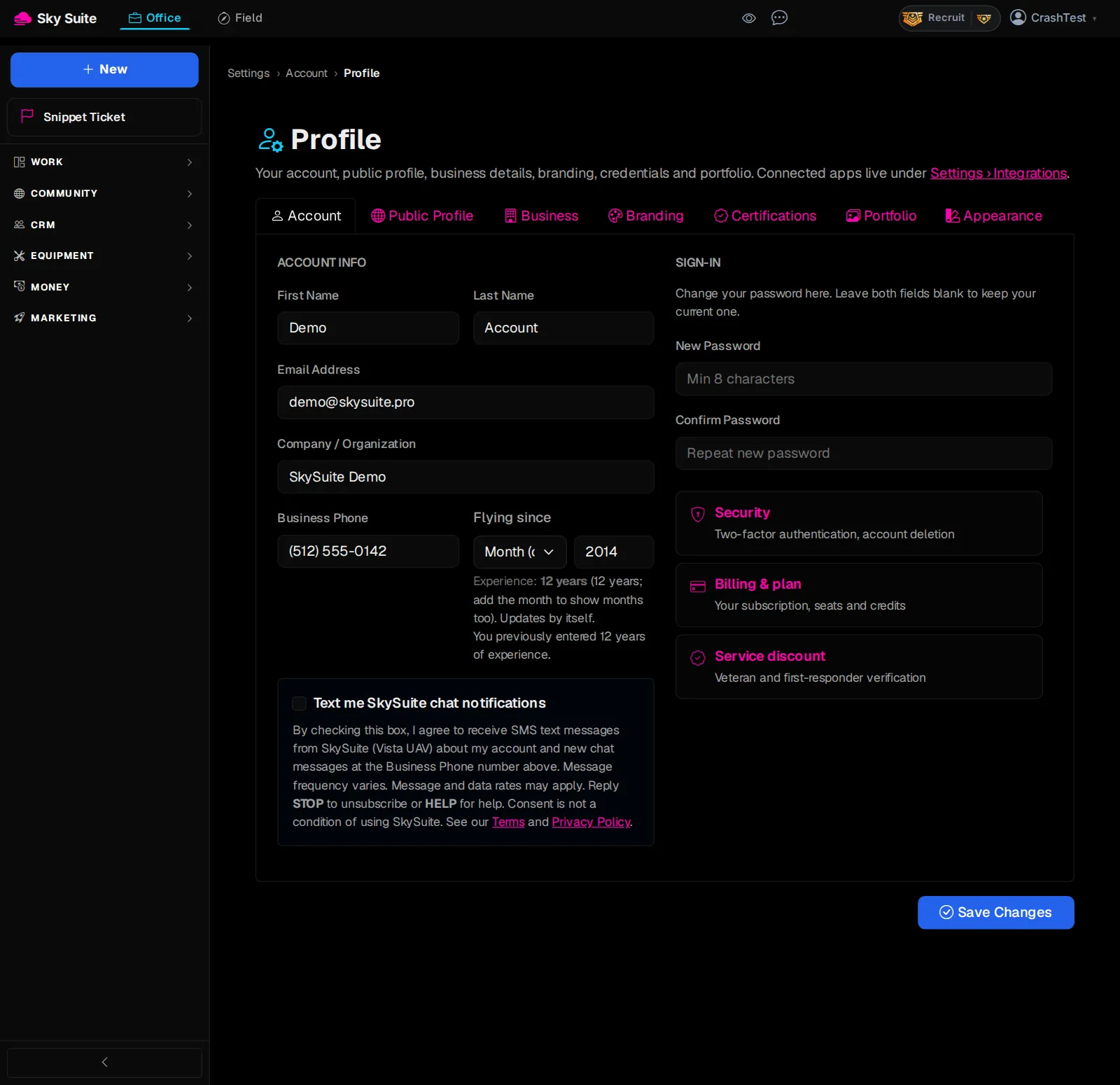
Step 3: Under “ACCOUNT INFO”, fill in “First Name” (marker 1) and “Last Name” (marker 2), then “Company / Organization” (marker 3): the business name your clients see.
-
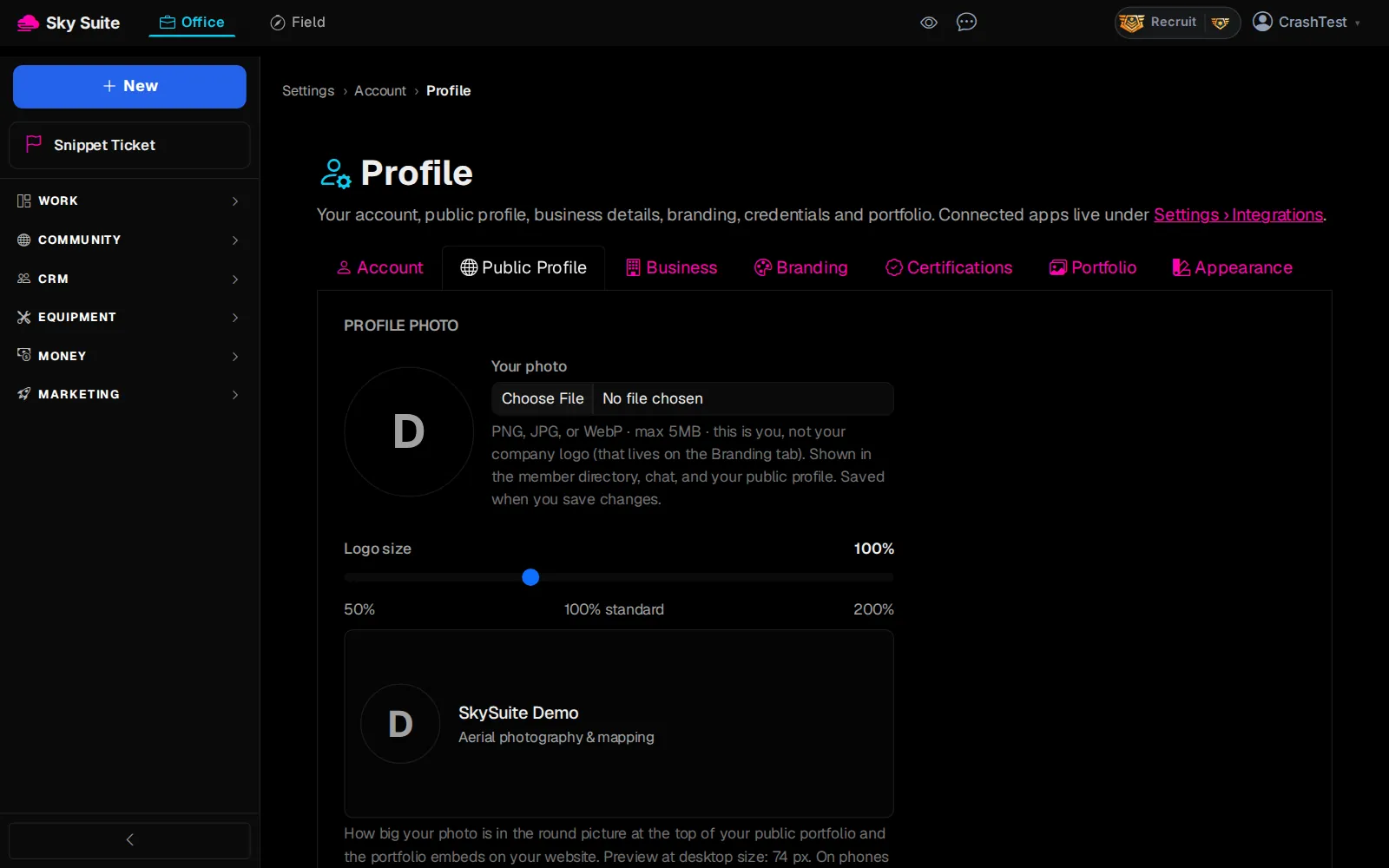
Step 4: Click the “Public Profile” tab (marker 1). Under “Your photo” (marker 2), click the file box and pick a photo of you.
OpensYour photo, your public username and your links.
-
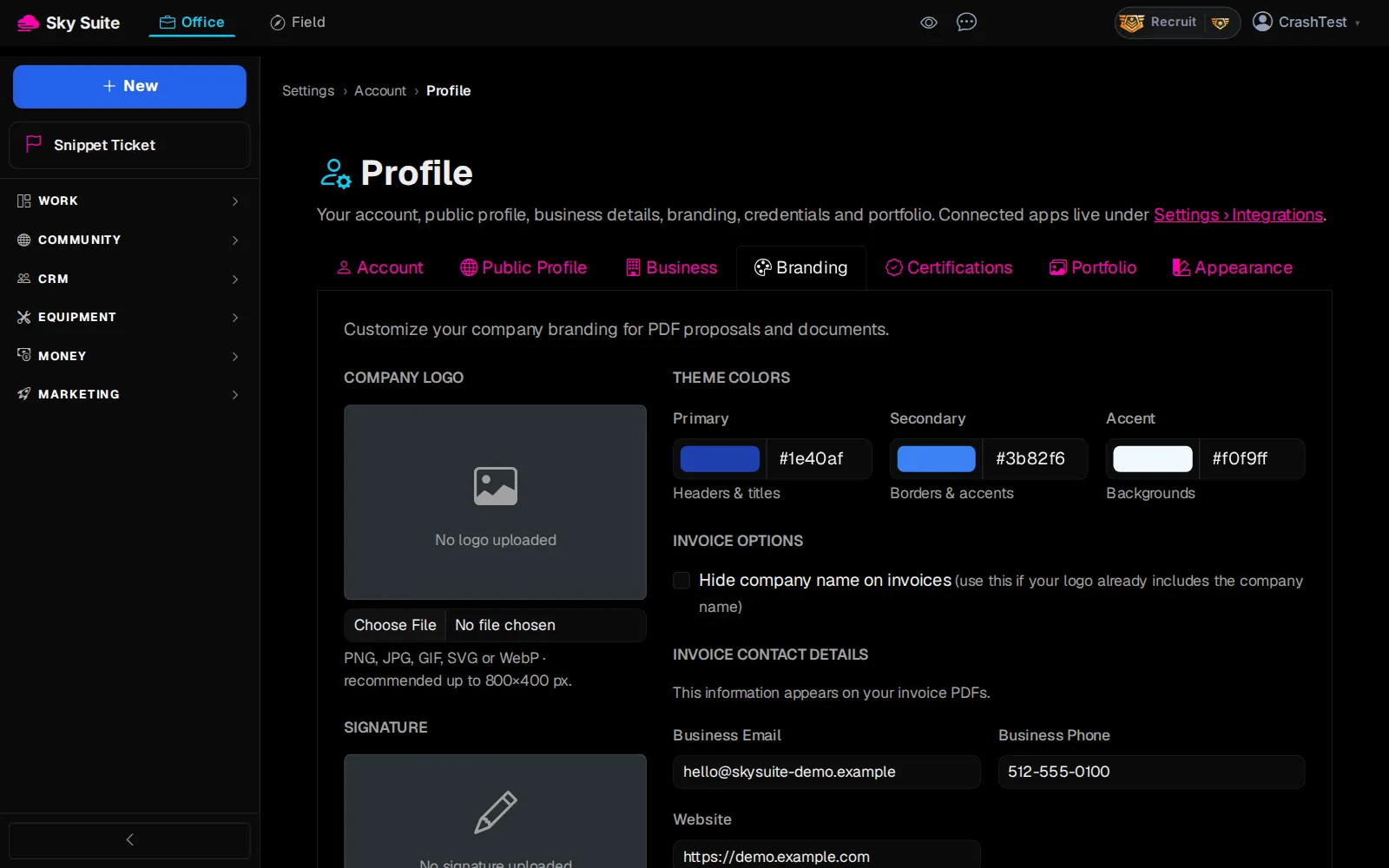
Step 5: Click the “Branding” tab (marker 1). Under “COMPANY LOGO”, click “Choose File” (marker 2) and pick your logo, then under “THEME COLORS” set “Primary” (marker 3).
OpensYour logo, signature, theme colours and invoice contact details for your PDF proposals and documents.
-
Step 6: At the bottom of the page, click “Save Changes”.
OpensNothing new: your profile is saved, and clients see the new name and logo on your quotes and invoices.
The “Business” tab holds your home base, service area, FAA certificate number and insurance. The client portal’s own name and colours are set under Settings › Account › Client Branding.