Help & Guides / Step-by-step guide
Send a quote
Price a job, send the quote, and turn it into a contract once the client accepts.
- Menu
- Office › Money › Quotes
- Direct link
- skysuite.pro/office/money/quotes
- Level
- Advanced
- Length
- 12 steps, about 5 minutes
-
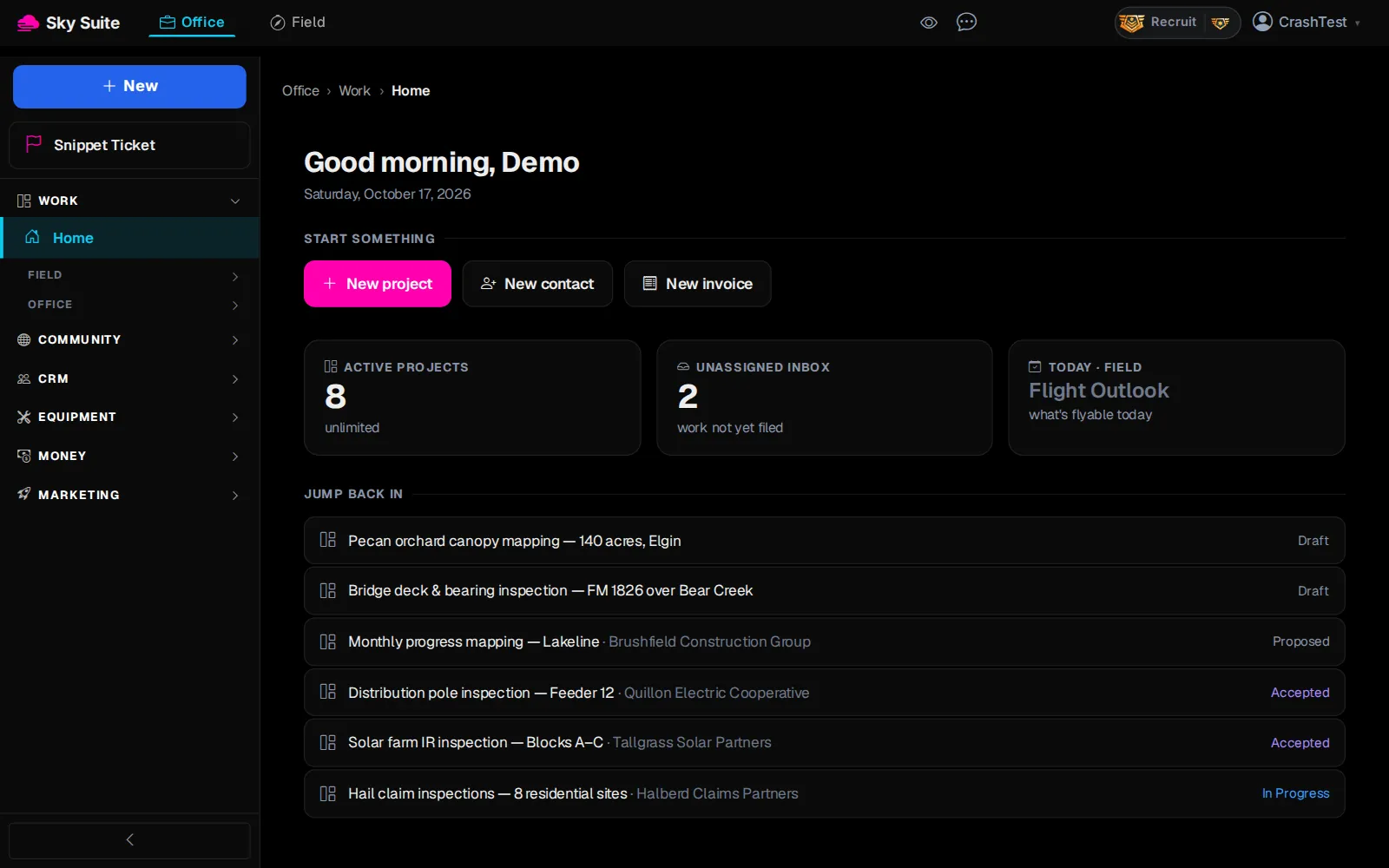
Step 1: In the left menu, click “Money” to open the group.
Opens“Search”, “Invoices”, “Estimates”, “Quotes”, “Expenses”, “Bills” and more.
-
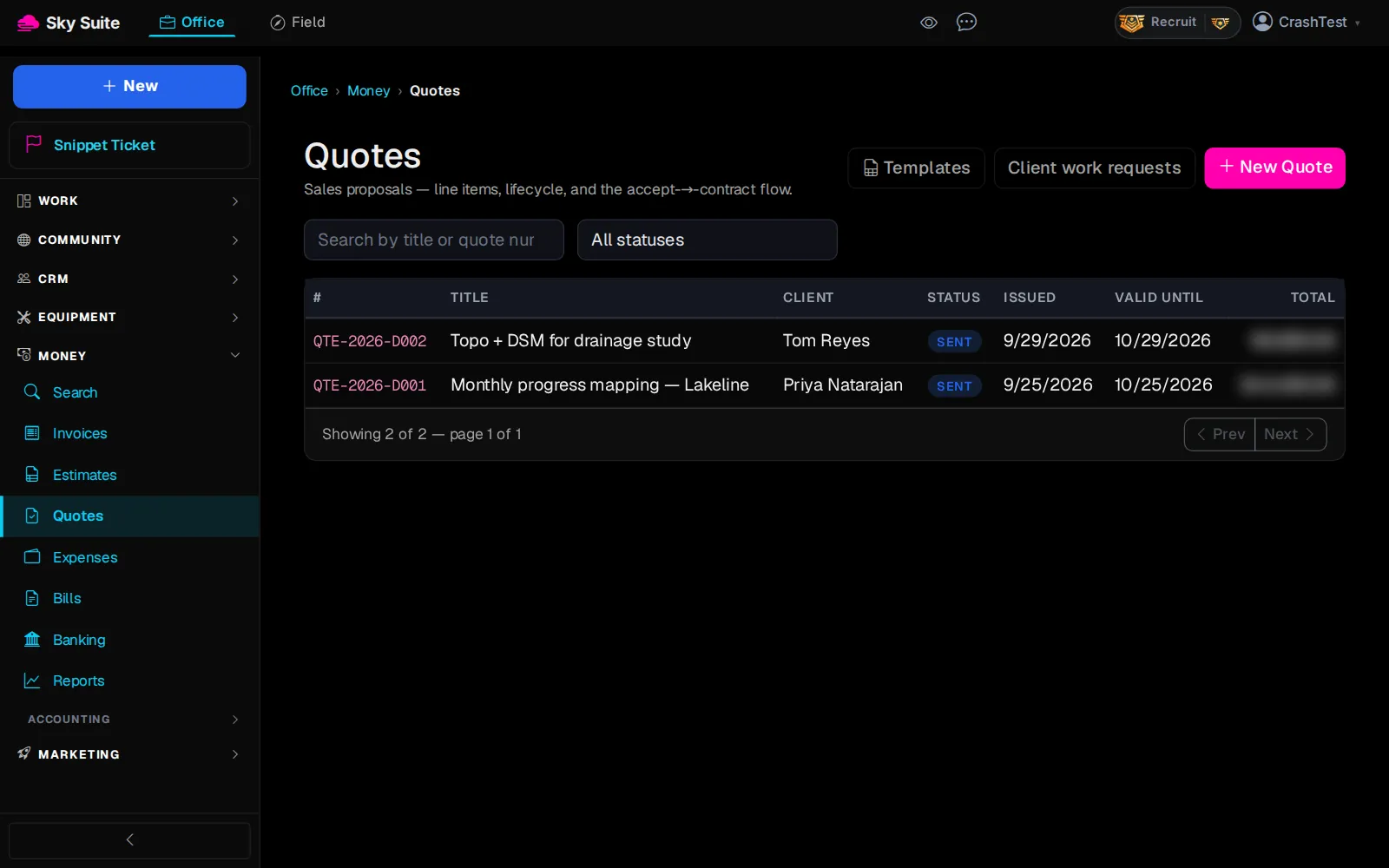
Step 2: Click “Quotes”.
OpensThe “Quotes” page: every quote, its client and its status.
-
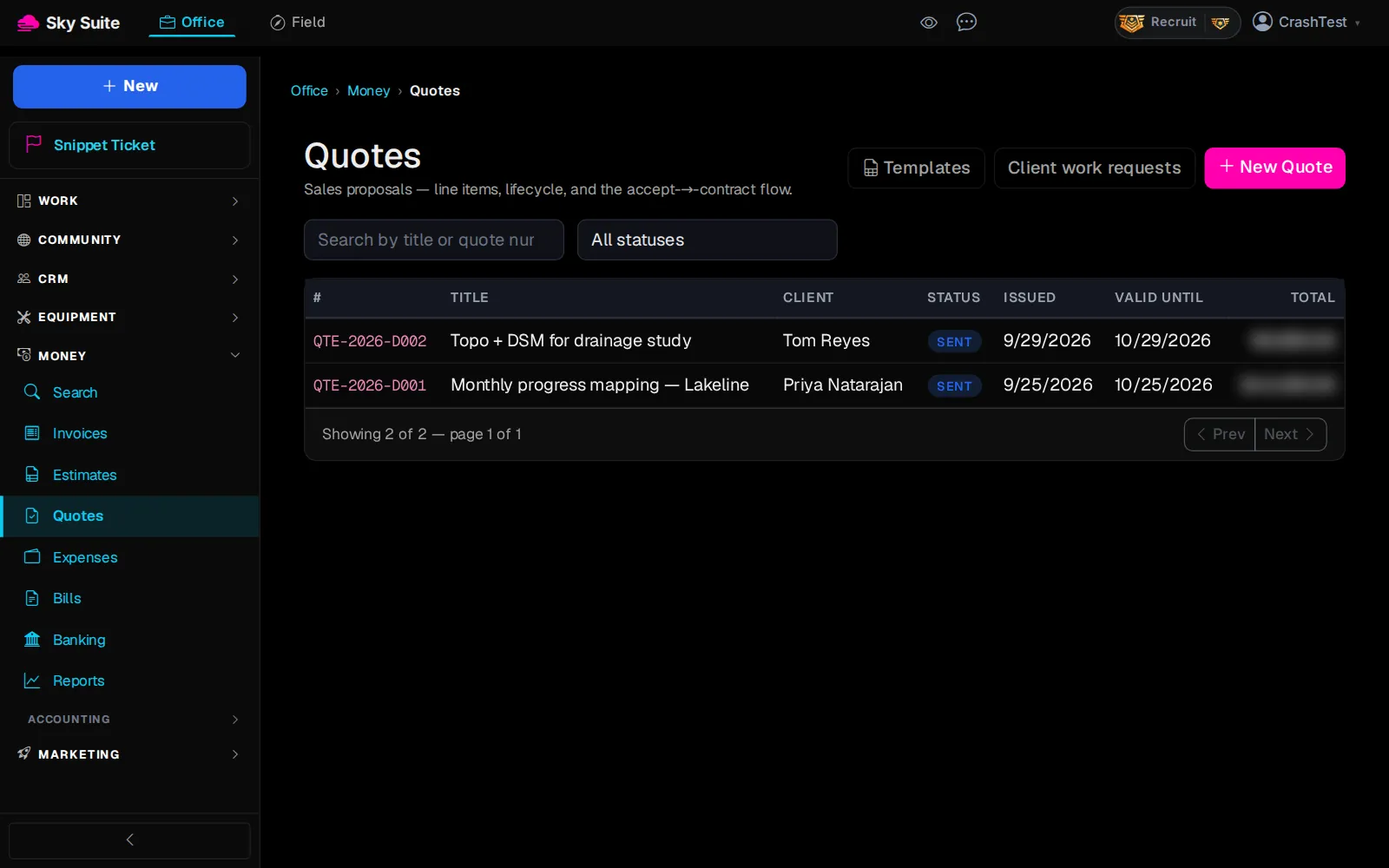
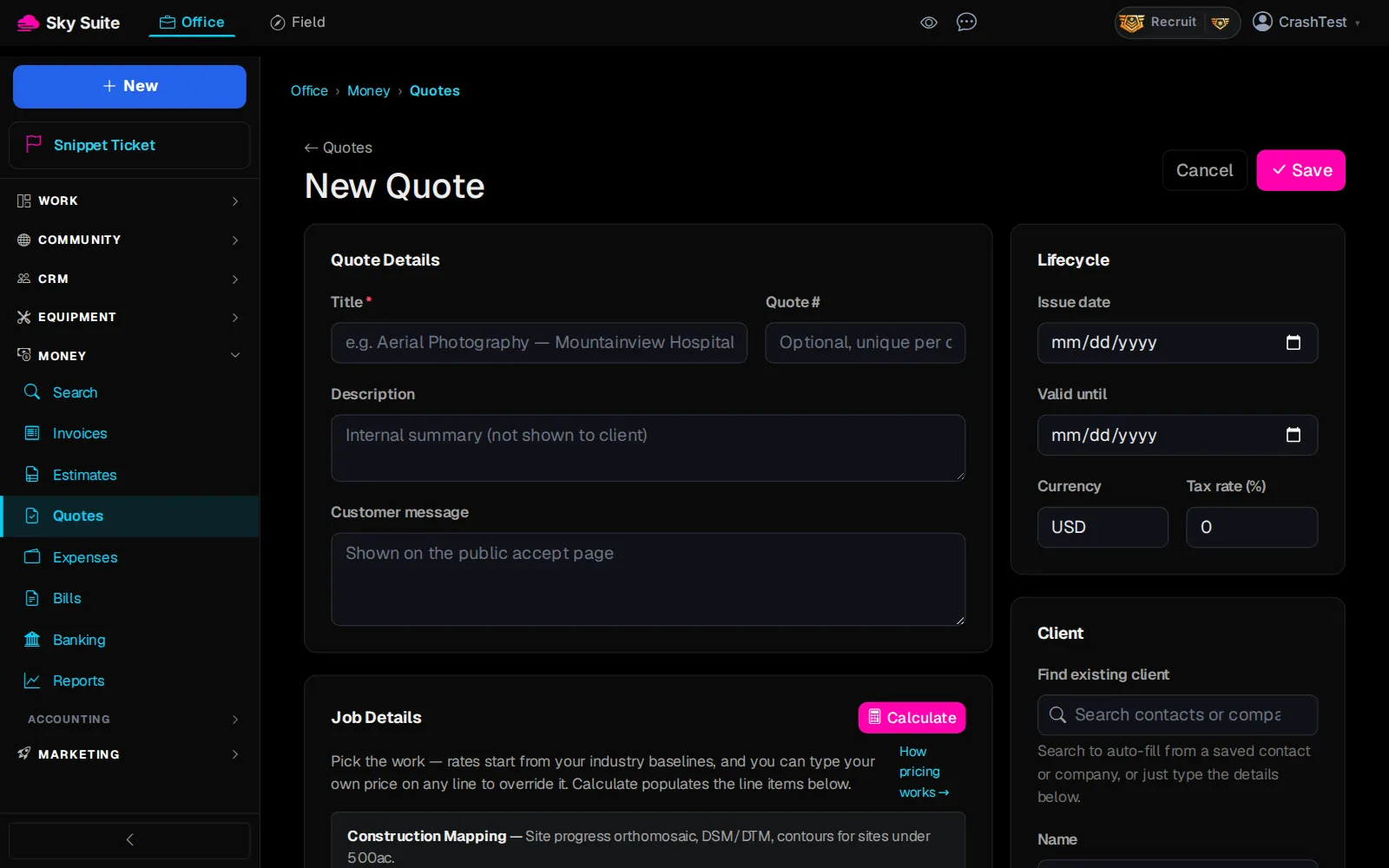
Step 3: At the top right, click “New Quote”.
OpensThe “New Quote” page.
-
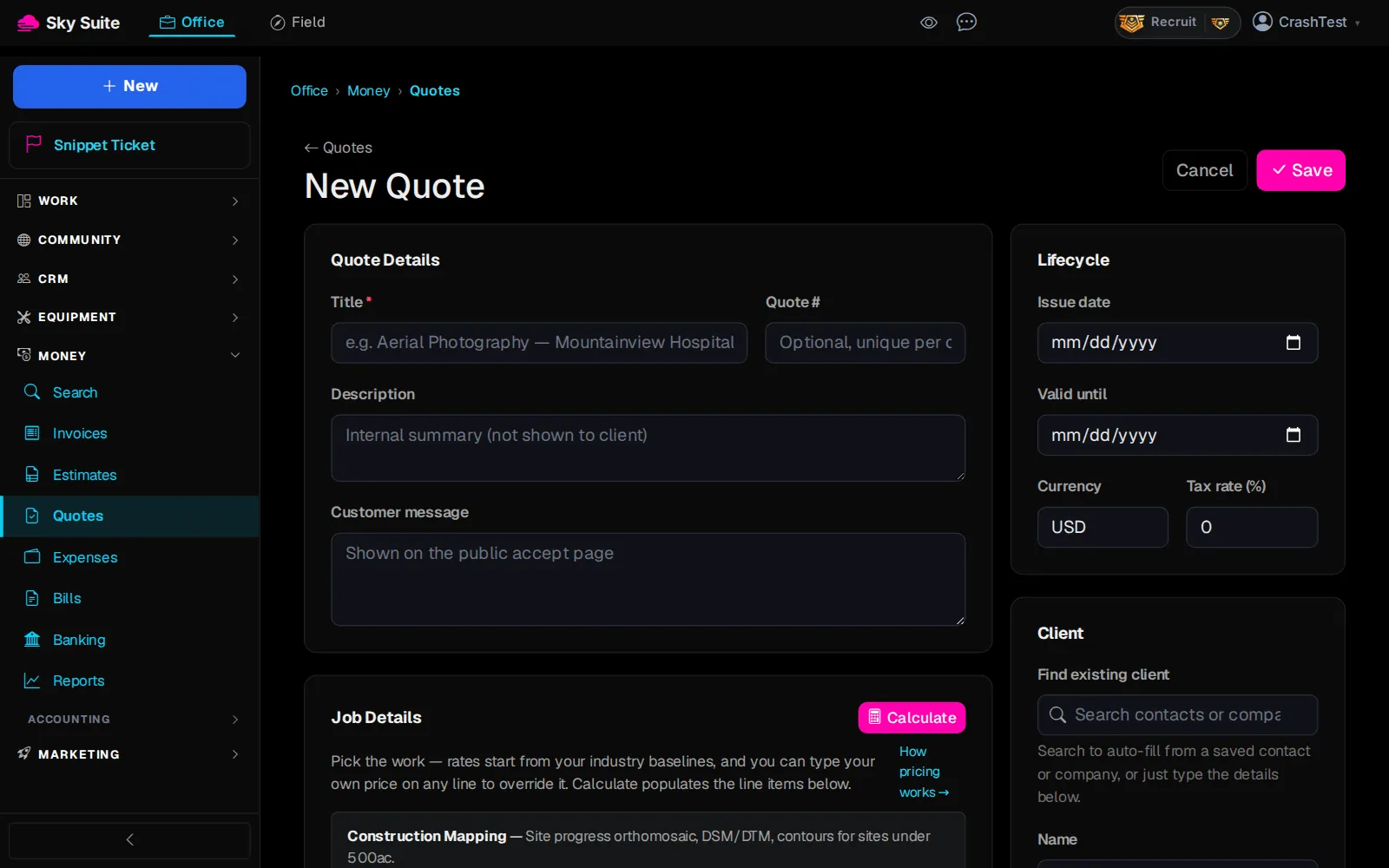
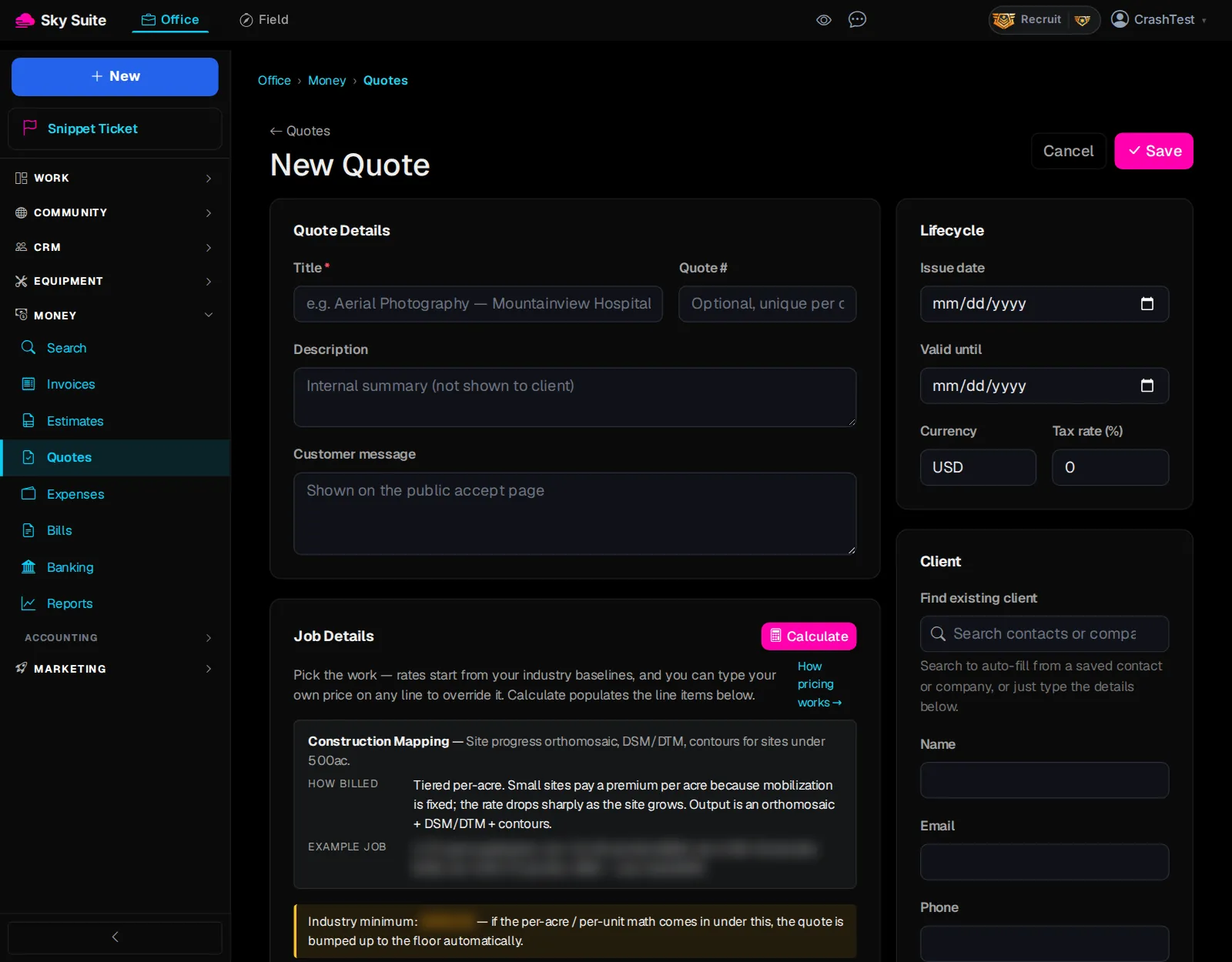
Step 4: Type a “Title” (marker 1) the client will recognise, such as the job and the site. “Customer message” (marker 2) is what the client reads on the page where they accept.
-
Step 5: In “Find existing client” (marker 1), type the client's name and pick them; their details fill in below. A new client? Type their name and “Email” (marker 2) instead.
-
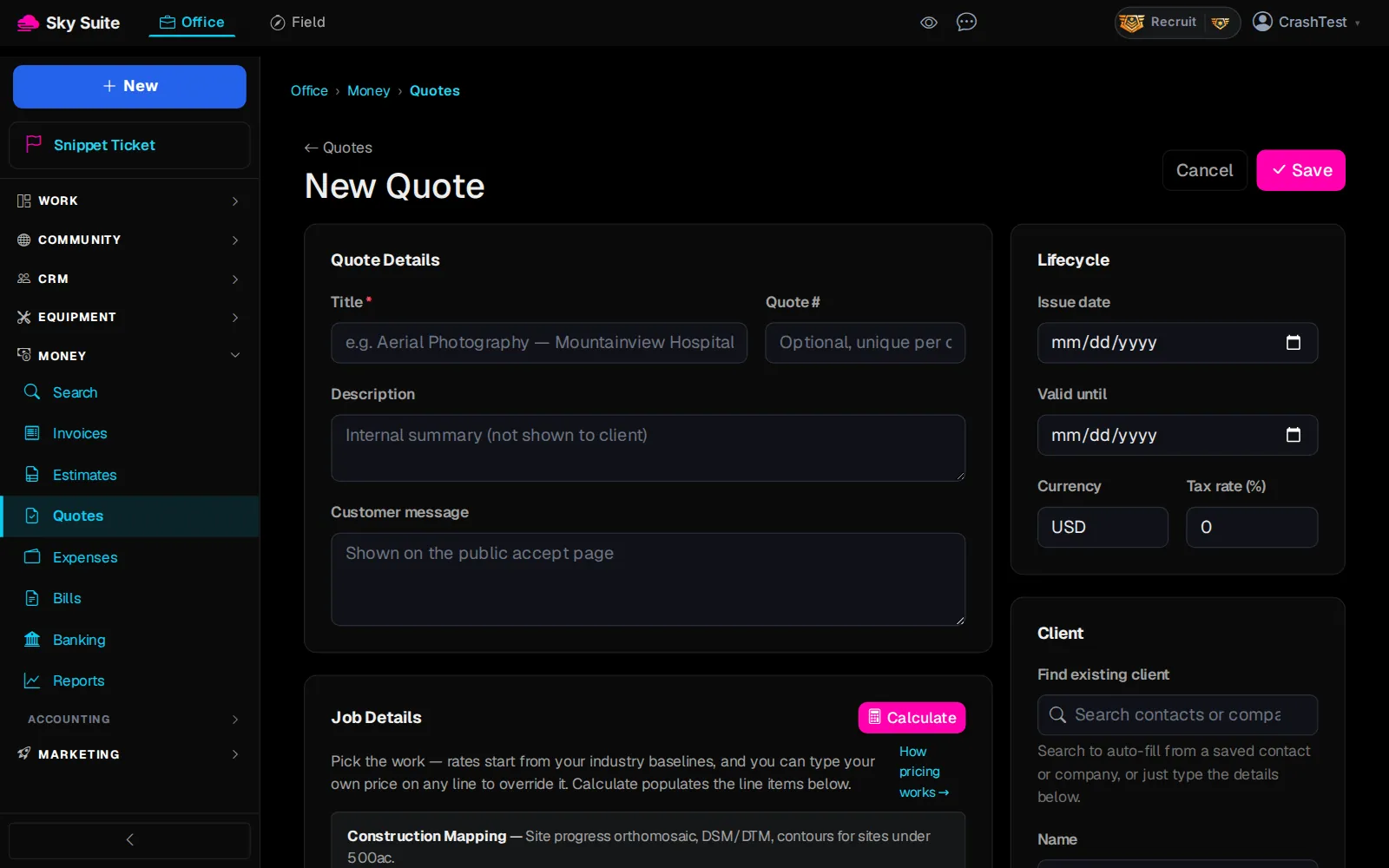
Step 6: Under “Job Details”, pick the kind of work and how much of it, then click “Calculate” (marker 1). It fills in the line items from your rates.
-
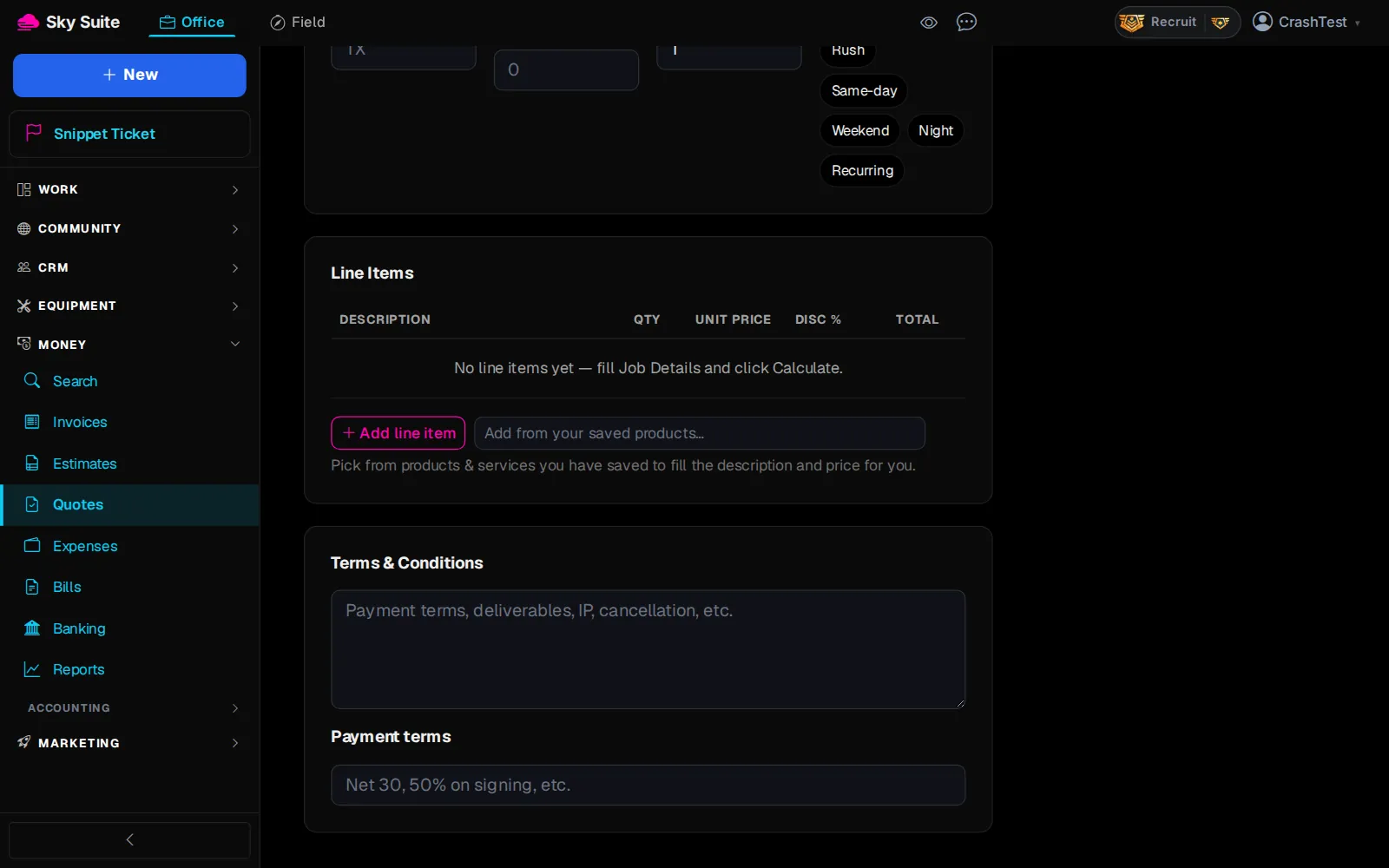
Step 7: Anything else to charge for? Click “Add line item” (marker 1) for each extra line, or pick one from “Add from your saved products”.
-
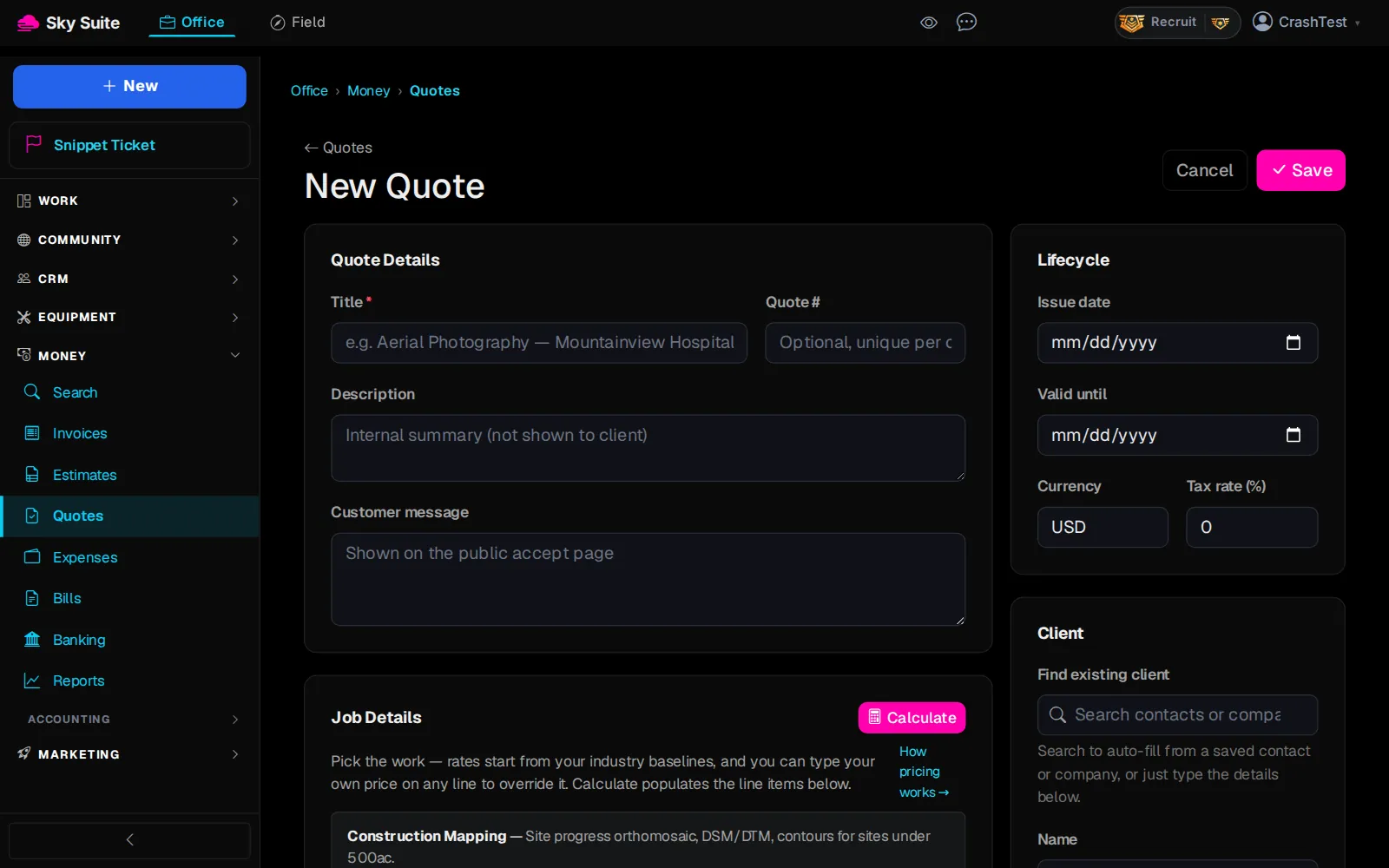
Step 8: Set “Valid until” (marker 1), the last day the client can accept, and “Tax rate (%)” (marker 2) if you charge tax.
-
Step 9: At the top right, click “Save”.
OpensThe quote's own page, as a “draft”.
-
Step 10: On the quote, click “Send Email”.
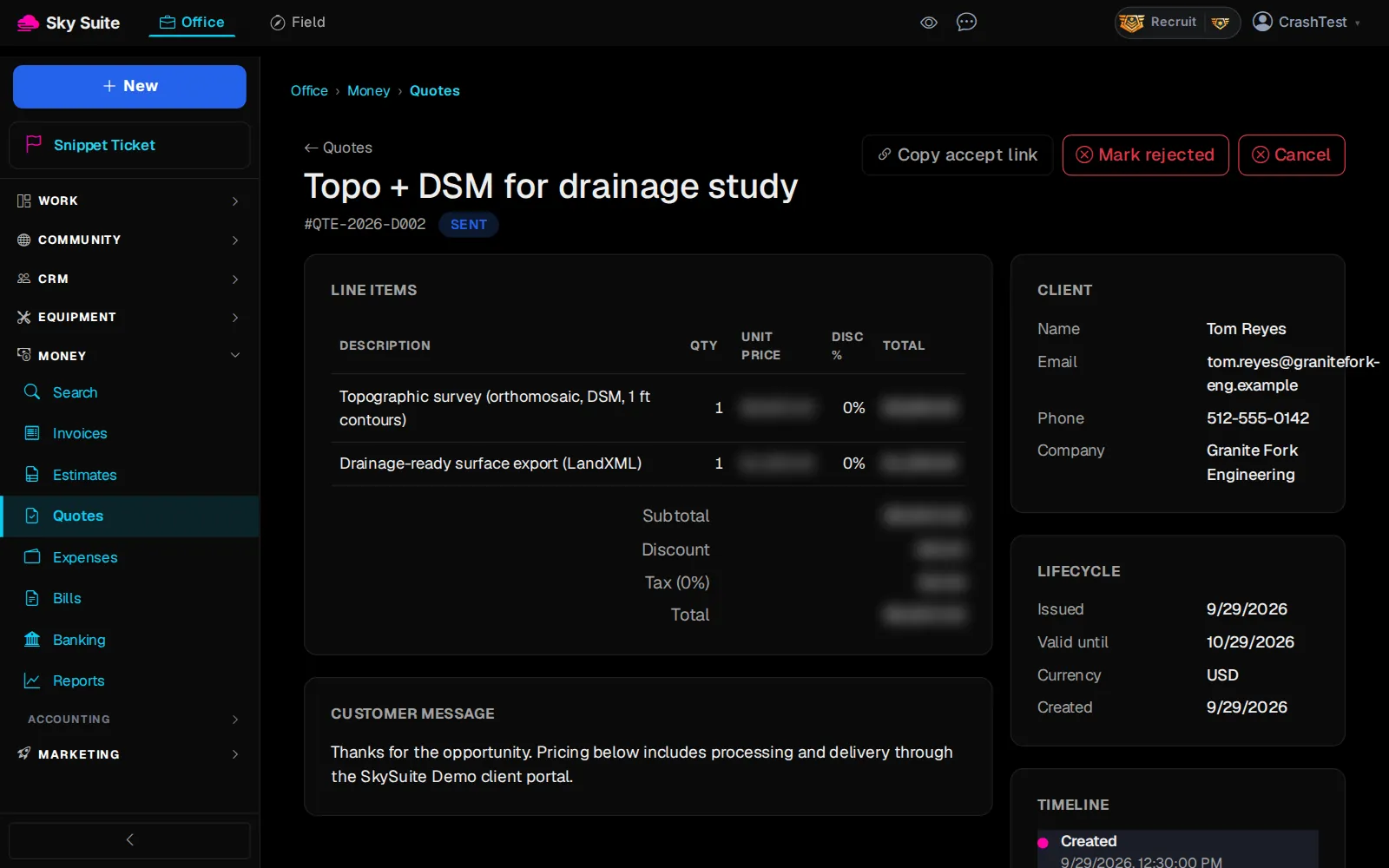
OpensNothing to open: the client gets an email with a link to read and accept the quote. Its status reads “sent”.
-
Step 11: Rather text it yourself? On a sent quote, “Copy accept link” (marker 1) copies the client's accept page to paste anywhere.
-
Step 12: When the client accepts, the quote reads “accepted”: click “Generate Contract”.
OpensThe contract made from the quote, ready for the client to sign. The quote links to it from then on.
When the work is done, bill it: Create and send an invoice. Rates and line items: “How pricing works” on the New Quote page.