Help & Guides / Step-by-step guide
Secure your account
Change your password, turn on two-step sign-in, and add a passkey or security key.
- Menu
- Settings › Account › Security
- Direct link
- skysuite.pro/settings/account/security
- Level
- Basic
- Length
- 8 steps, about 3 minutes
-
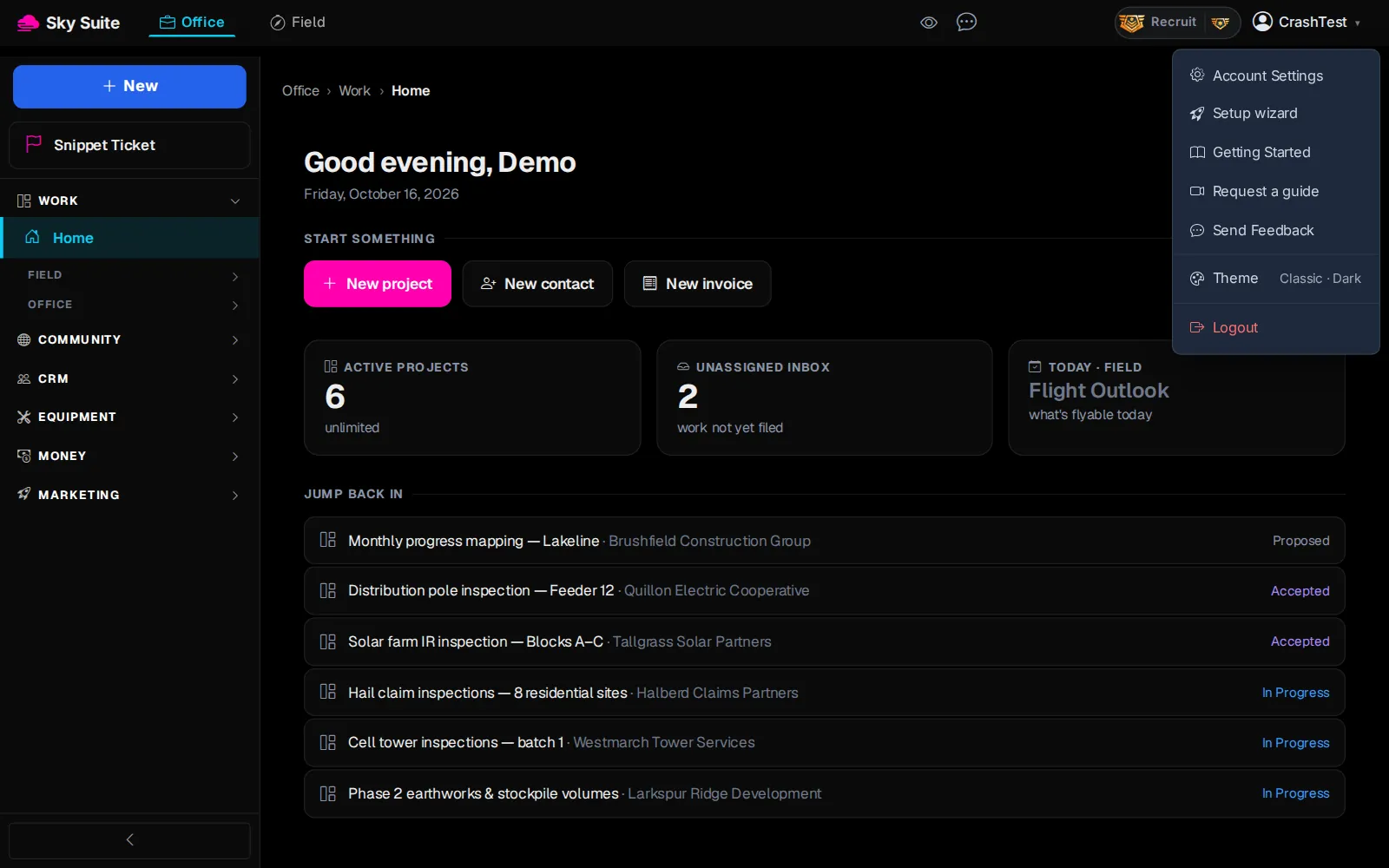
Step 1: At the top right, click your name, then “Account Settings”.
OpensSettings › Account › Profile, on the “Account” tab.
-
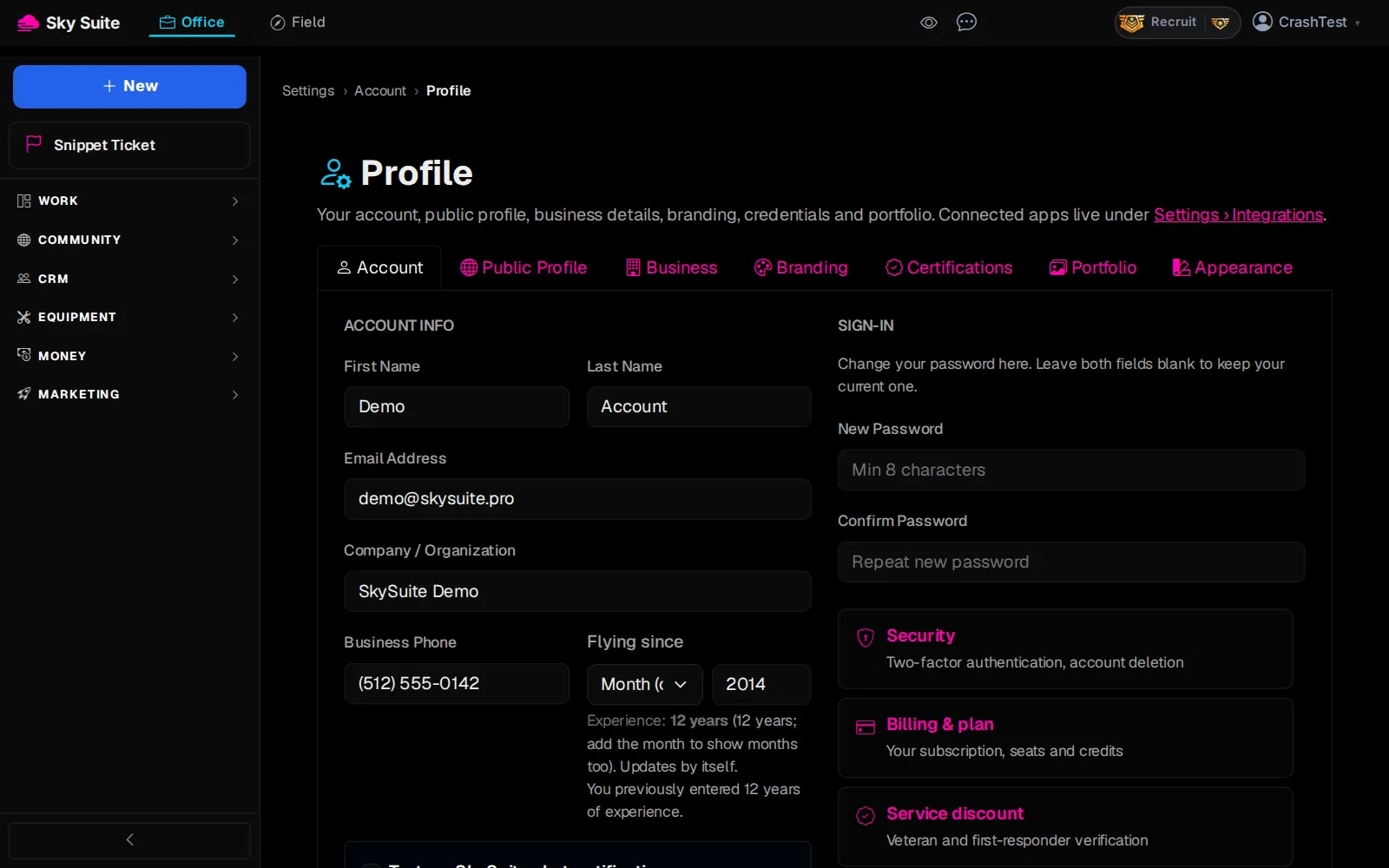
Step 2: Under “SIGN-IN”, type your new password in “New Password” (marker 1) and again in “Confirm Password” (marker 2). It needs at least 10 characters, and a password known from a data breach is not accepted.
-
Step 3: At the bottom of the page, click “Save Changes”.
OpensNothing new: the new password is saved. Use it the next time you sign in.
-
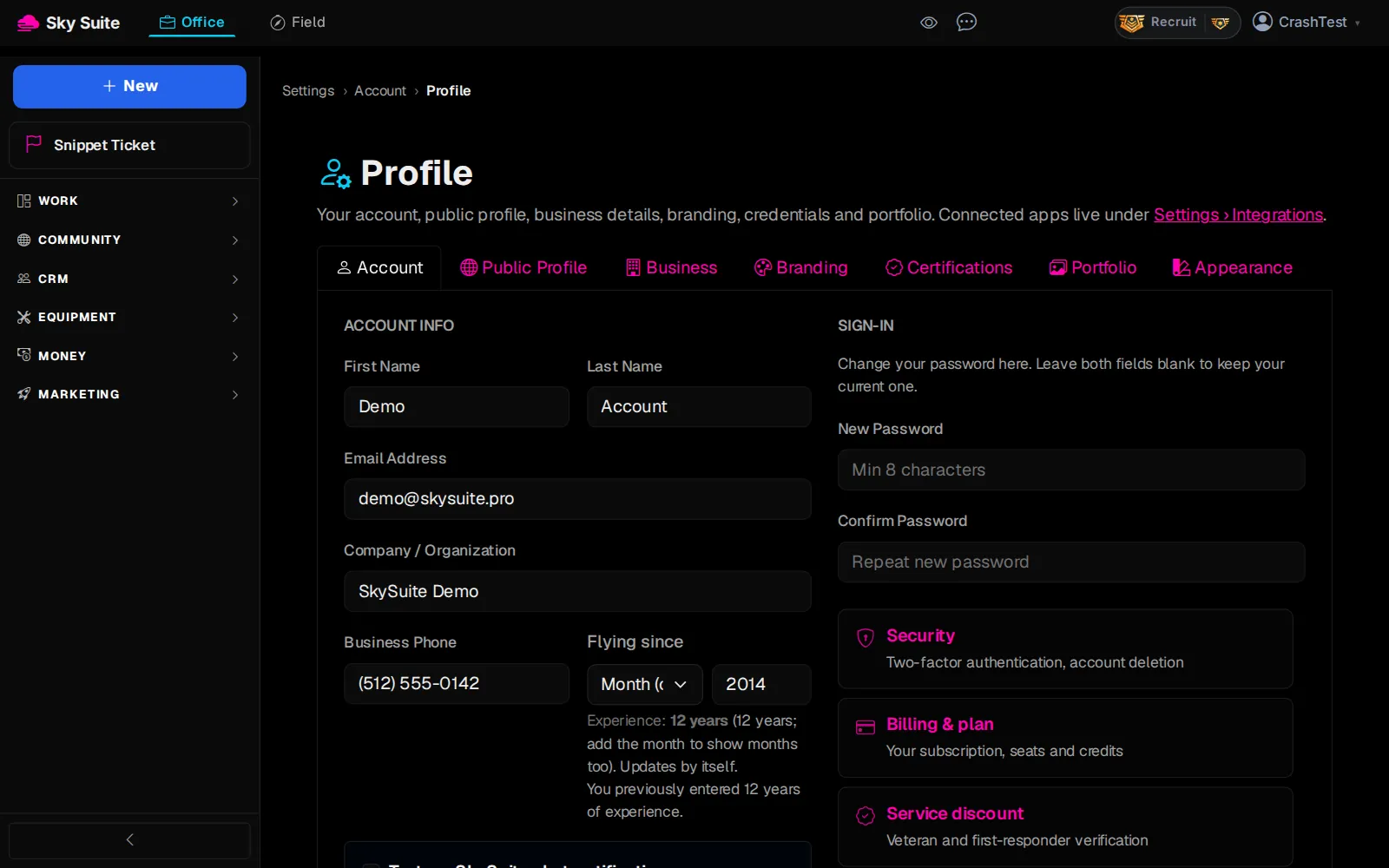
Step 4: Back near “SIGN-IN”, click the “Security” box.
OpensSettings › Account › Security, with “Enable Two-Factor Authentication”.
-
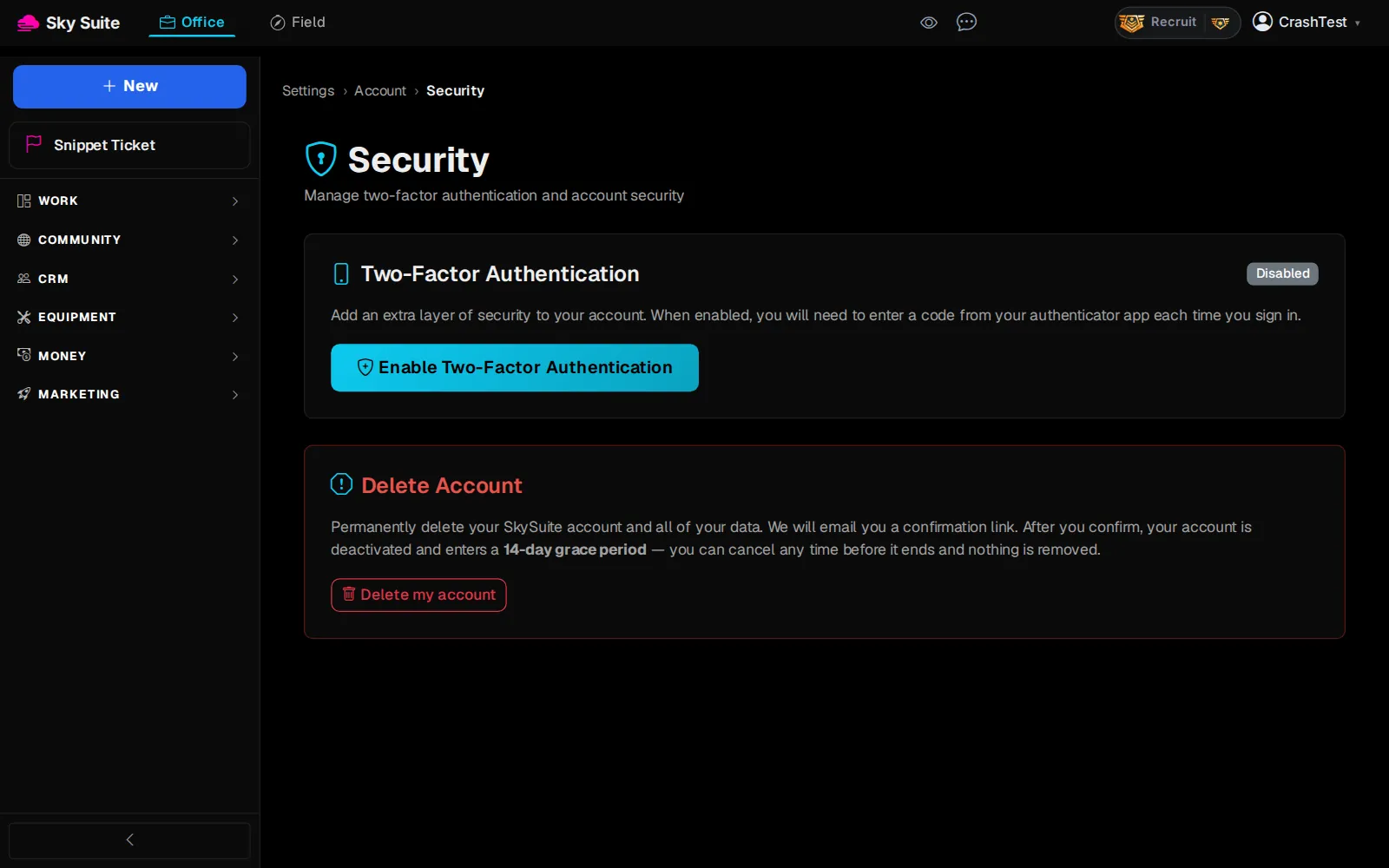
Step 5: Click “Enable Two-Factor Authentication”.
Opens“Step 1: Scan QR Code”. Scan it with your authenticator app (“Can't scan? Enter key manually” if you can't), and write down the “Recovery Codes”.
-
Step 6: Under “Step 2: Verify”, type the 6-digit code your app shows, then click the check-mark button next to it.
Opens“2FA Enabled”. Click “Copy Codes” and keep the recovery codes somewhere safe, then “Done”. From now on, sign-in asks for a code from your app.
-
Step 7: For a passkey, on the same page under “Passkeys and security keys”, click “Add a passkey”. Your browser asks where to save it: this browser, your password manager, or your phone (scan the QR code). Confirm with your screen lock.
OpensThe passkey appears in the list with the day it was added and when it was last used. “Rename” and “Remove” are next to it.
-
Step 8: Next time, on the Sign in page click “Sign in with a passkey”.
OpensYour browser offers the passkeys it can reach (saved in the browser, your password manager, or your phone over a QR code). Your screen lock (fingerprint, face or PIN) signs you in. No password and no code are needed.
Passkeys and security keys
A passkey signs you in on its own: the screen lock (fingerprint, face or PIN) is the second step, so there is nothing to type. You can save it in this browser (for example Chrome’s or Safari’s saved passwords), in your password manager (1Password, Bitwarden and the like), or on your phone; with a phone you can also sign in on a computer by scanning the QR code your browser shows. Add one on Settings › Account › Security under “Passkeys and security keys” with “Add a passkey”, once for each browser or device you use (up to 20). The list shows each one’s name, when it was added and when it was last used, with “Rename” and “Remove” next to it.
A security key is a small USB or NFC key. It is asked for after your password, so adding one with “Add a security key” turns two-step sign-in on and gives you recovery codes to keep.
If you do not see “Passkeys and security keys” on the Security page yet, passkeys are not switched on for your account yet.
Signing in with two-step sign-in
After your password (or “Continue with Google”), SkySuite asks for one of:
- a 6-digit code from your authenticator app;
- one of your passkeys or security keys (“Use a passkey or security key”);
- one of your recovery codes (“Use a recovery code instead”). Each code works once, and we e-mail you whenever one is used.
An e-mailed code is never accepted as the second step.
Changing or turning it off
Turning two-step sign-in off, making new recovery codes, and renaming or removing a passkey or security key all need a real second step: a code from your app, a recovery code, or one of your keys (“Confirm with a passkey or security key”). Your password alone is never enough. We e-mail you whenever two-step sign-in is turned on or off and whenever a key is added or removed.
While two-step sign-in is on, the DJI controller PIN and Google sign-in on the controller stop working.
Lost your phone and your codes?
Sign in with one of your recovery codes instead of the 6-digit code. Each code works once.
If you have lost every second step (app, keys and recovery codes), write to support from your account’s own e-mail address. Support checks it’s you with that reply and one detail only the account owner would know. The removal then waits 24 hours, and we e-mail you a “Stop the removal” link in case it wasn’t you. After that you sign in with your password and can set up two-step sign-in again on Settings › Account › Security.