Help & Guides / Step-by-step guide
Record and submit a tutorial
Record your screen or upload a video showing how you do something, and send it in for review and points.
- Menu
- Office › Community › Tutorials
- Direct link
- skysuite.pro/office/community/tutorials?view=make
- Level
- Advanced
- Length
- 9 steps, about 5 minutes
-
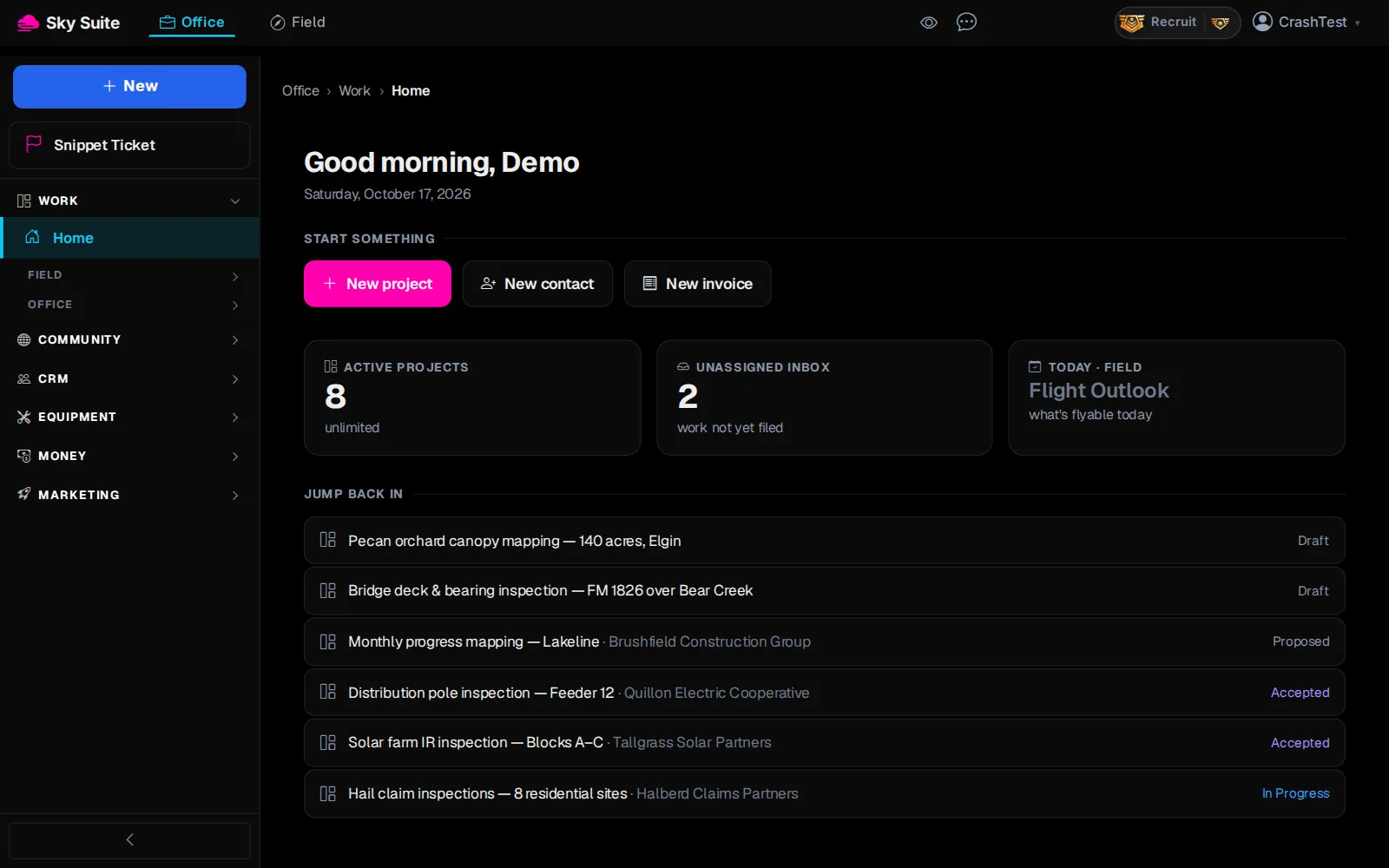
Step 1: In the left menu, click “Community” to open the group.
Opens“Chat”, “Leaderboard”, “Tutorials”, “Squawk Box” and more.
-
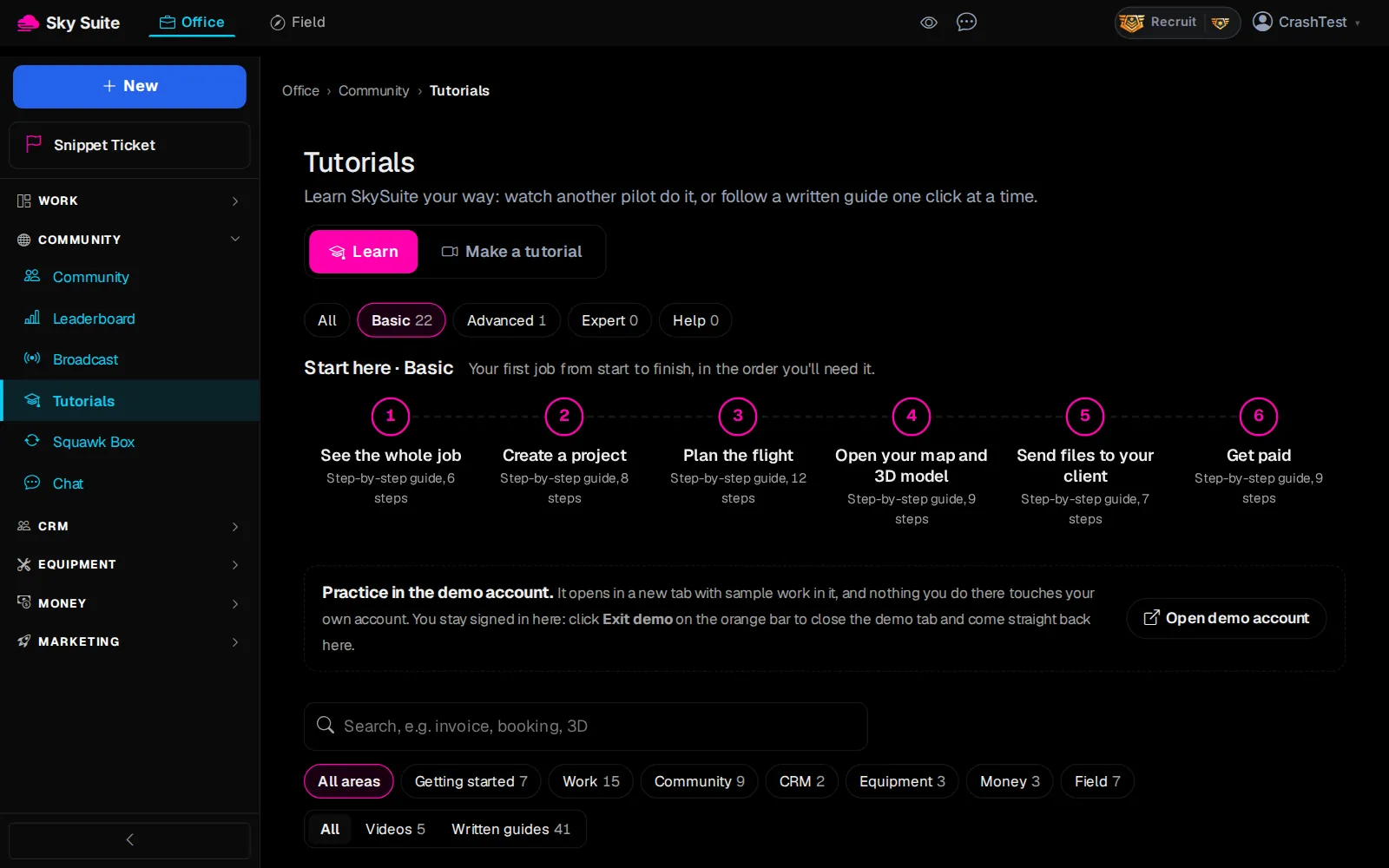
Step 2: Click “Tutorials”.
OpensThe “Tutorials” page, on “Learn”.
-
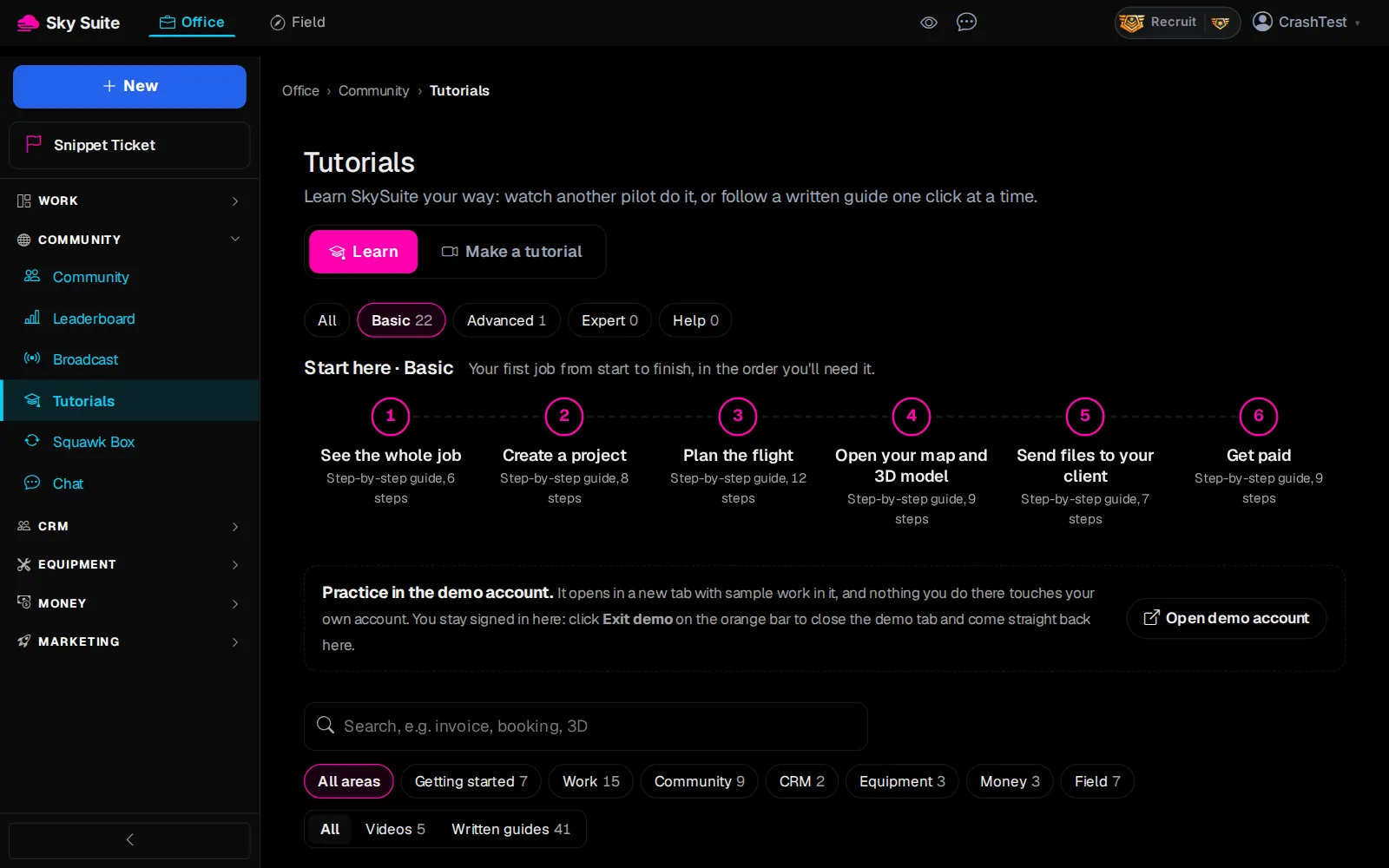
Step 3: Click the “Make a tutorial” tab.
OpensThe scoring rules, then “Contribute a tutorial”.
-
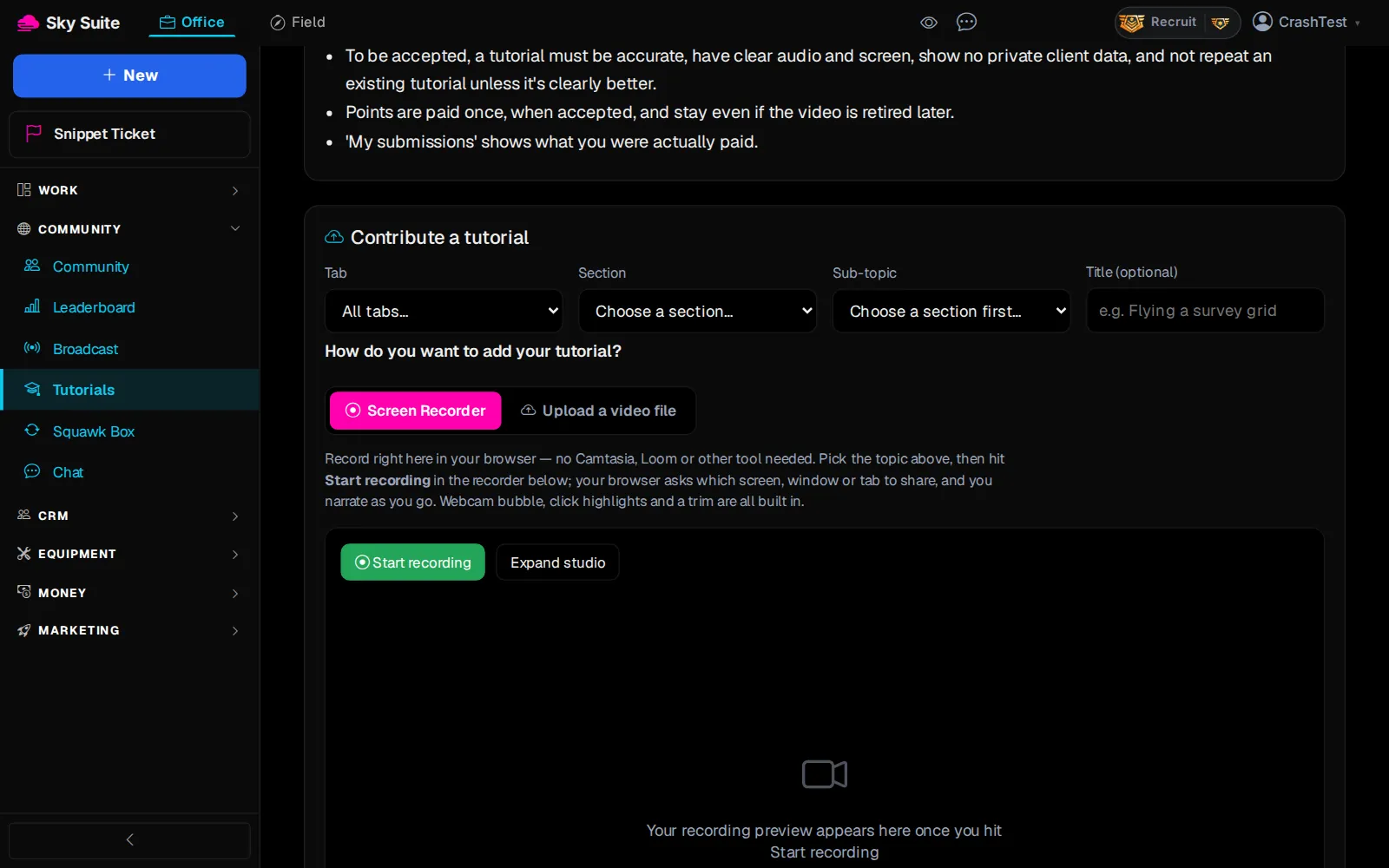
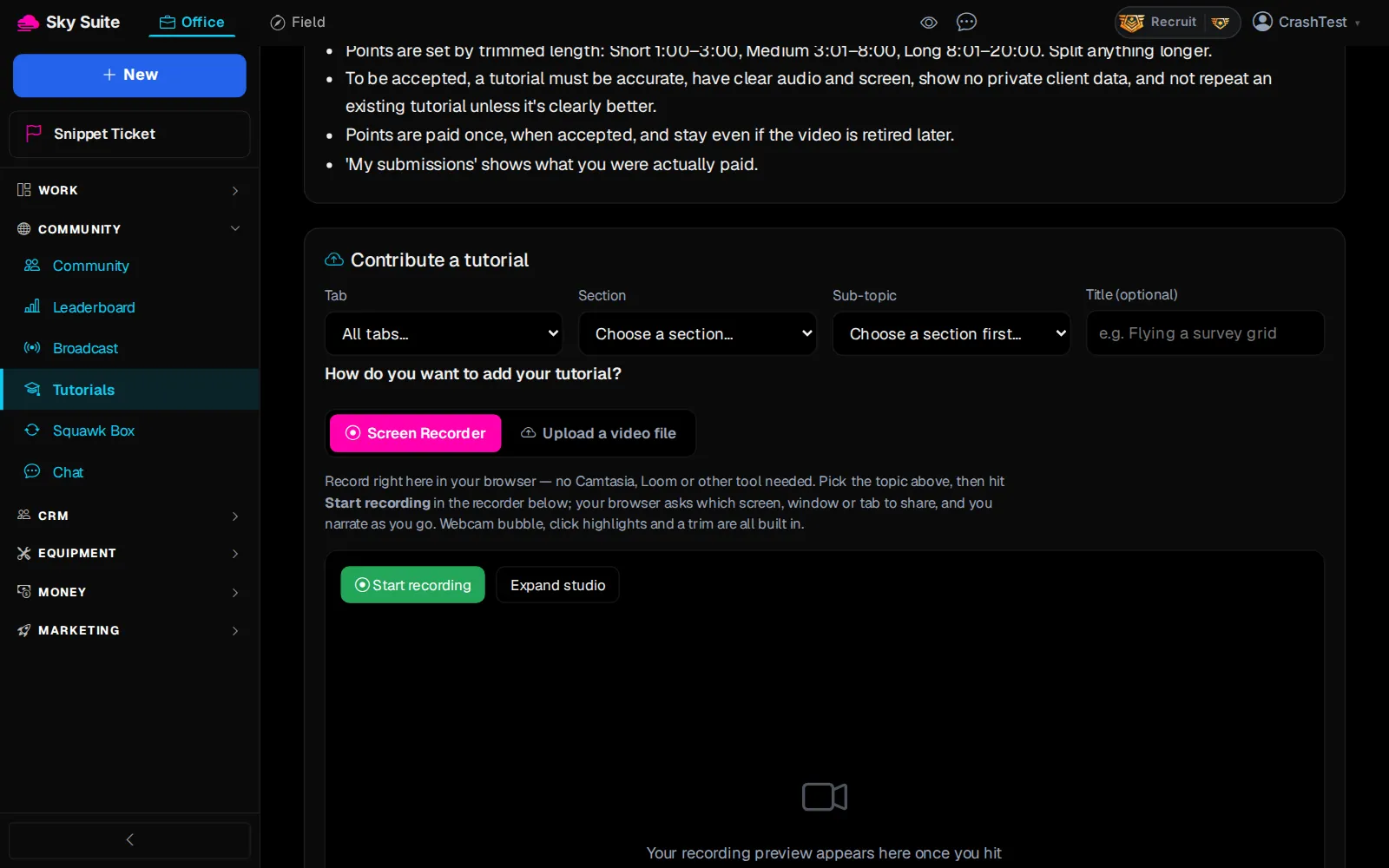
Step 4: Under “Contribute a tutorial”, pick the “Section” (marker 1) and “Sub-topic” (marker 2) your video belongs to. “Title (optional)” (marker 3) names it.
-
Step 5: “Screen Recorder” (marker 1) records right here. Have a video already? Click “Upload a video file” (marker 2) and pick it instead.
-
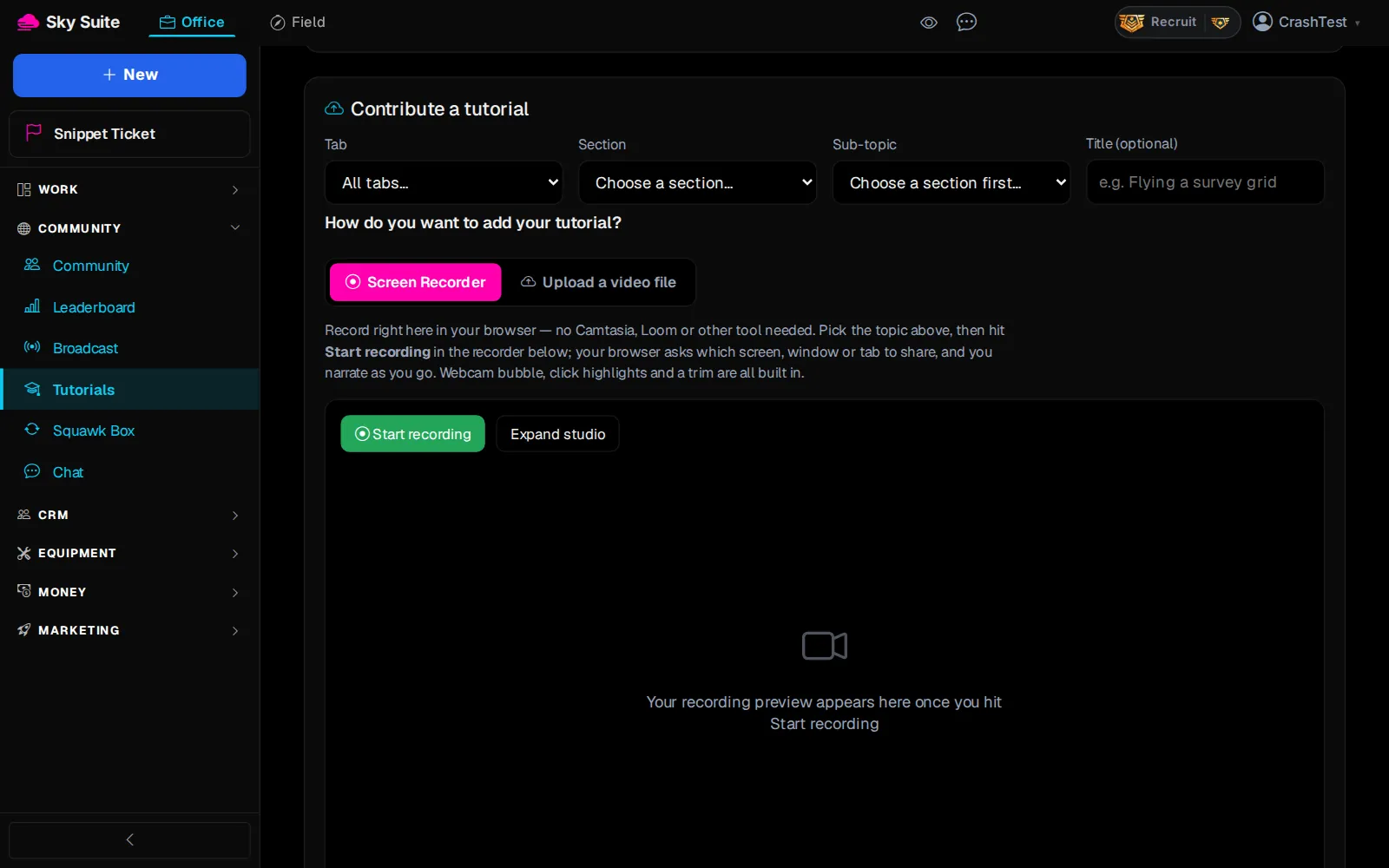
Step 6: Click “Start recording” (marker 1). Your browser asks what to share: pick the tab or window and click “Share”.
-
Step 7: Show the steps, then click “Stop”.
OpensA preview of the recording. Drag its ends to trim the start and finish, or “Re-record”.
-
Step 8: Read the agreement and tick “I understand and agree.”.
-
Step 9: Click “Submit”.
OpensYour tutorial goes to review and shows under “My submissions” with its status. Points are added once it is accepted.
How tutorials are scored: “Scoring rules” on the Make a tutorial tab.