Help & Guides / Step-by-step guide
Record a payment
Mark an invoice paid, or part paid, when the money lands.
- Menu
- Office › Money › Invoices
- Direct link
- skysuite.pro/office/money/invoices
- Level
- Basic
- Length
- 5 steps, about 2 minutes
-
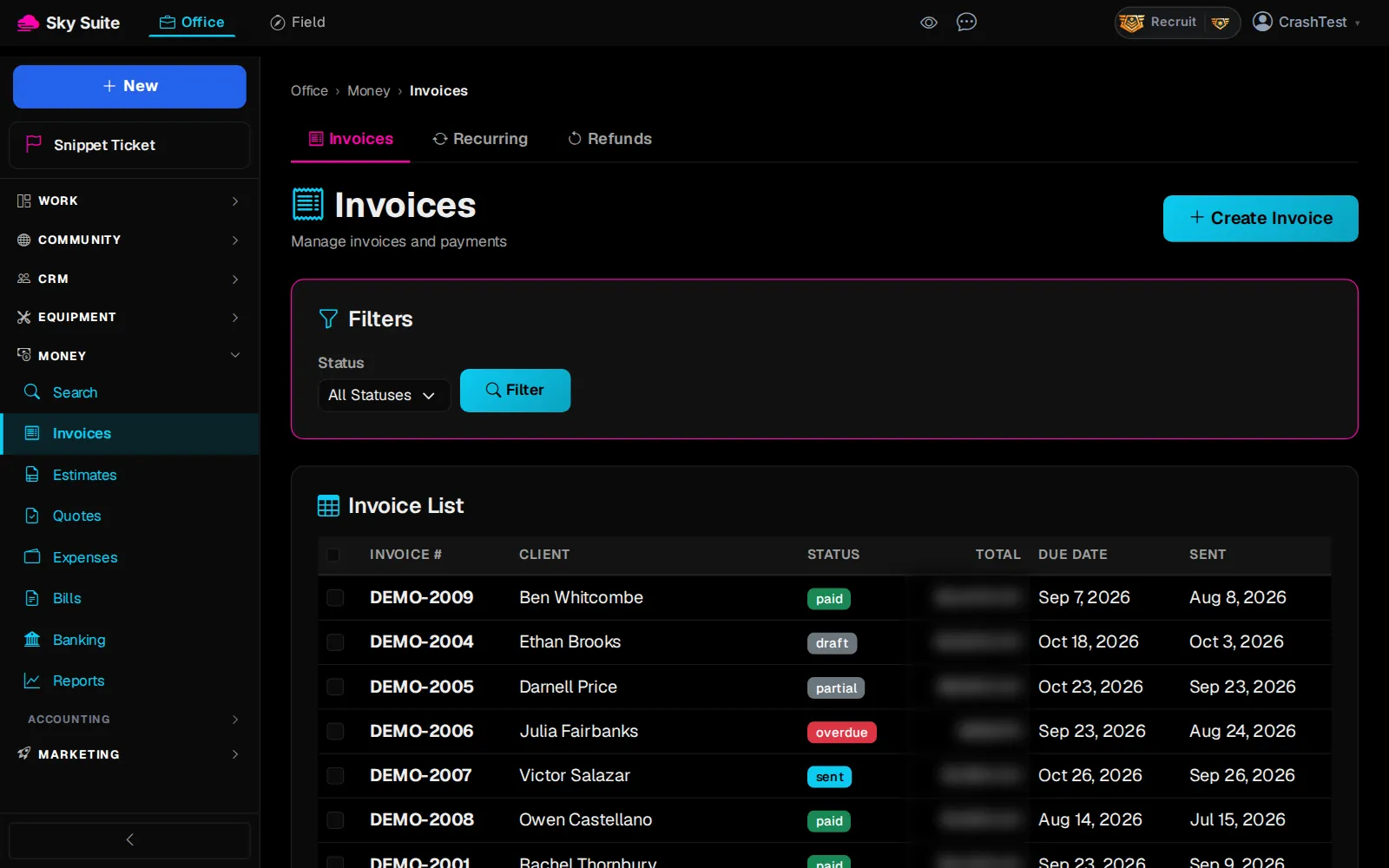
Step 1: In the left menu, under “Money”, click “Invoices”.
OpensThe “Invoices” page.
-
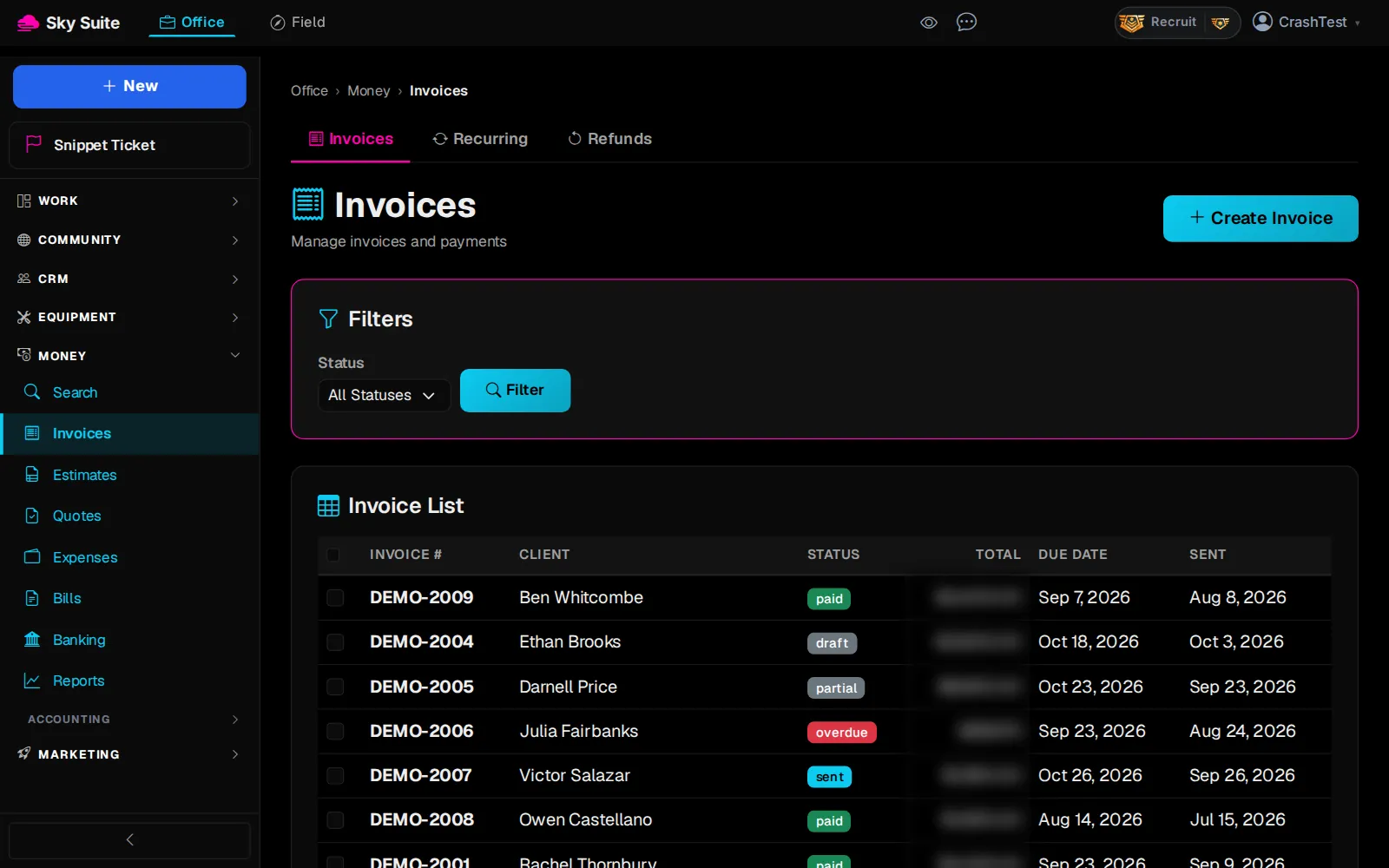
Step 2: Click the invoice the client paid, for example “DEMO-2007”. Its status says “sent”, “viewed”, “partial” or “overdue”.
OpensThe invoice page.
-
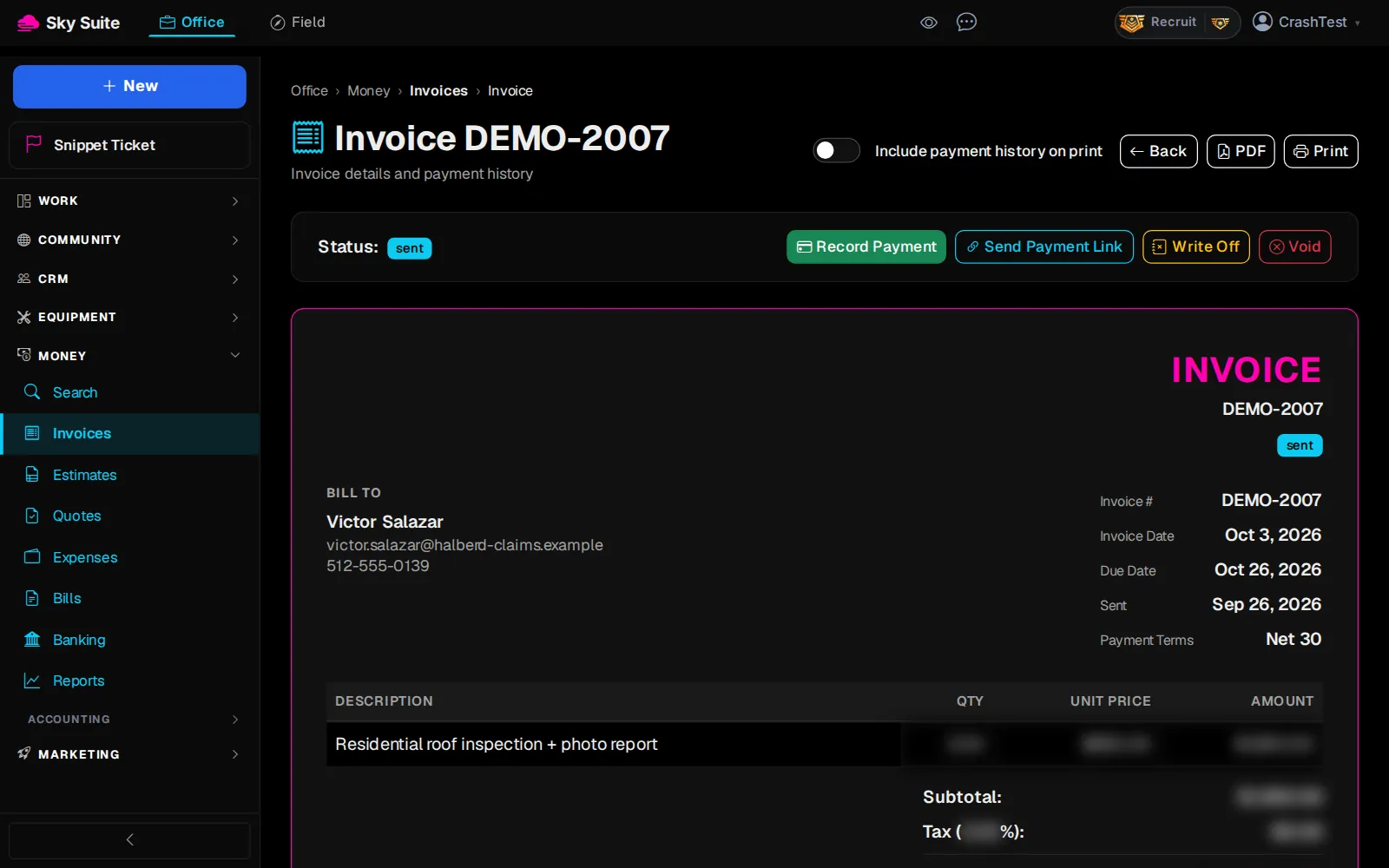
Step 3: Click “Record Payment”.
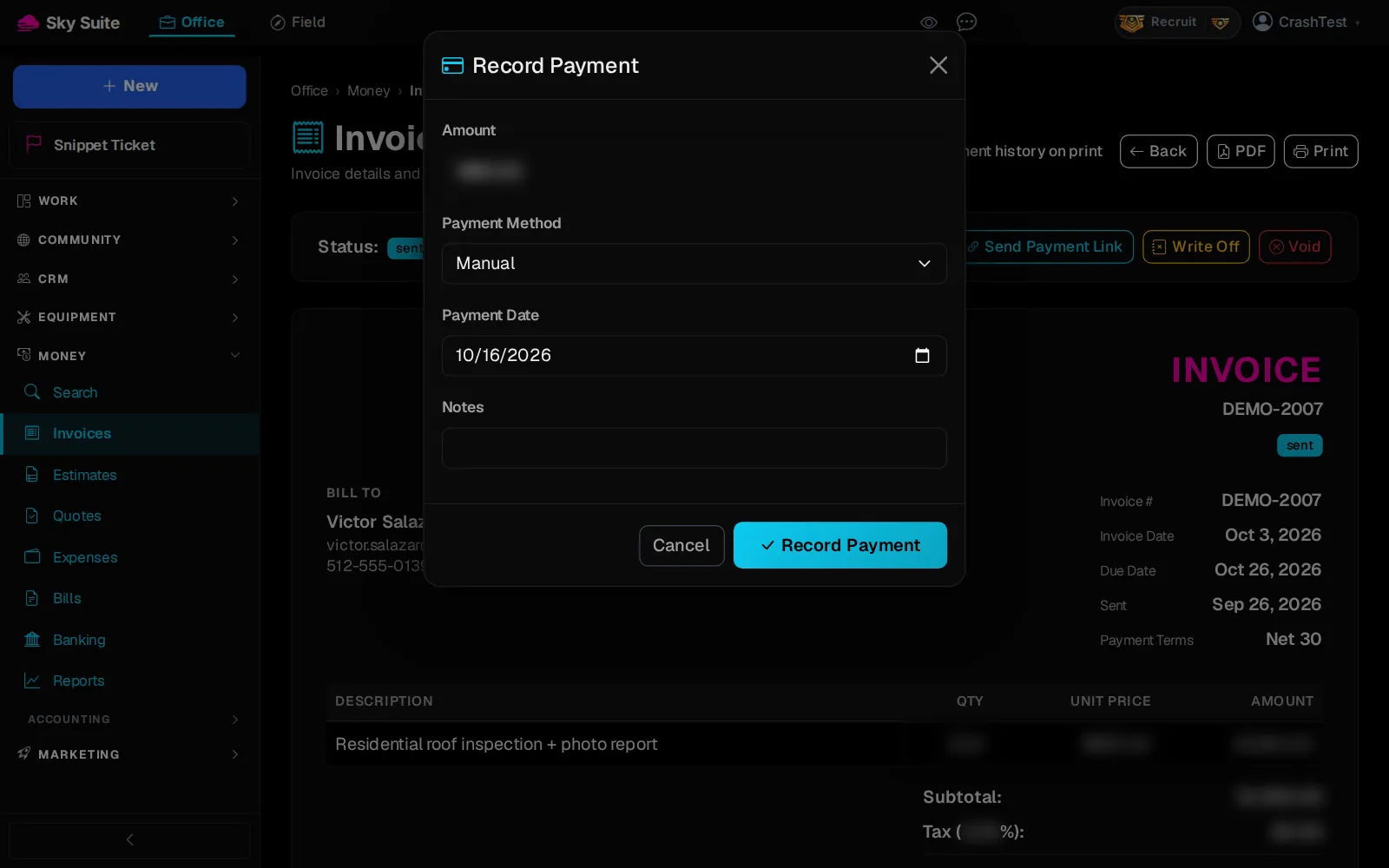
OpensThe “Record Payment” box.
-
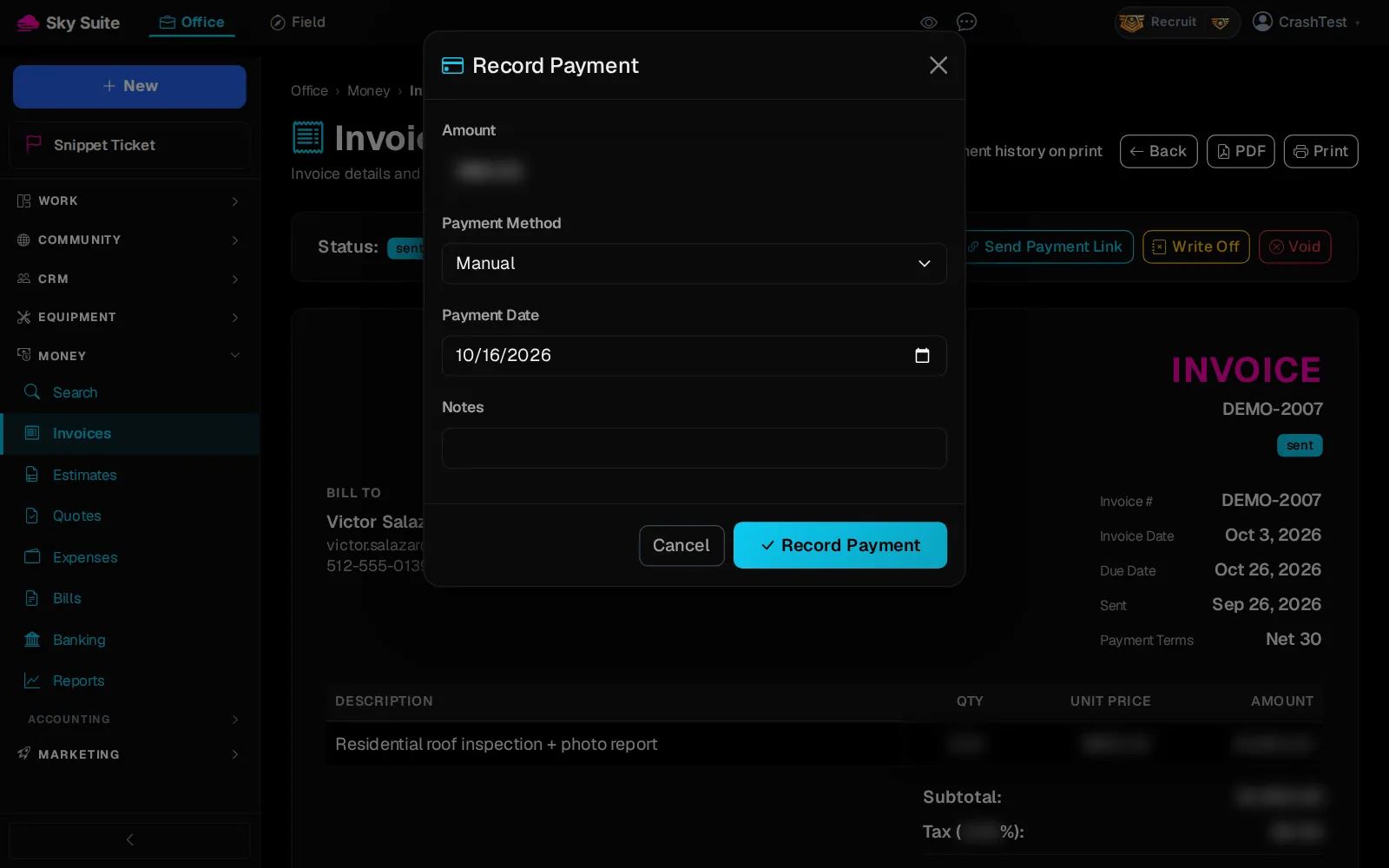
Step 4: Fill in “Amount” (marker 1), pick the “Payment Method” (marker 2), such as “Check” or “Bank Transfer”, and set the “Payment Date” (marker 3).
-
Step 5: Click “Record Payment” at the bottom of the box.
OpensThe invoice again, now “paid”, or “partial” if it was part of the balance. The payment is in your books.
“Record Payment” shows only on invoices that were sent (“sent”, “viewed”, “partial” or “overdue”); a draft has to be sent first. Clients who pay online by card are marked paid for you.