Help & Guides / Step-by-step guide
Check the airspace at your site
See what airspace your site sits in and how high you can get approved through LAANC.
- Menu
- Field › Tools › Airspace
- Direct link
- skysuite.pro/field/tools/airspace
- Level
- Basic
- Length
- 5 steps, about 2 minutes
-
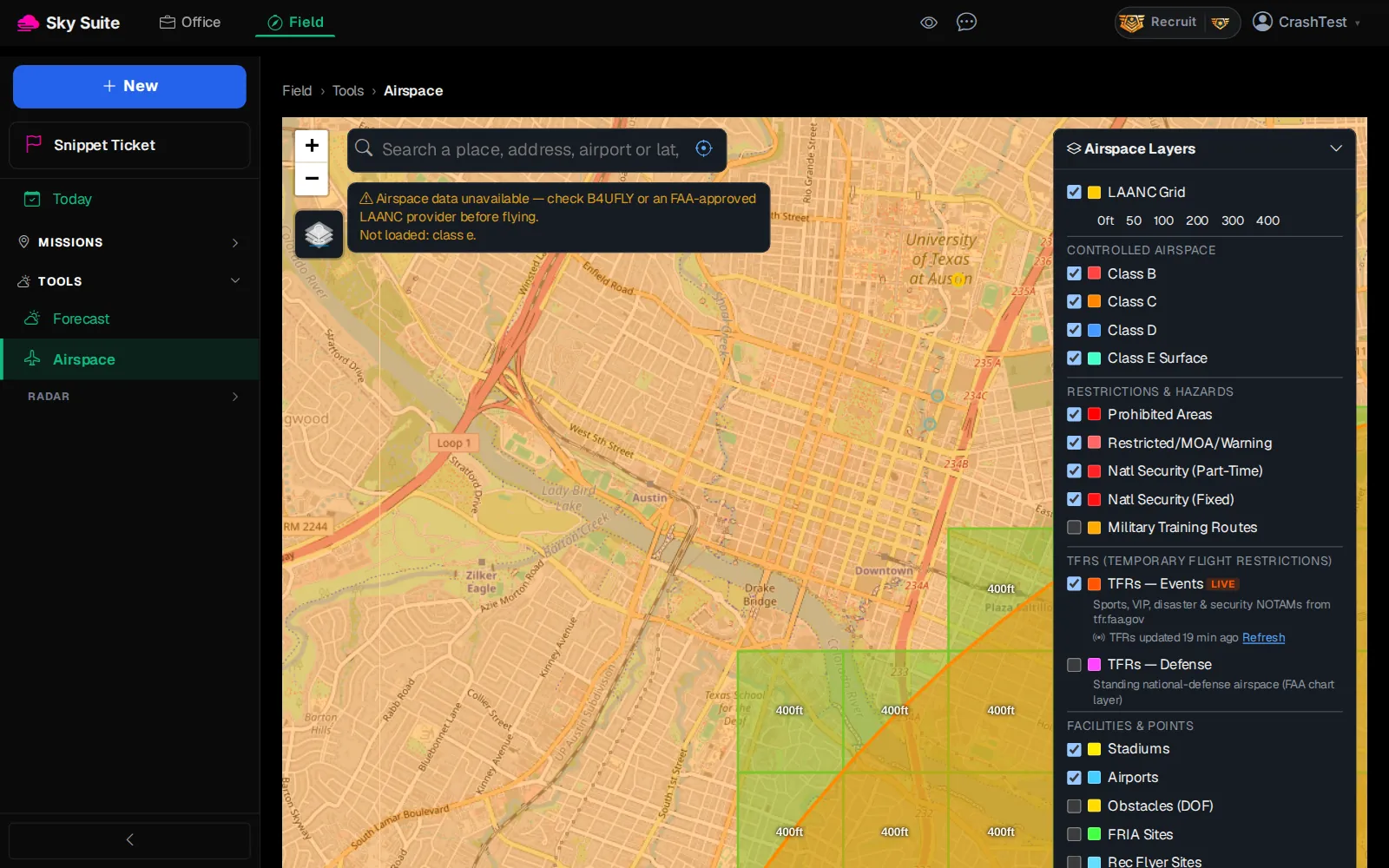
Step 1: At the top of the page, click “Field”.
OpensThe Field menu on the left: “Today”, “Missions” and “Tools”.
-
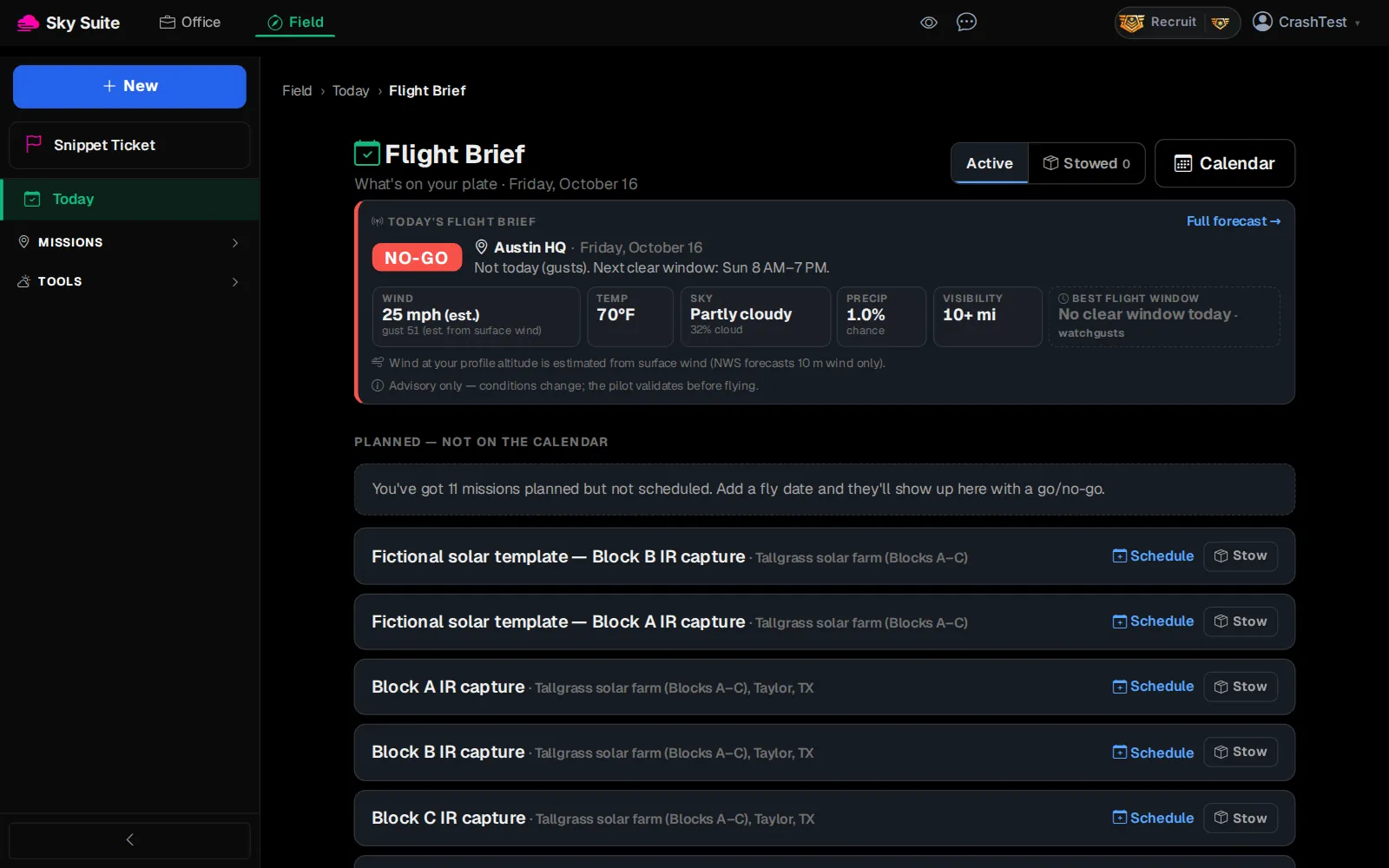
Step 2: In the left menu, click “Tools” to open the group.
Opens“Forecast”, “Airspace” and “Radar”.
-
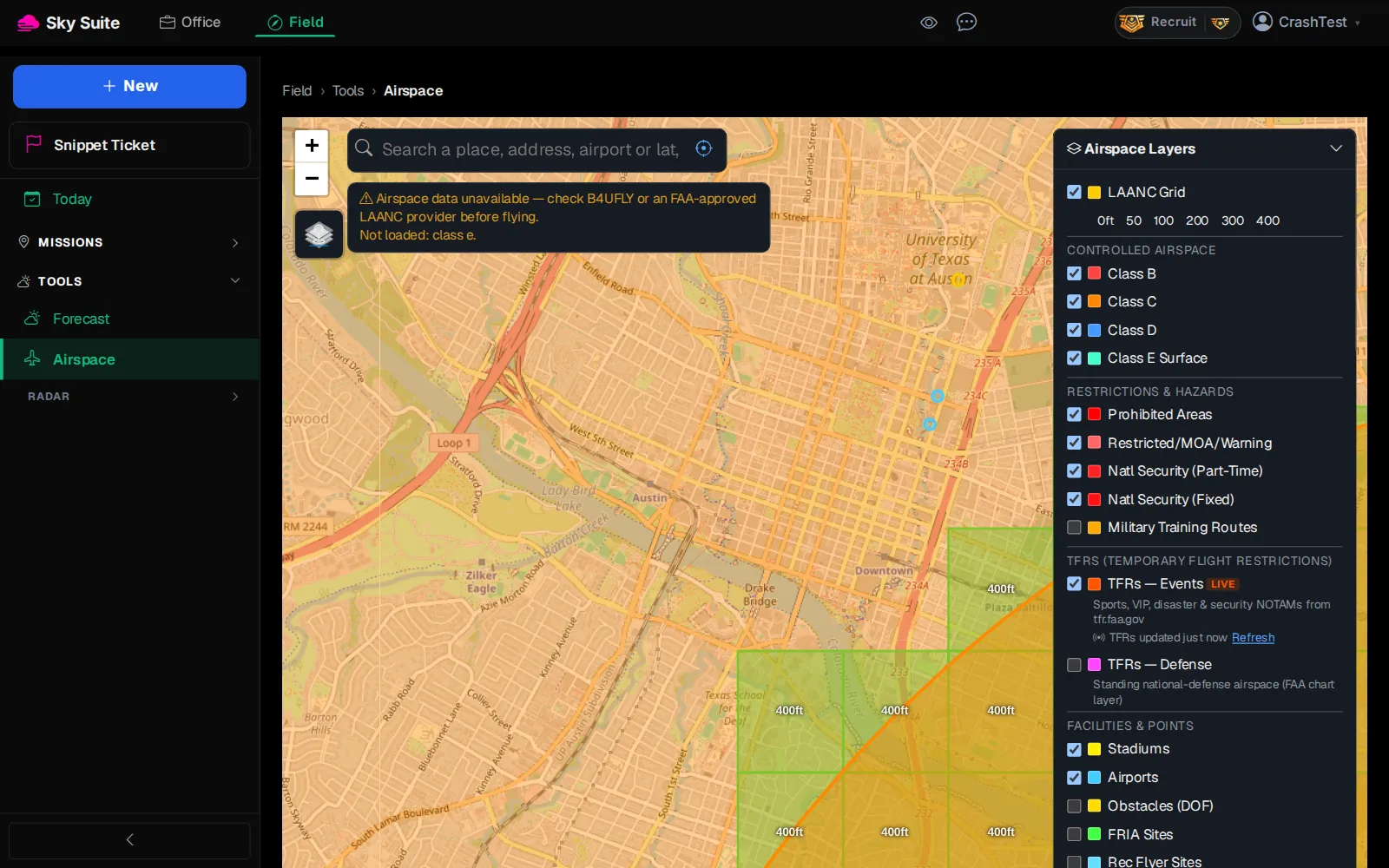
Step 3: Click “Airspace”.
OpensThe airspace map, with the airspace around your default site coloured in.
-
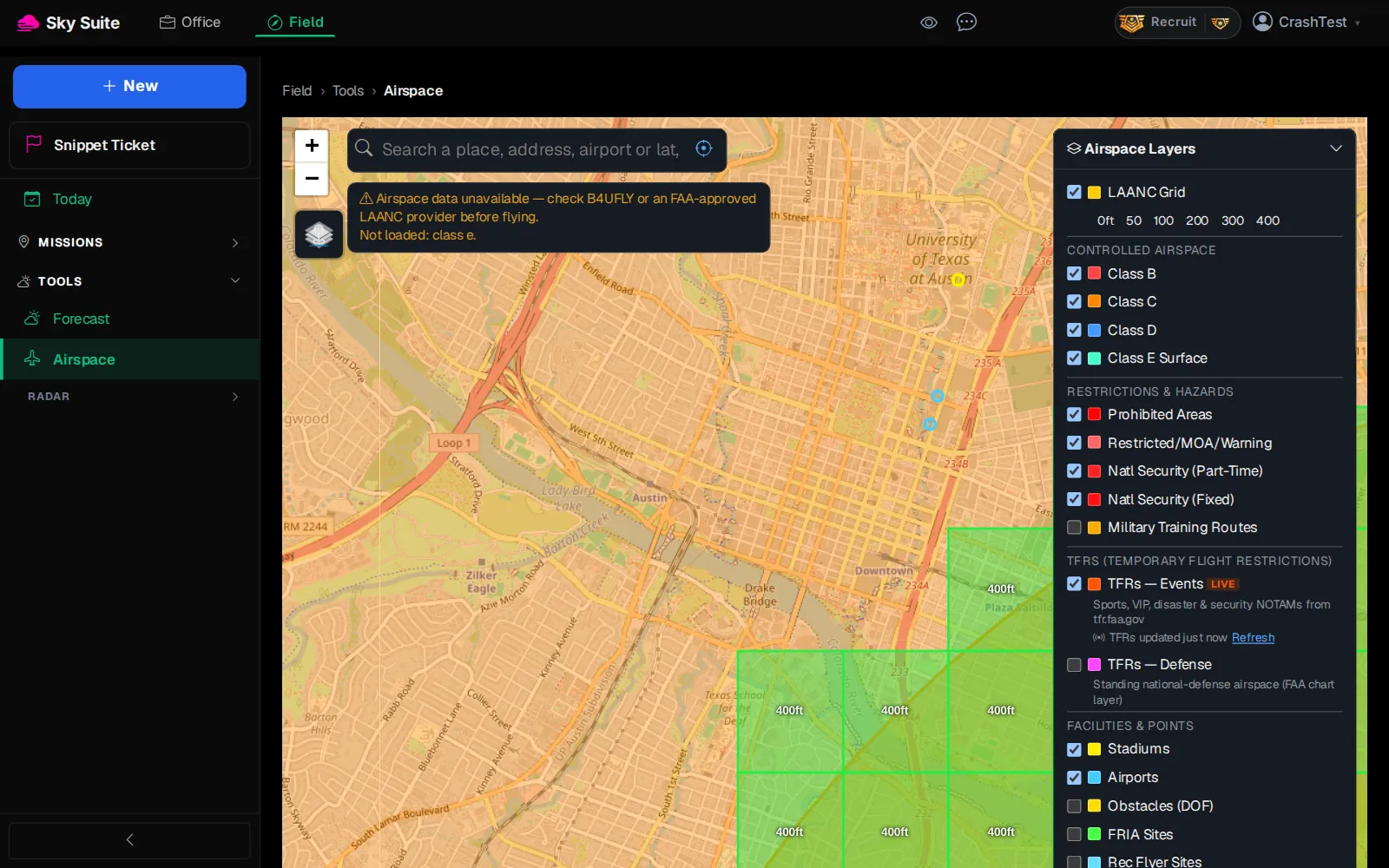
Step 4: Click the layers button (marker 1) under “+” and “−” to see what the colours are: “LAANC Grid”, “Class B” to “Class E Surface”, “Prohibited Areas”, “Restricted/MOA/Warning”, TFRs, “Airports” and more. Tick or untick a layer to show or hide it.
OpensThe layer list on the right of the map.
-
Step 5: In “Search a place, address, airport or lat,lon” (marker 1), type your site and press Enter.
OpensThe map flies to your site. Inside a LAANC grid square, its number (“400ft”, “200ft”, “0ft”) is the highest altitude you can get approved through LAANC there. No colour at all means uncontrolled (Class G) airspace.
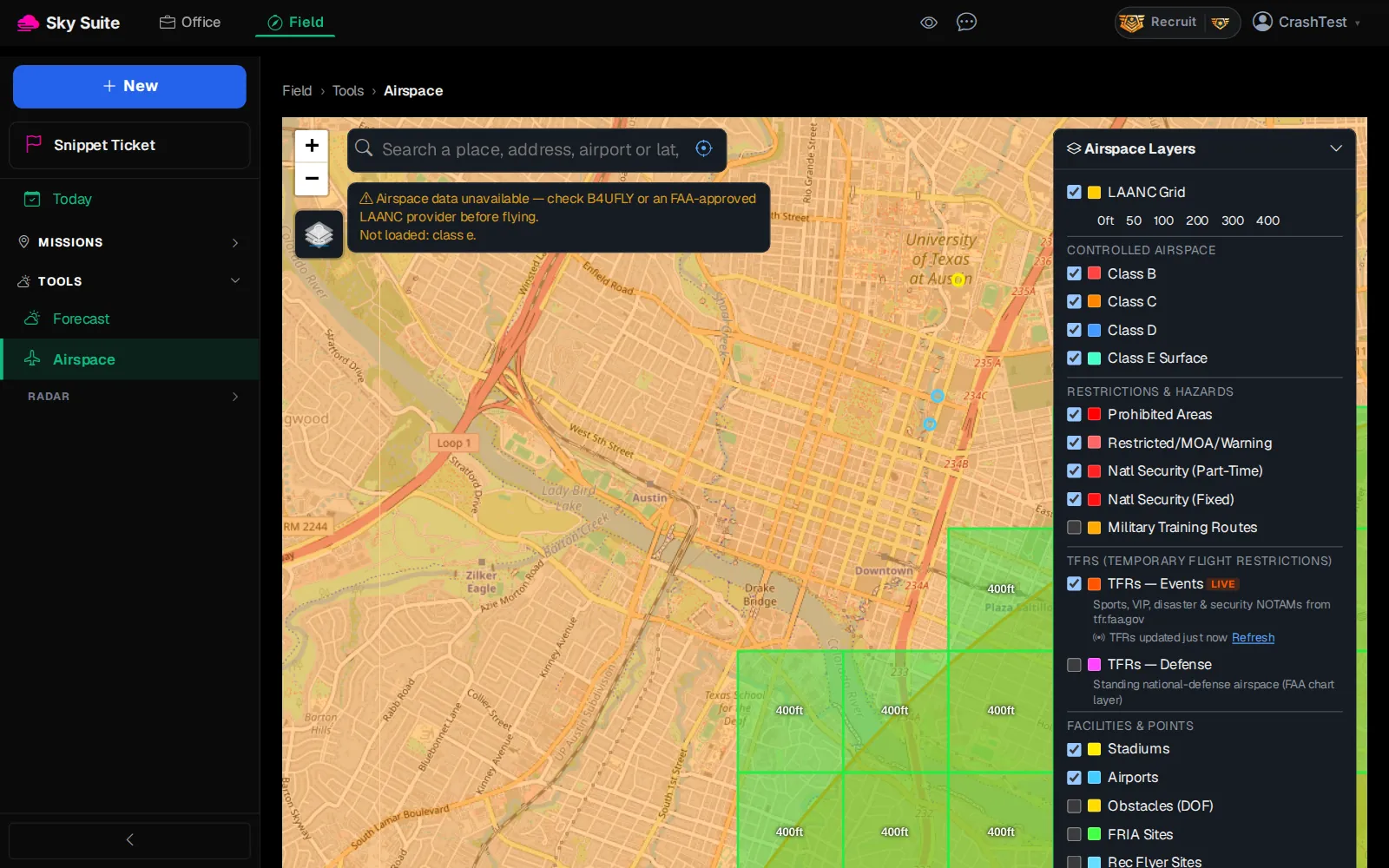
If a warning such as “Airspace data unavailable” shows on the map, check B4UFLY or another FAA-approved LAANC provider before you fly. Always check TFRs on the day: they can appear at short notice.