Help & Guides / Step-by-step guide
Capture leads with a web form
Build a form for your website and answer every new lead automatically with an auto-responder.
- Menu
- Office › Marketing › Web Forms
- Direct link
- skysuite.pro/office/marketing/web-forms
- Level
- Advanced
- Length
- 10 steps, about 6 minutes
-
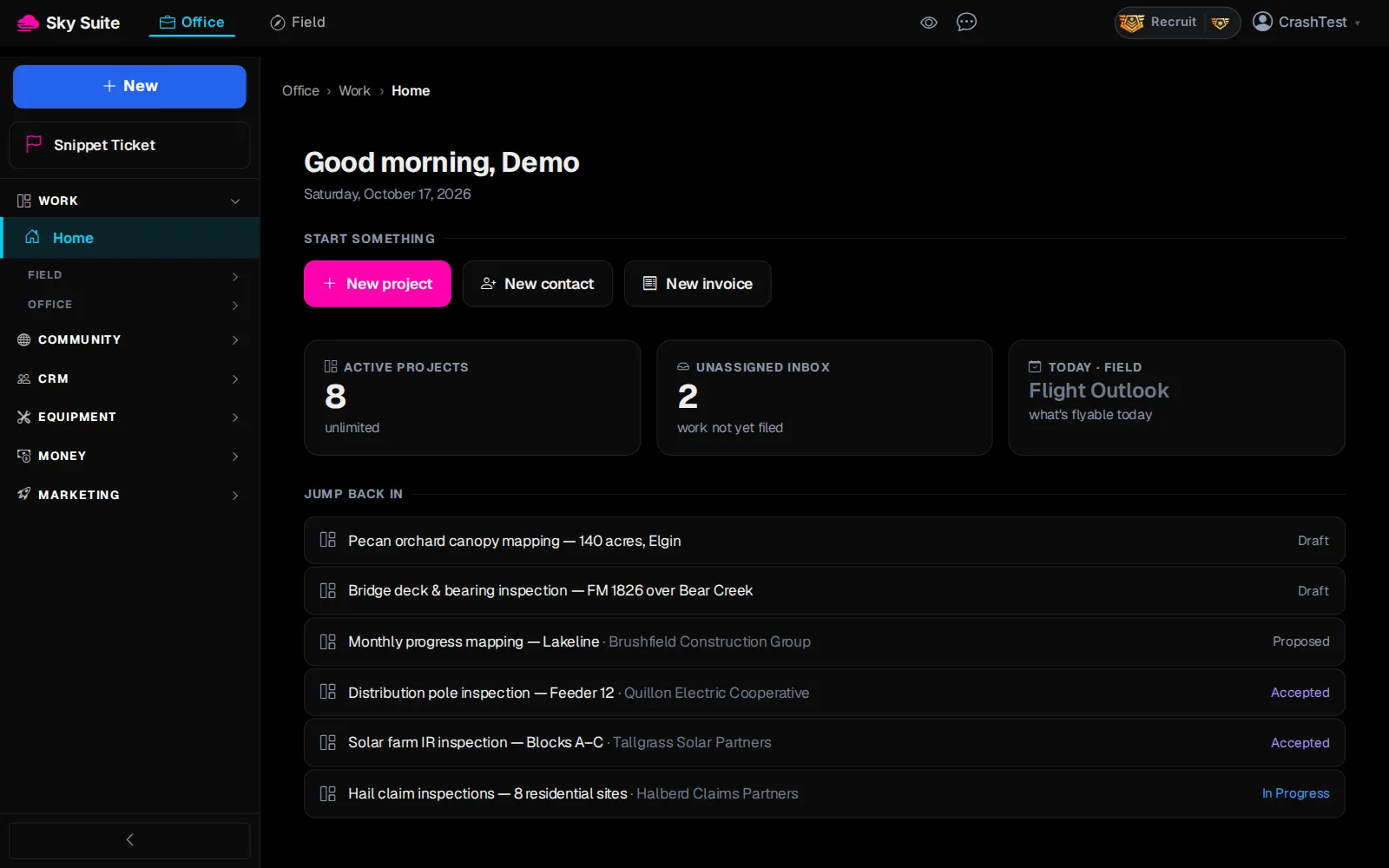
Step 1: In the left menu, click “Marketing” to open the group.
Opens“SMS Templates”, “Web Forms”, “Auto-Responders” and more.
-
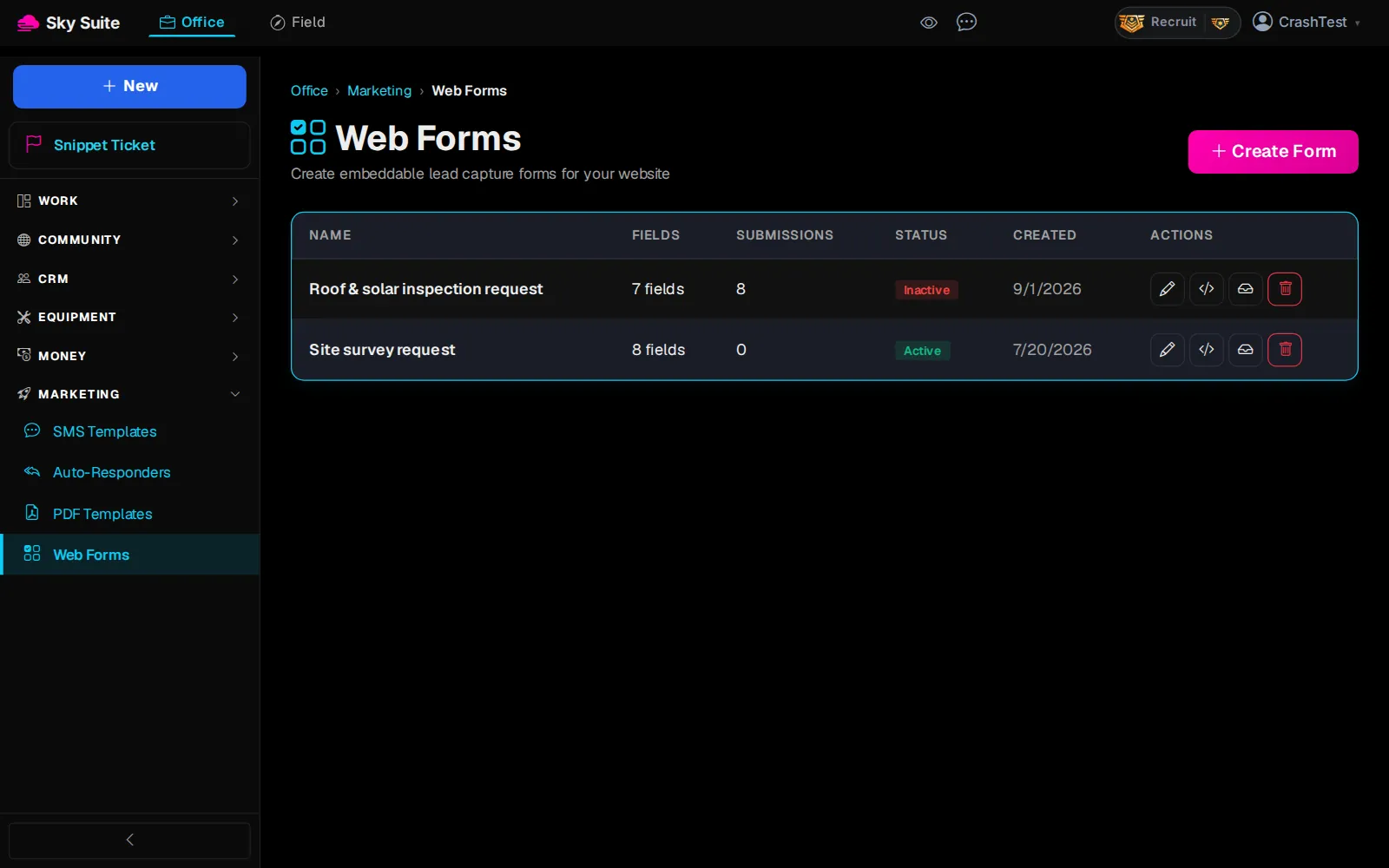
Step 2: Click “Web Forms”.
OpensThe “Web Forms” page, with your forms.
-
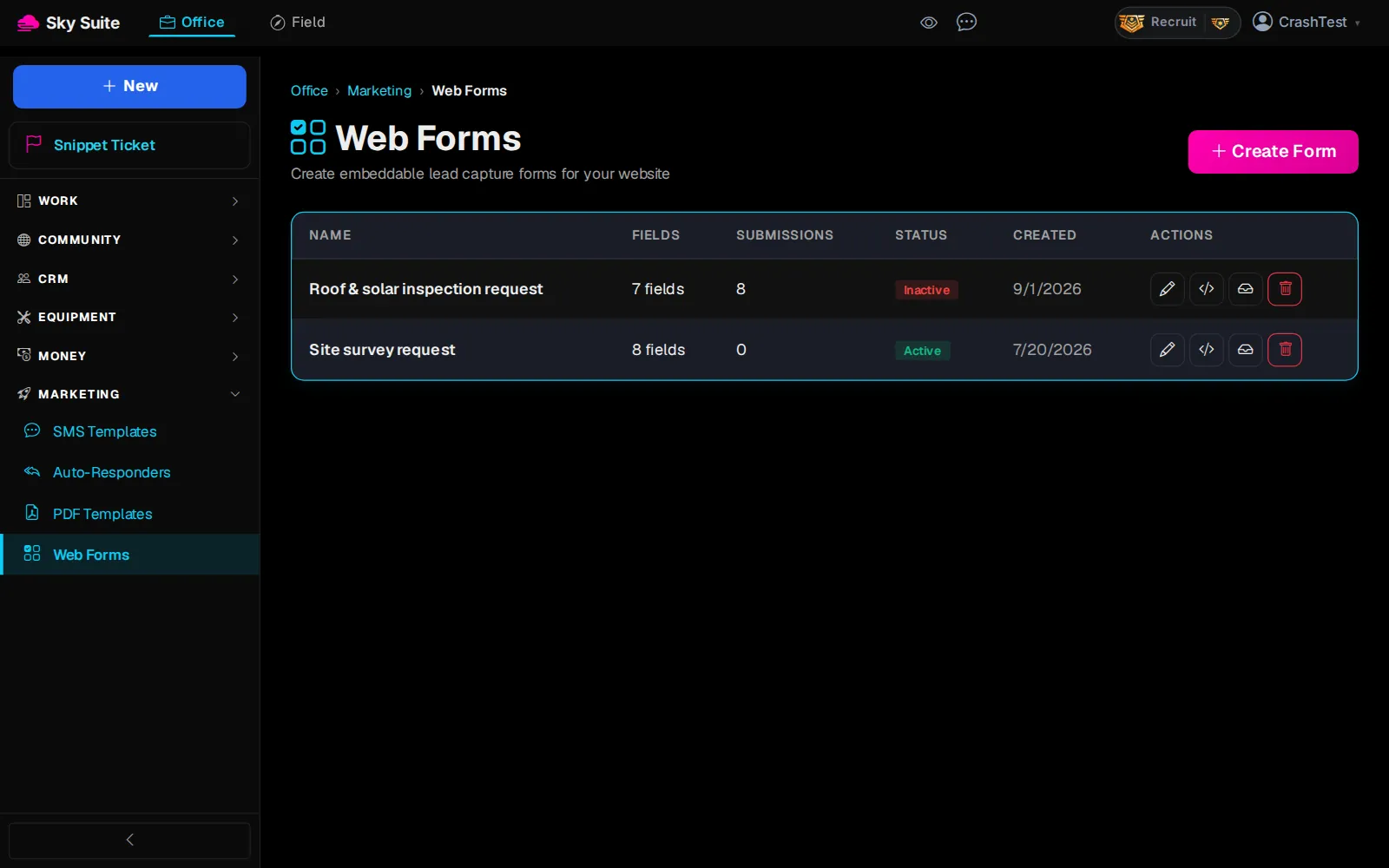
Step 3: At the top right, click “Create Form”.
OpensThe new form.
-
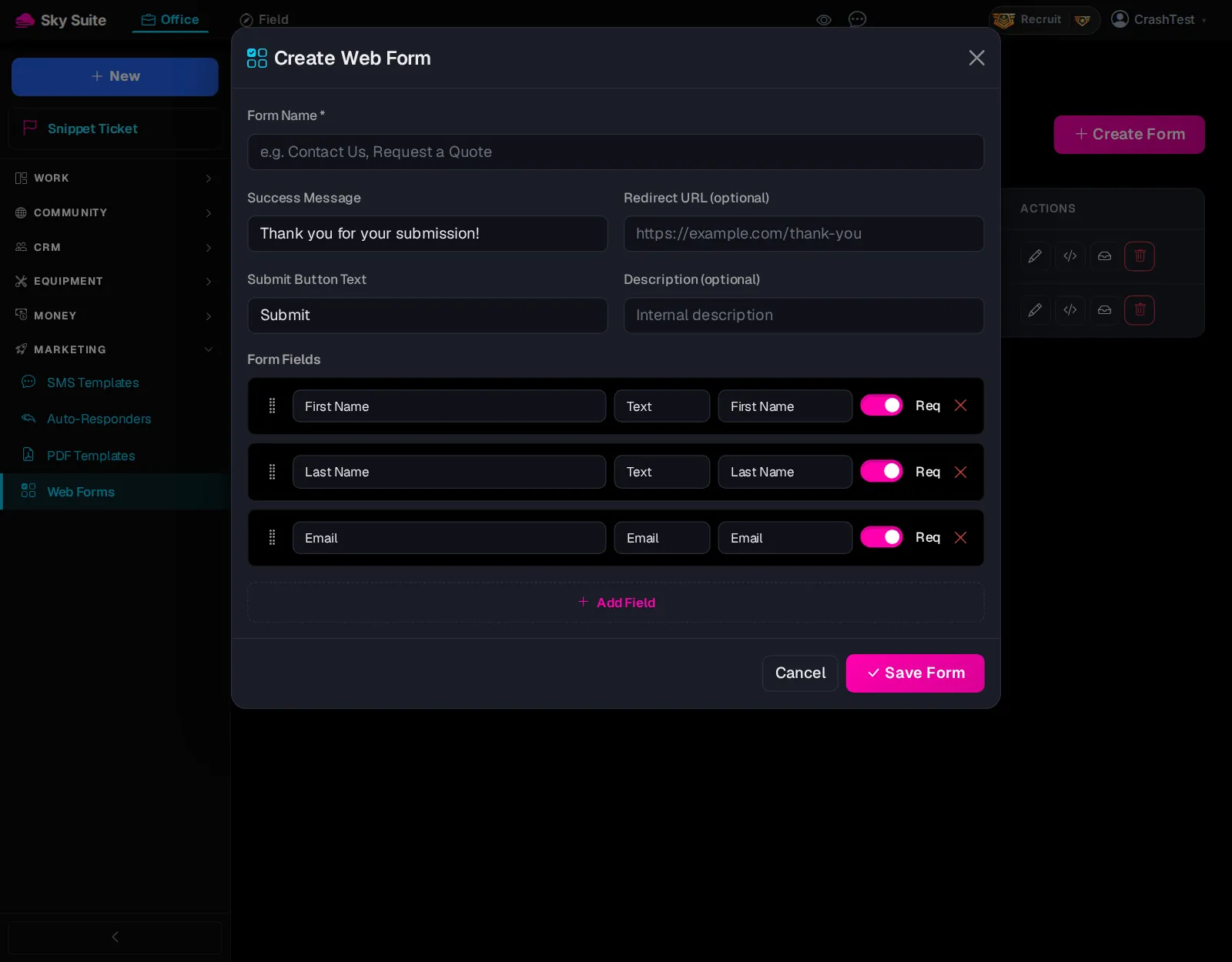
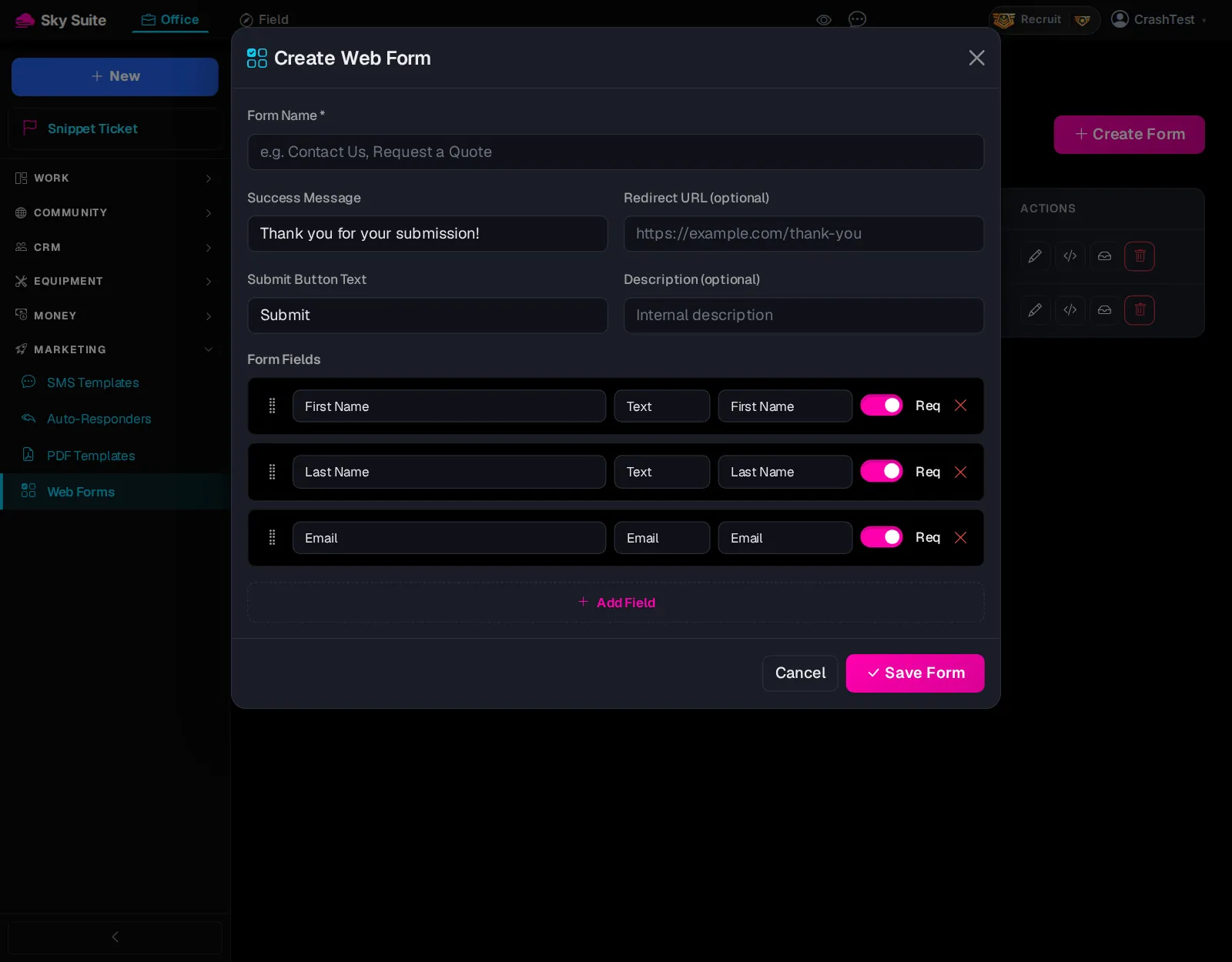
Step 4: Give it a “Form Name” (marker 1), such as “Request a Quote”. “Success Message” (marker 2) is what visitors see after they send it.
-
Step 5: Under “Form Fields”, each row is one question: its label, its type and where the answer goes in your contacts. “Add Field” (marker 1) adds one. Then click “Save Form” (marker 2).
OpensThe “Web Forms” page, with the new form on it.
-
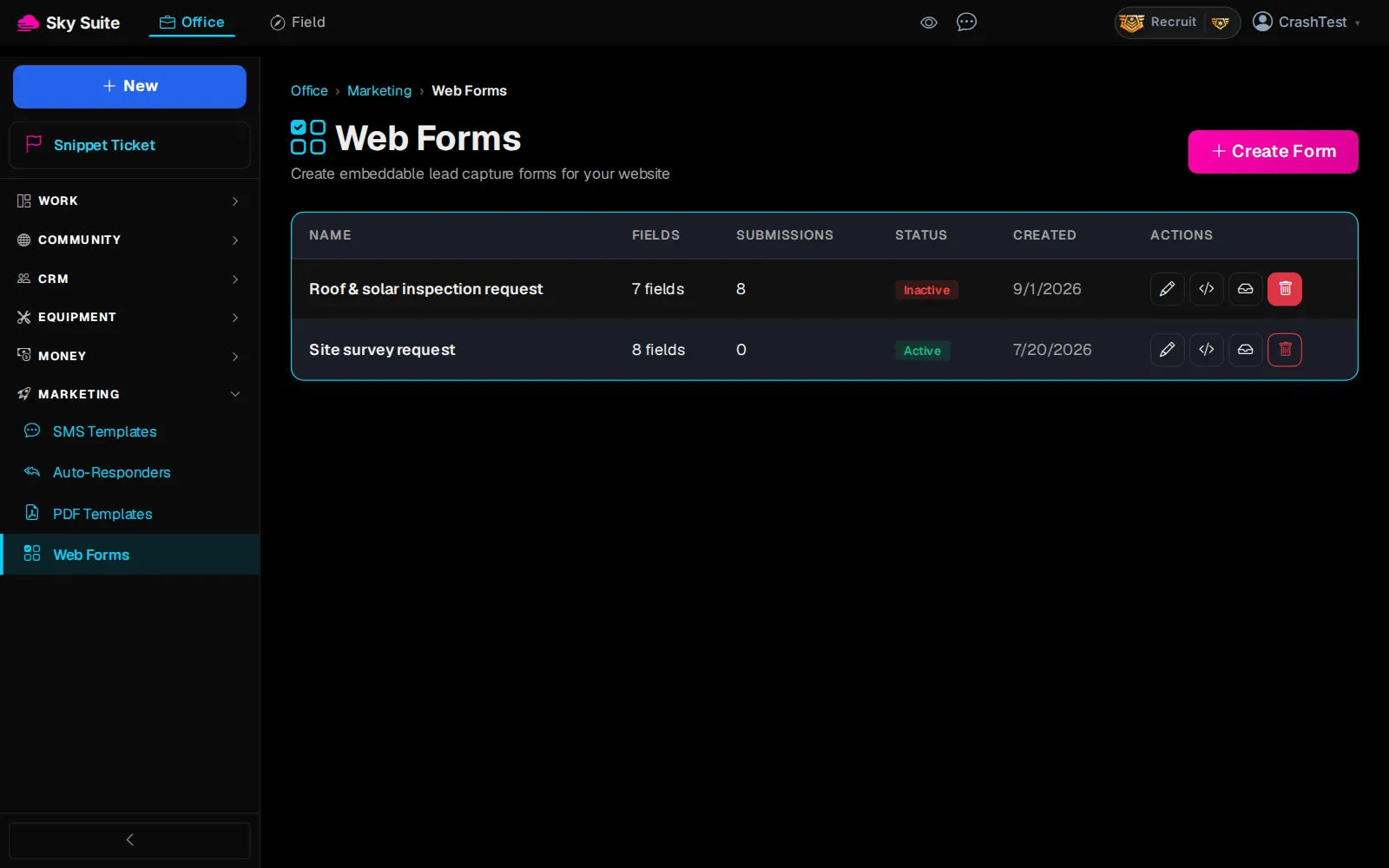
Step 6: On the form's row, click the code button, “Get embed code” (marker 1), and paste the code into your website.
-
Step 7: Now answer every lead: in the Marketing group, click “Auto-Responders”.
OpensThe “Auto-Responders” page.

-
Step 8: Click “New Auto-Responder”.

-
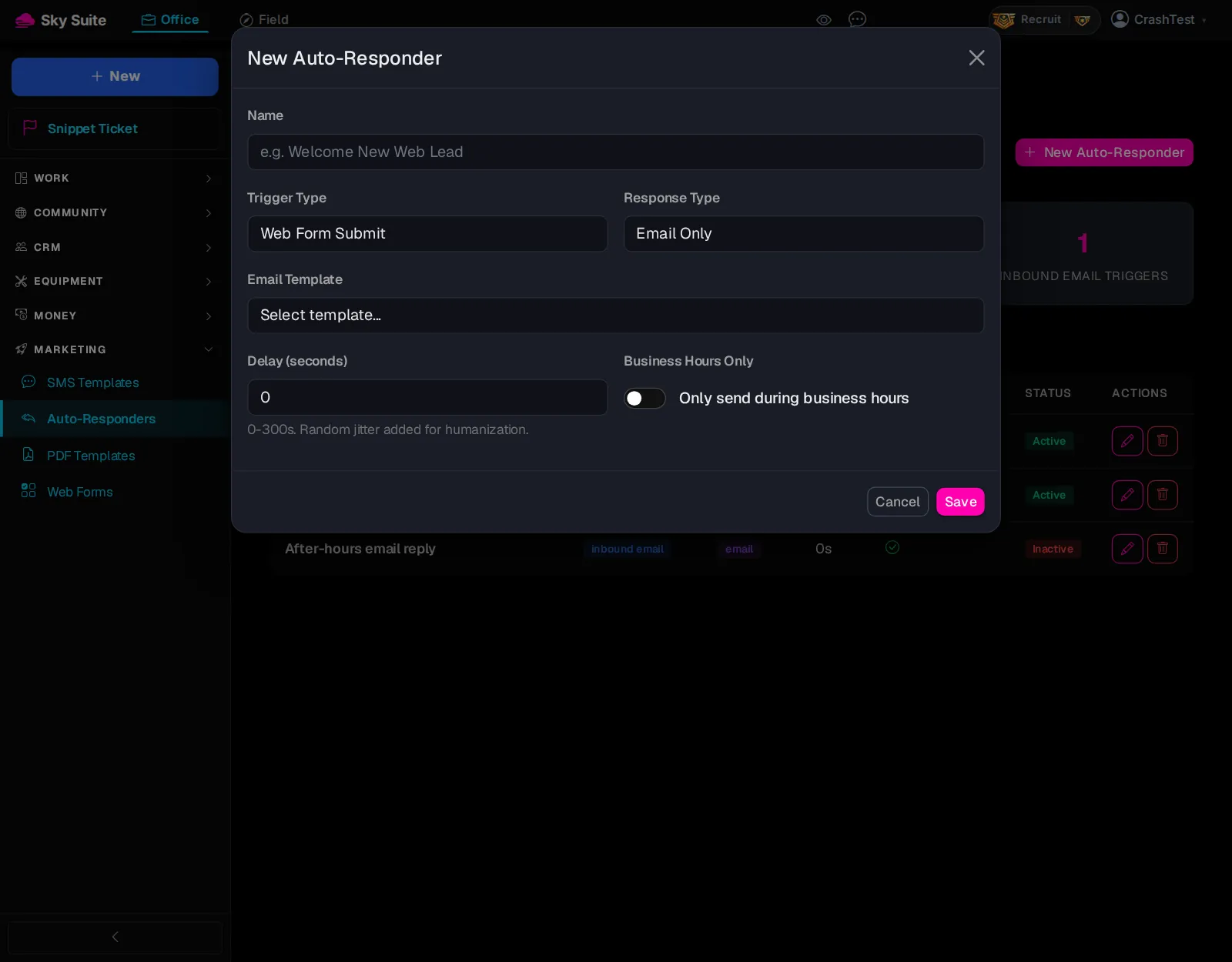
Step 9: In “Trigger Type” (marker 1) pick “Web Form Submit”, in “Response Type” (marker 2) pick email, text or both, and choose the “Email Template” (marker 3) to send.
-
Step 10: Click “Save”.
OpensNothing new to open: from now on every form a visitor sends lands in your contacts and gets your reply. “Business Hours Only” holds replies until you are open.
The replies use your email templates: write one first under Office › Marketing if the list is empty.