Help & Guides / Step-by-step guide
Ask Sky and message other pilots
Ask Sky a question, send another pilot a direct message, and join a group channel.
- Menu
- Office › Community › Chat
- Direct link
- skysuite.pro/office/community/chat
- Level
- Basic
- Length
- 6 steps, about 2 minutes
-
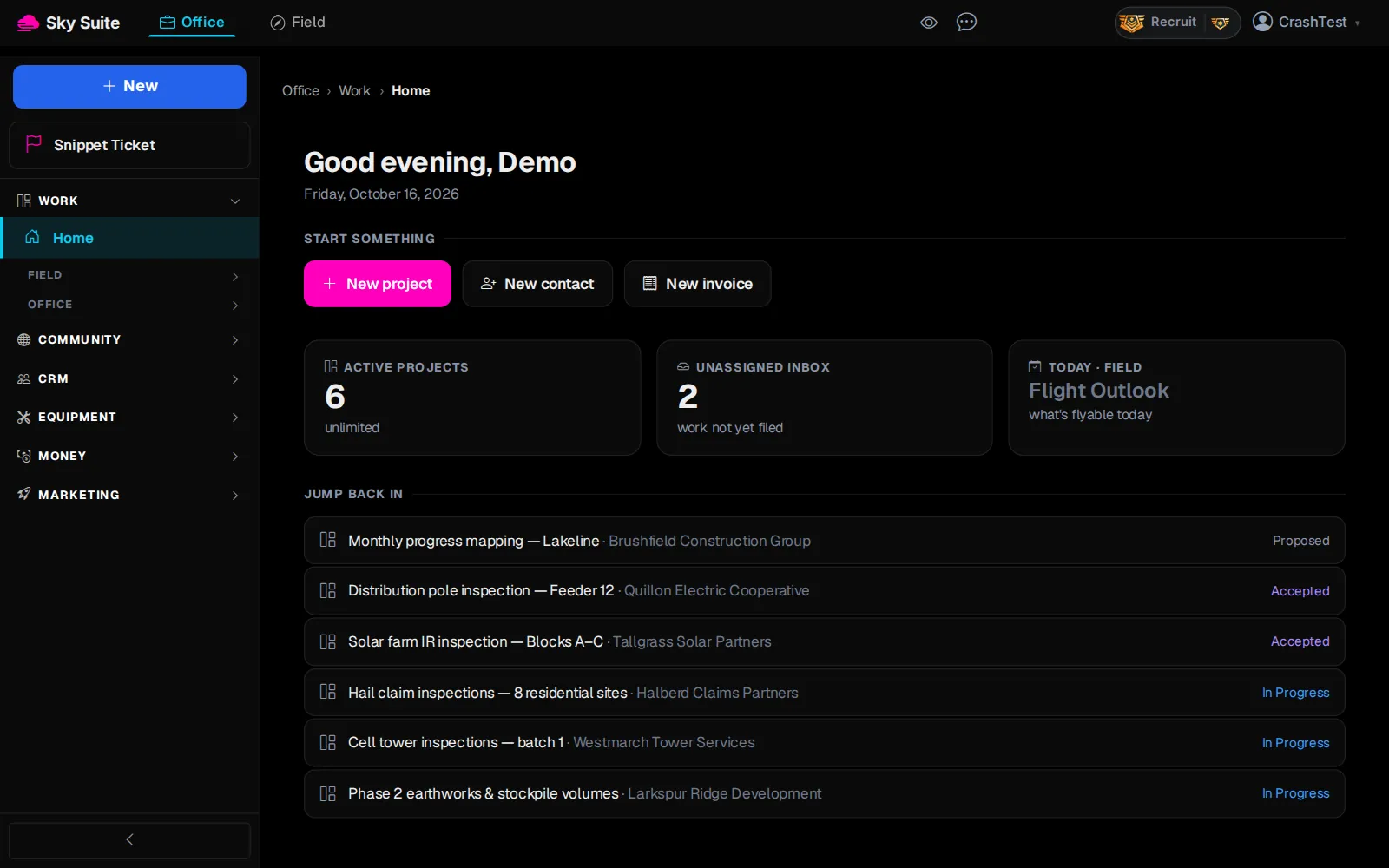
Step 1: In the left menu, click “Community” to open the group.
Opens“Community”, “Leaderboard”, “Broadcast”, “Tutorials”, “Squawk Box” and “Chat”.
-
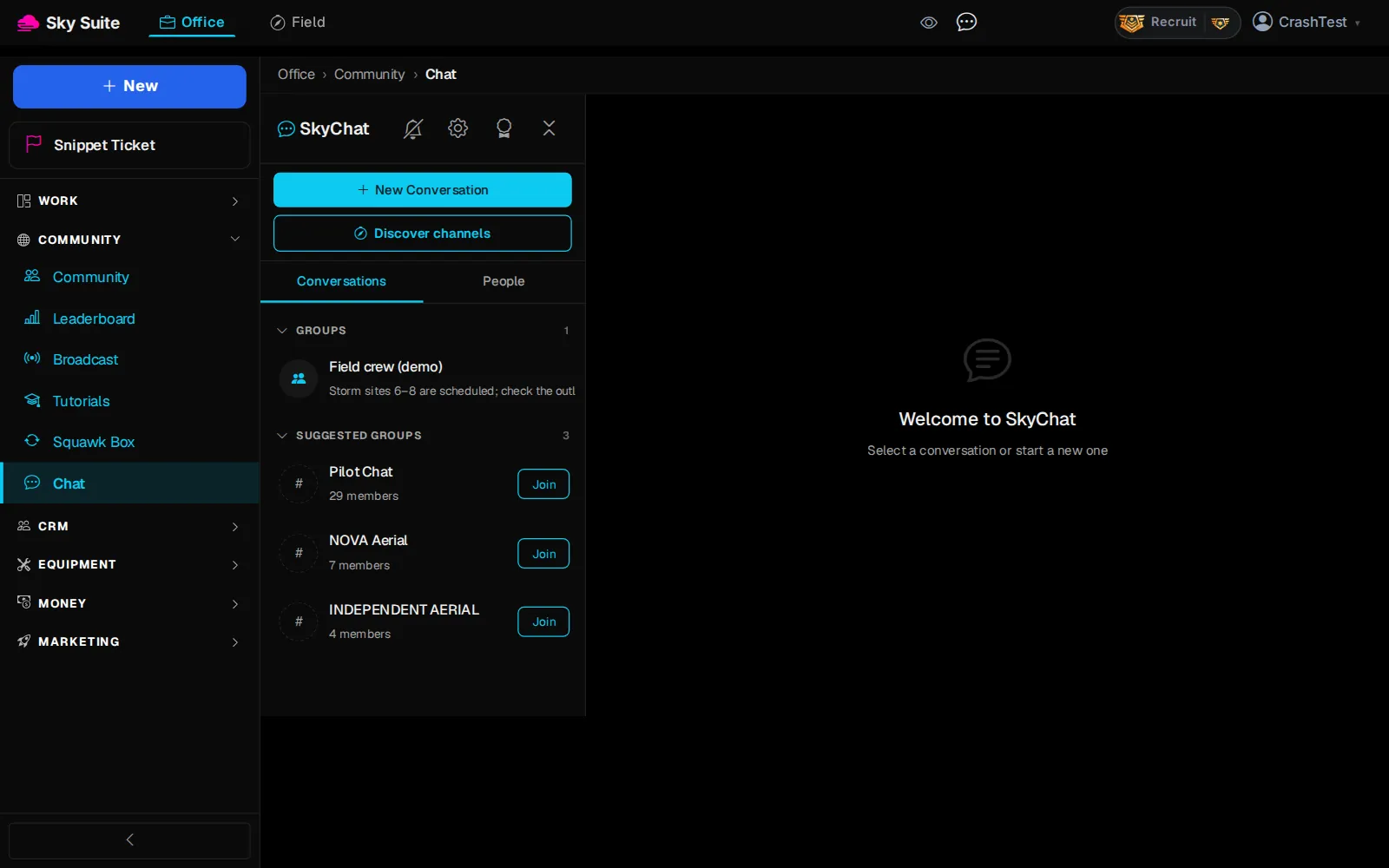
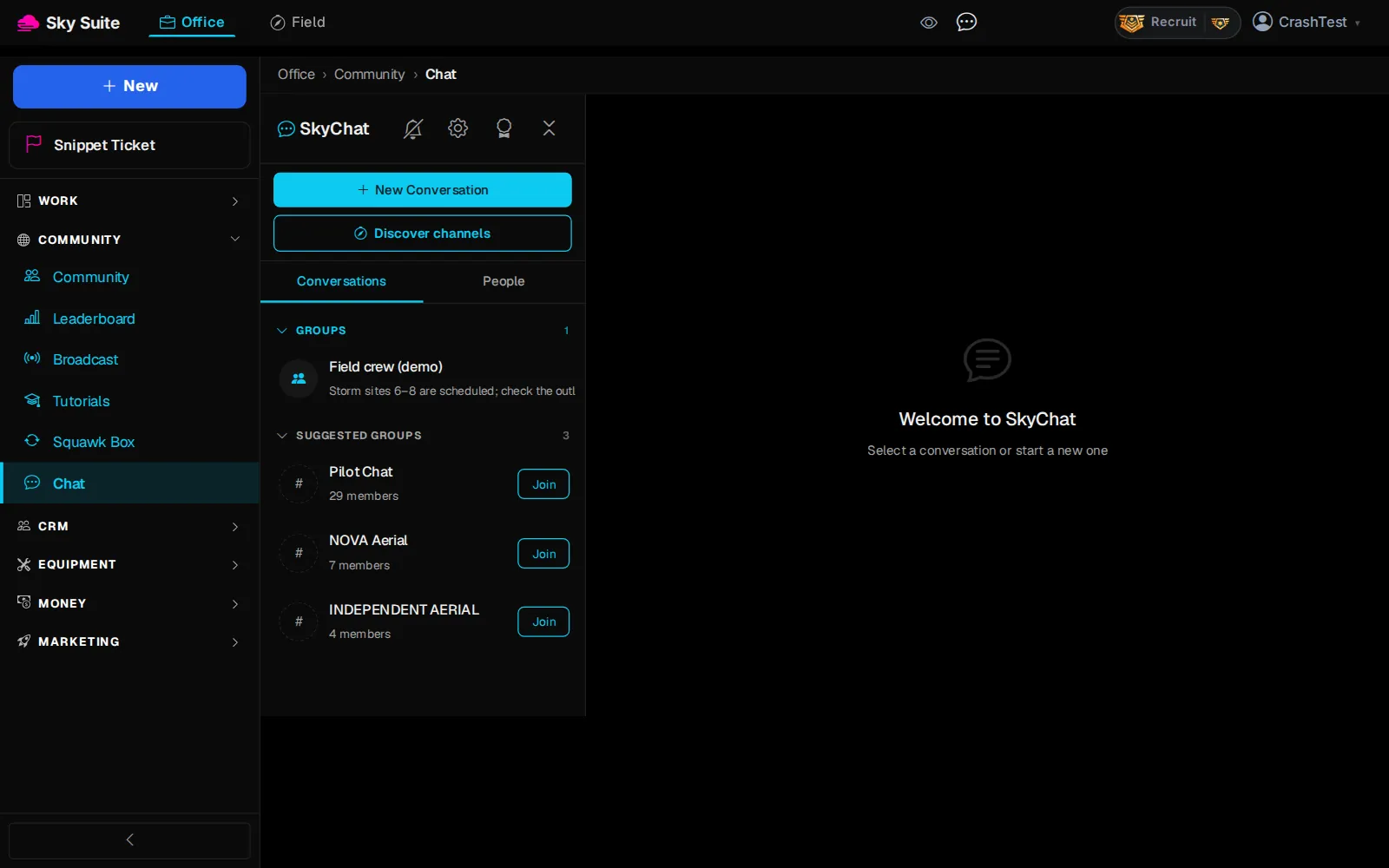
Step 2: Click “Chat”.
OpensThe “SkyChat” page, with your conversations on the left.
-
Step 3: To ask Sky, click “System Chat”, always the first conversation in your list, type your question and press Enter.
OpensYour conversation with Sky. Its answers carry an “Automated” badge.
-
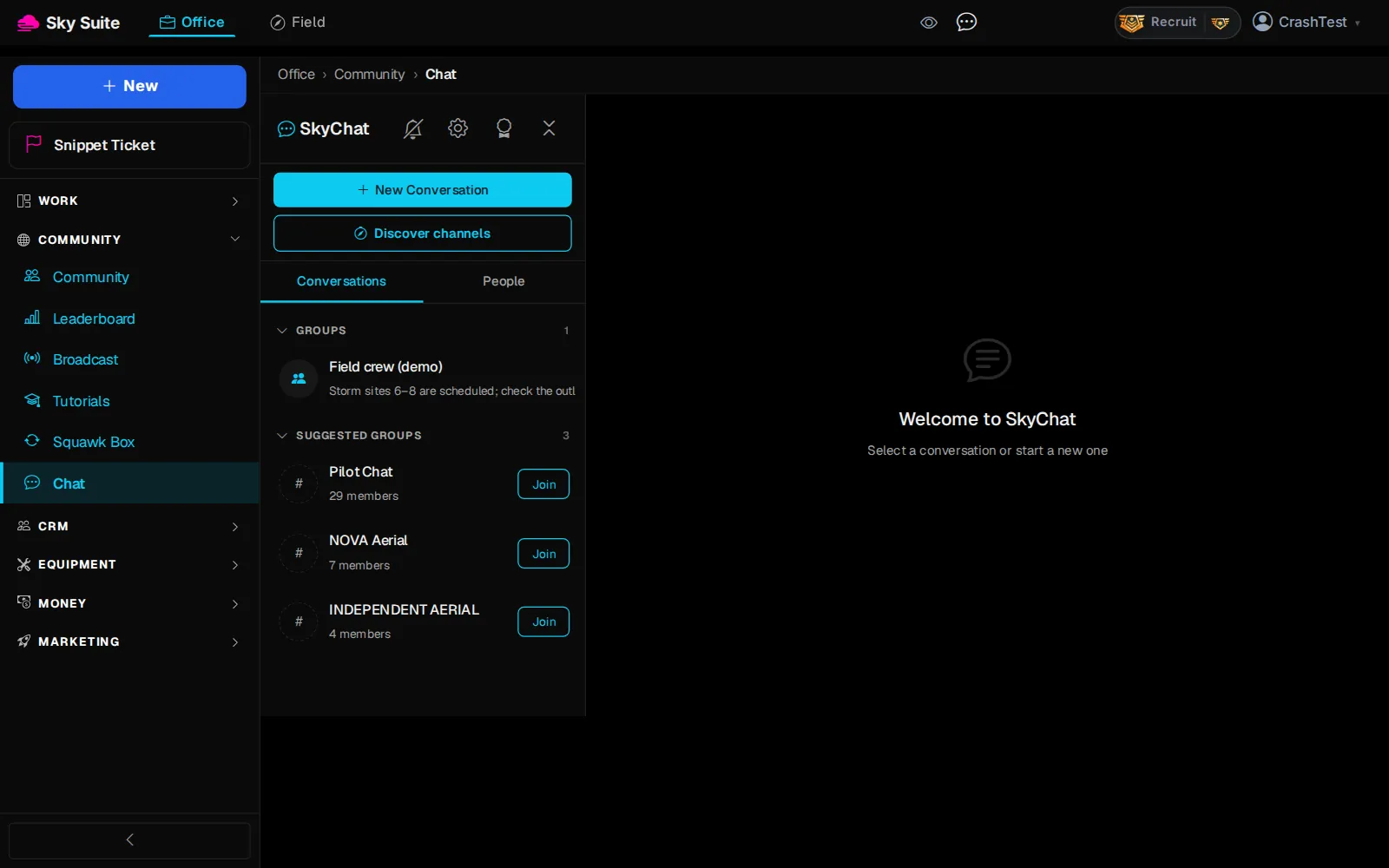
Step 4: To message a pilot, click “New Conversation” (marker 1).
OpensThe “New Conversation” box, with “Direct Message” and “Group Channel”.
-
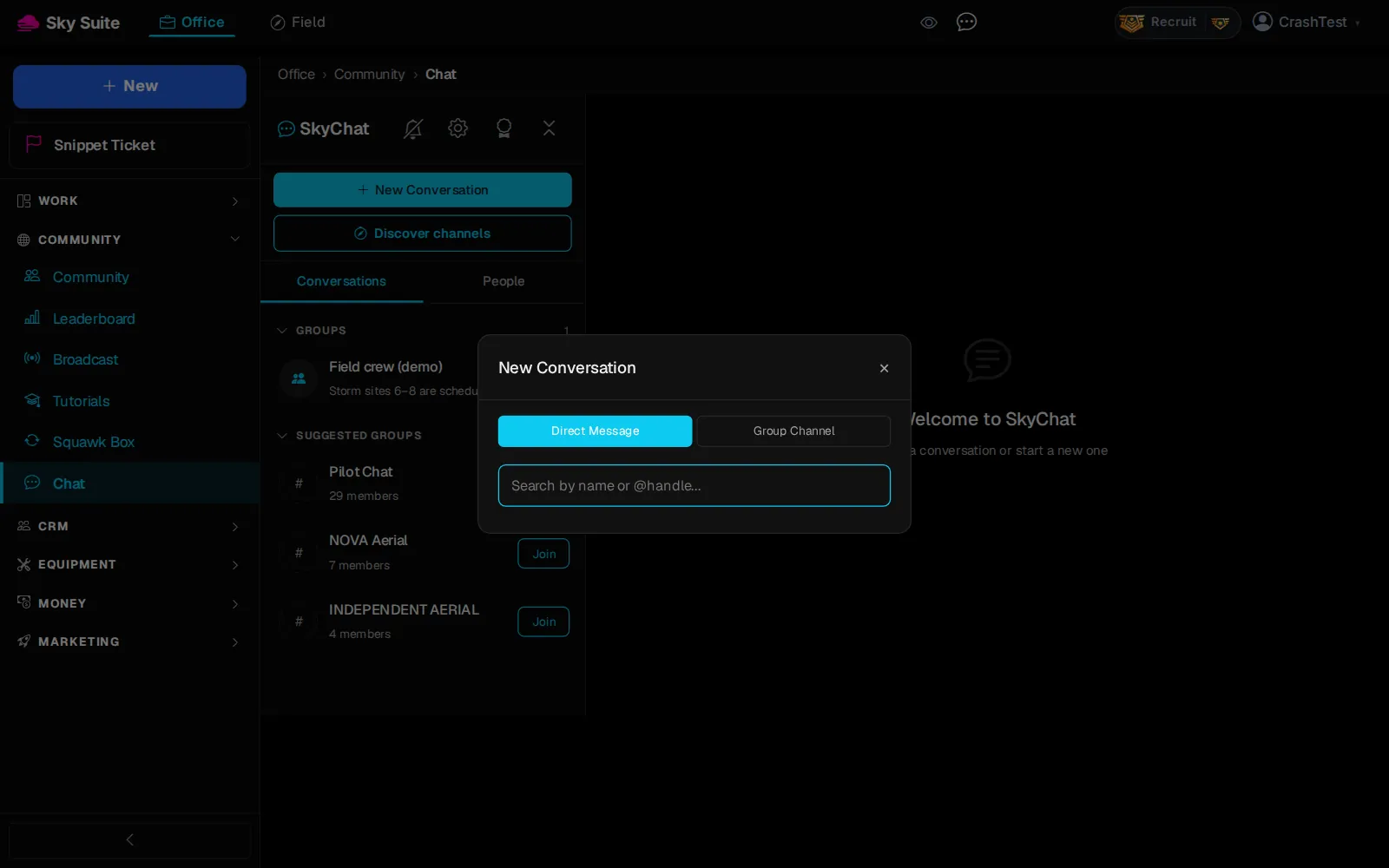
Step 5: Click “Direct Message” (marker 1), type the pilot's name in “Search by name or @handle...” (marker 2) and pick them.
OpensYour conversation with that pilot. Type and press Enter to send.
-
Step 6: To join a group, find it under “SUGGESTED GROUPS” (or click “Discover channels”) and click “Join”.
OpensThe group channel, now in your list under “GROUPS”.
The chat icon at the top of every page opens the same conversations. “Group Channel” in “New Conversation” starts your own group. More: Chat.