Help & Guides / Step-by-step guide
Add people to your roster
Keep your own pilots, editors and contractors on one list, ready to put on a job.
- Menu
- Office › Work › Field › Roster
- Direct link
- skysuite.pro/office/work/field/roster
- Level
- Advanced
- Length
- 7 steps, about 3 minutes
-
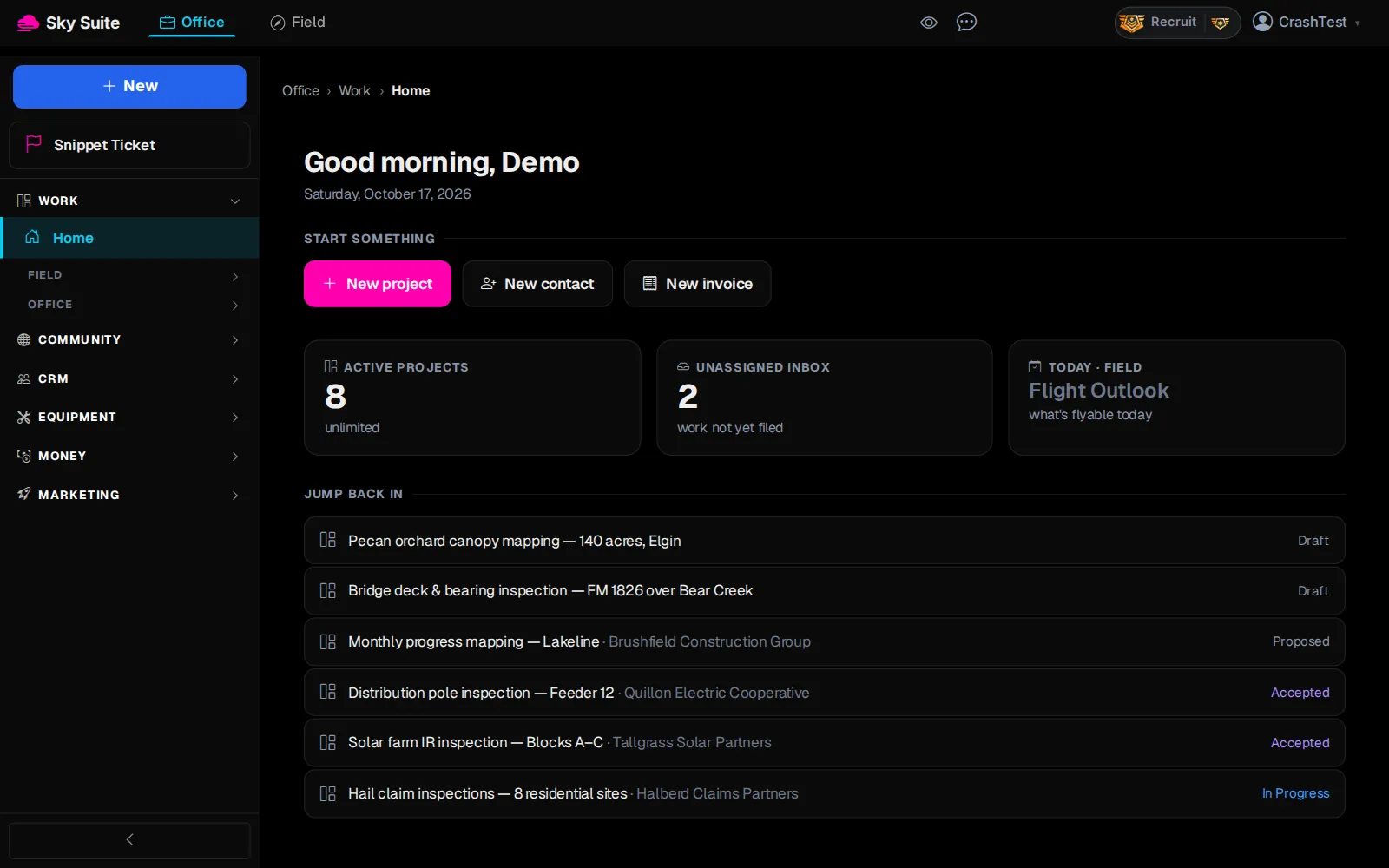
Step 1: In the left menu, under “Work”, click “Field”. Skip this step if “Field” is already open.
OpensThe Field list: “DSP”, “Repeat plans”, “Crews”, “Roster” and more.
-
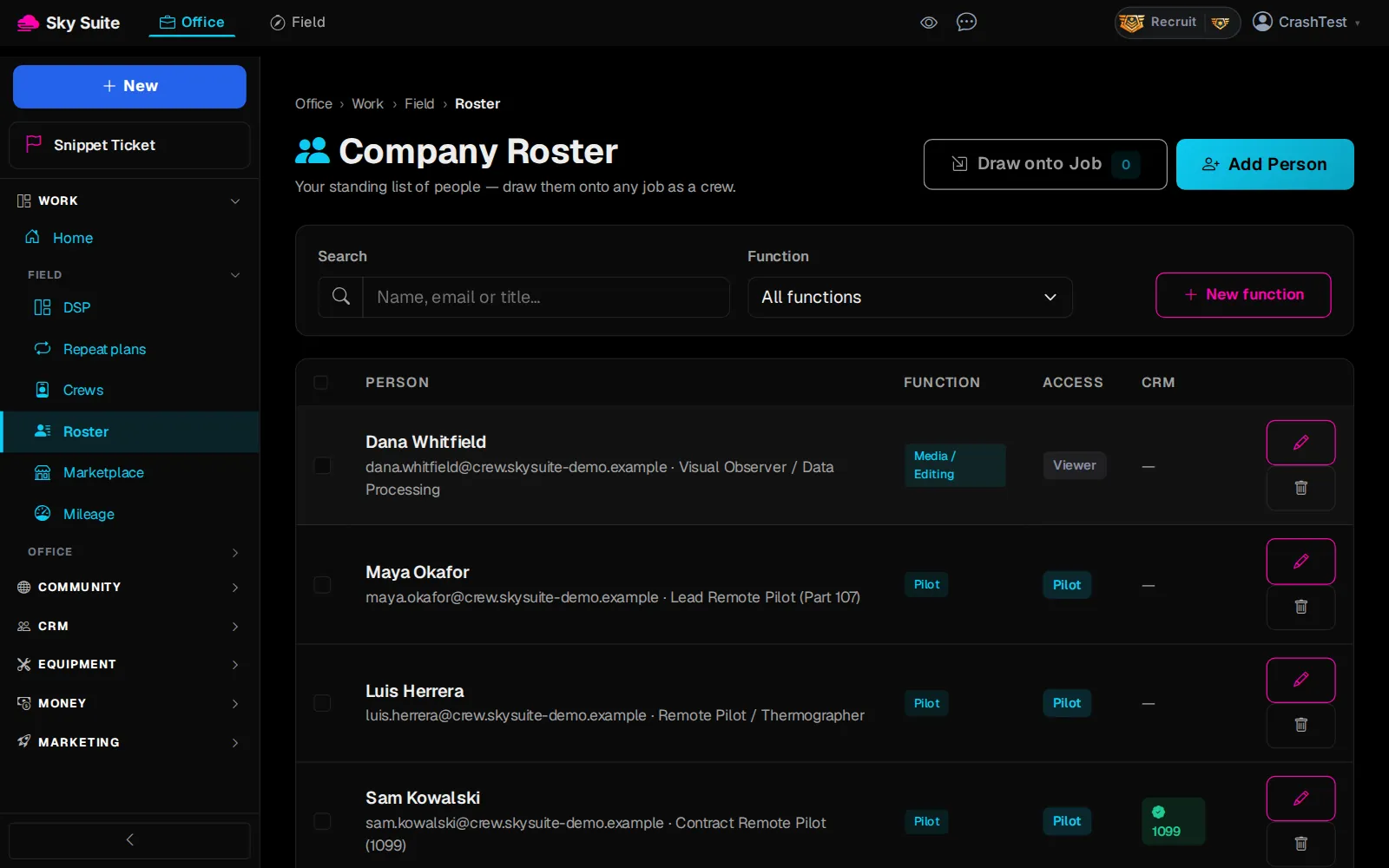
Step 2: Click “Roster”.
OpensThe “Company Roster” page: everyone you work with.
-
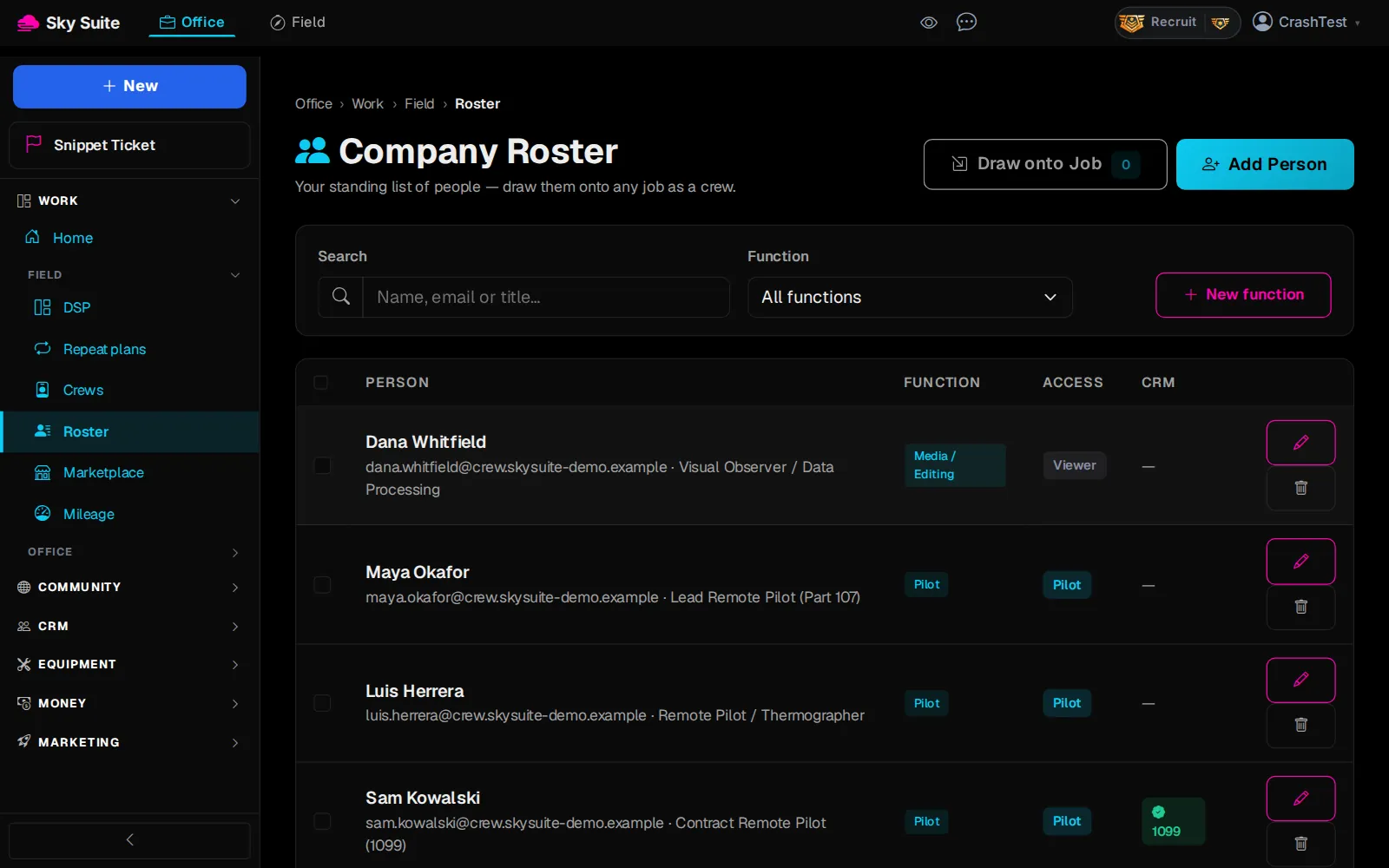
Step 3: At the top right, click “Add Person”.
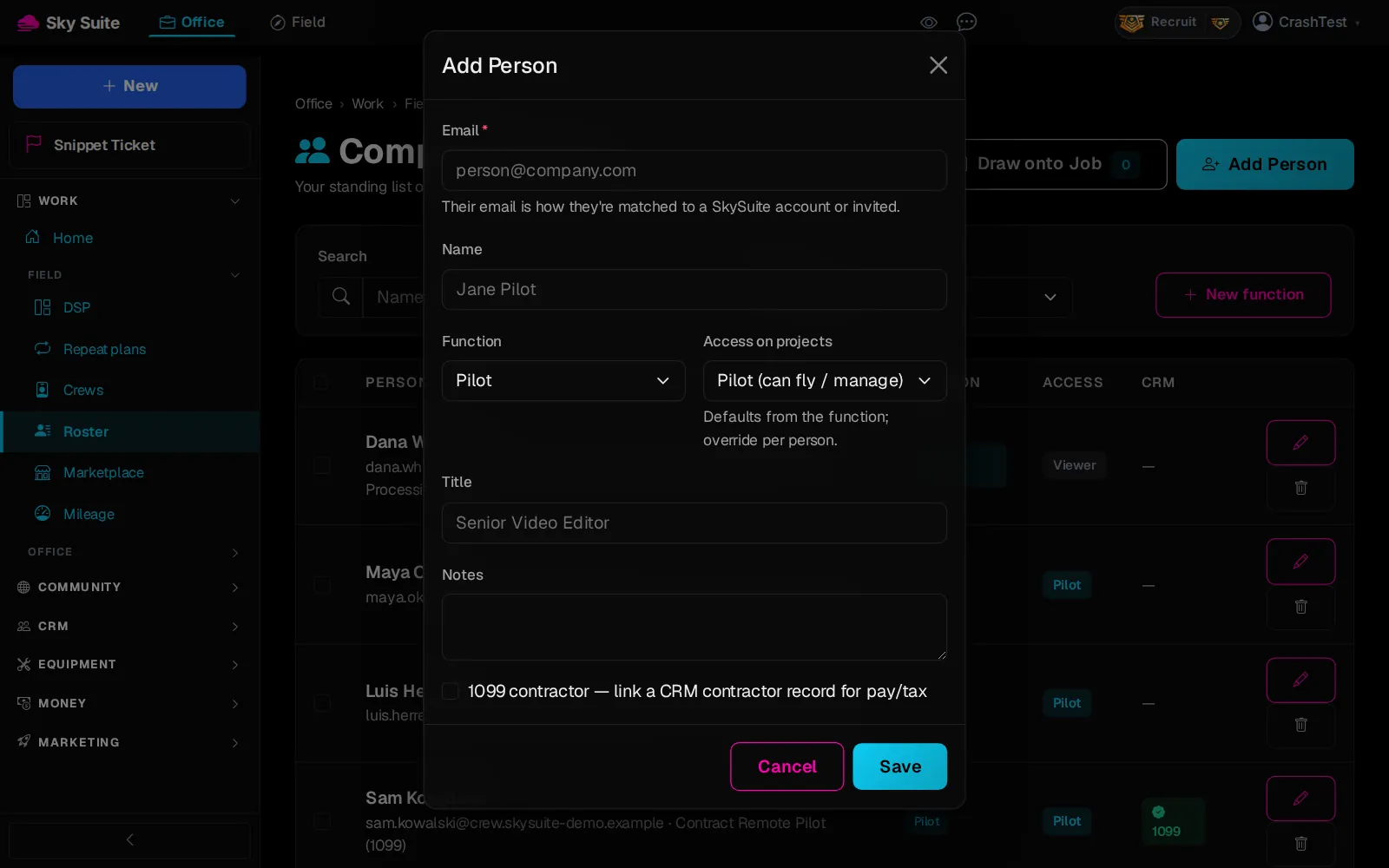
OpensThe “Add Person” form.
-
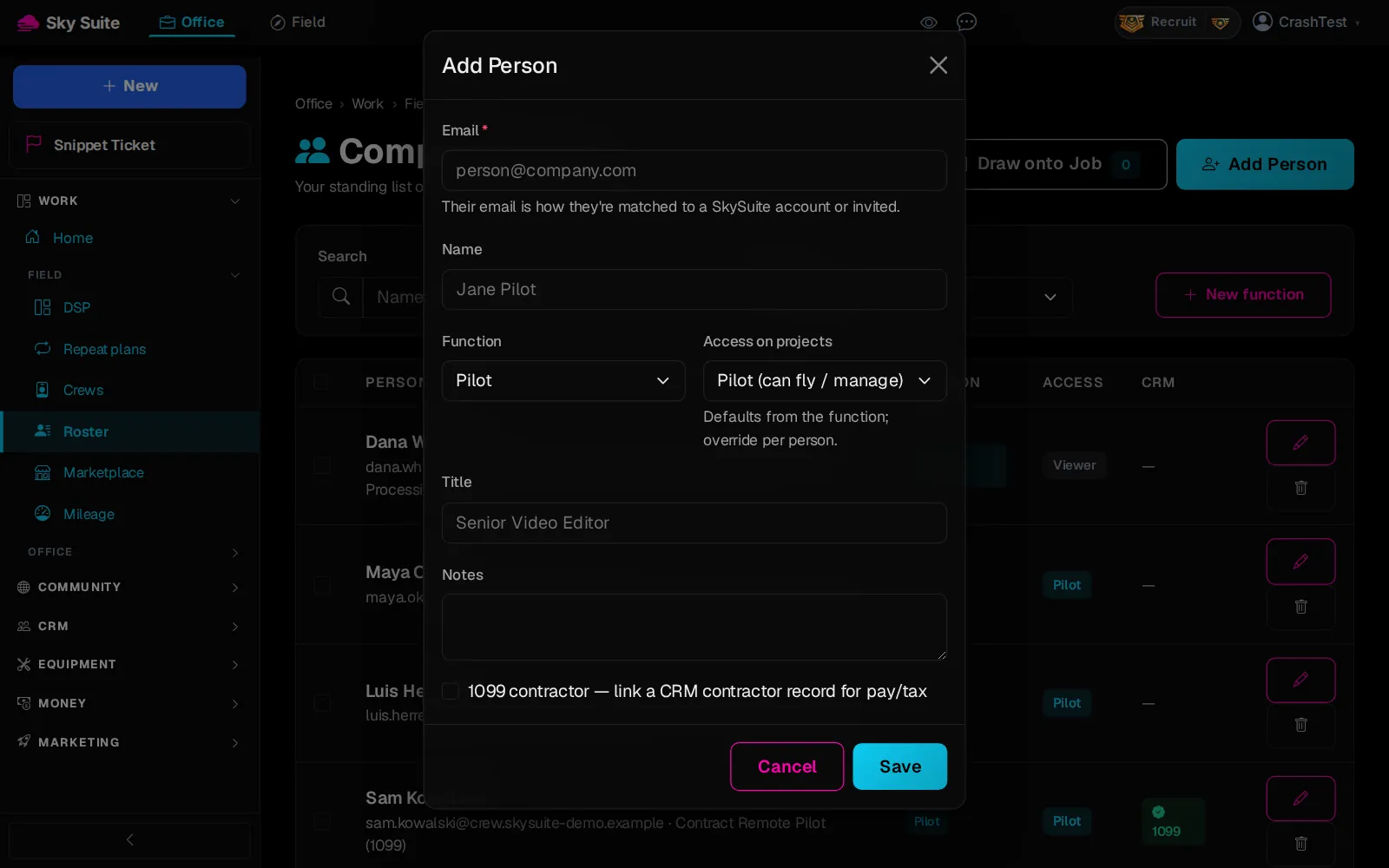
Step 4: Already in your Contacts? Type their name, email or company in “Search your contacts” at the top of the form and pick them: their details fill in. Otherwise type their “Email”. It is the only required box: it is how they are matched to a SkySuite account, or invited to one. Then type their “Name” (marker 1) and pick their “Function” (marker 2): “Pilot”, “Media / Editing”, “Sales” or “Legal”. “New function” on the roster adds your own.
-
Step 5: In “Access on projects” (marker 1), pick “Pilot (can fly / manage)” or “Viewer (read-only)”. “Title” (marker 2) is optional, for example “Senior Video Editor”.
-
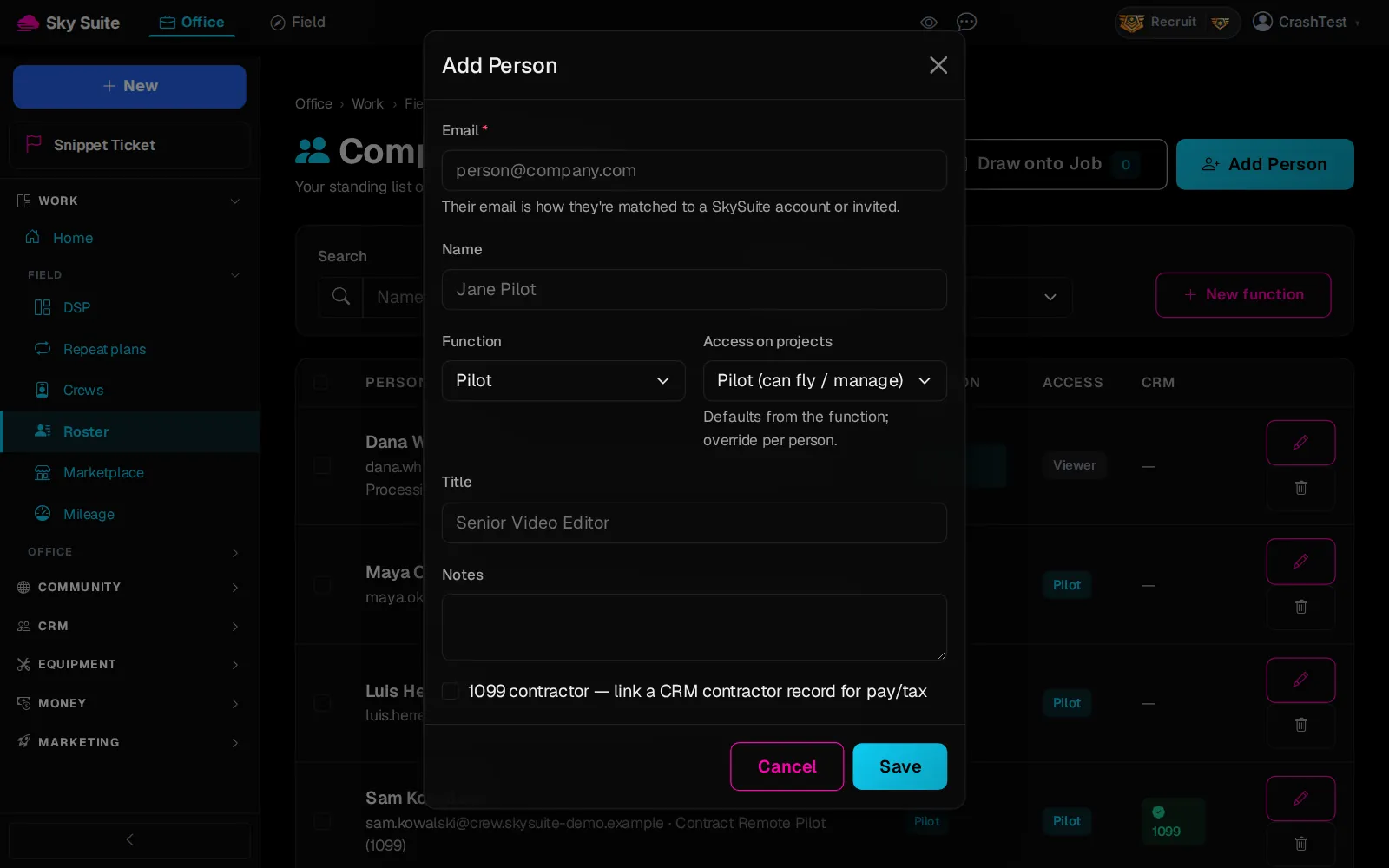
Step 6: Paid as a contractor? Tick “1099 contractor” (marker 1) to link their contractor record for pay and tax.
-
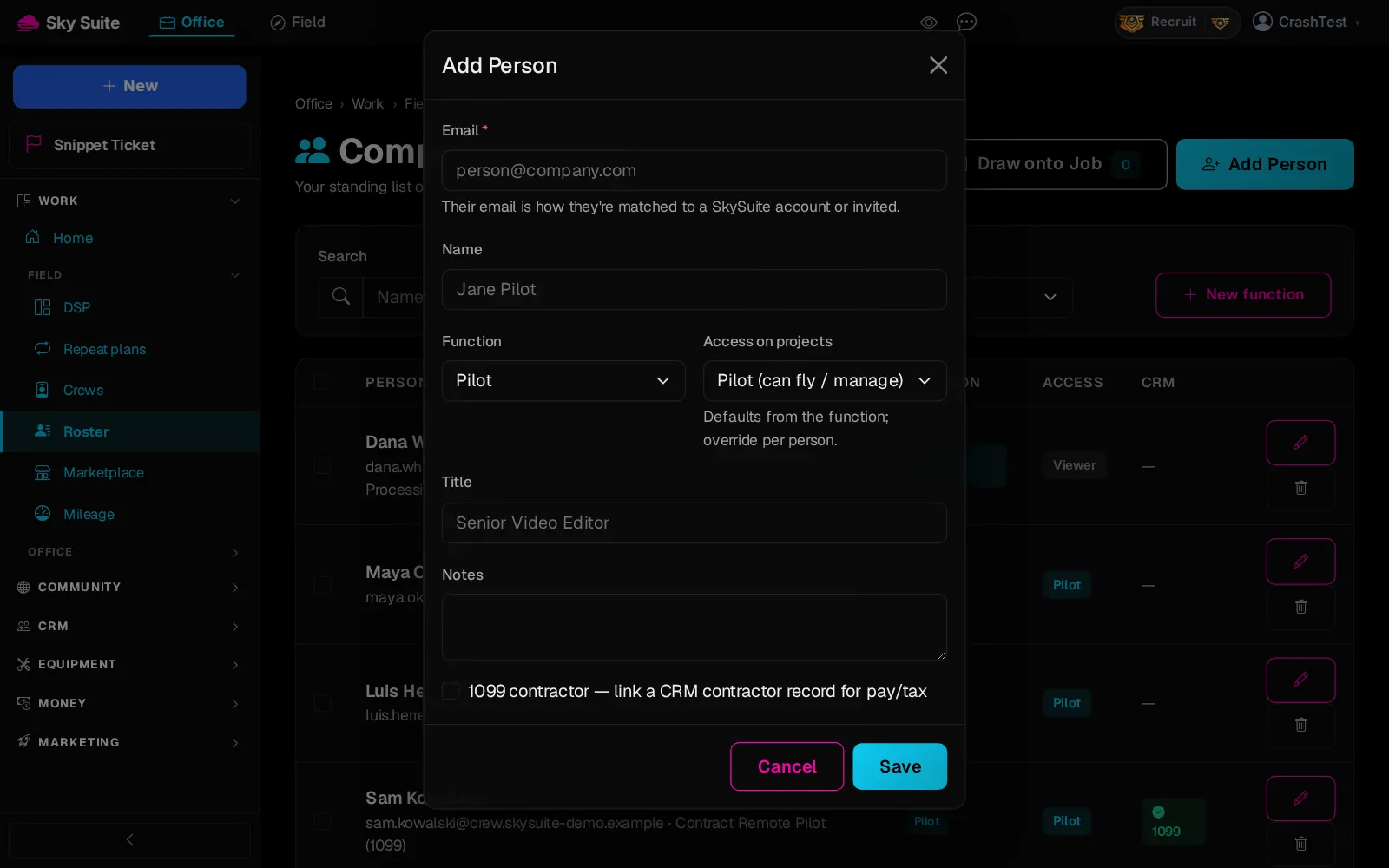
Step 7: Click “Save”.
OpensThe roster, with them on it.
To put people on a job, tick them on the roster and click “Draw onto Job”, or build a crew on Office › Work › Field › Crews; they see the job under Field › Missions › Assigned to me.