Help & Guides / Step-by-step guide
Add a client
Add a contact with their company, then link them to a project as its point of contact.
- Menu
- Office › CRM › Contacts
- Direct link
- skysuite.pro/office/crm/contacts
- Level
- Basic
- Length
- 8 steps, about 3 minutes
-
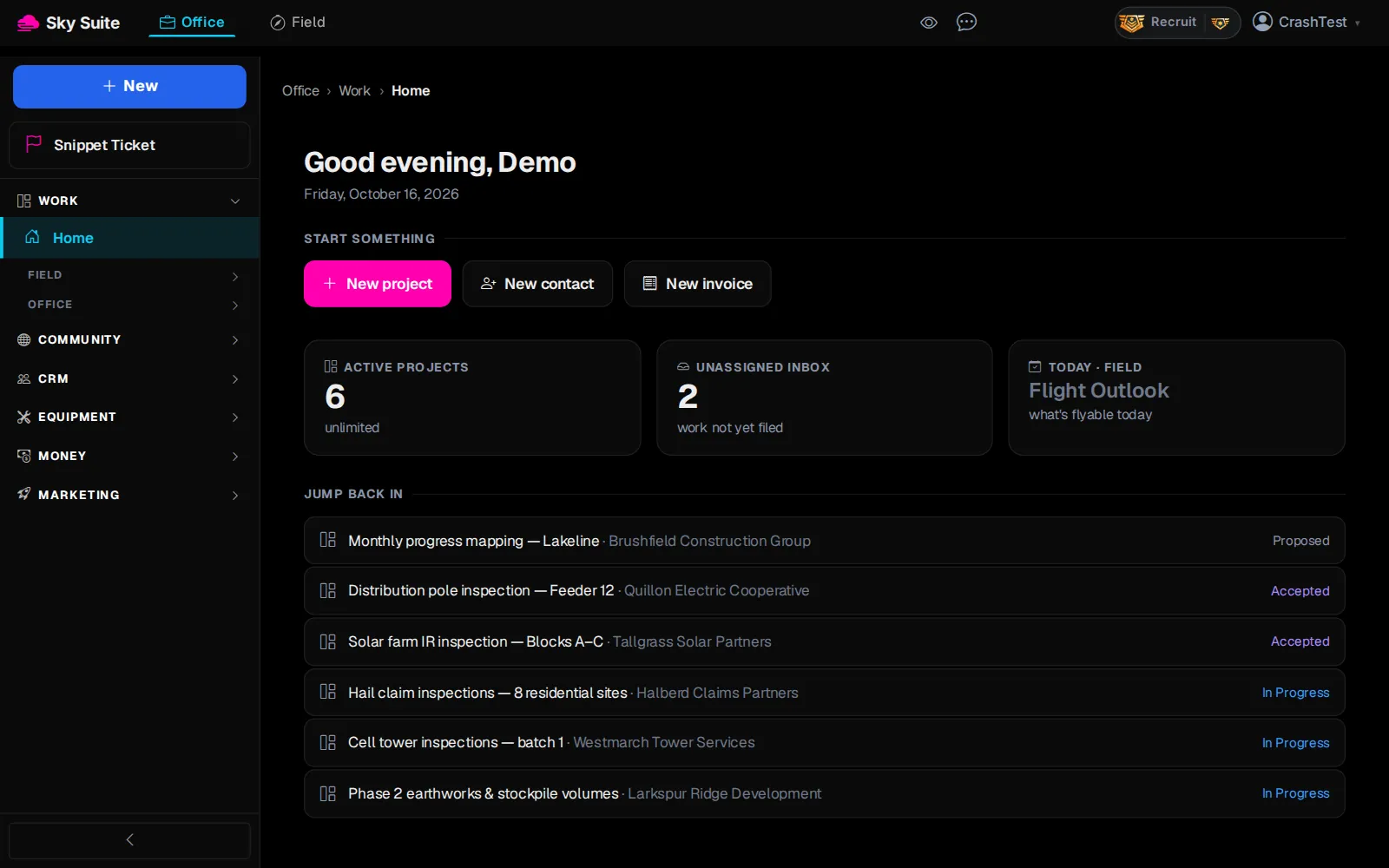
Step 1: In the left menu, click “CRM” to open the group.
Opens“Dashboard”, “Companies”, “Contacts”, “Sales”, “Contracts” and more.
-
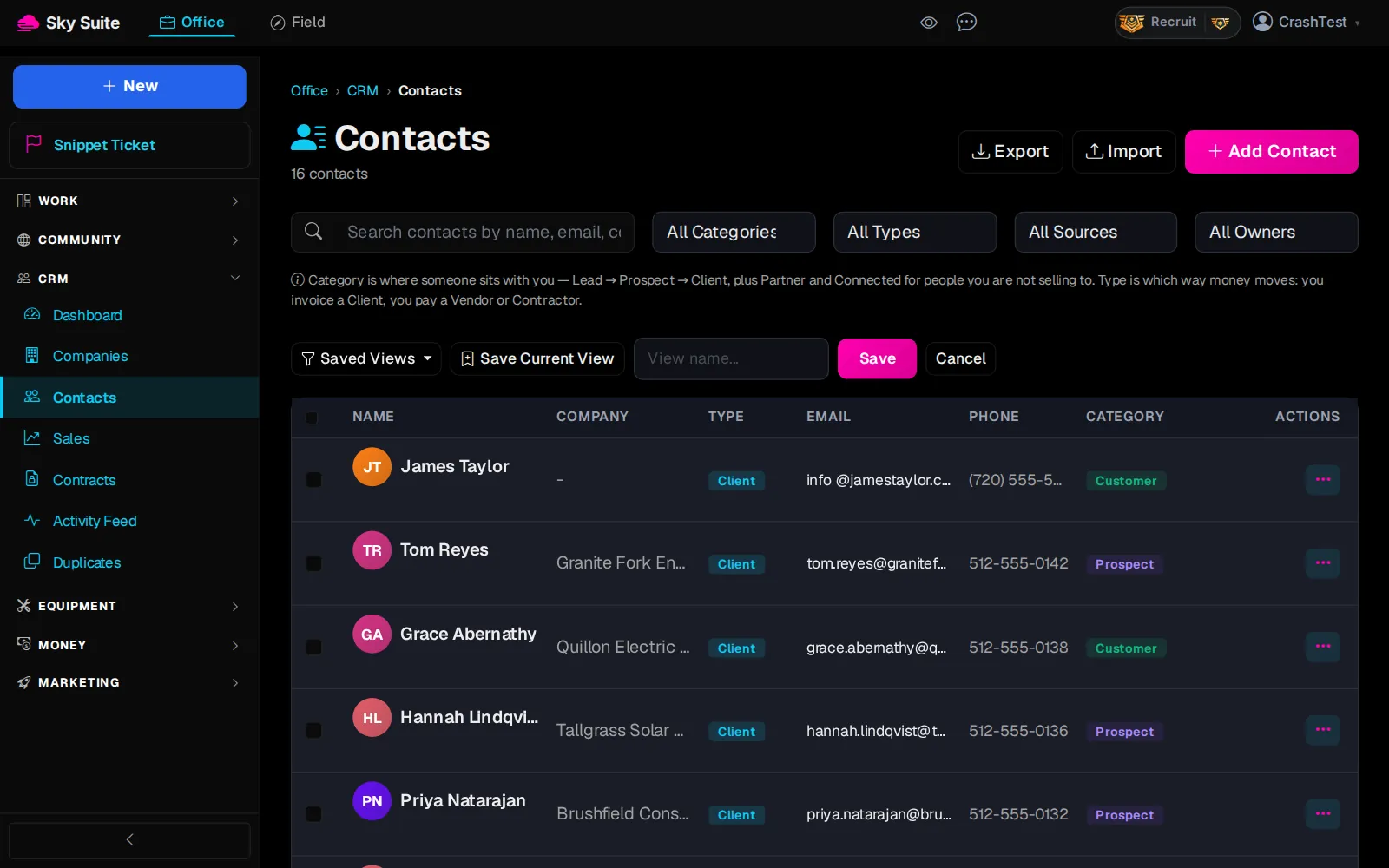
Step 2: Click “Contacts”.
OpensThe “Contacts” page: everyone in your CRM.
-
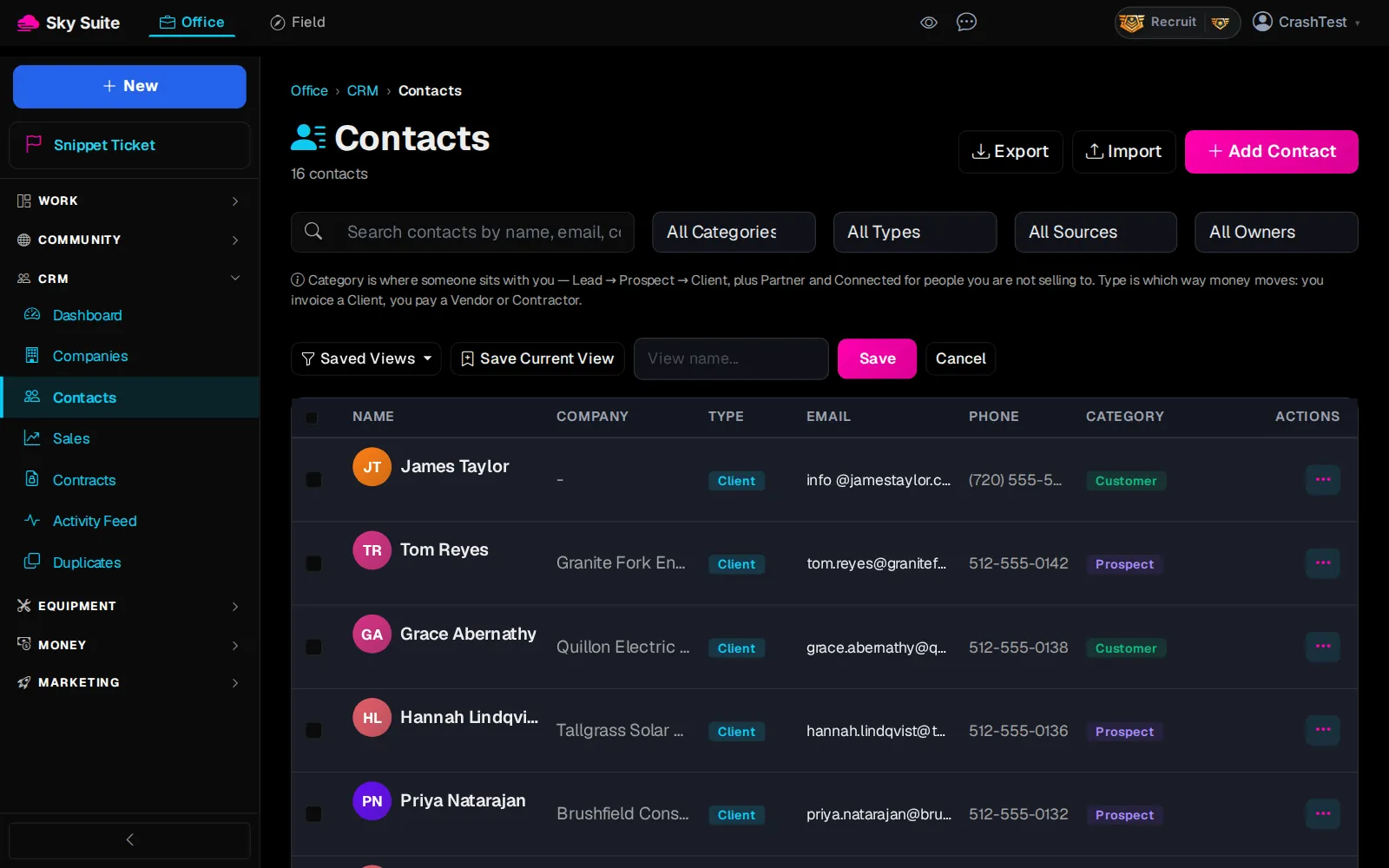
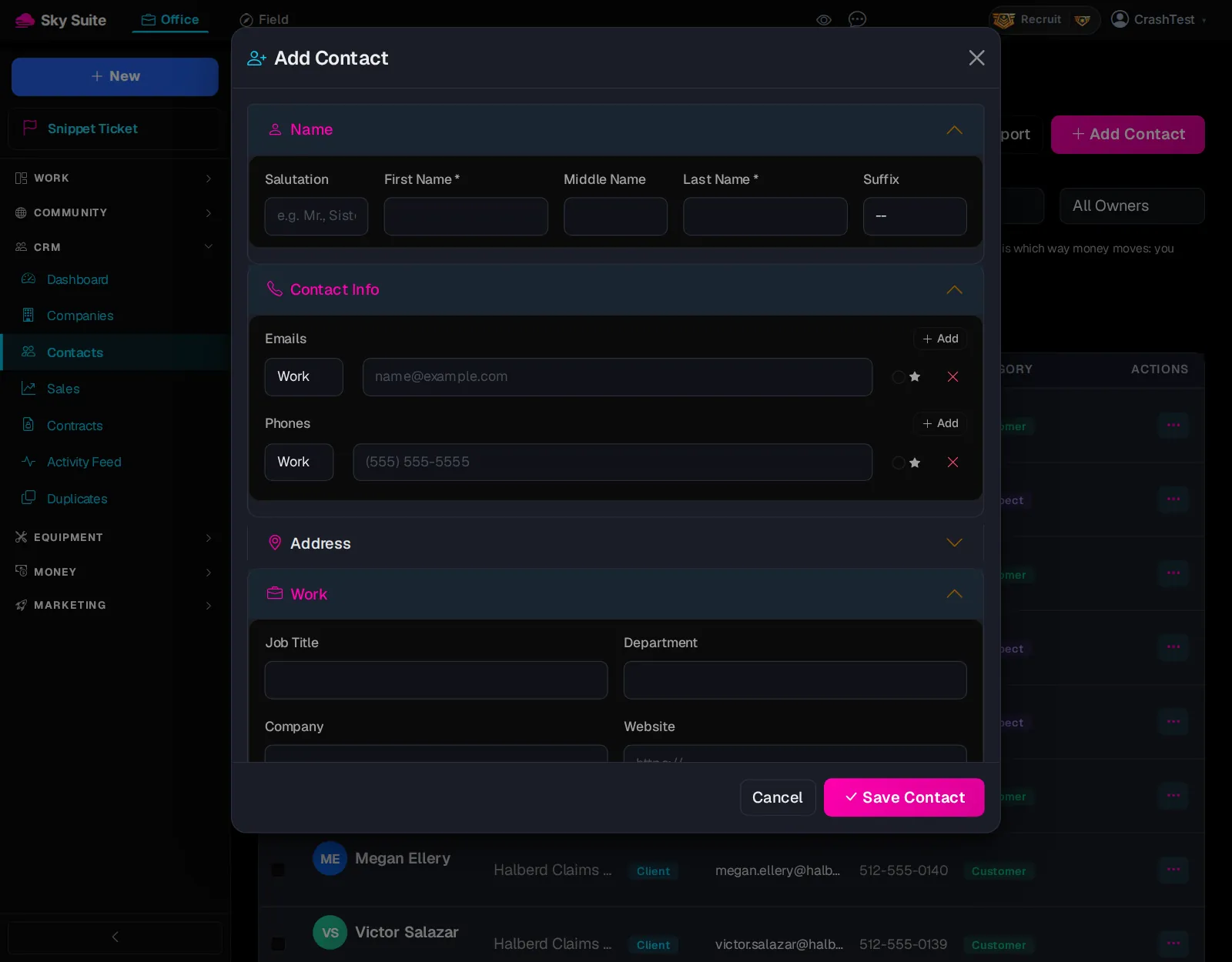
Step 3: At the top right, click “Add Contact”.
OpensThe “Add Contact” box.
-
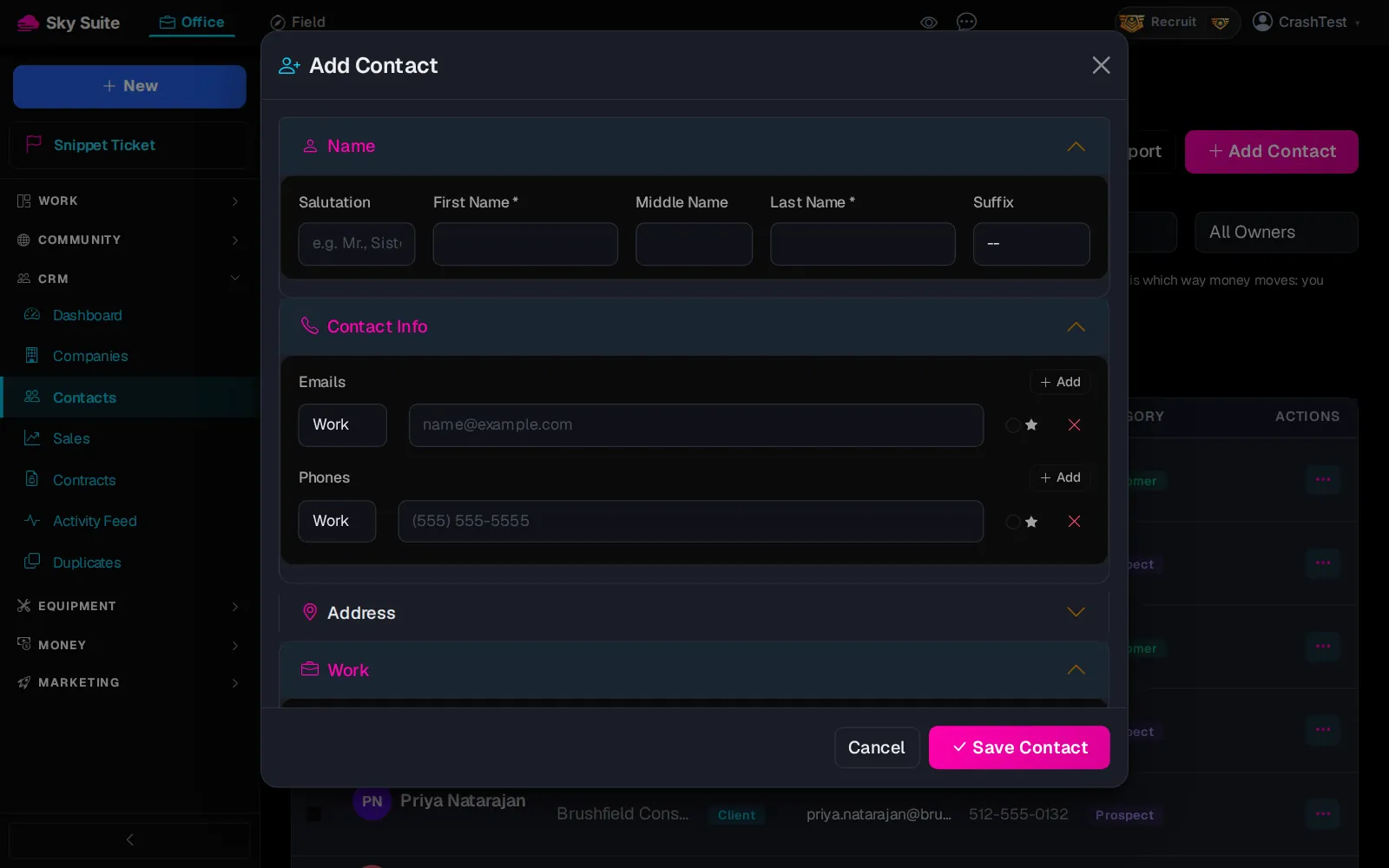
Step 4: Fill in “First Name *” and “Last Name *” (marker 1); they are the only required fields. Add an email and phone under “Contact Info”, and the client's company under “Work”.
-
Step 5: At the bottom of the box, click “Save Contact”.
OpensNothing new: the contact is in your list.
-
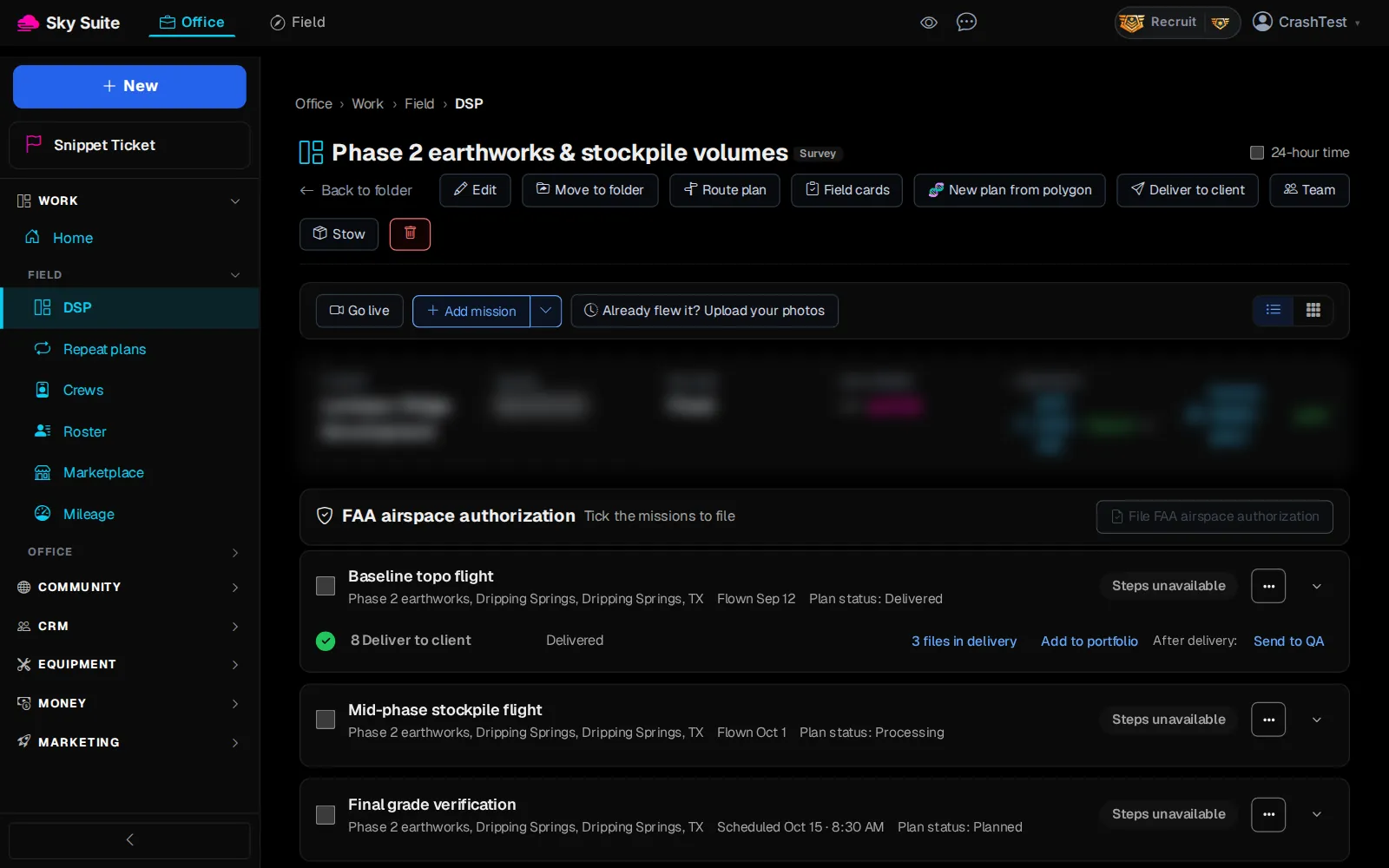
Step 6: Now link them to the job. Open the project (Office › Work › Field › DSP, your folder, the project) and click “Edit” at the top.
OpensThe “Edit Project” box.
-
Step 7: In “Company” (marker 1) search and pick the client's company, and in “Point of contact” (marker 2) pick the person you just added.

-
Step 8: Click “Save changes”.
OpensThe project page, with the client in the “CLIENT” box. Invoices, the delivery email and the client portal now go to them.

A company on its own: Office › CRM › Companies, then “Add Company”. More about the CRM: CRM & Contacts.